


The Quick Answer
Munbyn printers don't show error numbers. This guide translates every light pattern, beep, and Windows error into plain English with the exact fix.
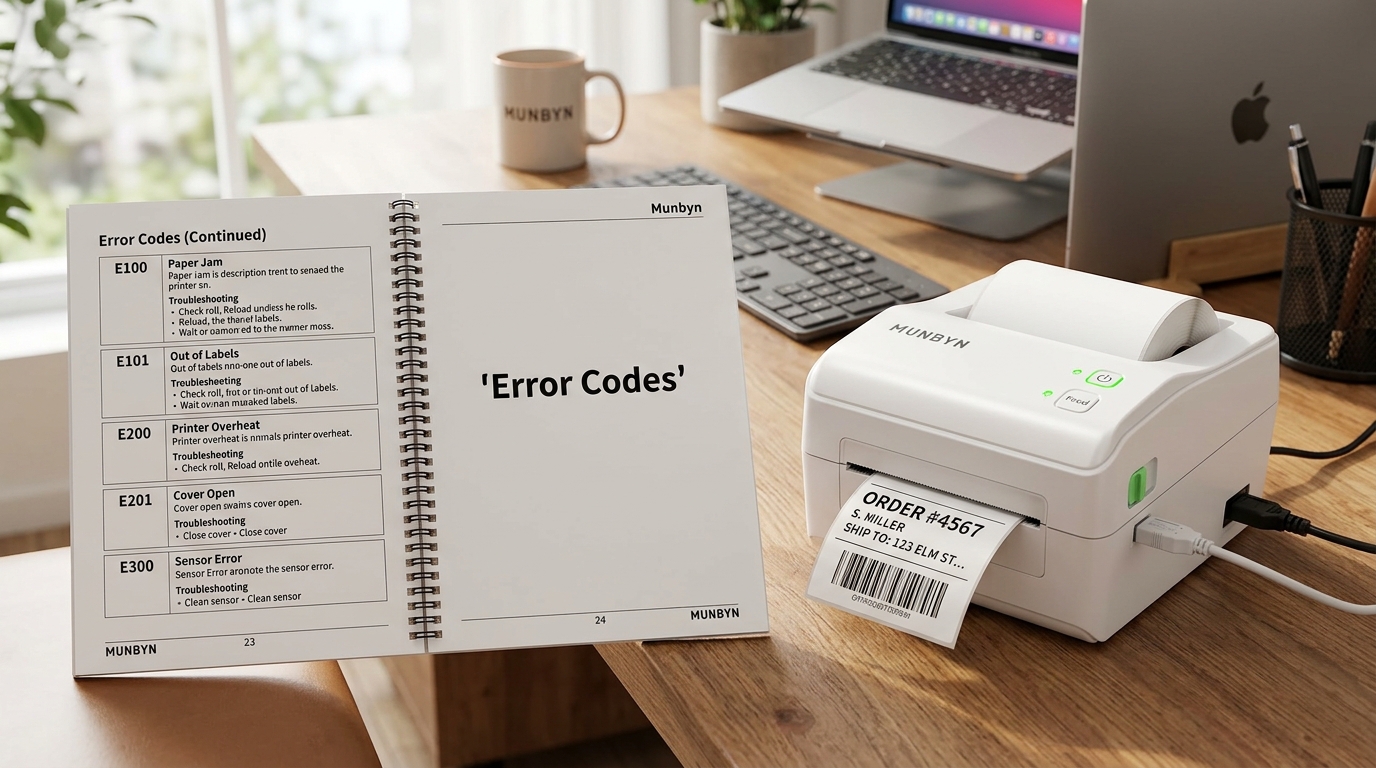
Munbyn printers don't have screens, so they don't show error numbers like an HP or Epson would. Instead, they "speak" in light patterns, beeps, and the status messages your computer displays.
That's why searching for a Munbyn printer error code list usually gets you nowhere — the codes aren't numbers, they're signals.
After fifteen years of fixing printers, I've learned to read these machines like a mechanic reads engine sounds. This guide is the error code list I wish existed when the first Munbyn landed on my bench: every signal the printer gives, what it means in plain English, and the fix for each.
The Complete Munbyn Error Signal Table
Bookmark this. It covers the ITPP941 family, ITPP130, RW402B, and the portable models.
| Signal | What It Means | The Fix |
|---|---|---|
| Blinking red light | No paper detected, or label size unknown | Reload labels, then calibrate with 4+ sheets |
| Solid red light | Lid open, out of paper, or overheated | Two-click the lid; reload; let it cool 15 min |
| Red light + half-printed label | Paper jam or failed calibration mid-print | Clear the path, recalibrate |
| Beeping on every print job | Lid, paper, or calibration fault | Latch lid, reseat roll, recalibrate |
| Random beeping while idle | Power supply sag | Original adapter, direct to wall outlet |
| Green light but nothing prints | Computer-side problem, not the printer | See "phantom printer" below |
| Windows says "Error" | Stuck print spooler or USB port mix-up | Restart spooler, check the port |
| Windows/Mac says "Offline" | Lost connection or sleeping USB port | Reconnect cable, wake the port |
| Prints blank labels | Labels upside down or not direct thermal | Flip the roll; scratch-test the paper |
| Extra blank label after each print | Wrong stored label size | Recalibrate |
Now let's go deeper on the ones that trip people up, easiest first.
What Do the Light Codes Mean?
The lights are the printer's own error codes. A blinking red light means the gap sensor can't detect your labels — either there's no paper or the printer never learned the label size.
The fix is calibration: load at least four connected labels, hold the FEED button until one beep, release, and let the printer measure on its own.
A solid red light is a hard stop. Check the lid first — press both front corners until you hear two clicks, because a lid latched on one side only will hold the red light all day.
Then check for paper. Then consider heat: after a run of 100+ labels, the printhead pauses itself to cool, and that pause looks exactly like a failure.
Why calibration fixes so many codes: the printer stores your label length in memory and uses it to position every print. Bad or missing data there causes blinking lights, drifting prints, and rejected jobs. Fresh calibration replaces the bad data. It's the closest thing these printers have to a cure-all.
What Do Windows "Error" and "Offline" Actually Mean?
Here's what customers get wrong constantly: they see "Error" in Windows and assume the printer is broken. Usually the printer is fine — the problem lives in your computer.
"Error" status most often means the Windows print spooler choked on a corrupted job. Open Services (search "services" in the Start menu), find Print Spooler, right-click, Restart. Then clear the print queue and try again.
"Offline" status usually means Windows is talking to the wrong USB port. This is the famous phantom printer problem: plug your Munbyn into a different USB port and Windows quietly creates "Label Printer (Copy 1)" — a duplicate pointing at the new port — while your apps keep sending jobs to the original, now-dead entry.
You print, nothing happens, no error on the printer itself.
The fix: open Settings → Printers & Scanners, look for duplicates, and either print to the newest copy or delete the extras and reinstall on one port. Then always plug the printer into that same physical port.
Why this works: Windows maps each printer entry to a specific USB address. Same printer, different port, different address — Windows treats it as a brand-new device. Pick one port and marry it.
What About Blank or Misprinted Labels?
Blank labels have one dominant cause: the roll is upside down. Direct thermal paper only prints on its coated side, which must face up as it exits the printer. Flip the roll and test.
Still blank? Do the scratch test: drag a fingernail firmly across the label. Direct thermal paper turns black under friction heat. If nothing appears, you've got non-thermal labels, and no printer setting on Earth will fix that — the chemistry just isn't in the paper.
An extra blank label after every print or printing that drifts down the page means the stored label size is wrong. Recalibrate and it snaps back into place.
My Uncommon Tip: Print Your Baseline Self-Test Page Today
Here's the habit no other guide teaches, borrowed from how I run my own shop.
Every Munbyn can print a self-test page (typically: hold FEED while powering on, or press FEED twice on portables — it varies by model). That page shows firmware version, density, speed, stored label size, and a printhead test pattern.
Print one now, while your printer works fine, and tape it inside a drawer. That's your baseline.
The day something breaks, print a fresh self-test and compare the two. A missing stripe in the test pattern?
Printhead damage — compare it against your clean baseline and it's obvious. Settings changed that you never touched?
Now you know what "normal" looked like.
Why this works: Munbyn support asks for a self-test page in almost every ticket, because it's the printer's full diagnostic report. Having a healthy baseline turns "something seems off" into "line 4 changed." It's a two-minute insurance policy, and in fifteen years I've never seen a customer regret it.
When to Call a Professional
Escalate when the signals don't respond to their fixes: a red light that survives reloading, calibration, cooling, and a reset; beeping that starts the instant you power on with the lid open and no paper; or a self-test pattern with permanent gaps (that's physical printhead damage — no setting fixes burned-out heating elements).
Email Munbyn support first with your self-test page and a photo or video of the light/beep pattern. Warranty replacement is common.
Out of warranty, price the repair against a new unit before committing — on printers in this class, replacement usually makes more financial sense, and I'd rather you hear that from a repair tech than learn it after paying a bench fee.
FAQ
Does Munbyn have numbered error codes like HP printers?
No. Munbyn printers report problems through light colors, blink patterns, beeps, and the status your computer shows. This munbyn printer error code list translates all of them.
What's the most common Munbyn error?
The blinking red light, by a wide margin. It means the printer can't detect or measure your labels, and calibration with four or more connected labels fixes nearly every case.
Why does Windows show my Munbyn as "Offline" when it's on?
Almost always the USB port changed and Windows created a duplicate printer entry. Check Printers & Scanners for a "(Copy 1)" version and print to the active one.
How do I print a Munbyn self-test page?
On most desktop models, hold the FEED button while switching the power on, then release. On portables like the ITP01, press the power button twice with paper loaded. The page prints automatically.
Keep this Munbyn printer error code list handy and these machines lose their mystery. Lights are the printer's codes, beeps are its voice, and your computer's status messages fill in the rest.
Read the signal, apply its fix, and print your baseline self-test page today — future you will be glad it exists.
