


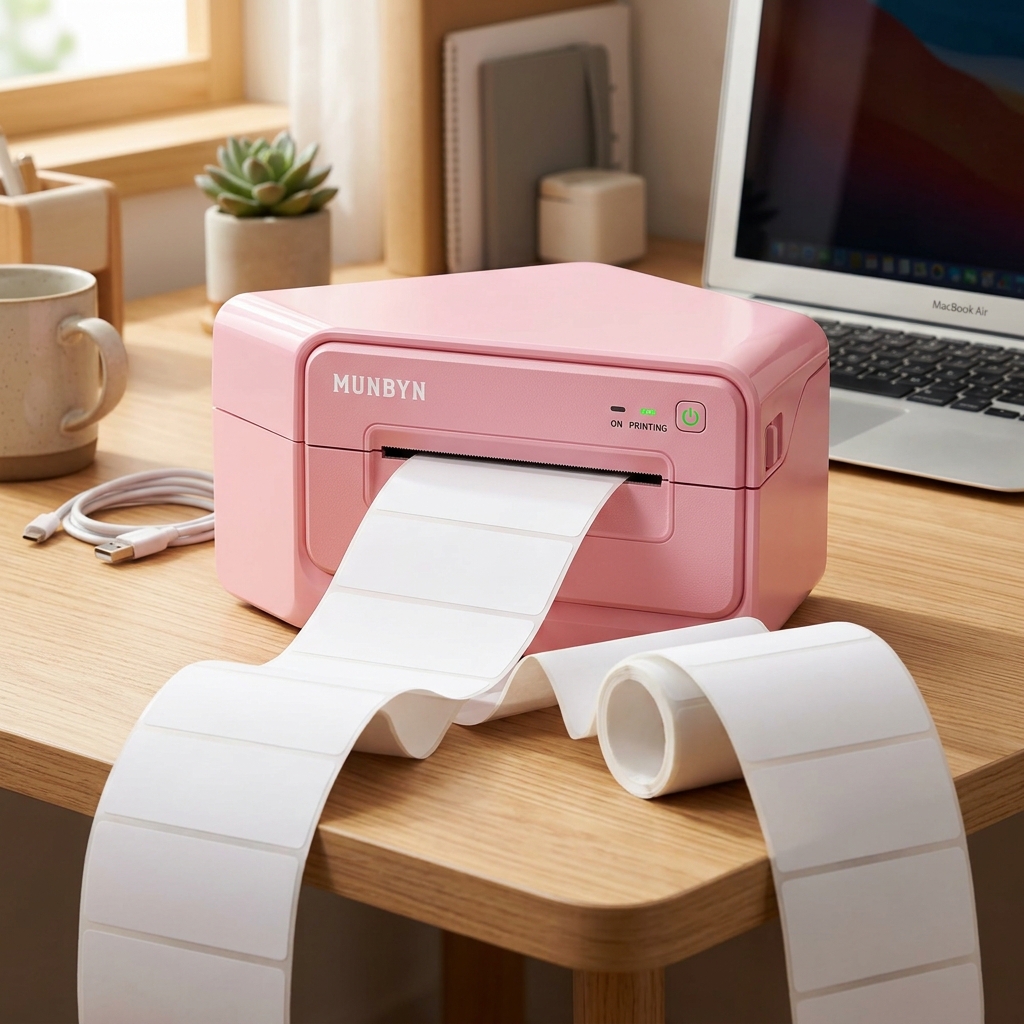
The Quick Answer
If your Munbyn printer is spitting out blank labels, don't panic. The solution is almost always flipping the roll right-side up.
Of every complaint that crosses my repair counter, this one has the highest ratio of panic to actual problem. A Munbyn printer printing blank labels looks like total failure — the machine whirs, feeds, and acts perfectly normal while producing absolutely nothing. Customers arrive convinced the printhead died.
Here's the truth from fifteen years at the bench: the number one cause is the label roll sitting upside down, and the fix takes ten seconds. The rest of the causes take barely longer.
Let me walk you through all of them, plus the label-storage problem nobody talks about that makes perfectly good rolls go quietly bad.
Quick-Fix Summary
In order of likelihood:
- Flip the roll — the coated, printable side must face up.
- Scratch test the paper — five seconds tells you if it's even thermal paper.
- Check where your labels have been living — heat and sun kill thermal coating.
- Verify the driver and density settings haven't gone strange.
- Print a self-test page to judge the printhead itself.
First, Understand How These Printers Make Ink From Nothing
Your Munbyn has no ink, no toner, no ribbon. It prints with heat alone. Thermal label paper carries an invisible chemical coating on one side, and when the printhead heats a spot on that coating, the spot turns black. That's the entire technology.
Which means blank labels have exactly one meaning: heat is not meeting coating. Either the coating is facing the wrong way, the coating doesn't exist, the coating has been ruined, or the heat isn't firing.
Every fix below targets one of those four, in order of how often I see them.
Fix 1: Flip the Roll (The #1 Cause)
Open the lid and pull the roll out. The coated printable side must face up as the paper exits the front of the printer — meaning the paper should unwind from the top of the roll toward the front, print-side skyward.
Loaded the other way, everything sounds right: the printer feeds, the printhead fires, the light stays green. The heat just lands on the bare backing side, which doesn't react, and pristine blank labels march out one after another.
Why this works: Only one face of the paper has the heat-reactive coating. The printhead sits above the paper path, so coating-up is the only orientation where heat meets chemistry.
This mistake accounts for more than half the blank-label cases I see — usually right after starting a new roll, and there's no shame in it. The two sides look nearly identical.
Fix 2: The Five-Second Scratch Test
Not sure which side is coated — or whether your labels are thermal at all? Drag your fingernail firmly and quickly across the label surface, like striking a match. A dark scratch mark means you found the thermal side. Test both faces.
No mark on either side? You have non-thermal labels — plain adhesive stock meant for inkjet or laser printers — and no setting, driver, or prayer will make them print in a Munbyn.
Why this works: The friction of your fingernail generates enough heat to trigger the coating, exactly like the printhead does. It's a complete chemistry test that costs nothing and takes five seconds.
Cheap multi-packs from marketplace sellers occasionally mix non-thermal stock into "thermal" listings; the scratch test catches them before you waste an hour on settings.
Fix 3: Heat-Killed Labels (My Uncommon Tip)
Now for the cause that makes people question their sanity, because the same roll that worked in spring prints blank — or ghostly faint — by late summer.
Thermal coating reacts to heat.
Any heat. Not just the printhead's.
Store labels in a hot car, a sunlit windowsill, next to a radiator, or in a non-climate-controlled garage through a heat wave, and the coating slowly pre-reacts or degrades. Sometimes the roll turns visibly gray or the edges darken; often it looks completely normal and simply stops responding.
Direct sunlight does the same job faster, with UV pitching in.
The test: scratch-test the suspect roll, then scratch-test a fresh roll stored indoors. If the old roll's mark is faint or missing while the new roll marks boldly, the labels are dead — not the printer.
Why this works: You're comparing coating health directly, with the printer removed from the equation entirely. Store labels like you'd store chocolate: cool, dark, dry.
I keep mine in a closed drawer away from windows, and I tell every shipping customer the same thing — because "my printer broke" is very often "my labels spent July in the car," and only one of those costs money to fix.
Fix 4: Rule Out a Settings Gremlin
If fresh, correctly-loaded labels scratch-test dark but still print blank, look at the computer side. Open your printer driver's preferences and check the darkness/density setting — if something dragged it to the minimum, output can be invisible.
Set it mid-range. Confirm the driver matches your exact model too; a badly mismatched driver can send print data the printer renders as nothing.
Why this works: Density controls how hard the printhead fires. At the bottom of the range on some setups, the heat is too weak to trigger the coating at all — mechanically identical to printing, chemically identical to nothing.
It's a rare cause, but it's a thirty-second check, and thirty-second checks come before conclusions in my shop.
Fix 5: The Self-Test Verdict
Final arbiter: hold the FEED button while powering the printer on and release when it starts printing. The self-test page comes straight from the printer's own brain — no computer, no driver, no app.
Self-test prints clearly? Your printhead is healthy and the fault is upstream: labels, loading, or settings — revisit fixes 1 through 4. Self-test prints blank on labels you've scratch-verified? Now, and only now, are we talking about printhead or board failure.
Why this works: The self-test cuts the problem in half with one page. It's the difference between guessing and knowing, and it's the first thing Munbyn support will ask you for anyway — so arrive with the answer.
When to Call a Professional
Escalate when the self-test is blank on verified-good thermal labels, or when the self-test shows only partial stripes of print (dead heating elements — physical damage no setting revives). Email Munbyn support with a photo of the self-test attempt and your scratch-test results;
that combination usually gets a fast verdict, and warranty replacement is the common outcome for genuine printhead failure.
Out of warranty, compare the repair quote to a new unit's price — on these printers, replacement nearly always wins, and I'd rather hand you that math than a bench invoice.
FAQ
Why is my Munbyn printer printing blank labels after a new roll?
The new roll almost certainly went in upside down. Flip it so the coated printable side faces up as paper exits, and scratch-test to confirm which side that is.
How do I know if my labels are direct thermal?
Scratch a label hard with your fingernail. Thermal paper shows a dark mark from the friction heat. No mark on either side means non-thermal stock, which a Munbyn can't print on.
Can old labels stop working?
Yes. Heat, sunlight, and humidity degrade the thermal coating over time — a roll stored in a hot car or sunny room can go blank or faint while looking perfectly normal. Store labels cool, dark, and dry.
The printer feeds and sounds normal but prints nothing. Is the printhead dead?
Probably not — that exact symptom is classic upside-down loading. Run the self-test page (hold FEED at power-on): if it prints, the head is fine and the answer is in your labels or loading.
A Munbyn printer printing blank labels is almost never a dead printer. Flip the roll, run the scratch test, question where those labels spent the summer, sanity-check the density, and let the self-test page deliver the verdict.
Ten minutes, top to bottom — and the odds are strong you'll be done after the first ten seconds.
