


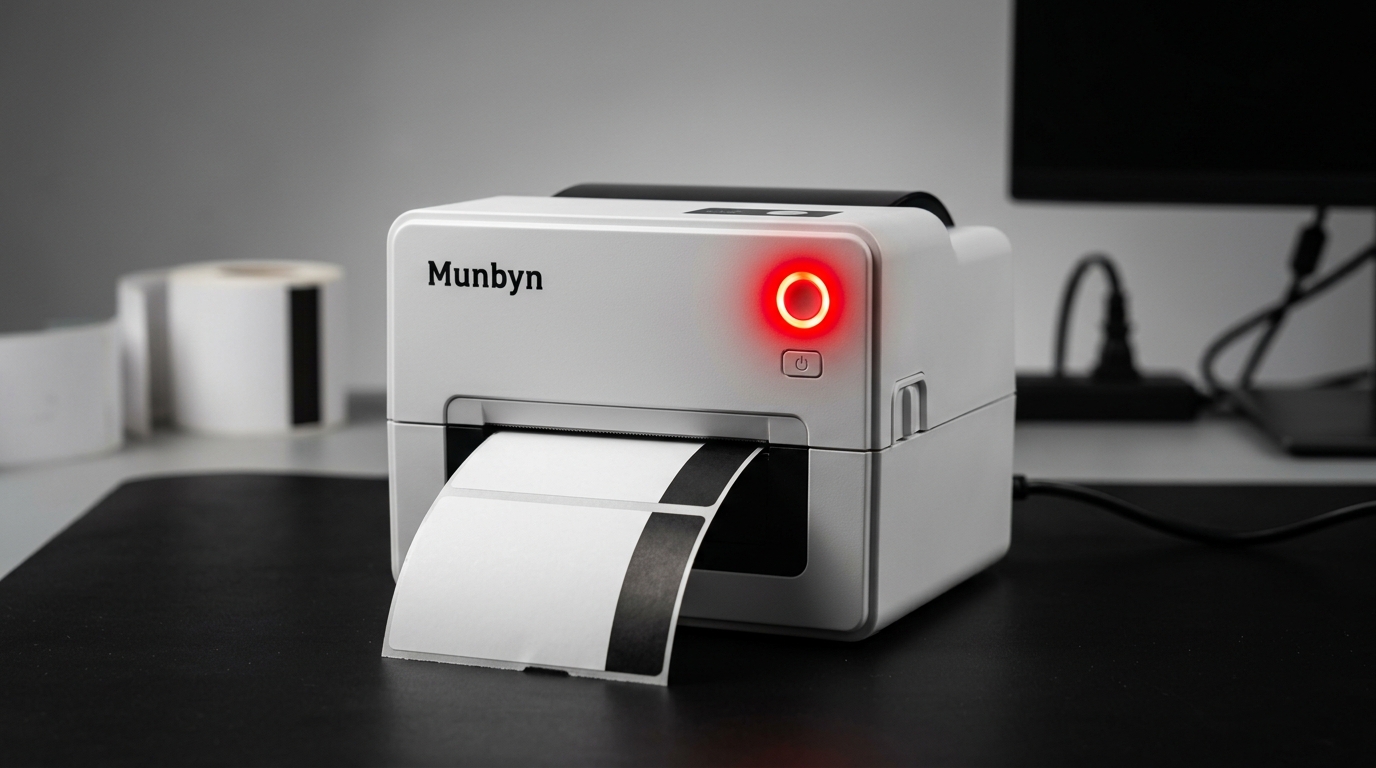
The Quick Answer
A solid red light usually means a hard stop. It's almost always a half-latched lid, no paper, or an overheating pause after a large batch.
A blinking red light and a solid red light are two different complaints, and your Munbyn is telling you two different things. If your Munbyn printer red light stays on and it's not printing, the machine isn't confused about your labels — it's refusing to start at all.
In my repair shop, I treat a solid red light as a "door's open or pantry's empty" problem. It's usually mechanical, it's usually simple, and you can almost always fix it at your desk.
Below are the five causes I see most, in the order I'd check them on my own bench.
Quick-Fix Summary
Try these before anything else:
- Press down on both corners of the lid until you hear two clicks.
- Check for paper. An empty roll holder means a solid red light on every Munbyn model.
- Let it cool. After a big batch, the printhead pauses itself.
- Poke the reset hole (portable models like the ITP02/ITP04) with a pin.
- Power cycle — off, unplugged for 30 seconds, back on.
Still red? The detailed fixes below explain what's actually going on.
Fix 1: The Two-Click Lid Test
Here's the thing customers get wrong more than anything else: they close the lid and hear one click, so they assume it's shut. Munbyn lids latch on both sides. If only the left latch catches, the lid sits crooked by a millimeter or two.
You can't see it. The printer can.
Open the lid fully, then close it by pressing down firmly on both front corners at the same time. Listen for a click on each side.
Why this works: A small switch inside the printer confirms the lid is sealed before the printhead is allowed to heat up. That's a safety feature — an open printhead running hot is a burn risk and a fire risk.
One loose latch means the switch never engages, and the printer holds the red light until it does.
Fix 2: Check the Paper (Even If You "Know" It's Loaded)
Pull the lid open and actually look. Is the roll seated in the holder? Has it run down to the bare cardboard core? Did the leading edge slip back out of the feed path when you last opened the lid?
Reload so the printable side faces up and the edge of the paper feeds cleanly under the printhead area. Close the lid with the two-click method from Fix 1.
Why this works: The paper sensor sits in the feed path. No paper over the sensor means the printer reports "empty" with a steady red light — even if a nearly-full roll is sitting an inch away, slightly out of position.
I've had customers swear the printer was broken when the roll had simply shifted sideways during a desk move.
Fix 3: The Overheating Pause (My Uncommon Tip)
This is the one almost nobody writes about, and it fools people constantly during holiday shipping season.
Thermal printers make images with heat. Print 100, 150, 200 labels back to back, and the printhead gets genuinely hot.
When it crosses a temperature limit, the printer stops mid-batch and holds a red light to protect the printhead from burning itself out. It looks exactly like a failure.
It isn't. It's a cooldown.
The tell: your printer worked fine, stopped partway through a large batch, and the red light appeared with no jam and no empty roll. Give it 10 to 15 minutes with the power on and the lid closed. Most units resume or clear on their own.
Why this works: Printhead heating elements degrade fast past their rated temperature. The pause is the printer choosing a 15-minute delay over a dead printhead.
If you routinely print 200+ labels in one go, split the job into batches of 75 to 100. Your printhead will last years longer, and that's cheaper than any repair I can sell you.
Fix 4: Reset the Printer
For desktop models like the ITPP941, power on, then press and hold the FEED button until you hear five short beeps followed by one long beep. Release, and the printer resets.
For portable models like the ITP02 and ITP04, look for a tiny reset hole on the body. Straighten a paper clip, press gently until you feel a click, and hold for a second or two.
After any reset, recalibrate: load four or more connected labels, hold FEED until one beep, release, and let the printer feed on its own.
Why this works: A crashed print job can leave the printer's internal state stuck mid-task, holding the error light even though nothing is physically wrong. The reset flushes that state. Think of it as the printer version of rebooting a frozen laptop.
Fix 5: Drain and Recharge (Battery Models)
If you have a battery-powered Munbyn and the red light survives a reset, do a full drain. Leave the printer switched on and let the battery run completely flat. Then charge it fully before powering back on.
Why this works: Battery models track charge state in firmware, and that tracking occasionally drifts out of sync with the real battery level. A full drain-and-charge cycle forces the two back into agreement.
It's the same trick I use on stubborn wireless keyboards, and it clears more "dead" portable printers than you'd expect.
Don't Forget Your Computer's Print Queue
One side effect people miss: every print job you sent while the light was red is still sitting in your computer's queue. The moment you fix the printer, all of them fire at once.
Before you clear the red light, open your print queue (Windows: Settings → Printers; Mac: the printer icon in the Dock) and cancel the pile. Otherwise you'll fix the printer and immediately waste twenty labels.
Ask me how I know.
When to Call a Professional
If the lid clicks twice, paper is loaded right, the printer has cooled, and it still holds a solid red light after a reset and a power drain, you're likely looking at a failed lid switch, a bad paper sensor, or a power fault. Email Munbyn support with a photo of your setup and your order number — these printers often have warranty coverage, and their support team can push firmware fixes for some issues.
Out of warranty, weigh a repair quote against replacement cost honestly. On budget thermal printers, replacement usually wins, and I say that as someone who repairs things for a living.
FAQ
What's the difference between a blinking red light and a solid red light on a Munbyn?
Blinking usually means a paper detection or calibration problem — the printer can't figure out your labels. Solid usually means a hard stop: lid open, out of paper, overheated, or a fault.
Different lights, different fixes.
My Munbyn printer red light stays on but it has paper. Why?
Nine times out of ten it's the lid. One latch caught, one didn't. Open it fully and close it by pressing both front corners until you hear two clicks.
How long should I wait if the printer overheated?
Ten to fifteen minutes with the power on is usually enough. If the red light is still there after 30 minutes in a normal-temperature room, overheating isn't your problem — move on to the reset.
Will resetting my Munbyn delete my settings?
The reset clears the saved label size, so run a calibration afterward (load 4+ labels, hold FEED until one beep). Your computer-side driver settings stay untouched.
Here's the bottom line on the Munbyn printer red light stays on not printing problem: check the lid latches, check the paper, give a hot printhead time to cool, and reset if you must. Work that order and you'll rarely get past step one.
And if you print big batches, split them up — the cheapest repair is the one your printer never needs.
