


Introduction
Encountering a Nelko thermal printer that refuses to turn on . Charge is a frustrating experience, especially when you need to print shipping labels or receipts urgently.
Many users assume the device is dead, but the issue is frequently related to the power source being used, specifically modern fast chargers. As the technology industry has standardized around USB-C, we've seen the introduction of various fast-charging protocols like USB Power Delivery (PD) and Qualcomm Quick Charge (QC).While these are fantastic for rapidly charging high-capacity smartphone and laptop batteries.
They can wreak havoc on simpler electronic devices that lack the complex power negotiation circuitry required to handle high voltages safely.
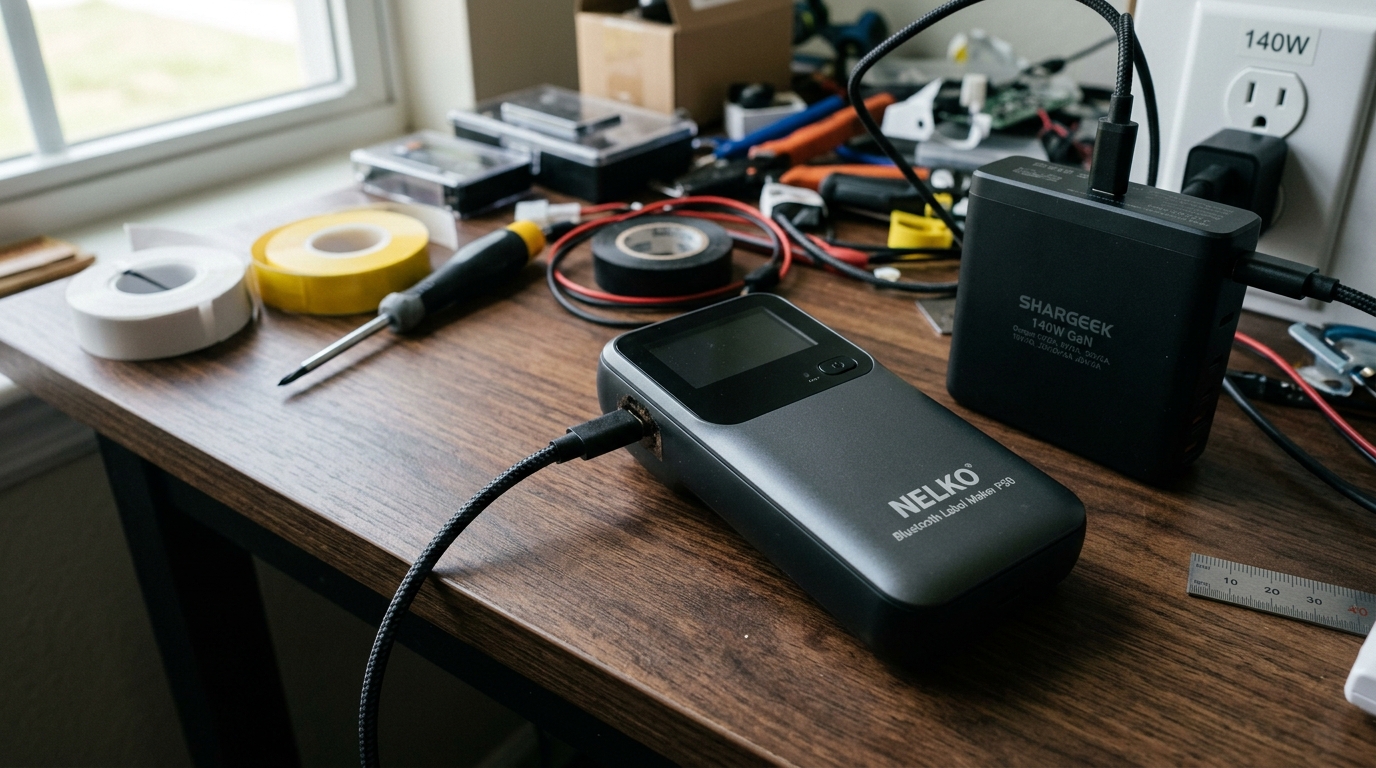
Nelko printers, like many budget-friendly electronics, are designed to draw a standard 5V at 1A or 2A. They often omit the internal components necessary to "talk" to a smart fast charger.When you plug a Nelko printer into a 20W, 30W, .
65W PD charger using a USB-C to USB-C cable, the charger waits for the device to request a specific voltage. Because the printer cannot make this request, the smart charger, prioritizing safety, provides no power at all.
The printer remains dead, and the user is left baffled. This guide provides a comprehensive look at why this happens and how to resolve it.
This article will explore the intricacies of USB-C charging standards and how they impact simpler devices like thermal printers.We will explain the difference between a 'dumb' charger and a 'smart' charger. And why the cable you use matters just as much as the power brick itself.We will also cover scenarios where the battery might be completely depleted .
How to revive it, as well as signs that the internal battery may have actually failed and requires replacement.
Understanding these power dynamics will not only help you fix your Nelko printer . Also prevent similar issues with other small electronics, such as Bluetooth headphones, smartwatches, and rechargeable flashlights.
The shift to USB-C has been a net positive, but it has introduced a period of growing pains where legacy power requirements clash with modern charging infrastructure. Let's explore how to navigate this landscape and get your printer back up and running.
We will start by dissecting the underlying cause of the charging failure. Moving beyond the simple "it's broken" diagnosis to understand the electrical mismatch occurring between your charger and the printer.
Why This Happens
The core issue lies in the USB-C standard itself, specifically the Power Delivery (PD) specification. Modern fast chargers (like those from Apple, Samsung, or Anker) are "smart." When connected to a device, they engage in a digital handshake to determine the optimal voltage and current (e.g., 5V, 9V, 15V, or 20V).
The charger will not supply power until this handshake is completed successfully. This is a safety feature to prevent frying devices that can't handle high voltages.
Nelko printers, to keep costs low, typically use simple charging circuits that expect a constant 5V supply . Cannot perform the PD handshake.
When you connect them to a PD charger using a USB-C to C cable, the charger asks, "What voltage do you need?" The printer remains silent. The charger concludes, "No answer, no power." The result is zero power flowing to the printer, meaning it won't charge and won't turn on.
Furthermore, if a battery is deeply discharged (left uncharged for months). The internal battery management system (BMS) might enter a protection mode.
In this state, it requires a very slow, steady trickle charge to wake up.Fast chargers, even if they default to 5V, might deliver current too quickly . Shut off if they don't detect a load immediately, preventing the BMS from resetting and allowing the battery to accept a charge.
Step-by-Step Fix
- Ditch the Fast Charger: Stop using the high-wattage USB-C charger that came with your modern smartphone, tablet, or laptop (e.g., Apple 20W brick, laptop chargers).
- Find a Standard USB-A Charger: Locate an older, standard USB power brick. These are the ones with the rectangular USB-A port.An old iPhone charger (the small 5W cube), an older Samsung charger. Or a basic multi-port USB charging station is perfect. Look for output specifications around 5V / 1A or 5V / 2A.
- Use a USB-A to USB-C Cable: This is critical. Do not use a USB-C to USB-C cable.You must use a cable that has a standard rectangular USB-A connector on one end (to plug into the older wall block) . A USB-C connector on the other end (to plug into the printer). The USB-A side forces the connection to operate at the standard 5V without requiring a PD handshake.
- Plug it In and Wait: Connect the printer using the USB-A brick and A-to-C cable. If the battery was completely dead, it might take several minutes before any charging indicator lights turn on. Leave it plugged in for at least 30 minutes.
- Try Turning it On: After 30 minutes of charging with the correct setup, press and hold the power button for 3-5 seconds. The printer should power on.
- Fully Charge: Once it turns on, leave it plugged in until the charging indicator signifies a full battery (usually the light changes color or stops blinking).
Advanced Troubleshooting
If the printer still refuses to charge or turn on after using a 5V/1A USB-A charger for an extended period. The issue might be deeper.
First, inspect the USB-C port on the printer itself. Look for any bent pins, lint, or debris packed inside the port.
Use a wooden toothpick or a blast of compressed air to gently clean it out. A blocked port can prevent the cable from making full contact.
If the port is clean, the internal battery may have failed.Lithium-ion batteries degrade over time, and if left fully discharged for long periods. They can become permanently damaged and unable to hold a charge.
If the printer works while plugged in but dies immediately when unplugged, the battery is definitively the culprit.Replacing the battery usually involves opening the casing, which may void the warranty . Requires some technical skill, as the battery is often soldered to the board or uses a specific small connector.
In rare cases, the internal charging circuitry on the motherboard may have shorted out.This can happen if the device was exposed to a power surge (even a small one) . If a faulty charger delivered incorrect voltage before shutting down.
If the device smells like burnt electronics or gets excessively hot near the port when plugged in, unplug it immediately. At this point, the device is likely unrepairable without component-level micro-soldering and should be replaced.
FAQ
Why did my fast charger work once but not anymore?
Sometimes, a fast charger might default to 5V briefly before attempting a handshake. Providing just enough power if the battery isn't completely dead.
Can I overcharge my Nelko printer if I leave it plugged in?
Most modern electronics, even budget ones, have basic overcharge protection circuits that stop drawing current when the battery is full. However, leaving it constantly plugged in for weeks at a time can degrade the battery's overall lifespan faster than standard use.
What does a blinking red light mean when charging?
A blinking red light usually indicates that the battery is critically low or there is a charging error.If it blinks rapidly and never turns solid or green, it could indicate a faulty battery . That the charger isn't providing the correct voltage (refer to the USB-A solution).
Can I replace the battery myself?
You would need to open the plastic housing, identify the specific lithium-polymer cell type . Connector, order a replacement, and carefully install it.
