


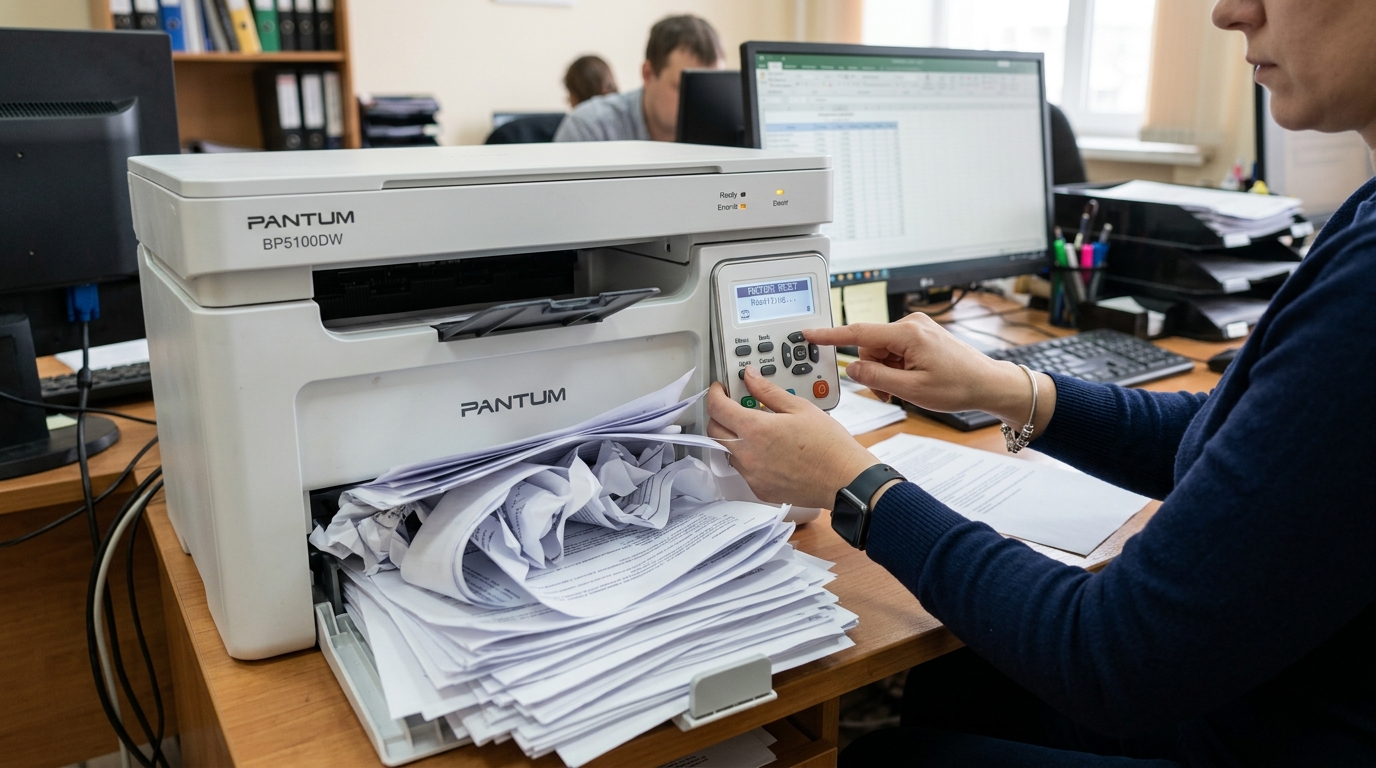
Introduction to Pantum Hardware Issues
Pantum laser printers provide an excellent, budget-friendly solution for everyday document printing. Known for their sturdy build and economical toner cartridges, they are a staple in many home offices and small businesses.
However, like all electromechanical devices, Pantum printers are not immune to physical hardware failures or complex firmware (internal software) glitches. While software.
Network connectivity issues are common, dealing with physical malfunctions—such as the printer completely refusing to power on, or persistently displaying mechanical errors like "Output Bin Full" when the bin is clearly empty—can be incredibly frustrating. These hardware-level issues prevent any printing whatsoever and often leave users feeling helpless, assuming the machine is permanently broken.
Understanding the internal mechanisms of your Pantum printer is the key to resolving these physical faults. The printer relies on a complex network of power supply boards, logic controllers.
Optical/mechanical sensors to manage the paper path, monitor toner levels, and ensure safe operation. When one of these components fails, gets dirty, or experiences a logic loop, the printer shuts down to prevent further damage.
In this comprehensive guide, we will explore the technical reasons behind power failures and sensor errors, provide a step-by-step diagnostic and repair process for the "Output Bin Full" error, explain how to safely troubleshoot power issues. Guide you through the process of performing a hard factory reset to clear stubborn firmware (internal software) corruption.
Why This Happens: Sensors, Power Boards, and NVRAM
The infamous "Output Bin Full" error is a classic example of a sensor failure. At the top of your Pantum printer,.
The printed pages exit and rest, there is a small plastic lever or flag. As pages stack up, they eventually push this flag upwards.
The flag is connected to a small optical sensor (a photosensor) on a circuit board inside the machine. When the flag moves, it breaks an invisible infrared light beam inside the sensor, signaling the logic board that the bin is full.
Printing should pause. Why does it trigger when empty?
Usually, the plastic flag gets physically jammed or dislodged from its hinges due to a paper jam being forcefully ripped out. Alternatively, the optical sensor itself can become coated in microscopic toner dust, blocking the light beam permanently.
Tricking the printer into thinking the flag is raised.
When a Pantum printer completely fails to turn on—no lights, no sounds, no motor setup—the issue is almost certainly related to the internal power supply unit (PSU) or the main logic board (formatter board). The PSU converts the AC power from your wall outlet into the low-voltage DC power required by the printer's electronics.
The high voltage required by the fuser and transfer roller. Power surges, lightning strikes, or simply the degradation of capacitors over time can cause the PSU to fail.
If the PSU is dead, the printer is dead. If the PSU is supplying power.
The logic board has suffered a short circuit or catastrophic firmware (internal software) failure, the printer will also appear completely lifeless.
Finally, bizarre, unexplainable errors or erratic behavior (like rebooting randomly, refusing to accept new toner cartridges, or garbled text on the LCD screen) are often symptoms of corrupted Non-Volatile Random-Access Memory (NVRAM). The NVRAM stores all the printer's settings, page counts, network configurations, and calibration data.
If this data becomes corrupted due to a sudden power loss during a read/write cycle or a failed firmware (internal software) update, the printer's logic controller becomes confused. In these cases, a factory reset (specifically an NVRAM setup) is required to wipe the memory clean.
Restore the factory default parameters.
Step-by-Step Fix: Resolving Output Bin and Power Errors
Address physical and logic errors systematically. Follow these steps to diagnose and resolve the most common Pantum hardware issues.
- Diagnose Power Issues First: If the printer won't turn on, start with the basics. Ensure the wall outlet is providing power by testing it with a lamp. Swap the printer's power cable with a known working computer power cable (standard standard IEC C13 cable). Remove the printer from any surge protectors or power strips and plug it directly into the wall outlet. If it still shows no signs of life, the internal power supply board has likely failed.
- Inspect the Output Bin Sensor Flag: For the "Output Bin Full" error, turn off the printer. Look closely at the paper exit area at the top of the machine. Locate the small plastic sensor flag (usually black or white). Gently touch it. It should move freely and spring back into its resting position. If it is stuck, snapped off, or sitting at a weird angle, you must carefully snap it back into its pivot points.
- Clean the Optical Sensor (Advanced): If the flag moves freely but the error persists, toner dust has likely fouled the optical sensor. Unplug the printer. You may need to remove the top plastic cover (refer to a service manual for screw locations) to access the sensor board. Use compressed air to blow out the sensor assembly, then use a cotton swab lightly dampened with isopropyl alcohol to clean the U-shaped optical gate.
- Perform a Hard Power Cycle: Sometimes residual charge in the capacitors keeps the logic board in an error state. Unplug the printer from the wall. Press and hold the power button for 30 seconds to drain all residual power. Wait an additional 5 minutes, plug it back in, and turn it on.
- Clear the Paper Path Thoroughly: A tiny scrap of torn paper lodged deep in the fuser assembly or registration rollers can trigger generic hardware errors or falsely trigger the output bin sensor. Open all access doors, remove the toner cartridge. Shine a flashlight into every crevice, carefully removing any debris with tweezers.
- Perform a Factory Reset (NVRAM Init):>> If the printer turns on but behaves erratically, a factory reset is necessary. The exact button combination varies wildly by model. For many Pantum models without a screen, turn the printer off. Press and hold the 'Cancel' or 'Info' button, and while holding it down, turn the printer on. Continue holding the button for about 15-20 seconds until all lights flash simultaneously, then release. The printer will reboot with factory settings. For models with an LCD screen, navigate to Menu - System Setup - Restore Defaults.
Advanced Troubleshooting
If you have confirmed the power outlet and cable are good. The printer remains dead, the only remaining option is internal component testing.
This requires a multimeter and extreme caution, as the internal power supply deals with dangerous mains voltage and high-voltage capacitors. You would need to disassemble the printer chassis, locate the PSU board.
Test the output rails (usually 5V and 24V) to the logic board. If the voltages are zero or fluctuating wildly, the PSU must be replaced.
Replacement boards can sometimes be found online from electronics salvage vendors.
If you have cleaned the output bin sensor and verified the flag is intact. The error persists, the sensor itself or the wire harness connecting it to the logic board may be damaged.
Check the thin wires running from the sensor board for any pinches or cuts, often caused by improper reassembly after a previous repair. You can test the optical sensor with a multimeter by measuring the voltage change across the signal pin when the light beam is blocked.
Unblocked.
firmware (internal software) recovery is the final advanced step. If a factory reset does not cure erratic behavior, the firmware (internal software) itself might be deeply corrupted.
Check the Pantum support website for a firmware (internal software) update tool for your specific model. Sometimes, these tools can force-flash new firmware (internal software) onto the logic board even if the printer is in an error state, overwriting the corrupted code.
Restoring functionality. Connect the printer via USB for the most reliable firmware (internal software) flashing process.
FAQ
Why is my Pantum printer making a loud grinding noise?
A loud grinding noise indicates a mechanical failure in the gear train. This is often caused by a failing toner cartridge (the gears inside the cartridge lock up), a torn fuser film sleeve, or stripped plastic gears in the main drive assembly.
Will a factory reset delete my page count?
Generally, no. A standard factory reset or NVRAM setup resets network settings, custom paper sizes.
Can I bypass the output bin sensor?
While technically possible by cutting the sensor wires. Splicing them together (or apart, depending on whether the circuit is normally open or normally closed), it is highly unadvised.
Where can I buy replacement parts like a power supply for my Pantum?
Pantum does not widely sell individual internal components directly to consumers. You typically have to search third-party auction sites, electronics repair part distributors, or purchase a broken "for parts" identical printer to harvest the necessary components.
