


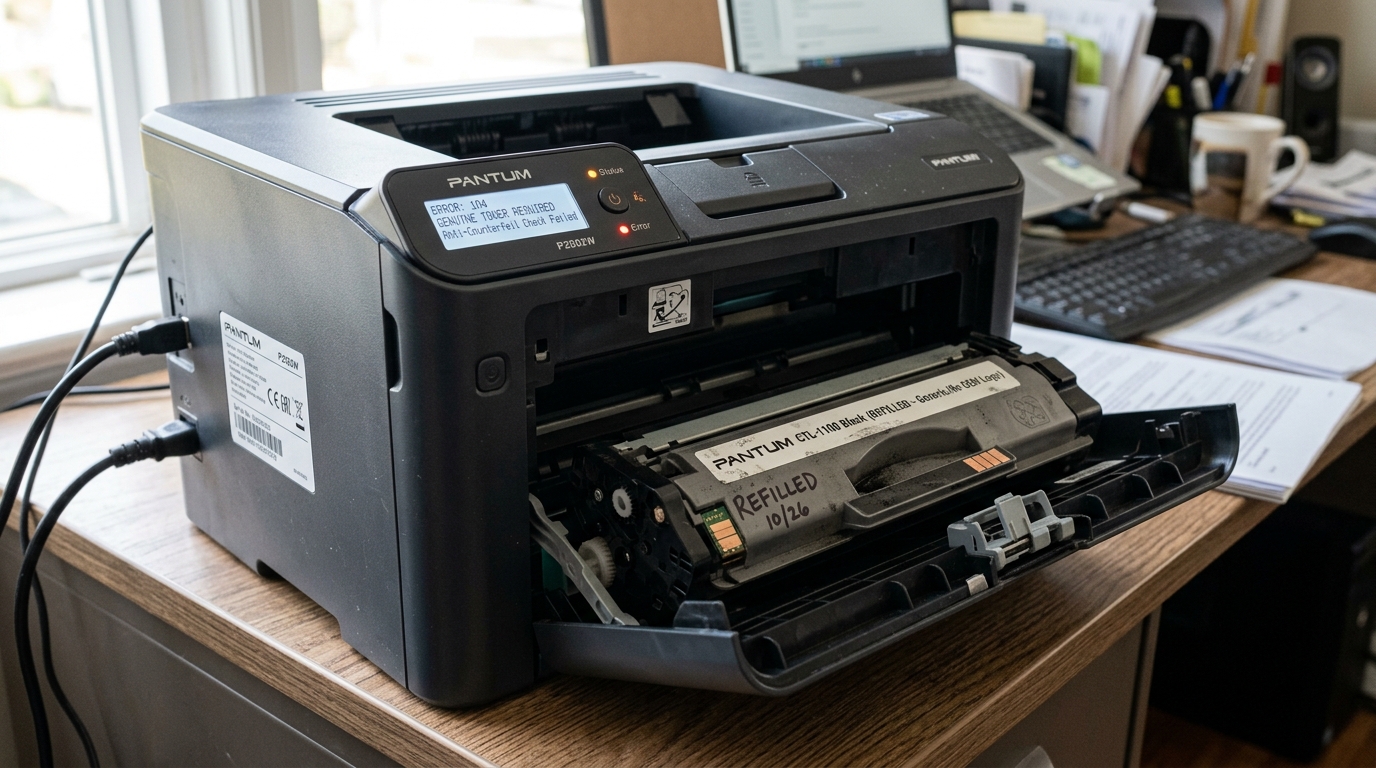
Introduction to Pantum Cartridge Errors
Pantum laser printers offer an incredibly cost-effective solution for home and small office printing needs. However, their aggressive approach to protecting their consumable ecosystem often.
Leads to a frustrating user experience when dealing with toner cartridges. Users frequently encounter persistent errors such as "Cartridge Not Recognized," "Anti-Counterfeit Error,".
"Toner Low," or issues related to the physical installation like door latch failures. These errors can bring productivity to a grinding halt, even when.
The cartridge appears to be correctly installed and full of toner. Understanding the intricate security measures Pantum employs, including built-in microchips and mechanical sensors, is essential for troubleshooting these issues.
This comprehensive guide will dissect the most common Pantum cartridge errors, explaining why they. Occur and providing detailed, actionable solutions to get you back to printing quickly and efficiently.
The core of the problem lies in the ongoing battle between printer manufacturers and third-party refillers. Pantum, like many brands, relies on selling consumables for profit, and they.
Embed smart chips in every toner cartridge to track usage and verify authenticity. When you attempt to use a refilled, remanufactured, or compatible cartridge, or even if an.
Original cartridge suffers a microchip communication error, the printer's firmware (internal software) intervenes and halts operations. Furthermore, mechanical issues, such as a slightly misaligned cartridge preventing the printer door.
From closing completely, can trigger interlock switch errors that masquerade as cartridge failures. By learning how to navigate these digital and mechanical safeguards, you.
Can effectively manage your printer's consumables and overcome these common Pantum roadblocks.
Why This Happens: The Anatomy of Pantum Cartridge DRM
Pantum's anti-counterfeit measures are multi-layered, heavily relying on cryptographic smart. Chips embedded on the side or bottom of the toner cartridge.
When a cartridge is inserted, the printer communicates with this chip via small electrical contacts. The chip provides the printer with the cartridge's serial number, region code, expected page yield, and current toner level estimation. , trying to use a European cartridge in a North American printer), or a chip that fails.
Cryptographic verification (common in cheap third-party clones), the printer will display an "Anti-Counterfeit" or "Not Recognized" error. This is a deliberate software lockout designed to force the purchase of genuine, new OEM cartridges.
Refilling Pantum cartridges introduces another layer of complexity. Simply adding toner powder into an empty cartridge will not resolve a "Toner Empty".
Error because the smart chip remembers that the cartridge has reached its page limit. To successfully refill a Pantum cartridge, the smart chip must also be physically.
Replaced with a new, reset chip, which are often sold alongside refill kits. Beyond the digital DRM, mechanical issues are prevalent.
The printer door contains safety interlock switches that must be fully depressed for the printer to operate. If a cartridge is not seated perfectly flush in its guide rails, or if third-party plastic moldings are slightly out of tolerance.
The door latch will not close securely, leaving the interlock switch open and triggering a persistent "Door Open" or generic error state.
Step-by-Step Fix: Resolving Pantum Cartridge and Refill Errors
Follow these comprehensive steps to diagnose and resolve cartridge recognition, anti-counterfeit, and physical installation errors on your Pantum printer.
- Verify the Physical Installation: Remove the toner cartridge and inspect the inside of the printer for any debris or stray packing materials. Re-insert the cartridge firmly, ensuring it slides smoothly along the guide rails until it clicks decisively into place. If the cartridge feels tight or crooked, remove it and try again.
- Check the Door Latch Interlock: After inserting the cartridge, close the printer door firmly. Listen for a solid 'click'. If the door feels spongy or doesn't close completely flush, the. Cartridge is likely misaligned, preventing the door interlock switch from engaging. A fully closed door is mandatory for the printer to attempt chip communication.
- Clean the Chip Contacts: Remove the cartridge and locate the small, gold-plated smart chip on the cartridge body. Also, locate the corresponding metal spring pins inside the printer cavity. Using a lint-free cloth or a cotton swab lightly dampened with isopropyl alcohol, gently clean both the chip on. The cartridge and the pins inside the printer to remove toner dust or finger oils that inhibit electrical communication.
- Address the "Anti-Counterfeit" Error:If you are using a third-party or compatible cartridge and receive. This error, the printer firmware (internal software) has rejected the chip. You have two options: replace the cartridge with a Genuine Pantum OEM cartridge, or try a different brand of. Compatible cartridge that uses a more updated, reliable cloned chip designed to bypass the current firmware (internal software) version.
- The Refill Chip Replacement Process:If you have manually refilled the cartridge with toner powder. The printer will still read 'Empty' until you replace the chip.
- Locate the old chip on the cartridge housing.
- Carefully pry the old chip out using a small flathead screwdriver or craft knife.
- Press the new, reset chip (provided with your refill kit) into the. Slot, ensuring it is oriented in the exact same direction as the original.
- Perform a Hard Reset: Sometimes, the printer's memory caches an error state even after a problem is fixed. Turn the printer off using the power button. Unplug the power cord from the wall outlet and wait for a full 60 seconds. Plug the printer back in, turn it on, and allow it to initialize and read the cartridge afresh.
- Check Firmware (internal software) Updates (With Caution): Check the Pantum website for firmware (internal software) updates. However, proceed with extreme caution: firmware (internal software) updates are primarily released to block newer third-party chips. If you plan to use compatible cartridges or refill kits, it is often advisable to avoid updating the firmware (internal software) and disable automatic updates in the printer driver settings.
- Inspect for Mechanical Damage:If the printer consistently fails to read any cartridge, including brand new. OEM ones, inspect the contact pins inside the printer with a flashlight. If the pins are bent, broken, or recessed, the printer will require hardware repair or replacement, as communication is impossible.
- Check Region Coding: Ensure the cartridge you purchased matches the region of your printer. Pantum heavily regionalizes their products. A cartridge bought cheaply online from an international seller may physically fit but will be rejected. By a printer bought in a different country due to region code mismatches on the chip.
- Contact Support:If you are using a Genuine Pantum cartridge that is brand new, clean, and properly installed, and. You still receive a "Not Recognized" error, the chip on the cartridge is likely defective from the factory. Contact Pantum customer support or the retailer for a warranty replacement.
Advanced Troubleshooting: Bypassing Firmware (internal software) Locks and Driver Downgrades
If you are committed to using third-party cartridges but are locked out by a. Recent firmware (internal software) update, advanced troubleshooting becomes a game of cat and mouse.
Some advanced users attempt to downgrade the printer's firmware (internal software). To an older version that is more permissive of cloned chips.
However, Pantum makes firmware (internal software) downgrading extremely difficult, often requiring. Specialized flashing tools or specific button combinations that are rarely documented publicly.
Searching specialized printer repair forums for your specific model may yield unofficial downgrade tools. But this carries a high risk of "bricking" the printer entirely, rendering it permanently useless.
Another advanced technique involves intercepting the printer driver communication. Sometimes, the "Toner Low" or "Anti-Counterfeit" warnings are enforced heavily by the.
Pantum software installed on your computer, which communicates bidirectionally with the printer. In some cases, installing a basic, universal printer driver (like a generic PCL6 driver) instead of the full Pantum software suite can.
Bypass the software-level nag screens, although it will not override a hard lockout enforced directly by the printer's internal firmware (internal software). Finally, for those performing bulk refills, investing in a standalone chip resetting tool (if available for your specific Pantum chip version).
Can be a cost-effective way to reuse original chips, avoiding the need to purchase new cloned chips for every refill cycle.
FAQ: Pantum Cartridge and Refill Questions
Can I just add toner powder and ignore the empty warning?
In most modern Pantum printers, no. The printer's firmware (internal software) acts on a "hard stop" protocol.
Why won't the printer door close after I refilled the cartridge?
This is usually due to improper reassembly of the cartridge after refilling. If you removed the side end-caps to access the fill plug, ensure they are screwed back on perfectly flush.
Are Pantum compatible cartridges safe to use?
Yes, reputable third-party compatible cartridges are physically safe and will not damage your printer hardware. However, the ongoing risk is firmware (internal software) lockouts.
What does the "No Toner Cartridge" error mean when one is installed?
This error signifies a complete failure of communication between the printer and the cartridge chip. The most likely causes are dirty electrical contacts, a physically broken.
Why did my new compatible cartridge work for one day and then stop?
This typically happens when the printer is connected to the. Internet and performs a silent, background firmware (internal software) update overnight.
