


Introduction
The Pantum M6700, BM5200, and CM2100 series printers are known for their reliability, cost-effectiveness, and compact footprint, making them ideal for both small office and home office environments. However, like any sophisticated electronic device, they can occasionally present users with perplexing operational issues.
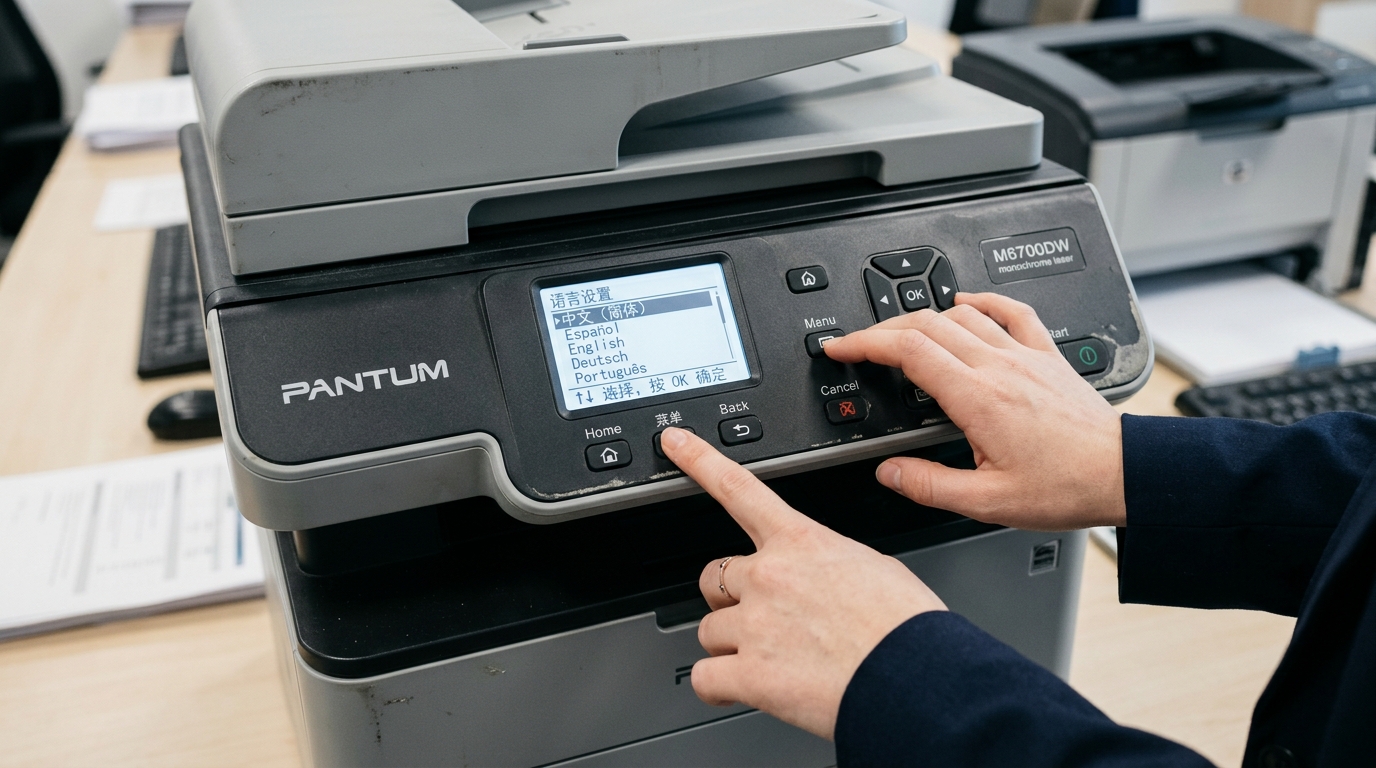
One of the most frequently reported problems involves the printer spontaneously switching its display language—often to Chinese, Russian, or another default factory language—following a firmware update, a sudden power surge, or a hard reset. Navigating a printer menu in an unfamiliar language can be incredibly frustrating and halts productivity entirely.
This comprehensive guide will delve deeply into the root causes of these language reset issues, provide a detailed, step-by-step resolution path, and offer advanced troubleshooting techniques for other common errors associated with these Pantum models.
Beyond language resets, users often encounter paper feed issues, toner recognition failures, and connectivity drops. We will address how the printer's internal memory handles these settings and why NVRAM (Non-Volatile Random Access Memory) corruption is usually the culprit.
By following this meticulously crafted guide, you will be able to restore your Pantum printer to full functionality, configure it correctly, and prevent future occurrences of these frustrating glitches. Remember that while Pantum provides standard user manuals, dealing with language barriers requires navigating blindly through menus, which this guide explicitly maps out for you.
Why This Happens
The spontaneous language reset phenomenon in Pantum printers typically stems from a temporary disruption in the printer's non-volatile memory or a glitch during the initialization phase. When a printer boots up, it reads its configuration settings from a small EEPROM or NVRAM chip on the formatter board.
These settings dictate everything from the default paper size to the network configuration and the user interface language.
Several scenarios can trigger a reset to the factory default language:
- Firmware Updates: Occasionally, a firmware update might fail to properly migrate the user settings from the old version to the new one. If the update script encounters an error, it defaults to a safe state, which often means reverting to the manufacturer's base language.
- Power Fluctuations: A sudden power outage or severe voltage spike while the printer is writing to its memory can corrupt the configuration file. To protect the core operating system, the printer discards the corrupted file and loads a default configuration template.
- Depleted CMOS Battery: While less common in newer models, some formatter boards use a small battery to maintain certain settings. If this battery dies, the printer loses its localized settings every time it loses AC power.
- Accidental Key Combinations: Users attempting to clear a paper jam or reset a toner cartridge might accidentally press a combination of buttons that triggers a factory reset sequence built into the firmware for diagnostic purposes.
Understanding these triggers is crucial because it dictates not only how we fix the current issue but also how we safeguard the printer against future occurrences. If power fluctuations are the root cause, for instance, a UPS (Uninterruptible Power Supply) might be a necessary investment.
Step-by-Step Fix
Since the menu is currently in a language you likely cannot read, you will need to navigate by counting button presses and relying on the spatial layout of the menu system. Follow these steps precisely for the Pantum M6700, BM5200, or CM2100 series.
- Power Cycle the Printer: Turn off the printer using the physical power switch. Unplug the power cord from the wall outlet and wait for exactly 60 seconds to ensure all capacitors are fully drained. Plug the printer back in and turn it on. Wait for the printer to fully initialize and reach the "Ready" state (indicated by a solid green light).
- Access the Main Menu: Press the Menu button (usually the top-left button on the control panel, marked with an icon resembling a list or gear). The screen will display the first top-level menu item.
- Navigate to System Settings: Use the Down Arrow key to scroll through the top-level menu. For these models, "System Settings" is consistently the 5th option down. Press the Down Arrow four times. Then press the OK button (the center button).
- Select Language Configuration: Once inside the System Settings menu, the Language option is typically the 2nd or 3rd option depending on the specific firmware version. Press the Down Arrow one time (or twice if the first option is Network). Press OK.
- Choose Your Desired Language: You should now see a list of languages. Even if you cannot read the current language, you can scroll through the list until you recognize "English", "Español", "Français", etc. Use the arrow keys to find your preferred language and press OK to confirm.
- Save and Exit: An asterisk (*) should appear next to the selected language, indicating it is now the active default. Press the Back or Cancel button repeatedly until you return to the main Ready screen. The interface should now be in your chosen language.
- Perform a Configuration Print: To ensure the setting has been saved to the NVRAM, print a configuration page. Go to Menu > Information Reports > Configuration Page and press OK. Check that the language setting on the printed page reflects your change.
Advanced Troubleshooting
If the steps above do not resolve the issue, or if the printer reverts to the wrong language every time it is powered off, you are dealing with a more entrenched hardware or firmware issue.
Firmware Reflashing: Sometimes, the NVRAM is physically fine, but the firmware partition is corrupted in a way that prevents it from saving new settings. You will need to download the latest firmware from the official Pantum support website.
Connect the printer via USB (do not use Wi-Fi for firmware updates to avoid bricking the device). Run the firmware update utility as an administrator.
After the update, perform a full NVRAM initialization (often requiring a specific button combination held down while powering on the printer—consult the service manual for your exact model).
Formatter Board Issues: If the printer fails to hold settings after a power cycle and a firmware update, the NVRAM chip on the formatter board has likely failed. Because this chip is soldered to the board, the most practical solution is to replace the entire formatter board.
This is a complex repair that involves removing the side panels and carefully disconnecting numerous ribbon cables.
Toner Chip Conflicts: In rare cases, inserting a defective or incompatible third-party toner cartridge with a faulty regional chip can confuse the printer's regional settings, causing it to default to the region coded on the toner chip. Try removing the toner, performing a cold reset, and installing a genuine Pantum cartridge to see if the issue persists.
Network-Induced Resets: If the printer is managed by a centralized print server or a fleet management tool (like Web Jetadmin or Pantum's equivalent), a misconfigured policy might be pushing default settings to the printer over the network. Temporarily disconnect the Ethernet cable, reset the language manually, and observe if it holds.
If it does, check your network management software configurations.
FAQ
Will resetting the language delete my network settings?
No, simply navigating to the language menu and changing it back to English (or your preferred language) does not perform a factory reset. Your IP address, Wi-Fi credentials, and custom paper settings will remain intact.
Why did the firmware update change the language to Chinese?
Pantum is a Chinese manufacturer, and their core firmware often uses Chinese as the absolute baseline fallback language. If a firmware flash process is interrupted, or if the region-specific configuration file fails to load properly after the update, the printer's operating system reverts to this fundamental baseline as a fail-safe mechanism to ensure the device can at least boot up, rather than remaining completely bricked.
Can I change the language through the Web Interface instead?
Yes, absolutely! If your printer is connected to your local network and you know its IP address, this is often the easiest method.
The menu button doesn't seem to respond when it's in the wrong language. What do I do?
If the control panel is completely unresponsive, the printer may be frozen in an error state (such as an unrecognized toner or a paper jam) that is being displayed in the foreign language. First, open all doors and check for paper jams.
