


Introduction
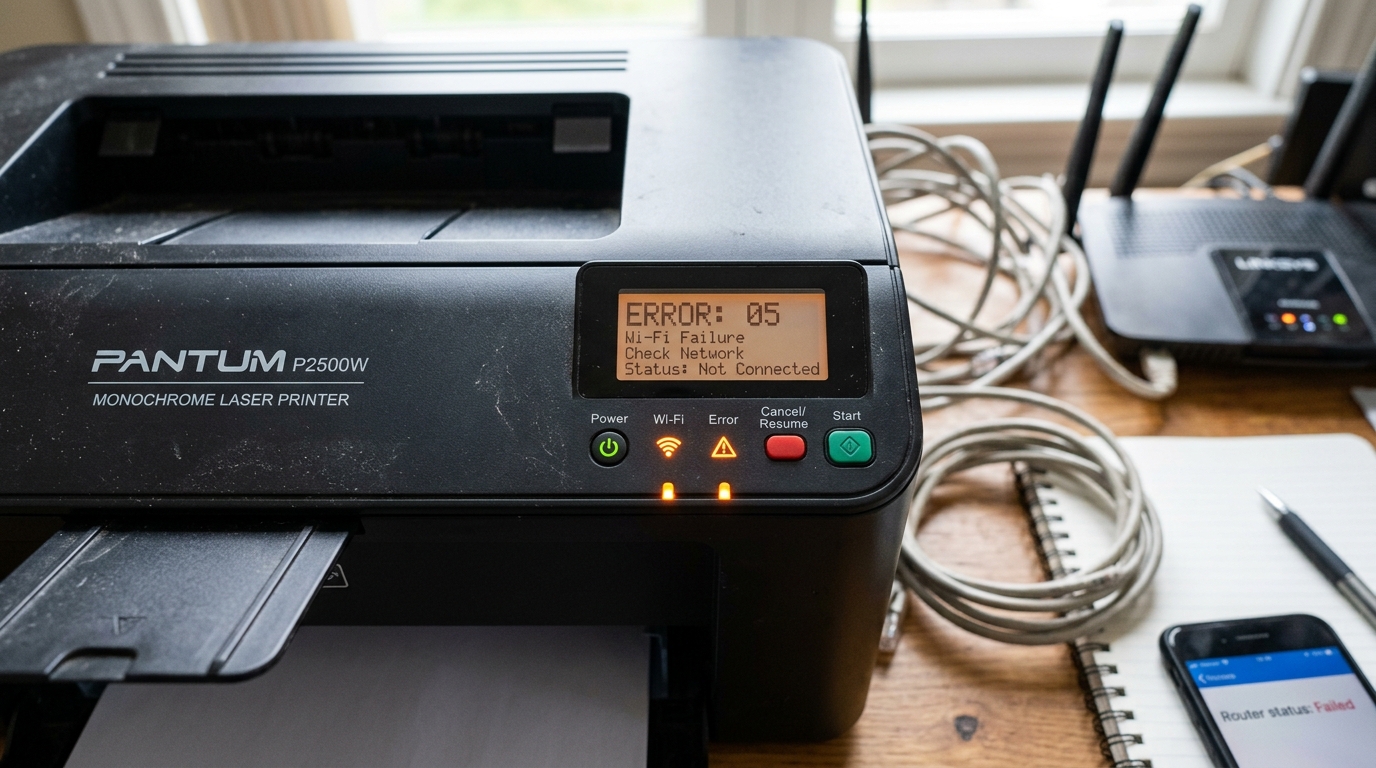
The Pantum P2500W and M6600NW are popular, budget-friendly laser printers, lauded for their compact size and wireless capabilities. However, users often encounter a frustrating scenario where the printer halts operation and begins flashing.
A sequence of LED lights, sometimes accompanied by an "Error 05" message on models with a display or in the status monitor software. Deciphering these blinking lights can feel like translating Morse code without a cipher.
These indicators are the printer's primary way of communicating hardware faults, connectivity issues,. Consumable statuses when a computer isn't directly connected to provide detailed error messages.
Error 05, specifically, or a rapid alternation of the Wi-Fi. Error lights, almost always points to a critical failure in establishing or maintaining a network connection.
In an era where nearly all printing is done wirelessly from laptops, tablets,. Smartphones, a Wi-Fi failure renders the printer effectively useless for its intended convenience.
The underlying causes for this error range from simple changes in your home network environment,. Like a new router password, to more complex IP address conflicts or a hung internal network adapter within the printer itself.
This comprehensive guide will explain the blinking light codes on Pantum printers, focusing specifically on. Resolving network-related errors and the dreaded Error 05.
We will provide a structured approach to troubleshooting, moving from basic resets to advanced network settings techniques. Understanding how to interpret these signals and navigate the printer's internal web interface is essential for any Pantum owner.
Beyond simple Wi-Fi connection issues, we will also address scenarios where the printer is connected to the network. Remains "Offline" to your devices.
This often involves navigating the intricacies of DHCP, static IP addresses, and printer spooler services. By following these steps, you can regain control of your Pantum printer and restore its seamless wireless functionality.
Let's begin by breaking down what causes the printer's network module to crash. Lose its connection, triggering these alarming light sequences.
Why This Happens
The most frequent cause of Wi-Fi errors on Pantum printers is a change in the local wireless network. If you recently replaced your ISP's router, changed your Wi-Fi password,.
Altered the network SSID (the name of the network), the printer is still trying to connect using the old, obsolete credentials. Because it has no screen to prompt you for the new password, it fails to connect, times out,.
Begins flashing the error lights to indicate its isolated status.
Another common issue is an IP address conflict. By default, routers assign IP addresses dynamically (DHCP).
If the printer is turned off for a while, the router might give its IP. Address to another device (like a smart TV or a phone).
When the printer turns back on, it tries to claim its old address, finds it occupied,. Fails to join the network.
This network collision results in an Error 05. A flashing Wi-Fi LED, as the printer is physically connected to the signal but logically blocked from communicating.
Finally, the printer's internal network interface card (NIC) can simply freeze or crash. Like any small computer component, it can get overwhelmed by complex network traffic, sudden power fluctuations,.
Firmware (internal software) glitches. When the NIC hangs, it stops responding to the router and the status monitor, triggering a general fault light sequence.
In these cases, a soft reboot via the power button is often insufficient to clear. The error state held in the network module's temporary memory.
Step-by-Step Fix
- The Hard Power Cycle (The "Capacitor Discharge"): Turn off the printer. Unplug the power cord directly from the wall outlet or the back of the printer. Wait a full 60 seconds. This allows the internal capacitors to drain entirely, clearing any frozen states in the network module. Plug it back in and turn it on. If the lights stabilize, the issue was a temporary glitch.
- Reset Wi-Fi Settings (Initialize Network): If the error persists, you need to clear the old Wi-Fi settings. On the P2500W, press and hold the "Cancel/Continue" button (the one with the triangle/circle icon). For about 5-10 seconds until the printer starts processing and the lights flash. This resets the network settings to factory defaults.
- Re-establish Connection via USB:The most reliable way to connect a Pantum printer to a new. Updated Wi-Fi network is temporarily using a USB cable. Connect the printer to your PC or Mac via USB.
- Use the Pantum Wi-Fi settings Tool: Insert the installation CD or download the latest driver package from the Pantum website. Run the installer. When prompted for the connection type, select "Wireless Network Connection". Choose the sub-option to configure it via the USB cable.
- Select Network and Enter Password: The setup tool will scan for available networks using the printer's hardware. Select your Wi-Fi network from the list and enter the current password. The tool will push these credentials directly into the printer's memory.
- Disconnect USB and Verify: Once the tool confirms successful settings, disconnect the USB cable. The blue Wi-Fi light on the printer should become solid, indicating a successful, stable connection to your router.
Advanced Troubleshooting
If the printer connects successfully using the USB settings tool. Drops the connection after a few hours or days (returning to flashing lights), you likely have a DHCP lease issue.
To fix this permanently, you should assign the printer a Static IP address. First, print a Network settings Page (usually by pressing the Wi-Fi button or holding Cancel for a specific duration).
15).
Open a web browser on a computer connected to the same network. Type that IP address into the address bar.
This opens the printer's Embedded Web Server (EWS). Log in (default credentials are often admin/admin or admin/000000).
Navigate to the Network settings, find the IPv4 settings, change the method from DHCP. Auto) to Static (or Manual), and save the settings.
This ensures the router never assigns that specific address to another device, preventing conflicts.
If you cannot access the EWS or if the USB tool fails to see any. Wi-Fi networks, the printer's internal wireless antenna or network board may have failed physically.
This is uncommon but possible, especially if the printer experienced a power surge. In this scenario, your only option is to use the printer as a local device.
Via a permanent USB connection to a single computer, bypassing the broken wireless hardware entirely.
FAQ
What does it mean if the orange light is solid, not blinking?
A solid orange/red error light usually indicates a consumable issue or a mechanical problem, not a network error. It most commonly means the toner cartridge is empty, missing, not seated correctly,.
Can I connect the printer to a 5GHz Wi-Fi network?
No. 4GHz wireless networks.
I lost the USB cable. Can I connect using WPS?
Yes, if your router has a WPS button. Press the WPS button on your router, then immediately press the Wi-Fi button on the Pantum printer.
My PC says the printer is "Offline" even though the blue Wi-Fi light is solid.
This means the printer is on the network,. Windows has lost track of it, usually due to a changed IP address.
