


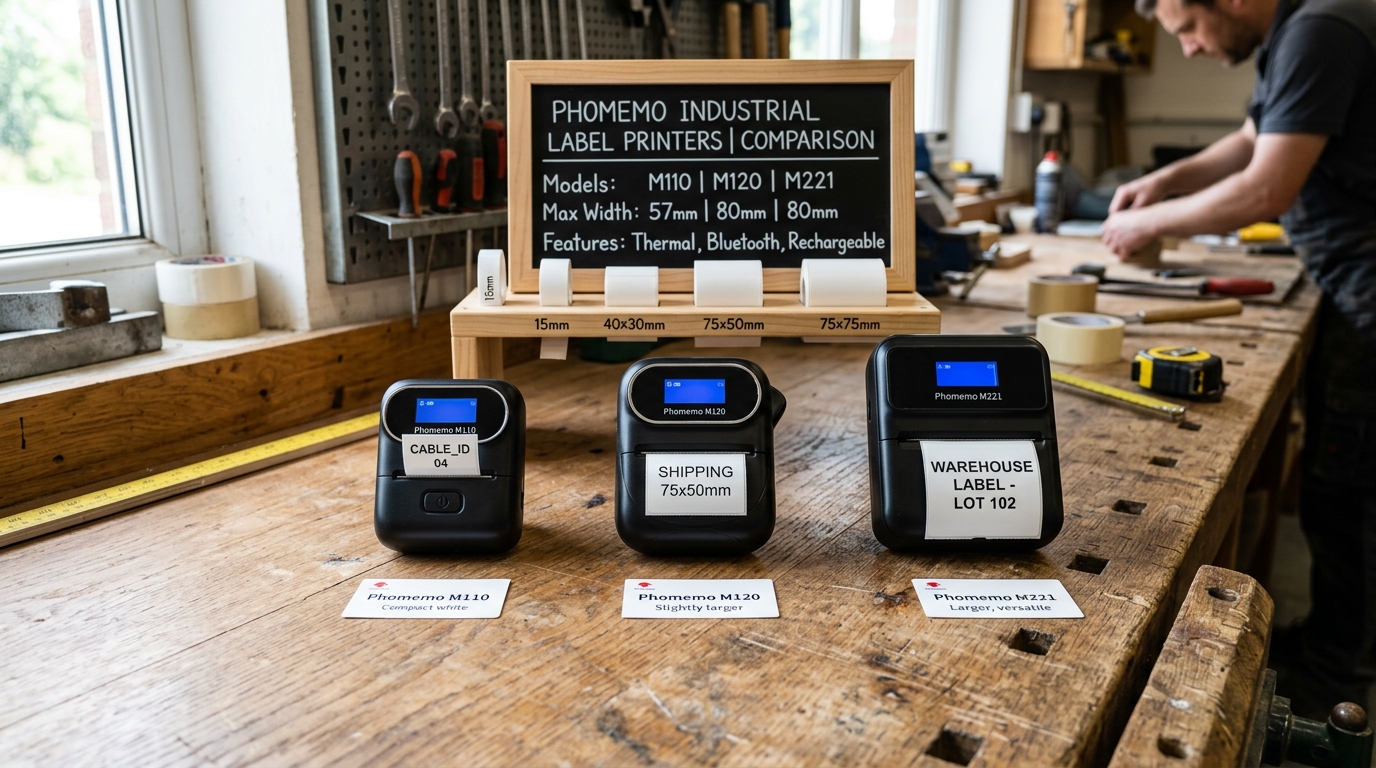
Introduction to Phomemo Label Makers
Regarding portable thermal label printers, Phomemo has established itself as one of the leading brands on the market, offering a wide array of devices tailored for different use cases. The M110, M120, M150.
And M221 models are among the most popular choices for small business owners, crafters. And organization enthusiasts.
These devices utilize direct thermal printing technology, meaning they do not require ink, toner, or ribbons. Instead, they use heat-sensitive paper that darkens when it passes over the thermal print head.
This technology makes the printers incredibly compact, lightweight. And cost-effective to operate over time, as the only consumable is the label paper itself.
Despite sharing the same underlying printing technology, the M110, M120, M150. And M221 each bring distinct features, form factors.
And capabilities to the table. Choosing the right model requires a deep understanding of your specific labeling needs, including the required label width, connection options, battery life.
And software compatibility. For instance, a user needing to print small barcodes for a retail shop might have different requirements than someone printing large shipping labels for an e-commerce business.
In this comprehensive guide, we will break down the differences between these four models, explain why certain issues might occur during setup or operation. And provide a step-by-step guide to resolving common printing anomalies.
We will also cover advanced troubleshooting techniques to ensure your Phomemo printer operates at peak performance.
Why This Happens: Understanding the Differences and Common Issues
The differences between the M110, M120, M150. And M221 primarily boil down to print width, print resolution.
And device connectivity. The M110 is the entry-level model, designed for basic labeling tasks up to 50mm in width.
It features a 1200mAh battery and connects via Bluetooth to the Print Master app. The M120 is a step up, offering a slightly wider print width and a larger 1500mAh battery, making it better suited for continuous printing sessions.
The M150 bridges the gap between portable and desktop printing, often supporting continuous label rolls and featuring an upgraded print head for sharper text and graphics. The M221, on the other hand, is built for heavy-duty tasks, supporting wider labels (up to 75mm or more depending on the variant) and offering more robust connectivity options, sometimes including USB alongside Bluetooth.
Users often encounter issues when transitioning between these models or when trying to use them for tasks they weren't explicitly designed for. For example, a common problem is label misalignment or "skipping" labels.
Why does this happen? It usually occurs because the printer's optical sensor.
Which detects the gap between labels, is not calibrated correctly for the specific label roll inserted. Direct thermal printers rely on this sensor to know exactly when to start and stop printing.
If the sensor is dirty, or if you are using non-standard labels with irregular gaps, the printer will fail to align the print accurately. Another frequent issue is poor print quality or faded text.
This happens when the thermal print head accumulates dust or adhesive residue over time, acting as an insulator that prevents the heat from transferring effectively to the label paper. Furthermore, connectivity issues often arise due to Bluetooth interference or outdated firmware (internal software), especially when pairing with newer smartphones or operating systems that implement stricter security protocols.
Understanding these differences and the underlying mechanics of thermal printing is crucial for troubleshooting. When you know that your M221 has a higher resolution print head but requires more power, you can better diagnose battery-related print failures.
Similarly, knowing that the M110's sensor is optimized for specific Phomemo-branded labels explains why third-party labels might cause alignment errors. By grasping the "why" behind the hardware, you are better equipped to handle the "how" of fixing it.
Step-by-Step Fix: Resolving Common Phomemo Printer Errors
If you are experiencing issues with label alignment, poor print quality, or connectivity with your Phomemo M110, M120, M150, or M221, follow this comprehensive step-by-step guide to restore normal operation.
- Verify Label Installation: Open the printer cover and ensure the label roll is installed correctly. The printable side of the label (usually the smoother, brighter side) must face the thermal print head. Ensure the adjustable paper guides are snug against the sides of the roll to prevent lateral movement during printing.
- Clean the Print Head and Sensor: Turn off the printer. Using a lint-free cloth or a cotton swab lightly dampened with isopropyl alcohol (90% or higher), gently wipe the dark thermal print head line and the optical sensor (usually a small rectangular window near the paper path). Allow it to dry completely before turning the printer back on. This resolves most faded text issues.
- Calibrate the Label Gap Sensor: Turn the printer on. For most Phomemo models, you can force a manual calibration by pressing and holding the feed button (the main power button in some models) until the printer feeds a single blank label and stops exactly at the gap. If it feeds multiple labels, repeat the process.
- Update the Print Master App: Ensure you are using the latest version of the Phomemo Print Master app on your iOS or Android device. Outdated apps can cause formatting errors and connectivity drops. Check the App Store or Google Play Store for updates.
- Reset the Bluetooth Connection: If the printer is not connecting, go to your phone's Bluetooth settings, find the printer. And select "Forget This Device". Turn the printer off and on. Open the Print Master app and reconnect from *within the app*, not from the phone's native Bluetooth menu.
- Check the Label Template in the App: Ensure the label size selected in the Print Master app matches the physical size of the labels installed in the printer. If you have a 40x30mm label installed. But the app is set to 50x50mm, the print will be misaligned and likely cut off.
- Perform a Factory Reset (If Applicable): If all else fails, look for a small reset pinhole on the printer or check the manual for the specific button combination to restore factory defaults. This can clear persistent firmware (internal software) glitches.
Advanced Troubleshooting
For persistent problems that simple cleaning and calibration cannot resolve, you may need to explore advanced troubleshooting. One such issue is the degradation of the thermal print head itself.
Over time, the microscopic heating elements on the print head can burn out. If you notice a persistent vertical white line running down the length of your printed labels, regardless of cleaning, this indicates a dead pixel on the print head.
Unfortunately, thermal print heads are not easily user-replaceable on these portable models. And this usually necessitates a warranty claim or device replacement.
Another advanced issue relates to battery calibration. If your M120 or M150 shuts down randomly even when the app shows a partial charge, the internal battery management system (BMS) might be out of sync.
To recalibrate it, use the printer until it completely dies and will not turn on. Then, plug it into a high-quality 5V/2A wall adapter and let it charge uninterrupted for at least 4-6 hours, or until the charging indicator turns solid.
Avoid using computer USB ports for this deep charge, as they often do not provide sufficient current.
Lastly, if you are attempting to print from a Windows or Mac computer via USB (supported primarily by the M221 and some M150 variants), driver conflicts are common. Ensure you download the specific driver for your exact model from the official Phomemo website.
Do not rely on generic Windows USB printing support. If the printer shows an "Error" state in the Windows print queue, open 'Services.msc', locate the 'Print Spooler' service, restart it.
And then clear the pending print jobs in the queue.
FAQ
Can I use third-party labels with my Phomemo M110 or M221?
While it is physically possible to insert third-party direct thermal labels into these printers, Phomemo often optimizes their sensors and print temperature for their built-in label paper. Some models feature a small RFID sticker on the label core to authenticate genuine rolls.
Why is my Phomemo printer printing completely blank labels?
The most common reason for printing blank labels is installing the label roll upside down. Direct thermal paper only has the heat-sensitive chemical coating on one side.
How long does the battery last on the M120 compared to the M110?
The M120 features a larger 1500mAh battery compared to the M110's 1200mAh battery. Under normal usage, the M120 can print approximately 30-40% more labels on a single charge.
Can the Phomemo M150 print shipping labels?
The M150 is generally designed for smaller labels, barcodes. And address labels.
