


Introduction
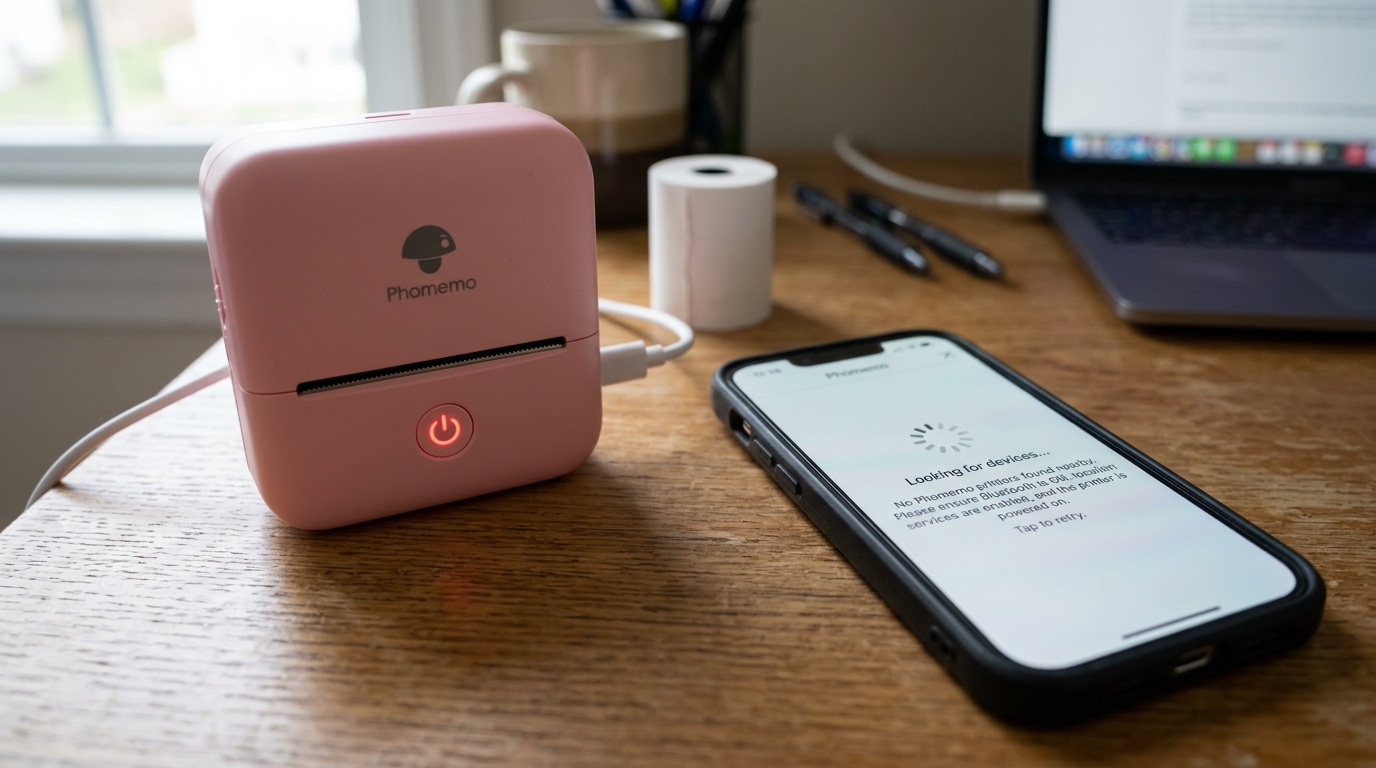
If you have recently purchased a Phomemo printer and find that it won't connect via. Bluetooth or the official Print Master or Phomemo app can't find it, you are not alone.
This is one of the most common issues users face when setting up their thermal label printers. Phomemo printers rely on Bluetooth Low Energy (BLE) to communicate with your smartphone or.
Tablet, and while this technology is generally robust, various factors can disrupt the pairing process. Mobile operating systems frequently update their permission models, particularly around location services and.
Nearby devices, which can inadvertently block the Phomemo app from discovering your printer. Additionally, Bluetooth caching issues, interference from other devices, and low battery levels can all contribute to connectivity failures.
Understanding the underlying mechanisms of Bluetooth pairing can help you navigate these issues more effectively. Unlike traditional Bluetooth devices that require manual pairing through the system settings, BLE.
Devices like Phomemo printers are designed to pair directly within the companion app. This distinction is crucial, as attempting to pair the printer through your phone's.
Main Bluetooth menu can actually prevent the app from finding the device later. In this comprehensive guide, we will explore the root causes of these connectivity problems.
And provide a detailed, step-by-step solution to get your Phomemo printer up and running smoothly. By following these instructions, you can resolve the majority of Bluetooth.
Issues and ensure a reliable connection for all your labeling needs. Proper setup and regular maintenance of your Bluetooth connections will save you time and frustration in the long run.
Let's explore the specifics of why these issues occur and how to fix them effectively.
Why This Happens
Bluetooth connectivity issues with Phomemo printers can stem from several underlying causes. First and foremost, permission settings on your smartphone or tablet play a critical role.
Modern operating systems, such as iOS and Android, have implemented stringent security measures to protect user privacy. Consequently, apps must explicitly request permission to access Bluetooth and location services.
If these permissions are denied or revoked, the Phomemo app will. Be unable to scan for nearby devices, rendering the printer invisible.
Furthermore, Android devices, in particular, often require location services to be enabled for Bluetooth. Scanning to function correctly, as BLE can technically be used to determine a user's location.
Another common culprit is Bluetooth caching. Over time, your device's Bluetooth cache can become cluttered with.
Outdated or corrupted pairing data, which can interfere with new connections. Clearing this cache is often necessary to resolve persistent pairing issues.
Additionally, interference from other Bluetooth devices, Wi-Fi networks, and even physical obstacles can. Degrade the Bluetooth signal, leading to intermittent connections or failure to connect entirely.
Low battery levels on either the printer or your mobile. Device can also weaken the Bluetooth signal and cause connectivity problems.
Finally, firmware (internal software) glitches or outdated app versions can introduce bugs that affect Bluetooth functionality. Ensuring that both your printer's firmware (internal software) and the.
Phomemo app are up to date is essential for optimal performance. By understanding these potential pitfalls, you can systematically troubleshoot and eliminate the root causes of your Bluetooth connectivity issues.
Step-by-Step Fix
- Check Power and Indicators: Ensure your Phomemo printer is fully charged or plugged in. Turn it on and verify that the status light is flashing, indicating it is ready to pair. If the light is solid, it may already be connected to another device.
- Verify App Permissions: Go to your smartphone's settings. For iOS, navigate to Settings > Privacy & Security > Bluetooth, and ensure the Phomemo app is toggled on. For Android, go to Settings > Apps > Phomemo > Permissions, and grant 'Location' and 'Nearby Devices' access.
- Avoid System Bluetooth Menu: Do not attempt to pair the printer through your phone's main Bluetooth settings. If you have already done so, find the printer in the. List of paired devices and select 'Forget This Device' or 'Unpair'.
- Restart Devices: Turn off your Phomemo printer and your smartphone. Wait a few seconds, then turn them both back on. This simple step can resolve temporary software glitches and refresh Bluetooth connections.
- Pair Within the App: Open the official Phomemo app (or Print Master). Tap the printer icon or 'Connect' button in the top right corner. The app will scan for nearby devices. Select your printer model from the list to establish the connection.
- Clear Bluetooth Cache (Android): If the issue persists on Android, go to Settings > Apps > Show System Apps > Bluetooth. Tap 'Storage' and select 'Clear Cache' and 'Clear Data'. Restart your phone and try pairing again.
- Reset Network Settings (iOS):On iOS, you can try resetting your network settings by going to Settings. > General > Transfer or Reset iPhone > Reset > Reset Network Settings. Note that this will also erase saved Wi-Fi passwords.
- Update Firmware (internal software) and App: Check the app store for any available updates for the Phomemo app. Additionally, if you manage to connect intermittently, check the app's settings. For any available firmware (internal software) updates for the printer itself.
- Test with Another Device: To rule out hardware issues, try connecting the printer to a different smartphone or tablet. If it connects successfully, the issue is likely isolated to your primary device.
- Contact Support: If all else fails, contact Phomemo customer support for further assistance. Provide them with details about the troubleshooting steps you've already taken.
Advanced Troubleshooting
For users who continue to experience connectivity issues after following the basic steps, advanced troubleshooting may be required. One potential solution is to perform a hard reset on the Phomemo printer.
The exact procedure varies by model, but it typically involves holding down the power button and the. Feed button simultaneously for several seconds until the indicator light flashes or the printer prints a test page.
This process resets the printer's internal memory and can clear out persistent software glitches that prevent Bluetooth pairing. Another advanced technique involves using a Bluetooth scanner app to analyze the BLE signals in your environment.
These apps can help you identify sources of interference, such as other. BLE devices broadcasting strong signals, which may be drowning out your printer.
If you suspect interference, try moving the printer and your smartphone. To a different room or turning off other Bluetooth devices temporarily.
Additionally, developers or advanced users can use debugging tools provided by iOS or. Android to monitor Bluetooth logs and identify specific errors occurring during the pairing process.
On Android, enabling Developer Options and capturing a Bluetooth HCI snoop log. Can provide detailed insights into the communication between the app and the printer.
Analyzing these logs can reveal issues with packet loss, incorrect GATT profiles, or authentication failures. While these advanced techniques require more technical knowledge, they can be invaluable.
For diagnosing and resolving complex Bluetooth connectivity problems that defy standard troubleshooting methods.
Furthermore, it is important to consider the physical environment in which you are operating the printer. 4 GHz ISM band, which is heavily utilized by Wi-Fi networks, microwave ovens, cordless phones, and other wireless devices.
In environments with high electromagnetic interference (EMI), the Bluetooth signal can be severely degraded. To mitigate this, ensure that there is a clear line of sight.
Between your smartphone and the printer, and minimize the distance between them. Avoid placing the printer near large metal objects or electronic devices that emit strong electromagnetic fields.
If you are using the printer in a commercial or industrial setting, consider. The layout of the workspace and the presence of potential sources of interference.
4 GHz band and improve Bluetooth performance. By taking a holistic approach to troubleshooting and considering both software and environmental factors, you can significantly.
Increase the reliability of your Phomemo printer's Bluetooth connection and ensure seamless operation for all your labeling tasks.
FAQ
Why does the Phomemo app ask for location permissions?
The Phomemo app requires location permissions on Android devices because Bluetooth Low Energy (BLE). Scanning can technically be used to determine a user's location by detecting nearby Bluetooth beacons.
Can I connect my Phomemo printer to multiple devices simultaneously?
No, Phomemo printers can only maintain an active Bluetooth connection with one device at a time. If you want to switch to a different phone or tablet, you must first disconnect the printer from the current.
What should I do if the printer connects but fails to print?
If the printer connects but fails to print, first ensure that the. Label roll is properly loaded and the paper guide is adjusted correctly.
Does a Phomemo printer work with a computer via Bluetooth?
Most Phomemo models are designed primarily for mobile use via their built-in apps. While some PCs can discover the printer over Bluetooth, printing directly from Windows.
