


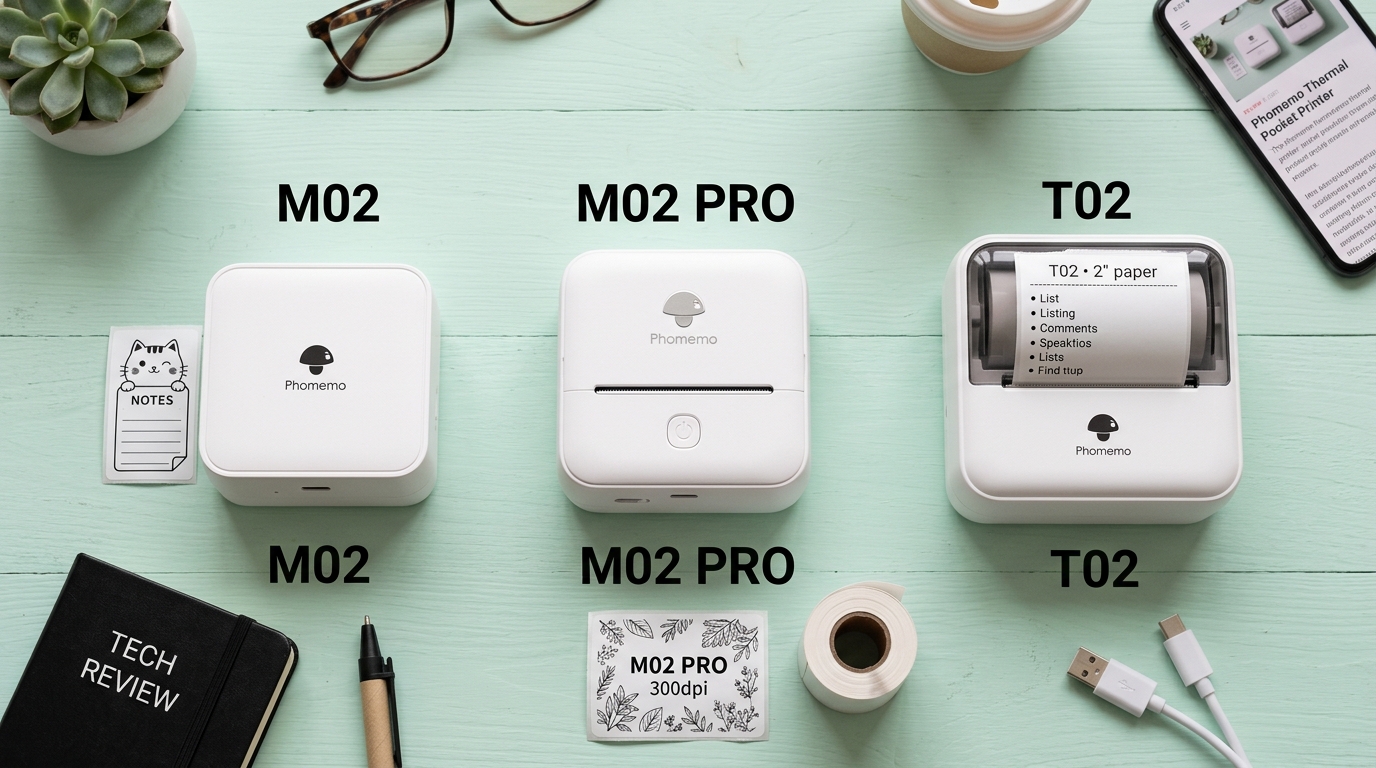
Navigating the diverse lineup of Phomemo compact thermal printers can be a daunting task for. Consumers seeking the ideal device for journaling, small business labeling, or creative projects.
The Phomemo M02, M02 Pro, M02S,. And T02 represent the core of their portable offering, yet they possess distinct technical specifications, print resolutions,.
And connectivity features that significantly impact their utility. The standard M02 offers a basic 203 DPI (Dots Per Inch) resolution, suitable for simple text.
And low-detail graphics, making it an entry-level favorite.The M02 Pro elevates this experience with a substantially sharper 300 DPI printhead. Allowing for crisp, detailed photo printing and intricate line art that the standard M02 would render as blurry or pixelated.The M02S further differentiates itself by supporting three different paper widths (15mm.
25mm, and 53mm), offering unparalleled versatility compared to the fixed 53mm width of the standard M02 and Pro models.Finally, the T02 is designed as an ultra-compact, highly stylized alternative. Often prioritizing aesthetics and portability over the robust feature sets of.
The M02 line, while maintaining a standard 203 DPI resolution.This detailed guide not only compares these devices across various technical vectors. Also provides crucial troubleshooting fixes for common issues encountered across the entire product family.
Ensuring optimal performance regardless of which model you choose.
The choice between these models ultimately dictates the quality of your output. And the breadth of your creative possibilities.
Understanding the nuances of thermal printing technology—specifically how the printhead's heating elements interact with the chemically treated thermal paper—is essential. Higher DPI models like the M02 Pro.And M02S pack more heating elements into the same physical space.
Allowing for finer control over the darkening of the paper, resulting in superior grayscale reproduction. And sharper edges.However, this higher resolution also demands more power and faster data processing from the connected mobile device.
Which can sometimes lead to connectivity hiccups if not managed correctly.We will explore these technical trade-offs in depth, providing you with the knowledge necessary. To make an informed purchasing decision and to maintain your chosen device flawlessly.
The most common complaints surrounding the Phomemo series—faded prints, vertical white lines,. And frequent paper jams—are deeply rooted in the physical mechanics of direct thermal printing.
And the specific design tolerances of these compact devices.Faded prints are almost exclusively caused by one of three factors: depleted battery voltage. Degraded thermal paper, or an accumulation of residue on the thermal printhead.
The printer's logic board precisely controls the duration. And intensity of the electrical pulse sent to each microscopic heating element on the printhead.If the internal lithium-ion battery cannot supply sufficient peak current—often occurring.
The battery drops below 30% charge—the heating elements fail to reach the critical temperature required to. Fully activate the dye-leuco compound in the thermal paper, resulting in weak, faded text.Similarly, thermal paper is highly sensitive to environmental factors.
Prolonged exposure to heat, humidity, or direct sunlight causes the chemical coating to degrade. Significantly reducing its responsiveness to the printhead's heat.
Vertical white lines dissecting your prints are indicative of a physical obstruction or damage on the printhead itself. As the thermal paper feeds past the printhead, microscopic particles of the paper's chemical coating, along with environmental dust.
And oils from human fingers, adhere to the heating elements.This creates a microscopic insulating layer that prevents the heat from. Transferring to the paper, resulting in a continuous unprinted line.In more severe cases, a scratch on the delicate ceramic surface of the printhead will.
Permanently destroy the heating elements in that specific location, causing an unfixable white line.Paper jams, conversely, are typically a mechanical issue related to the platen roller. (the rubber roller that feeds the paper) or improper paper loading.If the paper roll is inserted unevenly, or if the internal retaining clips are worn.
The paper will feed at an angle, eventually crumpling against the exit slot.
Furthermore, if the platen roller becomes slick with accumulated paper dust. And natural rubber degradation, it loses its grip on the smooth thermal paper, causing slippage.
And compounding the jamming issue.The M02S, with its adjustable paper guides for different widths. Is particularly susceptible to jams if these guides are not perfectly aligned with the inserted paper roll.
As even a millimeter of play can cause the paper to skew during the printing process.
To restore your Phomemo printer to factory-optimal performance, implement this rigorous maintenance and troubleshooting protocol. These steps apply universally to the M02, M02 Pro, M02S, and T02 models.
- Connect the printer directly to a high-quality wall adapter capable of delivering at. Least 5V/2A (avoid using computer USB ports, which often output insufficient current). Allow the device to charge completely until the LED indicator signifies a full battery. Many print quality issues are immediately resolved by ensuring the heating elements receive maximum voltage during operation.
- Turn the printer off completely. Open the paper compartment. And remove the thermal paper roll. Locate the thermal printhead—a narrow, horizontal ceramic strip with a distinctive metallic or brownish line running across it.Moisten a lint-free swab (preferably a specialized electronics cleaning swab. Not a standard cotton swab which leaves fibers) with high-purity isopropyl alcohol (90% or higher). Gently. But firmly wipe the swab across the entire length of the printhead in one continuous motion. Repeat this 3-4 times, rotating the swab to ensure you are lifting the residue away. Allow the alcohol to evaporate completely for at least 5 minutes before powering the device back on. This is critical for resolving vertical white lines. And generally improving contrast.
- Clean. Locate the rubber platen roller situated opposite the printhead. Using a different swab moistened lightly with water (avoid alcohol on the rubber, as it can cause it to dry. And crack over time), clean the entire surface of the roller. Manually rotate the roller to ensure you clean all sides. Inspect the roller for any deep gouges, flat spots, or areas where the rubber has become excessively smooth. And shiny. A damaged platen roller will inevitably cause paper feed issues and cannot be repaired; the entire printer may need replacement.
- Verify. Inspect your thermal paper roll. If the outer layers appear yellowed or faded, peel off. And discard the first few feet until you reach fresh, bright white paper.Ensure you are using genuine Phomemo paper or high-quality compatible thermal paper. As cheap alternatives often have uneven chemical coatings that damage the printhead over time. When inserting the roll, ensure it is seated perfectly level. bottom of the roll, curving upwards towards the printhead.Pull a small amount of paper out past the cutting teeth before. Closing the lid firmly until it clicks securely on both sides.
- Recalibrate. Turn the printer on. Open the Phomemo app on your connected device. Navigate to the printer settings menu within the app. And look for an option to "Print Test Page" or "Device Calibration." Execute this function. A properly calibrated printer will feed a small amount of paper to align the optical sensor. And then print a test pattern. Examine this pattern closely to verify that the contrast is uniform and no white lines are present.
- If the printer is producing erratic, garbled output, the data transmission may be corrupted. Delete the printer from your phone's Bluetooth settings menu. Force restart the Phomemo app.Turn the printer off, then hold the power button for 10 seconds to perform. A hard hardware reset (this procedure varies slightly by model, consult the manual). Re-pair the device through the Phomemo app, not through the phone's native Bluetooth menu.
When basic maintenance fails to resolve the issues, we must explore more advanced diagnostics. If your M02 Pro or M02S is suddenly printing very slowly or pausing mid-print, the issue is likely thermal throttling.
High DPI printing generates significant heat.If the ambient temperature is high, or if you are printing a long. Continuous graphic, the printer's internal thermistor will detect excessive heat on the printhead.
And intentionally slow down or pause the printing process to prevent catastrophic hardware damage. Allow the printer to rest for 15-20 minutes in a cool environment before resuming.
If thermal throttling occurs rapidly under normal conditions, the thermistor itself may be faulty, necessitating a warranty replacement.
Another complex issue involves firmware (internal software) (internal software) (internal software) (internal software) (internal software) corruption. Particularly common if the printer's battery dies during an over-the-air (OTA) firmware (internal software) (internal software). (internal software) (internal software) (internal software) update initiated through the app.A corrupted firmware (internal software) (internal software) (internal software) (internal software) (internal.
Software) can manifest as the printer refusing to turn on. The LED indicator flashing rapidly in alternating colors, or the device failing to broadcast its Bluetooth signal.Unfortunately, Phomemo printers do not feature a user-accessible hardwire data port.
For manual firmware (internal software) (internal software) (internal software) (internal software) (internal software) flashing. If the device is entirely unresponsive due to a corrupted flash, it is generally considered 'bricked'.
The only recourse is to contact Phomemo support, armed with proof of purchase. And a video demonstrating the specific LED error code, to request a replacement unit under warranty.
For users experiencing persistent connectivity drops specifically with the M02S on newer Android devices. The root cause is often related to the Bluetooth Low Energy (BLE) connection parameters negotiated between the phone.
And the printer. The M02S requires specific connection intervals to maintain a stable data stream for its high-resolution, multi-width printing capabilities.If the Android OS attempts to force a lower power state on the Bluetooth module to save battery.
It can disrupt this critical connection interval, causing the print job to fail midway. Settings Apps, find the Phomemo app,.
Battery optimization settings. Ensure the app is set to "Unrestricted" or "Do not optimize." This prevents the OS from aggressively managing the app's background network access.
Ensuring the BLE connection remains robust for the duration of the print job.
Finally, always scrutinize the application software itself. Phomemo frequently updates their app to add new templates.
And features,. But these updates can occasionally introduce rendering bugs.
If a specific graphic or font fails to print correctly,.But a simple text line works perfectly, the issue lies in the app's rendering. Engine failing to correctly parse the complex data into the thermal print commands.Attempting to print the same graphic using an older version of.
The Phomemo app (via an APK mirror for Android users). Or simplifying the graphic before importing it, can isolate the problem to a software bug rather than a hardware failure.
What is the actual difference in print quality between the M02 (203 DPI) and M02 Pro (300 DPI)?
The difference is highly noticeable when printing anything other than large, simple text. At 203 DPI, small text (below 8pt font) may appear jagged, and photographs will look pixelated with harsh contrast transitions.
Can I use regular receipt paper in my Phomemo M02 or T02?
While standard POS (Point of Sale) receipt paper is thermal. And will technically print, it is highly discouraged.
My Phomemo M02S prints correctly on the 53mm paper. But the text is cut off when I use the 15mm paper. Why?
This is a software alignment issue. You must manually select the correct paper width (15mm.
Are Phomemo prints permanent? Will they fade over time?
No thermal print is truly permanent. The image is created by a chemical reaction that is sensitive to heat, light,.
