


Introduction
Connect your Phomemo thermal printer to an Android device easily. On Android 12 or newer, you must grant specific Bluetooth permissions.
You also need to follow the correct pairing process, like using a QR code. Mobile operating systems change their security models over time.
This affects how devices talk to phones and tablets. Google added new Bluetooth permissions in Android 12.
These permissions separate Bluetooth access from location access. This change boosts user privacy but confuses many users.
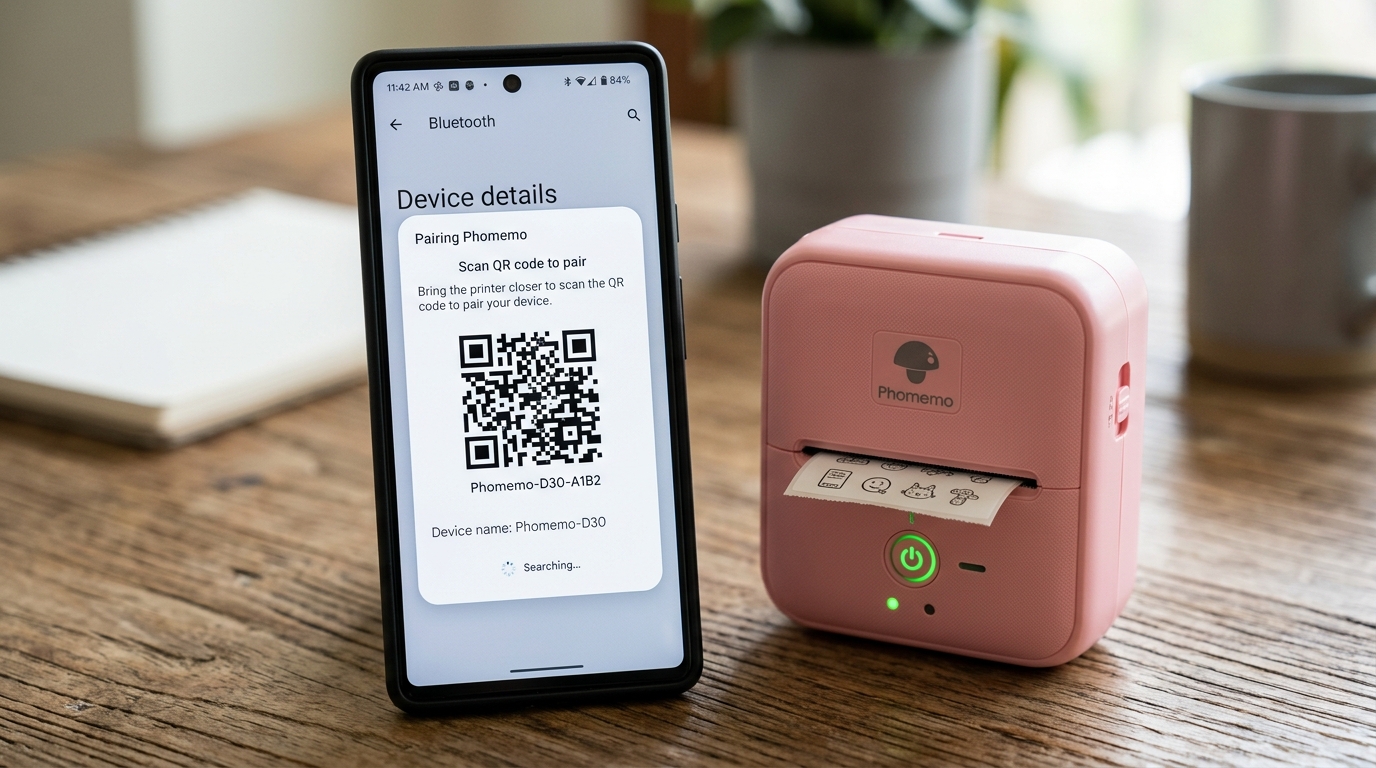
This guide explains Bluetooth connectivity on Android 12+. We focus on the Phomemo app's QR code pairing method.
We also help you troubleshoot common connection problems.
Before Android 12, apps needed location permissions to scan for Bluetooth devices. People could use Bluetooth scanning to find a user's location.
Now, apps must ask for permission to scan for nearby devices. Deny these permissions, and the Phomemo app cannot find your printer.
The printer might be on and right next to your phone. The QR code pairing method makes this process simpler.
It passes the connection details right to the app. This skips the manual search step.
But it still needs the correct OS permissions to work.
This article explains Android Bluetooth permissions. We show why the Phomemo app needs them and how to set them up.
We also look at how QR code pairing works. This feature helps you skip the tricky Bluetooth search process.
Read this guide to learn how to connect your Phomemo printer. You will get reliable results on any Android version.
We also cover specific error messages you might see during pairing. You might see a "Device Not Found" error or an endless loading spinner.
Sometimes a connection drops right after it starts. We have the solutions for these issues.
Check each possible failure point one by one. Start at the OS level and move down to the printer hardware.
Learn this order to fix many Bluetooth devices, not just Phomemo printers.
Why This Happens
Most Phomemo Bluetooth pairing issues on Android 12 start with the Nearby Devices permission. Open the Phomemo app for the first time, and it asks for this permission. Tap "Deny" or "Only this time", and the app loses its Bluetooth access. Then, it cannot find the printer's signal.
Another issue is pairing through the Android system settings instead of the app. Phomemo printers use Bluetooth Low Energy (BLE).
Classic Bluetooth devices require pairing through the phone's main menu. BLE devices need a direct connection inside their companion app.
Pair the printer through Android settings first, and the app might fail to connect. The system might block the app from making its own connection.
The QR code pairing method skips the manual search. It gives the app the exact MAC address of the printer.
But deny the camera permission, and the QR scan will fail. A low printer battery or an old app version can also cause pairing failures.
A weak battery reduces the Bluetooth signal strength. This leads to drops or a missing device in the scan list.
Step-by-Step Fix
- Forget Existing Pairings: Open Settings on your Android device. Go to Connected devices, then Bluetooth. Find the Phomemo printer in the list. Tap the gear icon next to it. Select "Forget" or "Unpair". You must connect through the app, not the system menu.
- Check App Permissions: Open Settings. Go to Apps, then See all apps. Find the Phomemo app. Tap on "Permissions".
- Grant Nearby Devices Permission: Find the "Nearby devices" or "Bluetooth" permission. Tap it and choose "Allow". This is very important for Android 12+.
- Grant Camera Permission (for QR Code): Stay in the Permissions menu. Make sure the "Camera" permission is granted. You need this to scan the pairing QR code.
- Enable Bluetooth and Location: Turn on Bluetooth. Android 12 separates Bluetooth and Location permissions. But some apps still need Location services to scan for BLE devices. Turn on Location just to be safe.
- Restart the Printer: Turn the Phomemo printer off. Wait 5 seconds, and turn it back on. Make sure the battery is fully charged. A low battery weakens the Bluetooth signal.
- Open App and Scan: Open the Phomemo app. Go to the connection screen. You usually find this icon in the top right corner.
- Use QR Code Pairing: Choose the option to scan a QR code. Print the info page from your printer. Double-click the power button to print it. Scan the QR code on that page with your phone. The app will recognize and connect to the printer.
Advanced Troubleshooting
Does the standard fix fail? You might need to look deeper into the system settings.
A corrupted Bluetooth cache is a common cause. Android stores temporary data for Bluetooth connections.
Bad data causes persistent pairing problems. Clear the Bluetooth cache to fix this.
Enable Developer Options first. Go to Settings, then System, then Reset options.
Choose Reset Wi-Fi, mobile & Bluetooth. Warning: This will delete all saved Wi-Fi networks and Bluetooth pairings.
You must reconnect to everything again.
Check for interfering apps next. Apps that manage Bluetooth connections can block the Phomemo app.
Boot your phone into Safe Mode to test this. Hold the power button, then long-press the "Power off" option on the screen.
Safe Mode turns off third-party apps. Does the printer connect in Safe Mode?
Then an app is causing the conflict.
Check the printer's firmware (internal software) as well. A firmware bug can cause connectivity issues.
Look for firmware updates on the Phomemo website or in the app. You need a stable connection to update the firmware.
If you connect briefly, update the firmware right away. Make sure your Android OS is up to date too.
Google often releases patches to improve Bluetooth stability.
FAQ
Why does the app say "Device not found" even when the printer is on?
This means you have a permission issue on Android 12+. Grant the "Nearby devices" permission to the Phomemo app in your settings.
Can I connect multiple phones to one Phomemo printer?
No. Most portable thermal printers use a one-to-one connection.
What if I lost the paper with the QR code?
You can reprint the info page with the QR code. Turn the printer on and load paper.
Why does it disconnect randomly while printing?
Random drops often mean a low battery or physical interference. Keep the printer fully charged.
