


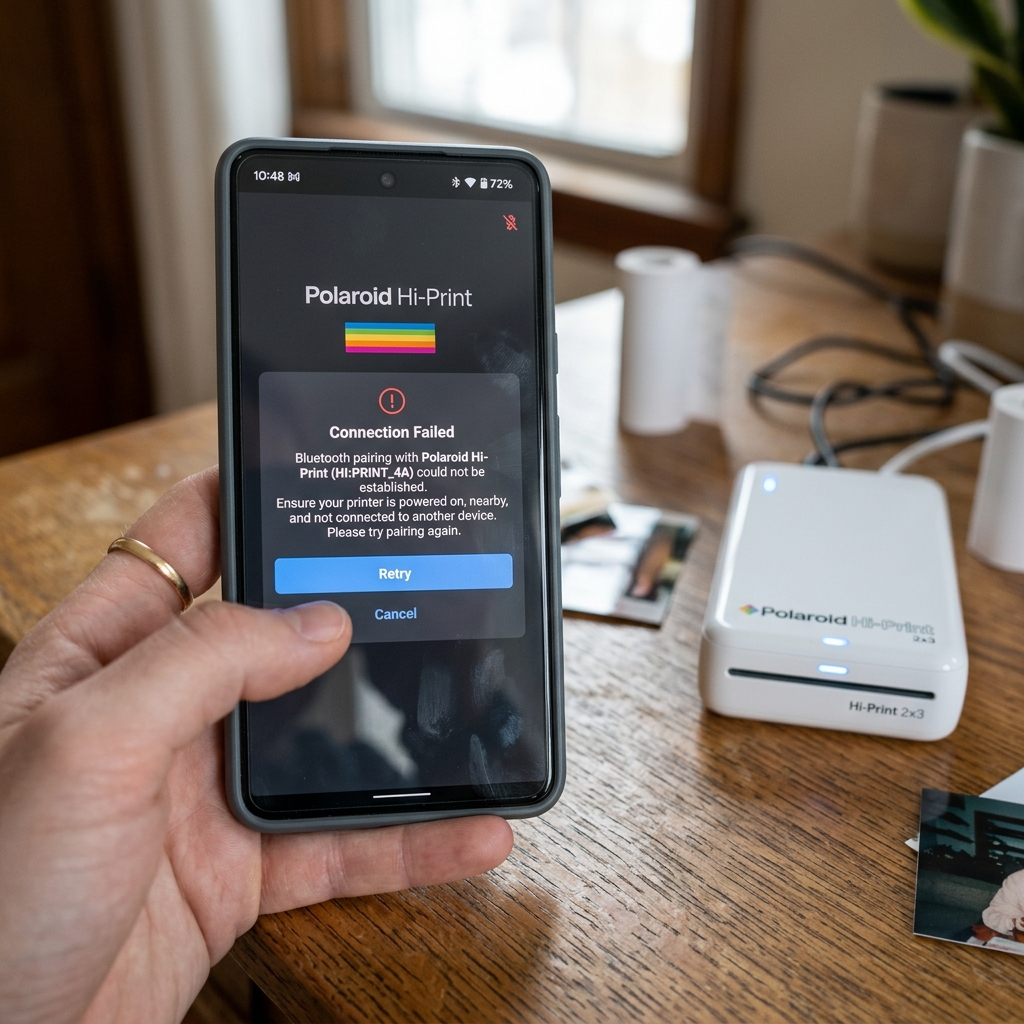
The Polaroid Hi-Print is a fantastic pocket-sized photo printer that turns your digital memories into vibrant, physical stickers. However, one of the most frustrating experiences for users is encountering Bluetooth connectivity issues, specifically when the printer won't connect to their smartphone and displays a "pairing failed" or similar error message.
This problem can bring your creative printing sessions to an abrupt halt. Modern Bluetooth technology is generally reliable, but the interplay between the printer's firmware, your smartphone's operating system, background applications, and environmental interference can sometimes create a perfect storm of connectivity failure.
This in-depth troubleshooting guide is designed to dissect the various reasons why your Polaroid Hi-Print might be refusing to pair and provide you with a comprehensive, step-by-step methodology to resolve these Bluetooth connectivity issues once and for all, getting you back to printing your favorite moments.
Why This Happens
Understanding the root causes of Bluetooth pairing failures with the Polaroid Hi-Print requires looking at how the technology functions and the common pitfalls in mobile device connectivity. The communication between the Polaroid app and the printer relies on a stable, authorized Bluetooth Low Energy (BLE) connection.
When this breaks down, it's usually due to one of several distinct factors.
The most frequent culprit is a corrupted Bluetooth cache or conflicting pairing history on your smartphone. When you pair devices, your phone stores connection data.
Over time, or after OS updates, this data can become corrupted. If your phone still retains a partial or flawed memory of a previous connection attempt with the Hi-Print, it may refuse to establish a new, clean connection, resulting in a persistent "pairing failed" loop.
Another major reason is outdated software. This applies to both the Polaroid Hi-Print app on your smartphone and the firmware inside the printer itself.
Manufacturers frequently release updates to patch bugs, improve stability, and ensure compatibility with the latest iOS and Android updates. Running an outdated app on a newly updated OS, or vice versa, is a guaranteed recipe for communication breakdowns and pairing anomalies.
Permissions issues on the smartphone operating system are also a common, yet often overlooked, cause. The Polaroid Hi-Print app requires specific permissions to function correctly, notably Location Services (especially on Android devices, as Bluetooth scanning is tied to location APIs) and explicit Bluetooth access permissions.
If these permissions were denied during the initial app setup, or revoked later, the app will be completely blind to the printer, even if the printer is powered on and right next to the phone.
Finally, environmental factors and battery levels play a role. Bluetooth signals can be degraded by physical obstacles, interference from other wireless devices (like Wi-Fi routers or microwaves), and the presence of numerous other active Bluetooth devices nearby.
Furthermore, if the Polaroid Hi-Print's battery is critically low, it may lack the necessary power output to sustain a stable Bluetooth handshake protocol, leading to intermittent disconnections or outright pairing failures.
Step-by-Step Fix
- Check Power and Proximity: Ensure the Polaroid Hi-Print is fully charged. Connect it to a power source and wait until the charging indicator signifies a full battery. Place the printer right next to your smartphone to eliminate any range or physical interference issues.
- Toggle Bluetooth and Restart Devices: Start with the simplest solution. Turn off Bluetooth on your smartphone. Power off the Polaroid Hi-Print printer. Restart your smartphone completely. Once the phone has rebooted, turn Bluetooth back on and power on the printer. This clears temporary glitches in the OS.
- Forget the Device in Bluetooth Settings: Go to your smartphone's main Bluetooth settings menu (not just the app). Look for the Polaroid Hi-Print in the list of paired or previously connected devices. Tap on it and select "Forget This Device" (iOS) or "Unpair" (Android). This is crucial for clearing corrupted connection data.
- Clear App Cache and Data (Android Only): If you are using an Android device, go to Settings > Apps > Polaroid Hi-Print > Storage. Tap on "Clear Cache" and then "Clear Data". This will reset the app to its factory state, removing any conflicting local settings. You will need to log in again if applicable.
- Reinstall the Polaroid Hi-Print App: For both iOS and Android, sometimes the app installation itself becomes corrupted. Delete the Polaroid Hi-Print app from your phone entirely. Go to the App Store or Google Play Store and download the latest version fresh.
- Verify Permissions During Setup: Open the newly installed app. When prompted, you MUST grant all requested permissions. Specifically, ensure Bluetooth access and Location Services (if prompted, select "Allow while using app") are granted. Without these, the app cannot scan for the printer.
- Perform a Hard Reset on the Printer: The Polaroid Hi-Print has a hidden reset button. Locate the tiny pinhole near the charging port or underneath the paper cartridge door. Use a paperclip or a SIM ejector tool to gently press and hold the button inside the pinhole for about 5-10 seconds while the printer is powered on. The printer will restart, resetting its internal hardware state.
- Attempt Pairing Through the App Only: Do not try to pair the printer through your phone's general Bluetooth menu first. Open the Polaroid Hi-Print app, navigate to the printer connection section, and follow the on-screen instructions to search for and connect to the printer from within the app interface.
- Update Printer Firmware: Once successfully connected, immediately check the app settings for any available firmware updates for the printer. Installing the latest firmware is vital for long-term connectivity stability and fixing known bugs.
- Isolate from Interference: If pairing still fails, try moving to a different room away from Wi-Fi routers, smart home hubs, or other active Bluetooth devices to rule out severe wireless interference during the pairing handshake.
Advanced Troubleshooting
If you have exhausted all the steps above and the Polaroid Hi-Print still refuses to connect, the issue might be more complex, potentially involving hardware defects or deeply rooted software incompatibilities. Here is a look at advanced troubleshooting avenues.
Test with a Different Device: The most definitive way to isolate the problem is to attempt pairing the printer with a completely different smartphone or tablet (ideally running a different OS, e.g., if you have an iPhone, try an Android device). If it connects flawlessly to the second device, the issue is almost certainly localized to your primary phone's hardware or operating system.
If it fails on multiple devices, the printer's Bluetooth module may be defective.
Reset Network Settings (Smartphone): If the issue seems isolated to your phone, you can try resetting your phone's network settings. This will wipe all saved Wi-Fi networks, Bluetooth pairings, and cellular network preferences, returning them to factory defaults.
This is a drastic step but can clear deeply ingrained connectivity bugs that standard troubleshooting misses. Be prepared to re-enter all your Wi-Fi passwords afterward.
Developer Options Logging (Android): For advanced Android users, you can enable Developer Options and turn on Bluetooth HCI snoop logging. This captures all raw Bluetooth communication data.
Analyzing these logs requires technical expertise but can reveal the exact point of failure in the pairing protocol, which is useful information to provide to Polaroid support if escalating the issue.
Contact Polaroid Customer Support: If all troubleshooting fails, and the printer will not connect to any device despite hard resets and fresh app installations, it is highly likely that the internal Bluetooth radio or mainboard of the Hi-Print has suffered a hardware failure. In this scenario, you must contact Polaroid customer support for warranty service, repair, or replacement options.
Provide them with a detailed list of all the troubleshooting steps you have already attempted.
FAQ
Does the Polaroid Hi-Print use standard Bluetooth or Bluetooth Low Energy (BLE)?
The Polaroid Hi-Print uses Bluetooth Low Energy (BLE). This is important because BLE devices often pair differently than standard Bluetooth audio devices.
Why does the Android app ask for Location permissions for Bluetooth?
This is a requirement of the Android operating system architecture. Because Bluetooth beacons can theoretically be used to determine a user's physical location, Android requires apps that scan for BLE devices to have Location permissions granted.
My phone sees the printer, but the app says "Not Found". What do I do?
This usually indicates a permission issue or a corrupted cache. First, ensure the app has Bluetooth permissions explicitly granted in your phone's settings.
Can multiple phones connect to one Polaroid Hi-Print at the same time?
No, the Polaroid Hi-Print can only maintain an active connection with one smartphone at a time. If someone else is currently connected to the printer, you will not be able to pair with it.
Is there a way to update the printer firmware without the app?
No. Firmware updates for the Polaroid Hi-Print are delivered exclusively over-the-air (OTA) via the Polaroid Hi-Print mobile application.
