


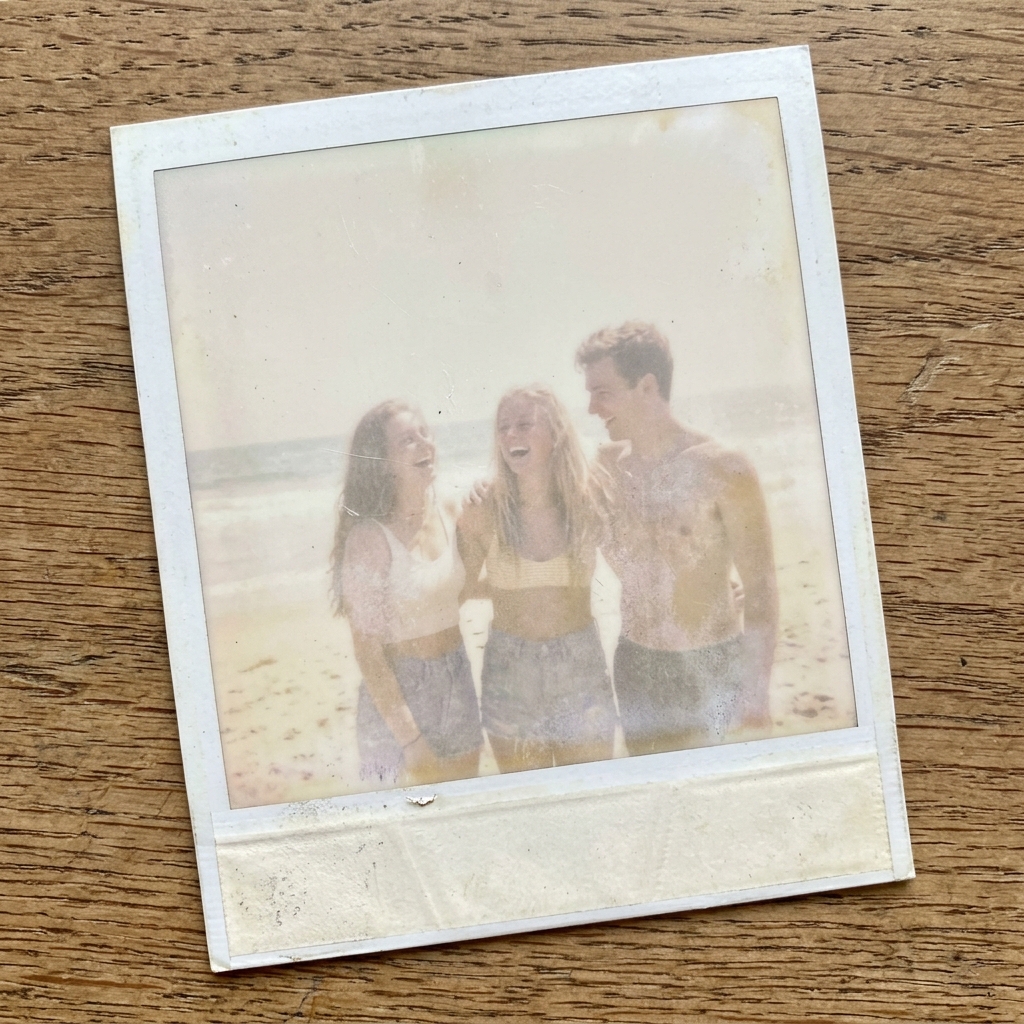
Introduction to Polaroid Hi-Print Quality Issues
The Polaroid Hi-Print is a fantastic pocket photo printer that relies on dye-sublimation technology to produce vibrant, high-quality prints directly from your smartphone. However, users frequently encounter print quality issues such as faded colors, dark or overexposed images, and grainy textures that can ruin the printing experience.
This comprehensive guide will help you understand the root causes of these problems and provide you with a detailed, step-by-step approach to resolve them. By following these instructions, you can restore your Polaroid Hi-Print to its optimal performance and continue enjoying beautiful, long-lasting physical memories.
The technology behind dye-sublimation is precise and sensitive to environmental factors, paper quality, and thermal head conditions. When everything works harmoniously, the prints are stunning.
But when one element is out of alignment, the resulting photos can be disappointing. In this guide, we will explore everything from basic maintenance and app settings to advanced calibration and hardware troubleshooting, ensuring you have all the tools necessary to achieve perfect prints every time.
We will cover common scenarios like faded prints lacking vibrancy, dark images that lose detail in the shadows, overexposed prints that look washed out, and grainy results that lack sharpness.
Why This Happens
Understanding why your Polaroid Hi-Print produces suboptimal prints is the first step toward a permanent fix. Several factors can influence the final output quality.
First and foremost, dye-sublimation technology uses heat to transfer dye onto the paper. If the thermal print head is dirty or malfunctioning, the heat distribution will be uneven, leading to faded or grainy spots.
Secondly, the quality and condition of the photo paper and dye ribbon cartridge play a crucial role. Using expired cartridges, storing them in high humidity, or exposing them to extreme temperatures can degrade the dye, resulting in dull or discolored prints.
Additionally, software settings within the Polaroid Hi-Print app, such as incorrect color profiles, brightness adjustments, or failing to update the printer's firmware, can cause discrepancies between what you see on your screen and the printed photo. Battery levels also affect performance; a low battery might not provide sufficient power to heat the print head adequately.
Lastly, the original image quality matters—printing low-resolution or heavily compressed images will naturally result in grainy and pixelated photos. Environmental conditions like ambient temperature and humidity during the printing process can also impact how the dye sets on the paper, making it essential to operate the printer in optimal conditions.
Step-by-Step Fix
Follow these detailed steps to resolve faded, dark, grainy, or overexposed prints on your Polaroid Hi-Print:
- Check the Cartridge and Paper Quality: Ensure you are using a fresh, unexpired Polaroid Hi-Print paper cartridge. Inspect the cartridge for any physical damage or dust. If the cartridge was stored in extreme heat or humidity, replace it with a new one stored in a cool, dry place.
- Clean the Printer Rollers and Internal Cavity: Turn off the printer and remove the cartridge. Gently blow out any dust from the internal compartment. Use a microfiber cloth slightly dampened with isopropyl alcohol to carefully clean the rubber rollers. Wait for the rollers to dry completely before reinserting the cartridge.
- Charge the Printer Fully: A low battery can cause incomplete dye transfer. Plug your Polaroid Hi-Print into a reliable power source using the original USB cable and wait until the indicator light shows a full charge before attempting to print again.
- Update the Firmware and App: Open the Polaroid Hi-Print app on your smartphone. Navigate to the settings menu and check for any available firmware updates for the printer. Also, ensure the app itself is updated to the latest version from the App Store or Google Play Store to fix any software bugs related to color processing.
- Adjust Image Settings in the App: If prints are too dark or overexposed, edit the photo within the Polaroid app before printing. Boost the brightness and contrast slightly for dark photos, or reduce exposure for washed-out images. Remember that smartphone screens are backlit, making photos look brighter than they will in print.
- Perform a Reset: If software glitches persist, reset the printer. Locate the small reset button (usually near the charging port), use a paperclip to press and hold it for a few seconds until the printer powers off and restarts. Reconnect it via Bluetooth and try printing a test image.
- Ensure High-Quality Source Images: To fix graininess, verify that the photo you are printing is of high resolution. Avoid printing images downloaded from social media or messaging apps, as these are often heavily compressed. Use original photos taken directly with your phone's camera.
Advanced Troubleshooting
If the standard step-by-step fix does not resolve your print quality issues, you may need to explore advanced troubleshooting. One significant aspect is thermal head calibration.
While the Polaroid Hi-Print does not have a manual calibration tool, ensuring consistent operating temperatures can mimic this. Avoid printing multiple photos in rapid succession, as the print head can overheat, causing color distortion and banding.
Allow the printer to rest for a few minutes between prints. Additionally, check for Bluetooth connectivity stability.
Interference from other devices can cause data packet loss during transmission, leading to incomplete or grainy prints. Try clearing the Bluetooth cache on your phone, unpairing the printer, and re-pairing it in an environment with fewer wireless devices.
If you suspect hardware failure, such as a persistently malfunctioning thermal head (indicated by consistent blank streaks or specific missing colors), it might require professional repair or replacement. In some cases, inspecting the alignment of the cartridge mechanism is necessary;
if the gears are jammed or misaligned, the paper won't feed properly, causing the dye layers (yellow, magenta, cyan, and overcoat) to misregister, which creates a blurry, overexposed, or ghosted effect.
Contacting Polaroid customer support with sample photos of your bad prints can help them diagnose whether the unit has a manufacturer defect.
FAQ
Why do my Polaroid Hi-Print photos look darker than on my phone?
Smartphone screens are backlit, which makes images appear brighter and more vibrant. Prints reflect light rather than emit it.
How can I fix lines or streaks on my prints?
Lines or streaks are typically caused by a dirty print head or dust on the rollers. Removing the cartridge and cleaning the internal cavity with a dry microfiber cloth can resolve this.
Why is my printer producing blurry or misaligned colors?
The Hi-Print uses a 4-pass process, applying yellow, magenta, cyan, and a protective layer sequentially. If the paper feed mechanism slips or if the printer is jolted during printing, the color layers will misalign.
Can I use expired Polaroid Hi-Print paper?
Using expired paper is not recommended. The dye ribbons degrade over time, especially if exposed to heat or humidity, which leads to faded colors, poor contrast, and unexpected color shifts in the final print.
What should I do if the cartridge is stuck?
Never force a stuck cartridge out, as this can damage the internal gears. Turn the printer off and on again, which often triggers an automatic reset cycle that ejects the cartridge.
