


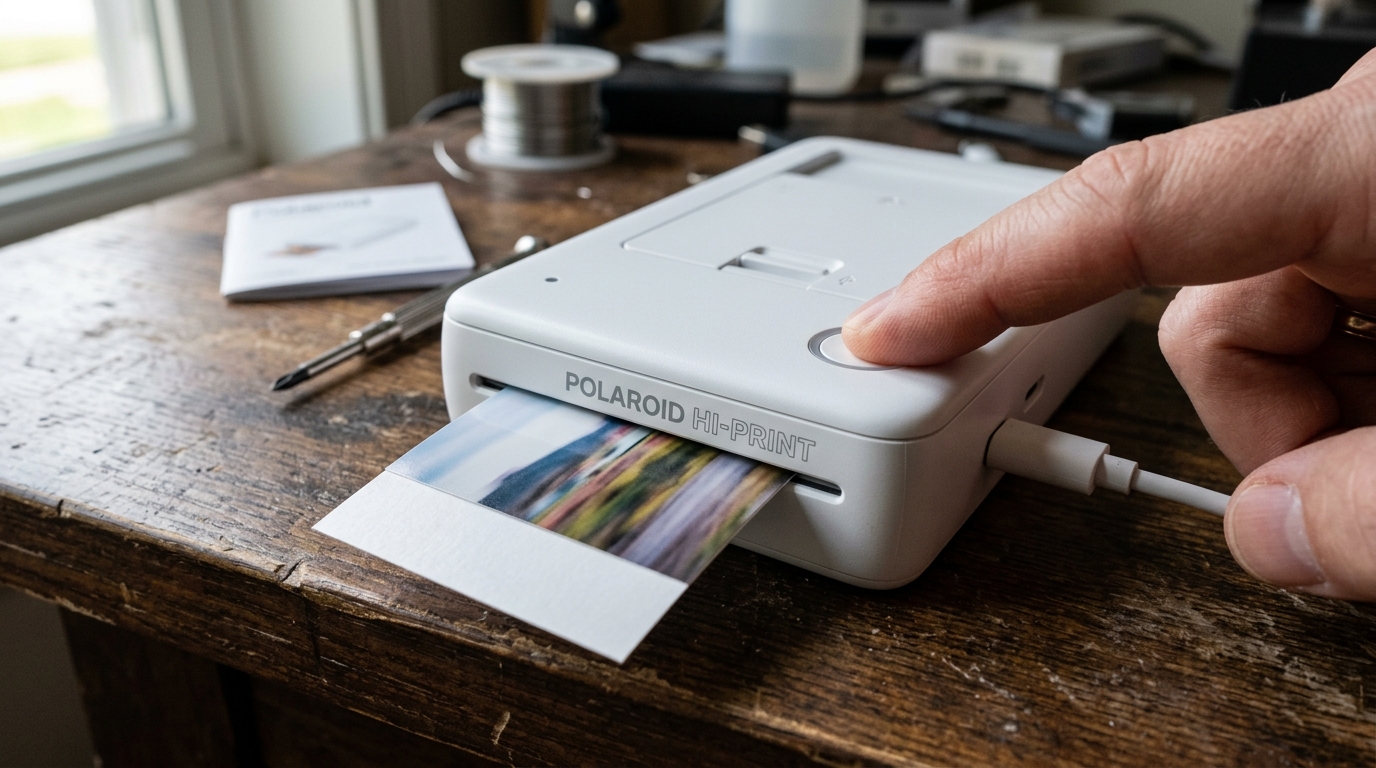
Introduction to Polaroid Hi-Print Stalling Issues
The Polaroid Hi-Print is a fantastic pocket photo printer that relies on dye-sublimation technology to produce vibrant, high-quality prints on the go. However, a common and frustrating issue users encounter is when the print button fails to light up or the printer abruptly stalls right in the middle of a printing cycle.
When this happens, the photo paper might be stuck partially inside, the app might show a connection error, and you are left wondering if your device is broken. This comprehensive guide will walk you through exactly why this happens and how to fix it, ensuring you can get back to printing your memories without interruption.
Why This Happens
There are several distinct reasons why a Polaroid Hi-Print might exhibit these symptoms. Understanding the root cause is critical to applying the correct fix.
First, the dye-sublimation process requires a significant amount of power. The printer pulls the paper in and out four times (for yellow, magenta, cyan, and the clear protective overcoat).
If the battery voltage drops below a certain threshold during this intense process, the printer's safety mechanism will halt the motor to prevent damage, resulting in a mid-print stall.
Another frequent culprit is Bluetooth connectivity interference. The Polaroid Hi-Print app sends data continuously during the print process.
If the Bluetooth connection drops or is interrupted by background apps on your phone, the printer stops receiving data and halts. Additionally, the print button may fail to light up if the paper cartridge is incorrectly seated or if the internal rollers are sensing a paper alignment issue.
Firmware bugs can also occasionally cause the logic board to freeze, necessitating a hard reset.
Step-by-Step Fix
Follow these steps carefully to resolve the stalling issue and get the print button to function normally again.
- Force Restart the Printer: Locate the tiny reset pinhole on the side or bottom of the Polaroid Hi-Print. Using a paperclip or a SIM ejector tool, press and hold the hidden reset button for 5-10 seconds. The printer should power off completely. Turn it back on and see if the print button illuminates.
- Charge to 100%: Plug the printer into a reliable 5V/2A wall charger (avoid using low-power computer USB ports). Leave it charging for at least 2 hours until the battery indicator shows a full charge. A weak battery is the number one cause of mid-print stalling.
- Clear the Paper Path: If a photo is stuck midway, DO NOT pull it out forcefully. Instead, turn the printer off and on. The automatic startup sequence will usually attempt to eject any trapped paper. If it doesn't, gently open the cartridge door, remove the cartridge, and carefully extract the stuck paper following the direction of the rollers.
- Reseat the Cartridge: Remove the paper cartridge, check for any dust or debris on the copper contacts, and reinsert it firmly. Ensure it clicks into place. The printer relies on electronic contacts to detect the cartridge; if it's loose, the print button won't light up.
- Re-pair the Bluetooth Connection: Go to your phone's Bluetooth settings and "Forget" the Polaroid Hi-Print. Restart your phone, turn the printer back on, and pair it again directly through the Polaroid Hi-Print app rather than the phone's native Bluetooth menu.
- Update the Firmware: Open the Polaroid Hi-Print app, navigate to the printer settings, and check for firmware updates. If an update is available, install it while the printer is plugged into power to prevent it from dying during the update process.
- Clear App Cache: If you are using an Android device, go to Settings > Apps > Polaroid Hi-Print > Storage, and clear the cache. For iOS, offload the app and reinstall it. This clears temporary data that might be causing communication errors.
Advanced Troubleshooting
If the standard fixes do not resolve the problem, the issue might be deeper within the hardware or the app environment. Consider the thermal characteristics of the printer.
The dye-sublimation head gets extremely hot. If you are printing in direct sunlight or a very warm room, the internal thermal sensor might trigger a safety shutdown, causing the button to turn off and the print to stall.
Allow the printer to cool down in the shade for 30 minutes before trying again.
Furthermore, inspect the ribbon inside the cartridge. Sometimes, the colored ribbon can snap or become tangled around the internal gears.
If you remove the cartridge and notice the ribbon is loose or broken, the cartridge is ruined and must be replaced. The printer detects ribbon tension; if there is none, it will refuse to print, and the button will remain unlit.
Finally, consider the power delivery of your charger. Some fast chargers (like USB-C PD chargers for laptops) might not correctly negotiate the 5V power required by the Polaroid Hi-Print, resulting in a "fake charge." Always use a standard USB-A to Micro-USB (or USB-C, depending on your model) cable with a standard phone charging block to ensure proper current delivery.
FAQ
Can I pull the paper out if it gets stuck?
You should never forcefully pull the paper out while the printer is engaged, as this can break the internal plastic gears. Always try turning the printer off and on first so it can auto-eject.
Why does the app say connected but the button is off?
This usually indicates a cartridge error. The Bluetooth connection is active, but the internal logic board has detected that either the cartridge is empty, incorrectly seated, or the ribbon is torn, disabling the print function for safety.
How many prints should a full battery last?
A healthy, fully charged Polaroid Hi-Print battery should yield about 20 prints. If your printer is stalling after just 2 or 3 prints, the internal battery may have degraded and could require a warranty replacement.
Does background app refresh affect printing?
Yes. If your phone is running heavy background tasks or optimizing battery by suspending the Polaroid app, the data stream to the printer can break.
