


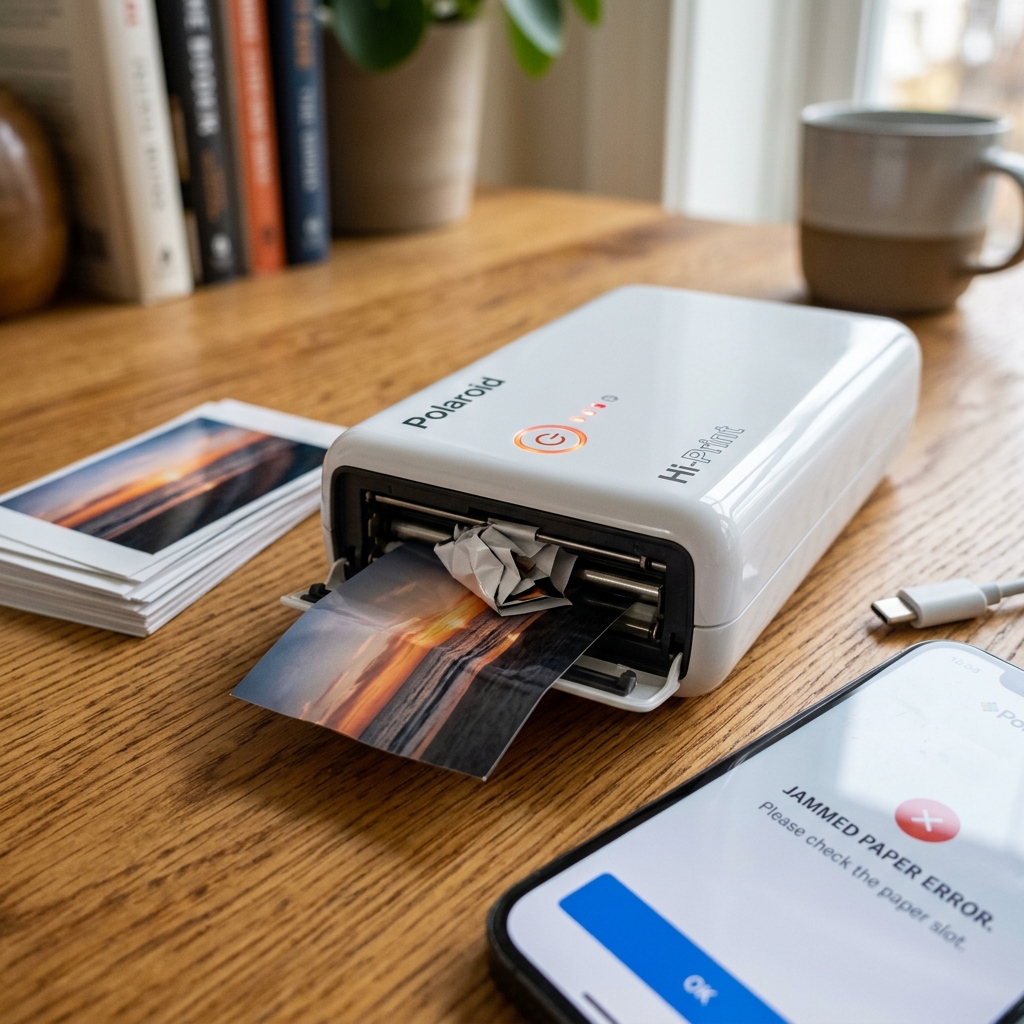
Introduction
Encountering a "paper jam" error on your Polaroid printer when there is clearly no paper jammed inside, or having the printer spit out blank photos, are incredibly frustrating experiences. These issues plague various Polaroid digital and hybrid printer models, including the Polaroid Hi-Print, Mint, and Zip series.
You carefully load the expensive ZINK (Zero Ink) paper or traditional Polaroid film, initiate a print from your smartphone. And instead of a vibrant memory, you are met with a flashing error light, a grinding mechanical noise, or a completely blank sheet.
This guide will provide a deep dive into resolving phantom paper jams and blank print issues. We will thoroughly examine the mechanics of Polaroid's printing technologies, specifically the internal sensors and the thermal or chemical processes involved.
By following the comprehensive steps outlined below, you will learn how to diagnose sensor misalignments, recalibrate your printer. And ensure your photo paper is correctly recognized, allowing you to get back to printing high-quality instant photos without the stress of false error codes and wasted materials.
The intricacies of modern portable photo printers lie in their miniaturized components. The margin for error in these compact devices is extremely small.
A speck of dust, a misaligned gear, or an improperly loaded smart sheet can throw the entire system into disarray, triggering failsafes that manifest as paper jam errors. Furthermore, the technology relies on precise temperature control and paper advancement speed to produce an image.
Blank prints often signal a breakdown in this delicate interplay. Whether you are a casual user wanting to print vacation snaps or a creative professional using instant prints for mood boards, this article will serve as your ultimate troubleshooting resource for these specific Polaroid printer malfunctions.
Why This Happens
The "phantom paper jam" is almost always a sensor issue. Polaroid printers use tiny optical or mechanical sensors to detect the presence and position of the paper as it moves through the feed rollers.
If dust, paper debris, or a small piece of the blue calibration card (the smart sheet) gets stuck over an optical sensor, the printer's logic board believes a piece of paper is permanently lodged in the mechanism. Similarly, if a mechanical sensor switch becomes sticky or bent due to aggressive paper loading, it will fail to return to its default position, triggering a continuous jam error even when the paper path is completely clear.
Blank prints, particularly on ZINK (Zero Ink) printers like the Polaroid Hi-Print or Mint, occur for different reasons. ZINK technology uses heat to activate color crystals embedded in the paper.
If the thermal print head fails to heat up, or if the paper is loaded upside down (with the non-reactive side facing the print head), the result is a blank sheet. Loading the paper upside down is the most common user error leading to this issue.
Additionally, the blue smart sheet. This must be run through the printer before a new pack of paper, contains barcodes that calibrate the print head's temperature settings for that specific batch of paper.
If this calibration is skipped or fails, the printer may not apply the correct heat, resulting in faded or entirely blank prints.
Another factor contributing to both issues is firmware (internal software) (internal software) glitches and power delivery problems. If the printer's battery is degraded, it might not provide sufficient current to drive the motor pushing the paper, causing a stall that the printer interprets as a jam.
Alternatively, low power might prevent the thermal head from reaching the necessary temperature, causing blank prints. Software glitches in the companion app can also send corrupted print commands, causing the printer's internal processor to crash and output a blank page as an error response.
Step-by-Step Fix
- Verify Paper Orientation: This is crucial. Open the paper compartment. For ZINK printers, ensure the glossy side of the photo paper is facing up (towards the top of the printer). And the barcode side of the blue smart sheet is facing down. Loading paper upside down guarantees a blank print.
- Run the Blue Calibration Sheet: Remove all paper from the printer. Place only the blue smart sheet (calibration card) from a fresh pack of paper into the tray, barcode facing down. Power on the printer. It should automatically draw the blue sheet through and eject it. This recalibrates the optical sensors and the thermal print head.
- Perform a Hard Reset: Locate the tiny reset pinhole on your Polaroid printer (usually near the charging port or under a flap). Insert a paperclip and press the button for 10-15 seconds while the device is on. The printer will restart, clearing its RAM and resetting false error states.
- Clean the Internal Rollers and Sensors: Unplug the printer. Using a flashlight, inspect the paper path. Take a microfiber cloth lightly dampened with high-percentage isopropyl alcohol (90%+) and gently wipe the rubber feed rollers. Use a can of compressed air to blow out any dust or microscopic paper fibers from the sensor areas deep inside the slot.
- Check for Micro-Debris: Sometimes, a tiny, almost invisible piece of torn paper or sticker backing gets wrapped around a gear. Use tweezers to carefully remove any foreign objects you spot in the paper path. Do not force anything.
- Update firmware (internal software) (internal software) via App: Reconnect the printer to your smartphone via Bluetooth. Open the Polaroid app, navigate to settings, and check for firmware (internal software) (internal software) updates. Install any available updates, as manufacturers frequently patch sensor sensitivity issues and heating algorithms through firmware (internal software) (internal software).
- Ensure Optimal Battery Level: A low battery can cause motor stalls and heating failures. Charge the printer to 100% using a reliable wall adapter. Attempt to print while the printer is plugged in and fully charged to rule out battery voltage drops as the cause.
Advanced Troubleshooting
If the printer still reports a phantom jam, the optical sensor might be permanently obscured or damaged. You can attempt to clean it more aggressively using a specialized printer cleaning sheet.
These sheets have a slightly tacky surface that grabs hidden debris as they pass through the rollers. Run a cleaning sheet through the printer 2-3 times.
If you don't have a commercial cleaning sheet, you can carefully use a slightly stiff piece of cardstock lightly moistened with alcohol, pushing it manually back and forth through the rollers while the printer is off, though extreme care must be taken not to damage the thermal head.
For persistent blank prints despite correct paper orientation and calibration, the thermal print head itself may be faulty or severely dirty. The print head is a delicate ceramic strip spanning the width of the paper path.
If you can access it (depending on the model's design), gently wipe it in one direction using a foam swab dipped in isopropyl alcohol. If cleaning does not resolve the blank prints, the heating elements within the thermal head have likely burned out.
This requires a professional hardware repair or replacement of the printer entirely, as thermal heads are generally not user-replaceable parts.
Furthermore, consider environmental factors. ZINK paper is highly sensitive to extreme heat and humidity.
If your paper packs were stored in a hot car or a damp environment, the chemical crystals may be ruined, resulting in blank or severely discolored prints regardless of printer functionality. Always test with a brand-new, properly stored pack of paper to eliminate material degradation as a variable.
FAQ
Why is my blue smart sheet not ejecting?
If the blue smart sheet refuses to eject automatically upon powering on, the feed rollers may lack grip due to dust, or a mechanical jam is preventing the motor from turning. Try gently nudging the sheet while powering on, or clean the rollers as described above.
Can I reuse a blue smart sheet from an old pack of paper?
It is not recommended. Each blue smart sheet contains specific calibration data for that exact batch of paper.
What does a blinking red light mean on my Polaroid printer?
A blinking red light is a general hardware error indicator. It most commonly signifies a paper jam, an open cover, low battery, or an overheated device.
Is there a way to open the printer to fix a mechanical jam?
Most modern compact Polaroid printers are assembled using clips and adhesive, making them difficult to open without causing cosmetic or structural damage. Opening the casing will also void your warranty.
