


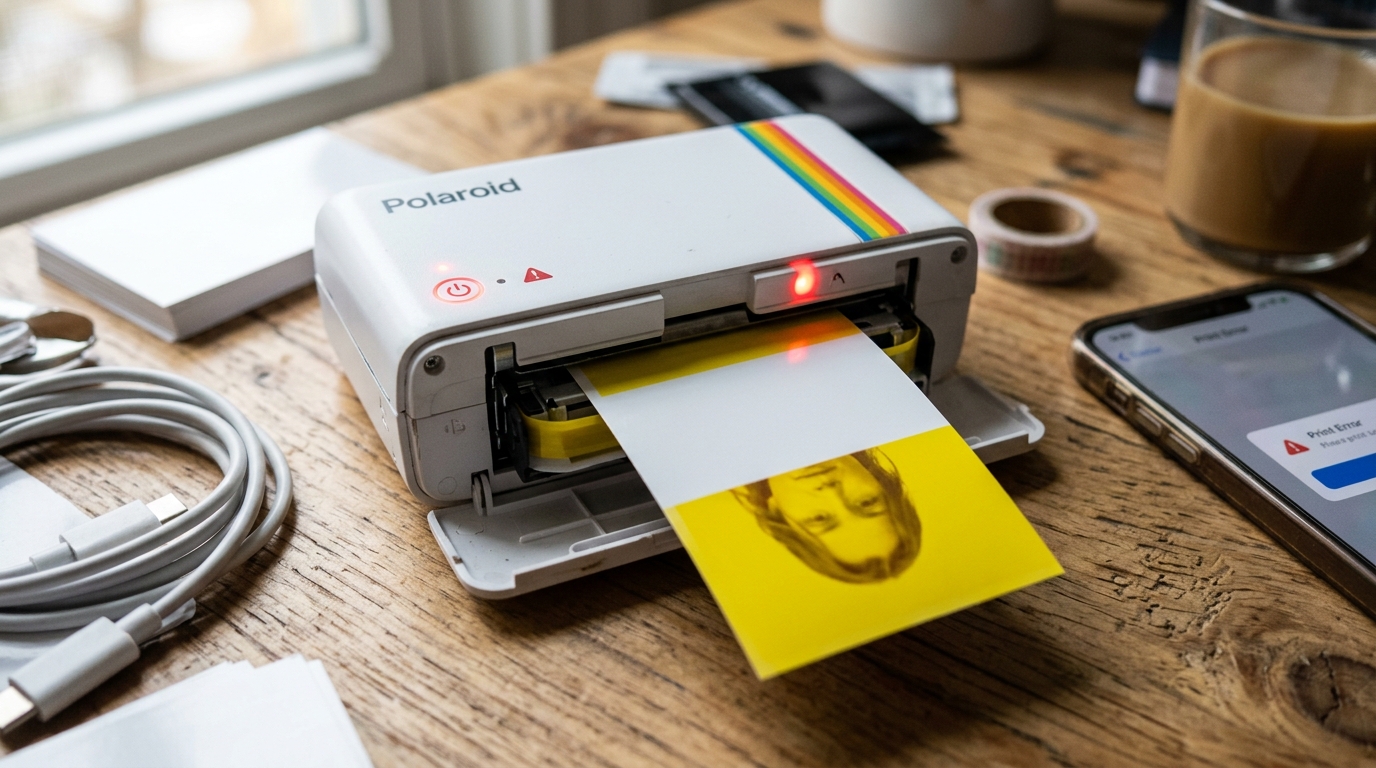
Introduction to Polaroid Hi-Print Jamming Issues
The Polaroid Hi-Print is a fantastic dye-sublimation printer that produces vibrant, credit-card-sized sticky-back photos. Because it uses dye-sublimation technology, it applies color in layers: yellow, magenta, cyan, and a final protective overcoat.
This multi-pass process means the photo paper must feed in and out of the printer four times. When the process fails mid-way, leaving a photo stuck on the yellow pass or ejected half-printed, it can be incredibly frustrating.
And costly in wasted cartridges. This guide will provide a deep dive into why this happens.
And how to meticulously troubleshoot and resolve the issue, ensuring smooth, complete prints every time.
Unlike ZINK (Zero Ink) technology, which develops colors thermally in a single pass, dye-sublimation is mechanically more complex. The precision required to align the paper for each color pass means any slight deviation, power fluctuation, or tension in the ribbon can halt the printing process abruptly.
By understanding the mechanical. And software interplay of the Polaroid Hi-Print, you can prevent these jams and rescue your printer from being permanently stuck.
Why This Happens: The Root Causes
A print failing mid-process, particularly getting stuck on the yellow pass, is usually a symptom of a mechanical failure within the cartridge, a power delivery issue, or a miscommunication between the app. And the printer.
- Slack in the Ribbon Cartridge: This is the most frequent culprit. The all-in-one cartridge contains the photo paper and a thin ribbon coated with the dye. If there is slack in this ribbon, the printer's internal mechanisms can snag it or fail to advance it properly. When the printer attempts the first pass (yellow), the slack ribbon gets tangled, causing a mechanical jam. And halting the process.
- Insufficient Battery Power: Dye-sublimation printing requires a significant amount of consistent power to run the thermal head. And the feed motors simultaneously. If the battery is weak, degraded, or not fully charged, a voltage drop during the printing process can cause the printer to abort mid-print, often spitting out a half-finished photo.
- Dirty or Slipping Rollers: The rollers that pull the paper back and forth must grip the glossy surface perfectly. If these rollers become coated in dust, finger oils, or residue from the paper, they can slip. When slippage occurs, the paper alignment fails, and the printer's sensors detect an error, stopping the print immediately.
- Cartridge Misalignment or Damage: If the cartridge was dropped, exposed to extreme heat, or inserted forcefully, the internal alignment might be compromised. Even a millimeter of misalignment can cause the paper to feed crookedly, triggering a jam sensor.
- App or firmware (internal software) Glitch: Occasionally, the phone app may send corrupted data, or the printer's firmware (internal software) might crash mid-execution. This usually results in the printer freezing in place, rather than ejecting a half-finished print.
Identifying the specific cause is crucial to applying the correct fix without causing further damage to the delicate internal mechanisms of the Hi-Print.
Step-by-Step Fix
Follow these meticulously ordered steps to safely resolve a stuck print and prevent future occurrences. Patience is key when dealing with mechanical jams.
- Do Not Pull Forcefully: If the photo is sticking out of the printer, resist the urge to yank it. Forcefully pulling the paper can snap the dye ribbon inside, ruining the cartridge, or worse, damaging the printer's internal gears. And thermal head.
- Power Cycle the Printer: Try turning the printer off and back on. Hold the power button for several seconds. Often, the printer's startup sequence includes an automatic ejection routine designed to clear jammed paper. And reset the cartridge mechanism.
- Perform a Hard Reset: If a standard power cycle fails, locate the tiny reset pinhole on the side or bottom of the printer. Using a paperclip, press. And hold the button inside the hole for about 5 seconds while the printer is turned on. This will cut power and force a hard reboot, which may initiate the ejection cycle.
- Carefully Remove the Cartridge: If the paper is completely stuck inside, gently open the cartridge door. Carefully attempt to slide the cartridge out. Be extremely gentle, as the paper might be engaged with the printer's internal rollers. If it feels firmly stuck, do not force it.
- Tighten the Ribbon (If Cartridge is Removed): If you successfully removed the cartridge, look at the exposed dye ribbon. If it looks loose or wrinkled, use your finger to gently turn the supply spool (usually the larger spool on the side) to wind the ribbon until it is tight. And flat. Reinsert the cartridge firmly.
- Clean the Rollers: Obtain a lint-free microfiber cloth or a specialized printer cleaning swab. Lightly dampen it with high-percentage isopropyl alcohol (90% or higher). Gently wipe the visible rubber rollers inside the printer cavity to remove any dust or oily residue. Allow it to dry completely before reinserting the cartridge.
- Charge to Absolute Maximum: Plug the printer directly into a high-quality wall charger (avoid using a computer USB port or a low-wattage adapter). Leave it plugged in until the charging indicator clearly shows a 100% full battery. Never attempt a print with less than a 50% charge.
- Try a Brand New Cartridge: If the issue persists with the current cartridge, the cartridge itself may be defective or permanently jammed internally. Insert a brand new, unused cartridge to verify if the printer hardware is functioning correctly. If the new cartridge works, the old one was the problem.
Advanced Troubleshooting
If you have followed the steps above. And the printer is still getting stuck on the yellow pass, consider these advanced troubleshooting techniques.
Examine the Cartridge Contacts: The printer communicates with the cartridge via small metal contacts to verify the cartridge type. And remaining prints. Ensure these contacts on both the cartridge and inside the printer are clean and free of debris. A quick wipe with alcohol can resolve communication errors.
Monitor the App Connection: Ensure your phone's screen does not turn off or the app does not go into the background. While printing. Keep the Polaroid app open. And active on the screen until the final print is ejected to prevent background processing interruptions.
firmware (internal software) Recovery: Check the app for any pending firmware (internal software) updates. Sometimes, a failed update can leave the printer in a glitchy state. Try reinstalling the app. And attempting to apply the firmware (internal software) update again to ensure the software is clean and current.
Check for Physical Obstructions: Use a flashlight to inspect the paper exit slot carefully. Sometimes, a tiny piece of torn paper or a foreign object can obstruct the exit path, causing the paper to bunch up inside during the first pass.
FAQ
Can I reuse a half-printed photo?
No. Dye-sublimation requires exact alignment.
Why does it specifically get stuck on yellow?
Yellow is always the first pass in the dye-sub process. If there is initial slack in the ribbon or a misalignment when the paper first feeds in, the failure will manifest immediately during this first pass.
Will removing a jammed cartridge break the printer?
It can, if done forcefully. If the paper is engaged in the rollers, pulling the cartridge can bend internal components.
How can I prevent the ribbon from going slack?
Store cartridges in a cool, dry place. Before inserting a new cartridge, always inspect the ribbon and tighten it slightly if necessary by manually turning the spool.
Is this a common issue with all dye-sublimation printers?
Yes, all dye-sub printers are more susceptible to mechanical jams than ZINK or inkjet printers due to the complex multi-pass process. And delicate ribbon mechanisms.
