


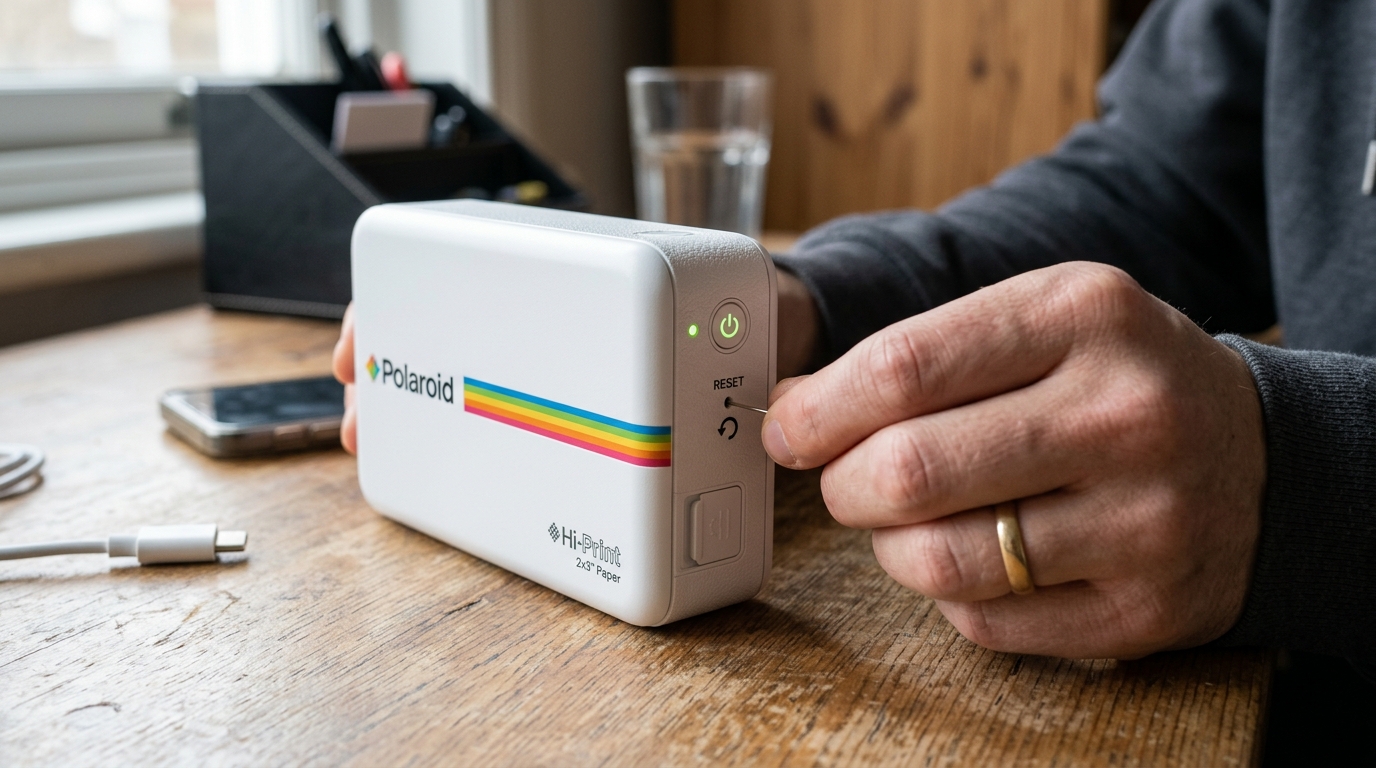
The Polaroid Hi-Print is a popular pocket-sized dye-sublimation printer that allows users to instantly turn smartphone photos into high-quality 2x3 inch sticky-backed prints. To maintain optimal print quality, ensure Bluetooth stability.
Fix software glitches, keeping the printer's firmware (internal software) up to date is crucial. Occasionally, users may experience issues where the printer becomes unresponsive, fails to connect to the companion mobile app, or experiences cartridge jams.
In these situations, performing a firmware (internal software) update or a hard factory reset can resolve the underlying software faults. This guide provides a comprehensive, deep-dive approach to successfully updating the Polaroid Hi-Print firmware (internal software).
Executing a factory reset to restore normal operation.
Why This Happens
firmware (internal software) issues. Connection drops in Bluetooth-based mobile printers like the Polaroid Hi-Print are common due to the rapid evolution of mobile operating systems and Bluetooth protocols.
As iOS. Android release major updates, the way they handle Bluetooth Low Energy (BLE) connections and background data transfers can change.
If the printer's internal software (firmware (internal software)) is not updated to accommodate these changes, users will experience frequent disconnections, failure to pair, or infinite loading screens within the Polaroid Hi-Print app.
Another factor contributing to printer malfunctions is interrupted firmware (internal software) updates. When a user initiates an Over-The-Air (OTA) firmware (internal software) update via the mobile app, the smartphone must maintain a stable Bluetooth connection.
Transmitting the firmware (internal software) payload. If the phone goes to sleep, the battery dies, or the user navigates away from the app during the transmission, the printer may be left with a corrupted, incomplete firmware (internal software) image.
This often results in a "bricked" state where the printer refuses to turn on properly, displays flashing error LEDs, or completely fails to broadcast its Bluetooth signal.
Mechanical state mismatches also necessitate resets. The Polaroid Hi-Print utilizes a complex dye-sublimation process involving a ribbon cartridge and rollers.
If a print job is interrupted—perhaps due to low battery or a paper jam—the internal logic board might lose track of the cartridge's physical position. The printer's software assumes the cartridge is engaged, while mechanically it is stuck mid-cycle.
A factory reset forces the internal microcontroller to reboot, clear its volatile memory. Command the motors to return the internal mechanisms to their default "home" positions, thereby clearing false error states.
Step-by-Step Fix
- Prepare the Printer for Update: Ensure the Polaroid Hi-Print is fully charged before attempting any firmware (internal software) update. Plug the printer into a reliable USB power source using the provided micro-USB cable. Wait until the charging LED indicates a full battery (usually solid green). Do not attempt an update with less than 50% battery.
- Update the Mobile App: Open the Apple App Store or Google Play Store on your smartphone. Ensure you are running the latest version of the Polaroid Hi-Print app. An outdated app might not have the correct server endpoints to fetch the latest firmware (internal software) files.
- Establish a Clean Bluetooth Connection: Go to your smartphone's Bluetooth settings. If the Polaroid Hi-Print is already listed in your paired devices, select "Forget This Device" or "Unpair". Turn off Bluetooth on your phone, wait 10 seconds, and turn it back on to clear the Bluetooth cache.
- Re-pair the Printer: Turn on the Polaroid Hi-Print. Open the Hi-Print app and follow the on-screen instructions to pair the printer anew. Ensure the connection is stable before proceeding.
- Initiate the firmware (internal software) Update: Within the Polaroid Hi-Print app, navigate to the Settings menu (often represented by a gear icon). Tap on the connected printer's name to view its details. Look for the "firmware (internal software) Update" or "Check for Updates" button. Tap it to see if a newer version is available.
- Execute the Update Process: If an update is found, tap "Download and Install". Keep your smartphone extremely close to the printer (within 1 foot) to ensure maximum Bluetooth signal strength. Do NOT close the app, lock your phone screen, or switch to another application during this process. The printer's LEDs will flash during the update.
- Wait for Automatic Reboot: Once the progress bar reaches 100%, the printer will automatically restart. Wait until the power LED stabilizes before attempting to print.
- Locate the Reset Button (For Factory Reset): If the printer is unresponsive or the firmware (internal software) update fails, you must perform a factory reset. Locate the tiny reset pinhole on the side or bottom of the printer, usually near the micro-USB charging port.
- Perform the Hard Reset: Unplug the printer from the charging cable. Use a paperclip or a SIM ejector tool to gently press and hold the button inside the reset pinhole. Hold the button down for 10-15 seconds. You should feel a slight click when pressing it.
- Power On and Re-calibrate: Release the reset button and turn the printer on using the main power button. The device has now been restored to its factory default state. You must "Forget" the old Bluetooth pairing on your phone and re-pair it as if it were a brand-new device.
Advanced Troubleshooting
If standard updates and resets fail, users may need to address underlying power delivery or environmental factors. Deeply discharged batteries can cause the printer's logic board to behave erratically.
If the printer has not been used for several months, the lithium-ion battery voltage might drop below the threshold required to initialize the main processor, even if the charging LED is on. In this scenario, leave the printer connected to a high-quality 5V/2A wall adapter (not a computer USB port) for at least 4 hours before attempting a reset.
This "trickle charge" can revive a deeply depleted cell.
In cases where the firmware (internal software) update repeatedly fails at a specific percentage (e.g., stopping at 30%), the issue may lie with Bluetooth interference in your environment. The 2.4 GHz spectrum used by Bluetooth is highly crowded.
Operating near active microwaves, Wi-Fi routers, cordless phones, or multiple other Bluetooth devices can cause packet loss during the OTA firmware (internal software) transfer. To mitigate this, attempt the firmware (internal software) update in a location with minimal RF interference, or temporarily disable the Wi-Fi radio on your smartphone, forcing the phone to use cellular data for the download.
Dedicating the phone's antenna entirely to the Bluetooth transfer to the printer.
Furthermore, evaluating the dye-sublimation cartridge's IC chip can resolve false firmware (internal software) errors. Each Polaroid Hi-Print cartridge contains a small smart chip that tracks the number of remaining prints and verifies authenticity.
If the contact pins inside the printer become dirty, or if the chip is defective, the printer's firmware (internal software) will halt operation to prevent hardware damage. Try removing the cartridge, gently cleaning the internal gold contact pins with a microfiber cloth.
A drop of isopropyl alcohol, and inserting a brand-new cartridge to see if the internal software clears the error state.
Finally, consider the mobile OS architecture. Occasionally, strict battery optimization settings on Android devices will kill the Polaroid Hi-Print app in the background.
The firmware (internal software) is transferring. Navigate to Android Settings > Apps > Polaroid Hi-Print > Battery.
Set the battery usage to "Unrestricted." This ensures the operating system does not throttle the app's CPU or Bluetooth access during the critical update phase.
FAQ
How long does the firmware (internal software) update process take?
A typical firmware (internal software) update takes between 3 to 5 minutes over Bluetooth. It is vital to keep the app open.
Will a factory reset delete my photos?
No. The Polaroid Hi-Print does not have internal storage for photos.
What should I do if the reset button does not seem to click?
Ensure you are using a tool with a small enough diameter, like a standard paperclip. If you press too hard with a tool that is too large, you risk damaging the internal micro-switch.
My printer's lights are flashing red rapidly, what does this mean?
Rapid flashing red lights usually indicate a hardware error, such as a paper jam, an empty cartridge, or a failed firmware (internal software) update. Try replacing the cartridge and performing the pinhole factory reset to clear the error.
Can I update the firmware (internal software) using a computer and a USB cable?
No, the Polaroid Hi-Print is designed to receive firmware (internal software) updates exclusively Over-The-Air (OTA) via Bluetooth through the official mobile app. The micro-USB port is solely for charging the battery.
