


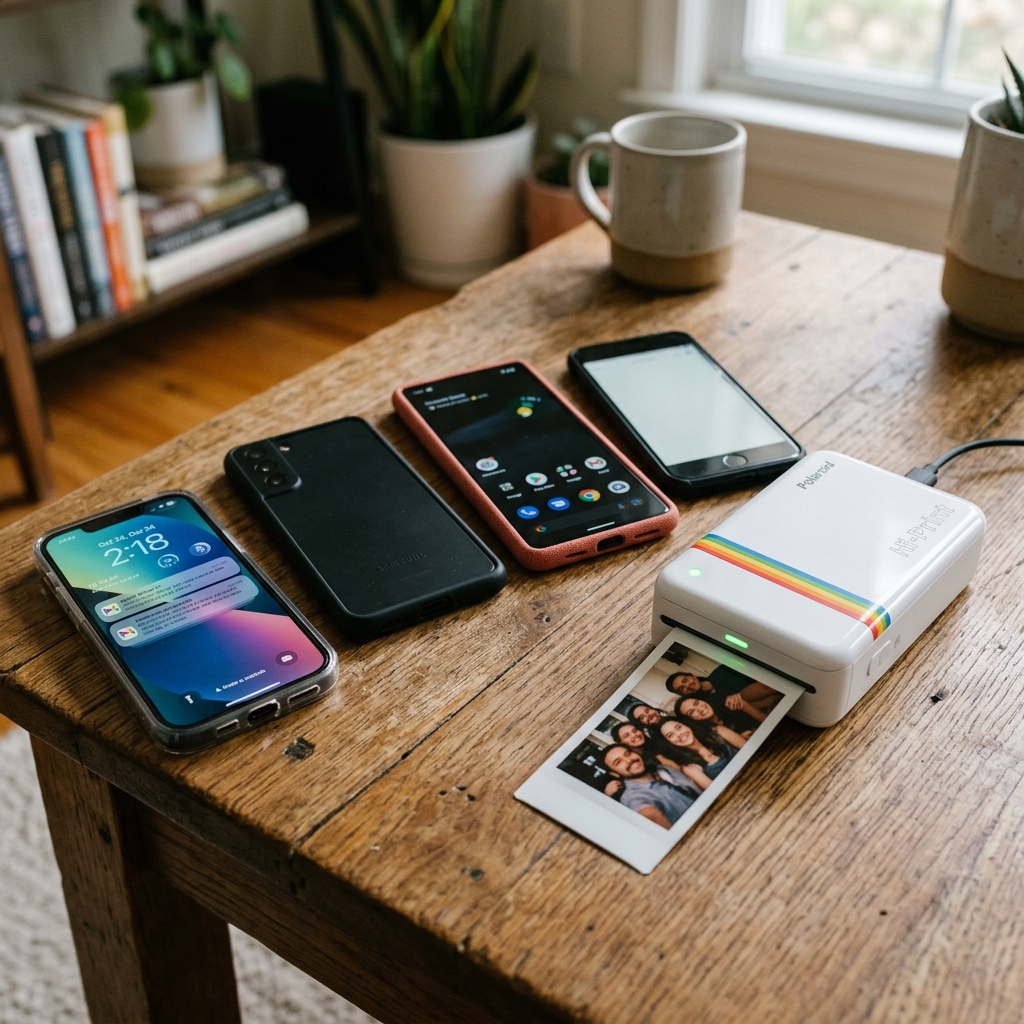
Polaroid Hi-Print Multiple Phones Pairing Guide
The Polaroid Hi-Print is a remarkable pocket photo printer that allows you to bring your digital memories into the physical world with stunning clarity and vibrant colors. Utilizing dye-sublimation technology, it produces credit-card-sized prints that are instantly dry and water-resistant.However, one of the most common challenges users face when incorporating the Polaroid Hi-Print into social settings.
Family environments, or creative collaborative workspaces is managing Bluetooth connections across multiple smartphones.Unlike standard Wi-Fi network printers that can seamlessly accept print jobs from dozens of devices simultaneously on the same local network. The Polaroid Hi-Print relies on direct Bluetooth pairing.This direct pairing creates a one-to-one communication channel that ensures data security and stability during the image transfer process.
It inherently limits the printer's ability to seamlessly juggle multiple active connections.Navigating this limitation requires a clear understanding of how Bluetooth profiles work. Adopting specific practices for disconnecting and reconnecting devices.This comprehensive guide will delve deep into the mechanics of pairing multiple phones to your Polaroid Hi-Print, explaining the underlying technology, outlining a step-by-step process for smooth transitions between devices.
Offering advanced troubleshooting solutions for persistent connectivity issues.
Why This Happens: The Limitations of Single-Point Bluetooth
To understand why connecting multiple phones to a single Polaroid Hi-Print can be frustrating. It is necessary to examine the specific Bluetooth implementation used by the device.
The printer operates primarily as a Bluetooth Classic or Bluetooth Low Energy (BLE) peripheral designed for a singular, primary connection. This is known as a single-point connection model.
When you pair your smartphone (the central device) with the printer (the peripheral device), a secure, encrypted bond is established.During this active connection, the printer dedicates its Bluetooth radio resources to communicating with that specific phone. Essentially ignoring pairing requests or connection attempts from other devices.
This design choice by the manufacturer is not an oversight but a deliberate strategy to ensure print reliability. Sending high-resolution image data over Bluetooth requires sustained bandwidth and minimal interference.If the printer were to attempt multiplexing—switching rapidly between multiple active phone connections—it could lead to data packet loss, interrupted print jobs.
Overall instability, resulting in wasted photo paper and user frustration.
Furthermore, the printer's internal memory stores a limited list of previously paired devices. While it remembers these devices for quicker reconnection later, it does not actively search for all of them simultaneously.If Phone A is currently connected and printing.
Phone B will either not see the printer in its Bluetooth menu or will receive an error when attempting to connect. The fundamental rule of the Polaroid Hi-Print is exclusivity: it demands the undivided attention of one device at a time during the printing process.
Overcoming this requires manual intervention to break the existing bond and establish a new one.
Step-by-Step Fix: Smoothly Transitioning Between Devices
To successfully print from multiple phones, you must establish a clear protocol for connecting and disconnecting. Follow these steps meticulously to avoid conflicts and ensure everyone gets their turn to print.
- Verify the Printer Status:Before attempting any connections, ensure the Polaroid Hi-Print is powered on. Holds a sufficient charge (at least 30% is recommended for consistent Bluetooth performance). The LED indicator should be illuminated, indicating its readiness.
- Identify the Currently Connected Device (If Any): Check if the printer's LED is solid or blinking in a way that suggests an active connection. If another person in the room previously used the printer, ask them to check their phone's Bluetooth settings.
- Force Disconnect on Phone A: This is the most crucial step. The user currently connected (Phone A) must actively sever the connection.This can be done in two ways: first, by closing the Polaroid Hi-Print app completely (swiping it away from the recent apps menu). Second, by navigating to their phone's Settings > Bluetooth, tapping the "info" or "gear" icon next to the Polaroid Hi-Print, and selecting "Disconnect." Do not select "Forget This Device" unless you want to redo the entire pairing process later.
- Wait for the Printer to Reset: After Phone A disconnects, observe the printer's LED.It should change its pattern (usually transitioning from solid to a slow blink) to indicate it is now in standby mode. Receptive to new connections. Wait approximately 5-10 seconds for the Bluetooth module to fully reset.
- Initiate Connection on Phone B: Now, the user of Phone B should open the Polaroid Hi-Print app. Do not try connecting through the phone's native Bluetooth settings menu first. The app manages the specific protocol required for data transfer.
- Pair via the App: In the Polaroid Hi-Print app on Phone B, navigate to the printer selection screen. The app should scan and detect the available printer. Tap to connect. If prompted by the phone's operating system to confirm the pairing request, accept it.
- Verify Connection and Print:Once the app indicates a successful connection (often displaying the printer's battery level), select your photo, edit as desired. Send the print job.
- Repeat for Subsequent Users: When Phone B is finished, they must perform the disconnection process outlined in Step 3 before Phone C (or Phone A again) can connect.
Advanced Troubleshooting: When Connections Fail
Even with strict adherence to the connection protocol, Bluetooth technology can sometimes be temperamental.If you are unable to connect a new phone despite disconnecting the previous one. Several advanced troubleshooting steps can clear residual conflicts.
First, restart the printer.Power cycling the Polaroid Hi-Print by turning it off, waiting 15 seconds. Turning it back on forces a hard reset of its Bluetooth module, clearing any stuck states or corrupted session data.
Simultaneously, toggle the Bluetooth on the phone you are trying to connect (turn it off for 10 seconds, then back on). This refreshes the phone's Bluetooth cache.
If a simple restart fails, you may need to clear the pairing history on both devices. On the smartphone experiencing issues, go to Bluetooth settings, locate the Polaroid Hi-Print, and select "Forget This Device" or "Unpair." This removes the stored bonding information, forcing the phone and printer to negotiate a fresh connection from scratch.
After forgetting the device, restart the phone to ensure all background Bluetooth processes are cleared.
In rare instances, environmental interference can disrupt pairing. The 2.4 GHz frequency band used by Bluetooth is crowded, shared with Wi-Fi routers, microwaves, and other wireless peripherals.If you are in an environment with heavy wireless traffic, try moving the phone.
Printer closer together (within 1-2 feet) during the pairing process to maximize signal strength and reduce the chance of packet loss during the initial handshake.
Finally, ensure that all smartphones are running the latest version of the Polaroid Hi-Print app.App updates frequently contain bug fixes. Improvements to Bluetooth connectivity protocols that address known issues with specific smartphone models or operating system updates (such as recent iOS or Android versions implementing stricter Bluetooth privacy controls).
FAQ
Can I connect two phones at the exact same time?
No, the Polaroid Hi-Print only supports a single active Bluetooth connection at one time. You must disconnect the first phone before the second phone can connect and send a print job.
Why does my phone say the printer is 'Rejected'?
This usually means another device is currently connected to the printer and holding the connection. Ensure all other phones in the vicinity have disconnected from the printer in their Bluetooth settings.
Do I have to 'Forget' the printer every time?
No. You only need to 'Disconnect' in your phone's Bluetooth menu or close the app.
Does the printer remember my phone?
Yes, the printer stores a list of previously paired devices. Once initially paired, reconnecting should be faster, provided no other phone is currently actively connected to the printer.
Why is the app not finding the printer, but my phone's Bluetooth does?
Always connect through the Polaroid Hi-Print app first.Connecting via the phone's native Bluetooth menu without the app can sometimes establish a basic connection that doesn't support the data transfer protocols required for printing. Blocking the app from seeing the printer.
