


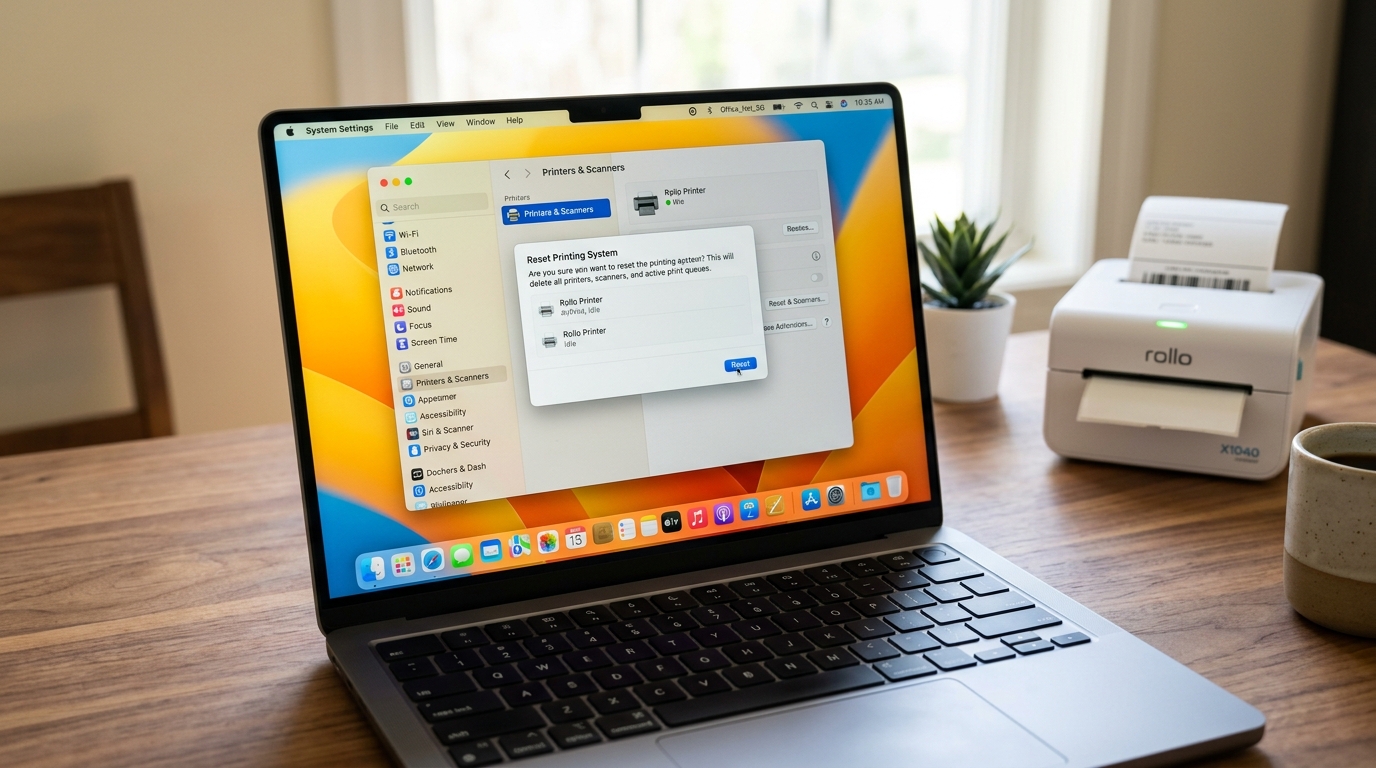
Rollo Printer Reset Printing System and AirPrint Setup on Mac
Setting up a Rollo printer on a Mac can sometimes be a frustrating experience, especially when encountering issues related to the macOS printing system or AirPrint configurations. Thermal printers like the Rollo are incredibly efficient for shipping labels, e-commerce businesses, and general fast-paced printing tasks.
However, they rely on specific driver communications that can become corrupted or misaligned within the Mac operating system. When your Rollo printer suddenly stops responding, prints blank labels, or fails to be recognized by your computer, a complete reset of the printing system is often the most effective resolution.
This comprehensive guide will walk you through the precise steps required to perform a deep reset of the macOS printing system, reinstall the necessary Rollo drivers, and configure AirPrint (if applicable) for seamless wireless printing operations. By understanding the underlying architecture of how macOS handles print queues and driver assignments, you can avoid these common pitfalls in the future and maintain a smooth workflow for your business operations.
Why This Happens
The macOS printing environment utilizes the Common UNIX Printing System (CUPS), a powerful but sometimes complex subsystem that manages all print jobs, driver interfaces, and spooling operations. When you connect a Rollo printer, macOS attempts to negotiate with the device to determine its capabilities and assign the appropriate driver.
Over time, as you update macOS, install other printers, or change USB ports, the CUPS configuration files can become fragmented or corrupted. This corruption manifests as printers that appear offline, jobs that get stuck in the queue, or drivers that simply refuse to communicate with the hardware.
Additionally, the transition from older Intel-based Macs to the newer Apple Silicon (M1/M2/M3) architecture has introduced new layers of driver translation (Rosetta 2) and security protocols, which can sometimes interfere with third-party thermal printer drivers. AirPrint, Apple's proprietary wireless printing protocol, adds another layer of complexity.
While Rollo's standard models are USB-only, the wireless models or network-shared USB printers rely on Bonjour/mDNS protocols for discovery. If your network router isolates devices, or if the Bonjour service on your Mac encounters an error, the Rollo printer will fail to appear in the AirPrint list.
Resetting the printing system clears all these fragmented configurations, deleting old queues, and resetting the CUPS daemon to its default state, providing a clean slate for the Rollo printer to be properly installed and recognized.
Step-by-Step Fix
- Disconnect the Printer: Before initiating any software changes, physically disconnect the USB cable of your Rollo printer from your Mac. If you are using a wireless model, ensure it is powered on but do not attempt to print.
- Open System Settings: Navigate to the Apple menu () in the top left corner of your screen and select "System Settings" (or "System Preferences" on older macOS versions).
- Navigate to Printers & Scanners: Scroll down the left sidebar and click on "Printers & Scanners" to view your current list of installed devices.
- Reset the Printing System: Right-click (or Control-click) anywhere in the blank space within the list of printers. A hidden menu will appear. Select "Reset printing system..." from this context menu.
- Confirm the Reset: A warning dialog will prompt you to confirm the action, notifying you that all printers, scanners, and pending print jobs will be deleted. Click "Reset" and enter your Mac administrator password when prompted.
- Restart Your Mac: To ensure that the CUPS subsystem fully restarts and clears its cache, reboot your Mac completely.
- Download the Latest Rollo Drivers: Visit the official Rollo support website and download the most recent macOS driver package. Do not rely on old installers you may have in your Downloads folder, as they might not be compatible with your current macOS version.
- Install the Driver: Open the downloaded .pkg file and follow the on-screen instructions to install the Rollo drivers. You may need to grant permission in "Privacy & Security" if macOS blocks the installation.
- Reconnect the Printer: Plug the Rollo printer directly into your Mac using a certified USB cable. Avoid using unpowered USB hubs, as thermal printers require stable data connections.
- Add the Printer: Go back to "Printers & Scanners" and click the "Add Printer, Scanner, or Fax..." button. Select the Rollo printer from the list. Ensure that the "Use" dropdown menu explicitly says "Rollo Printer" and not "Generic PostScript Printer." Click "Add."
- Configure Print Size: Open a sample shipping label, hit print, and verify that the paper size is correctly set to 4 x 6 inches (100mm x 150mm) and the scale is set to 100%.
Advanced Troubleshooting
If the standard reset does not resolve your issues, you may need to explore the advanced CUPS web interface to forcefully clear stuck configurations. By default, macOS disables the web interface for security reasons.
To enable it, open the Terminal application (found in Applications > Utilities) and type the command: cupsctl WebInterface=yes. Press Enter.
Next, open your web browser (Safari or Chrome) and navigate to http://localhost:631. This will load the raw CUPS management interface.
Click on the "Printers" tab to see if the Rollo printer is listed with an error state. You can click on the printer and select "Cancel All Jobs" or "Delete Printer" directly from this interface, which sometimes bypasses graphical interface bugs in macOS System Settings.
Furthermore, check the Error Log in the CUPS "Administration" tab. Look for entries indicating "filter failed" or "broken pipe." A "filter failed" error usually implies that the rasterization engine (which converts your PDF label into thermal printer commands) is crashing.
This almost always requires completely uninstalling the driver, manually deleting the PPD (PostScript Printer Description) files from /Library/Printers/PPDs/Contents/Resources/, and reinstalling the driver from scratch. For AirPrint issues on wireless Rollo models, ensure that your Mac and the printer are on the exact same network subnet.
Dual-band routers often separate 2.4GHz and 5GHz networks; thermal printers typically only support 2.4GHz. Force your Mac to join the 2.4GHz network temporarily during setup to ensure discovery via Bonjour.
FAQ
Why does my Rollo printer say "Filter Failed" on Mac?
The "Filter Failed" error occurs when the macOS CUPS printing system cannot successfully convert the document you are trying to print into the specific rasterized commands that the Rollo printer understands. This is usually caused by an outdated, corrupted, or incompatible driver installed on your system.
Can I use AirPrint with a standard USB Rollo printer?
Natively, a USB-only Rollo printer does not support Apple's AirPrint protocol directly. However, you can achieve AirPrint functionality by connecting the USB printer to a Mac and sharing it over the network using the "Printer Sharing" feature in System Settings.
Does resetting the printing system delete my scanned documents?
No, resetting the printing system will not delete any documents, PDFs, or images that you have already scanned and saved to your Mac's hard drive. It only deletes the configuration files, print queues, and device listings within the Printers & Scanners preference pane.
My Mac doesn't have a standard USB port, only USB-C. What should I do?
Since the Rollo printer uses a traditional USB Type-B to USB Type-A cable, you will need a physical adapter to connect it to modern MacBooks that only feature USB-C (Thunderbolt) ports. It is highly recommended to use a direct USB-B to USB-C cable, or a high-quality, simple USB-C to USB-A dongle (like the official Apple adapter).
