


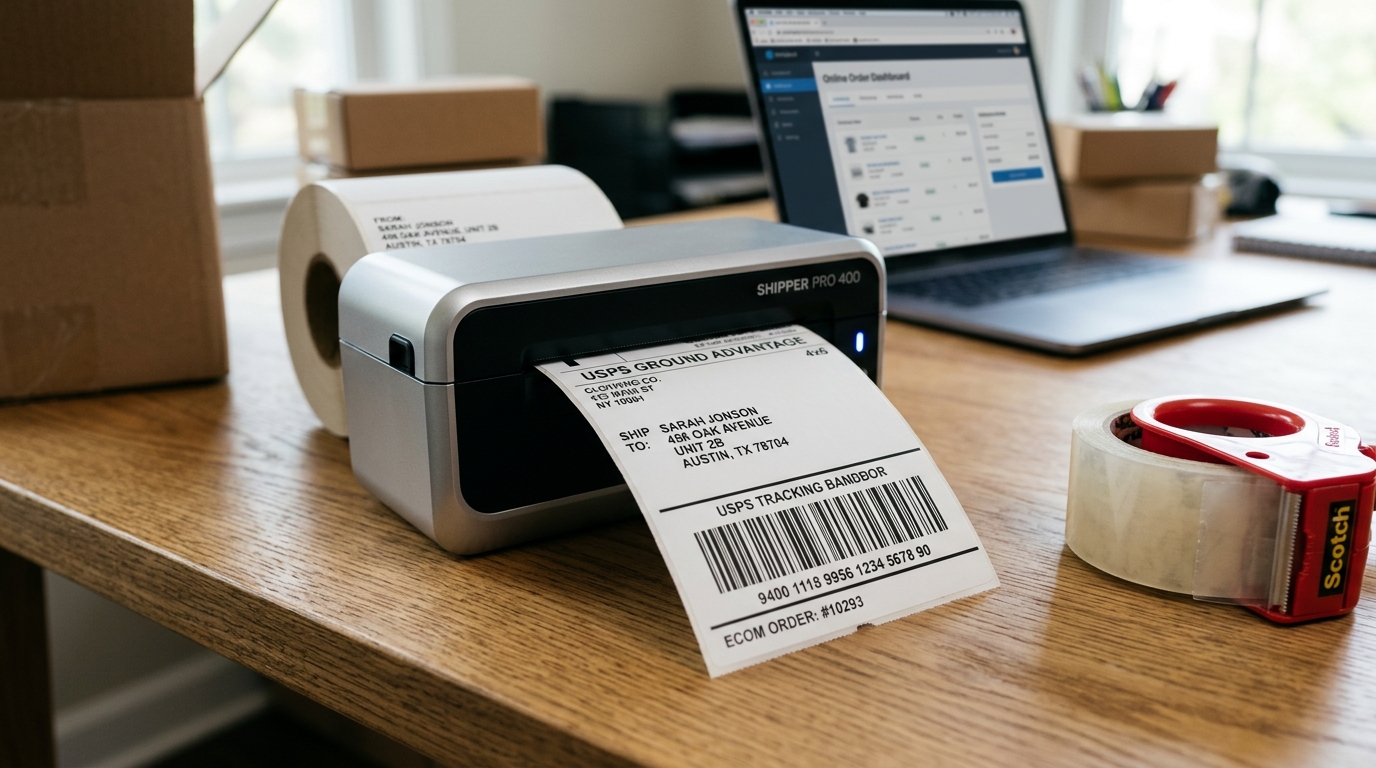
The Rollo thermal shipping label printer is a favorite among e-commerce sellers on platforms like Etsy and eBay due to its blazing fast print speeds, zero need for ink. And Compatibility with standard 4x6 inch thermal labels.
However. Making the transition from a standard desktop inkjet printer to a thermal label printer can introduce some initial setup hurdles.
Sellers frequently struggle with labels printing too small, sideways, fuzzy, or spanning across multiple labels. Properly configuring your Rollo printer to communicate with the specific shipping label generation systems of Etsy and eBay is essential for an efficient fulfillment process.
This guide will walk you through the exact settings and configurations needed on both Windows and Mac operating systems. As well as the platform-specific settings required to print perfect 4x6 labels every time.
Why This Happens
The core issue most users face when setting up a Rollo for Etsy and eBay is the default paper size settings. When you buy a shipping label on these platforms.
The system often defaults to generating an 8.5 x 11 inch standard letter-size PDF, assuming you are using a regular office printer and will cut the label out and tape it to the box. When you send an 8.5 x 11 PDF to a Rollo printer configured for 4x6 paper.
The printer's driver attempts to shrink the large document to fit onto the small label, resulting in tiny, unreadable barcodes and text. Furthermore, web browsers have their own print dialogue boxes.
This means that Can override the system printer preferences, adding margins or scaling the document improperly. To fix this, you must change the label generation size directly within your Etsy or eBay account settings.
And Ensure the Rollo print driver is correctly calibrated for the label dimensions and darkness.
Step-by-Step Fix
- Install the Rollo Drivers: Download the latest drivers for Windows or Mac directly from the official Rollo website. Do not rely on generic OS drivers. Install the software before plugging in the printer via USB.
- Calibrate the Printer: Load your 4x6 labels into the Rollo. Press and hold the circular button on the top until you hear a single beep, then let go. The printer will feed a few labels back and forth to automatically detect the size and gap between labels.
- Configure eBay Settings: Go to eBay Seller Hub > Orders > Awaiting Shipment. Click "Purchase shipping label." On the right side. Scroll down to "Label format" or "Print settings." Change the PDF format from "8.5x11" to "4x6".
- Configure Etsy Settings: Go to Etsy Shop Manager > Settings > Options > Web Receipts. Under "Shipping Label Options," select the format for "Thermal Printers (4x6)". Save your changes.
- Set System Defaults (Windows): Go to Control Panel > Devices and Printers. Right-click the Rollo printer, select Printing Preferences. Click "Advanced" and set the Paper Size to "100mm x 150mm" or "4 in x 6 in". Apply and OK.
- Set System Defaults (Mac): Open a document, go to File > Print. Select the Rollo printer. Click the "Paper Size" dropdown, select "Manage Custom Sizes." Create a new size: Width 4.0, Height 6.0. And Set all non-printable area margins to 0.0.
- Browser Printing: When printing the label PDF from Chrome or Safari, ensure the "Destination" is the Rollo printer. In "More Settings," ensure "Paper Size" is 4x6, "Scale" is set to "Default" or "100%". And "Fit to Page" is checked.
- Test Print: Generate a sample label or reprint a past label to verify. The barcode should be crisp, scan easily, and fill the majority of the 4x6 label without cutting off any edges.
Advanced Troubleshooting
If your barcodes are printing fuzzy or scanning poorly. You need to adjust the print density and speed within the Rollo driver settings.
Thermal printers use heat to darken the paper; printing too fast or with too little heat results in faded prints. On Windows, go to Printer Properties > Preferences > Halftone or Options tab.
And Increase the "Darkness" setting (usually between 1-15, set it around 8-10) and lower the Print Speed. On a Mac, access these settings via the CUPS interface or the "Printer Features" dropdown in the print dialogue.
Additionally, ensure you are using high-quality thermal labels; cheap labels have a poor thermal coating. This means that Requires excessive heat, which can prematurely degrade the printer's thermal printhead.
General Maintenance and Best Practices
Maintaining your printing equipment goes beyond troubleshooting immediate errors. Establishing a routine maintenance schedule is critical for ensuring the longevity and reliability of your hardware.
Printers, whether laser, thermal, or inkjet, contain numerous moving parts, sensitive electronic sensors. And Components that degrade over time through standard wear and tear.
Dust, paper fibers, and toner particles accumulate internally, eventually obstructing optical sensors and binding gears, leading to premature failure.
For laser printers, the accumulation of toner dust is a primary concern. Even with high-quality cartridges, microscopic toner particles escape into the chassis.
Periodically utilizing a specialized toner vacuum (which contains a HEPA filter designed to trap fine particulates) to clean the interior can prevent short circuits on the controller boards and prevent sensors from reporting false paper jams. Never use a standard household vacuum or compressed air, as compressed air simply drives the toner deeper into the sensitive laser scanner unit.
And Household vacuums can create static electricity that damages the motherboard.
Thermal printers require a different approach. Because they rely on direct contact between the thermal printhead and the label paper.
Any residue on the labels (such as adhesive or dust) transfers directly to the printhead. Over time, this residue creates a thermal barrier, resulting in faded prints, missing barcode lines, and poor scan rates.
Cleaning the thermal printhead regularly—ideally every time you change a roll of labels—with a lint-free cloth or cotton swab lightly moistened with 99% isopropyl alcohol is essential. Allow the printhead to dry completely before resuming printing.
Environmental factors also play a significant role in printer performance. Printers operate best in climate-controlled environments with moderate humidity.
High humidity can cause paper to absorb moisture. Leading to severe curling and frequent paper jams, especially in laser printers where the fuser applies intense heat to the paper.
Conversely, extremely low humidity increases static electricity. This Can cause multiple sheets of paper to stick together and feed simultaneously, or disrupt the electrostatic transfer of toner to the drum.
Storing your paper and labels in their original packaging until needed helps mitigate these environmental effects.
Furthermore, keeping your printer's firmware (internal software) updated is a vital, yet often overlooked, maintenance step. Manufacturers regularly release firmware (internal software) patches that not only fix bugs but also optimize the device's internal algorithms, improving energy efficiency, adjusting thermal control profiles to extend component life.
And Enhancing compatibility with the latest operating systems and network security protocols. Always check the official manufacturer's website for updates.
And Never interrupt the printer during the firmware (internal software) flashing process to avoid bricking the main controller board.
Implementing these preventative maintenance strategies will significantly reduce the frequency of errors, minimize frustrating downtime. And Ensure that your printing infrastructure remains a reliable asset for your business operations for years to come.
Consistency is key; a few minutes of proactive care can save hours of troubleshooting and costly repairs in the future.
FAQ
Why is my label printing sideways across two labels?
This happens when the orientation is set to Landscape instead of Portrait. 5x11 file.
Do I need a special subscription to print Etsy labels on a Rollo?
No, you only pay for the cost of the shipping postage itself. The Rollo printer acts as a standard output device and does not require any third-party subscription software to function with Etsy.
Can I print packing slips on the Rollo?
Yes, but a packing slip designed for letter paper will shrink significantly and may be hard to read. It is usually better to print packing slips on a standard printer or configure your store to generate thermal-friendly slips.
How do I clean the printer if the prints get streaky?
Turn off the printer, open the top. And Use an isopropyl alcohol wipe (or a cotton swab dipped in rubbing alcohol) to gently clean the thermal print head line and the rubber roller.
Why is the red light flashing on my Rollo?
A flashing red light usually indicates the printer has lost its calibration or is out of paper. Run the automatic calibration by holding the top button until it beeps once.
