


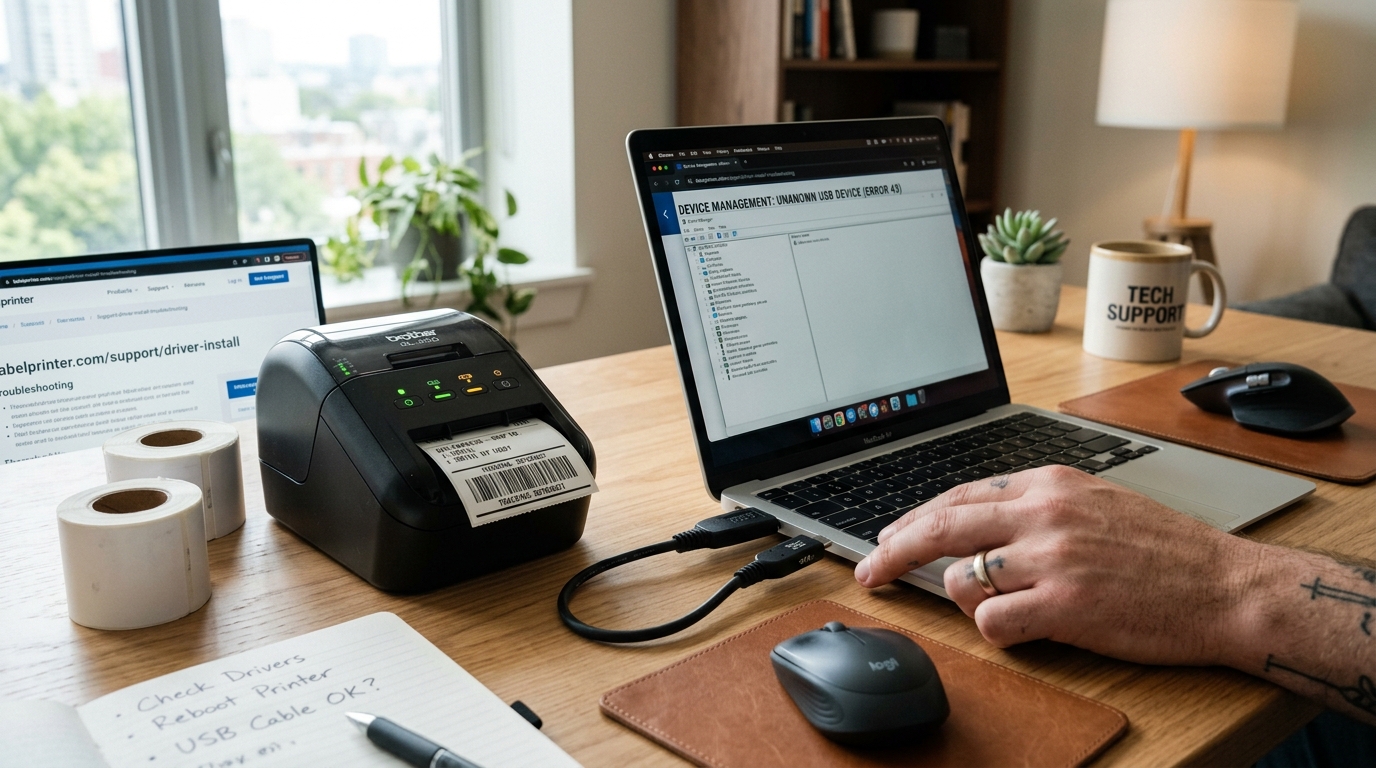
Introduction to Rollo Printer USB Detection Issues
The Rollo printer relies on a stable, high-speed USB connection to receive complex image data from your computer rapidly. Because it does not utilize Wi-Fi or Ethernet natively, the integrity of this single physical USB link is paramount.
One of the most maddening issues users face is the computer failing to detect the printer entirely ("USB Device Not Recognized"), or the printer seemingly connecting and disconnecting randomly during use, interrupting print jobs halfway through. These connectivity problems can stem from a variety of sources:
degraded physical cables, failing USB ports on the host computer, aggressive operating system power management settings, or corrupted USB controller drivers.
In this comprehensive guide, we will troubleshoot the entire USB data pathway—from the physical port on the back of the Rollo printer to the deep system settings in Windows and macOS—to establish a rock-solid connection and eliminate frustrating dropouts.
A reliable USB connection is not just about plugging a cable in; it requires constant 'handshaking' and voltage regulation between the host and the device. If the computer's USB port cannot supply adequate, stable 5V power, or if the data lines within the cable are frayed, the connection will drop.
Furthermore, modern operating systems are designed to aggressively save power by putting inactive USB ports to sleep. While this is great for laptops, it is disastrous for printers, as the computer may put the printer's USB port to sleep just as you attempt to send a shipping label, resulting in a failed print and an offline status.
By methodically eliminating variables, starting with the physical hardware and moving to the software configuration, you can permanently resolve these USB detection and disconnection issues.
Why This Happens: The Physics and Software of USB Failures
Physical hardware degradation is the primary culprit for intermittent disconnections. The USB Type-B port on the back of the Rollo printer undergoes mechanical stress every time the printer is moved or the cable is bumped.
Over time, the internal solder joints connecting the port to the motherboard can crack, leading to a loose connection that drops data whenever vibrations occur. Similarly, the USB cables themselves are fragile.
The standard cable included with the printer is adequate, but if it has been crushed, bent sharply, or stretched, the internal copper wires governing the D+ and D- data lines can break, causing the computer to report a "USB Device Not Recognized" error because it cannot read the device's hardware ID.
On the software side, the issue often lies with the computer's Universal Serial Bus controllers and power management protocols. Windows, in particular, has a feature called "USB Selective Suspend." This feature allows the OS to cut power to specific USB ports that it deems idle to conserve battery or energy.
Unfortunately, the OS often misjudges the status of a printer, putting the port to sleep right before a print job is spooled. When the spooler tries to send data, it encounters a sleeping port, causing the print job to fail and the printer to show as offline.
Additionally, using USB hubs—especially unpowered hubs—can cause significant problems. An unpowered hub splits the limited power and bandwidth of a single computer port among multiple devices.
High-draw devices or heavy data traffic can overwhelm the hub, causing all connected devices, including the Rollo printer, to drop offline simultaneously.
Step-by-Step Fix: Establishing a Stable USB Connection
Follow these progressive steps to diagnose and repair USB connection issues, starting with the simplest physical fixes and moving to advanced OS configurations.
- Inspect and Replace the USB Cable: The most common point of failure is the cable. Inspect the entire length of the USB cable for kinks, cuts, or crushed sections. Unplug the cable and inspect the metal connectors for bent pins. The most effective troubleshooting step is to immediately swap the cable with a known-good USB Type-B cable (commonly used for standard desktop printers) that is no longer than 6 feet (2 meters).
- Bypass USB Hubs and Docks: If your Rollo printer is connected to a USB hub, docking station, or a monitor's USB pass-through, disconnect it immediately. Plug the printer directly into a native USB port on the motherboard of your computer (the back panel of a desktop PC). Hubs introduce latency and power distribution issues that frequently cause connection drops.
- Try a Different Computer Port: Not all USB ports are created equal. If plugging into the front panel of a desktop PC, move to the back panel. If using a laptop, try a port on the opposite side. Sometimes, a specific USB controller chip on the motherboard begins to fail, affecting only the ports wired to it.
- Check the Printer's Physical Port: Gently wiggle the USB cable where it plugs into the back of the Rollo printer. If the port feels excessively loose or wobbles significantly, the internal solder joints may be broken. This is a hardware failure that requires technical repair or warranty replacement of the printer.
- Disable USB Selective Suspend (Windows Only): This is a critical fix for random disconnections on Windows. Go to Control Panel > Power Options. Click 'Change plan settings' next to your active power plan, then 'Change advanced power settings'. Expand the 'USB settings' tree, then 'USB selective suspend setting'. Change the setting to 'Disabled' and click Apply.
- Disable Power Management on Root Hubs (Windows Only): Right-click the Start button and select Device Manager. Expand the 'Universal Serial Bus controllers' category. Double-click each 'USB Root Hub', go to the 'Power Management' tab, and uncheck the box that says "Allow the computer to turn off this device to save power". Repeat for all Root Hubs.
- Reset the Printing System (Mac Only): If macOS refuses to detect the printer or shows it constantly offline, the printing subsystem may be corrupted. Open System Preferences > Printers & Scanners. Control-click anywhere in the list of printers and select 'Reset printing system'. This clears all queues and configurations. Re-add the Rollo printer by clicking the '+' button.
- Reinstall the USB Printing Support Driver (Windows): In Device Manager, if the Rollo printer shows up with a yellow exclamation mark under 'Printers' or 'Other devices', the driver is corrupted. Right-click it and select 'Uninstall device'. Unplug the printer, restart the computer, and plug the printer back in to force Windows to reinstall the basic USB printing support files.
- Update Motherboard Chipset Drivers: The USB ports are controlled by your computer's motherboard chipset. Outdated chipset drivers can cause widespread USB instability. Visit the website of your computer manufacturer (e.g., Dell, HP) or motherboard manufacturer and download the latest chipset driver updates for your specific model.
- Test on Another Computer: To definitively isolate whether the problem is the printer or the computer, install the Rollo driver on a completely different computer and plug the printer in. If the printer works flawlessly on the second computer, your original computer has a hardware or deep OS issue. If the printer fails on the second computer as well, the printer's internal USB interface is likely defective.
Advanced Troubleshooting: Checking for IRQ Conflicts and Ground Loops
In rare, complex computing environments, advanced issues can cause USB drops. One such issue is an IRQ (Interrupt Request) conflict.
If multiple high-bandwidth devices (like a heavy-duty webcam, external hard drive, and the printer) are sharing the same internal USB host controller, they can fight for CPU attention, causing dropouts. You can mitigate this by mapping out which ports belong to which controller in Device Manager (view by connection) and spreading your devices across different controllers.
Using a dedicated PCIe USB expansion card can provide an entirely separate data pathway for the printer, bypassing an overloaded motherboard chipset.
Another obscure but real hardware issue is a ground loop. If the printer and the computer are plugged into different electrical circuits with slightly different ground potentials, an electrical current can travel along the shielding of the USB cable.
This 'noise' severely corrupts the delicate data signals on the D+/D- lines, causing the connection to drop randomly. Ensure both the computer and the Rollo printer are plugged into the same high-quality surge protector or UPS (Uninterruptible Power Supply) to share a common electrical ground.
FAQ: Rollo USB Connection Questions
Why does Windows say "USB Device Not Recognized" when I plug it in?
This error occurs when the computer detects voltage on the USB port, but the data lines fail to transmit the hardware identification codes. This almost always points to a physically damaged USB cable or a broken USB port on the printer itself.
Can I use a USB extension cable if my printer is far away?
Using passive USB extension cables is highly discouraged for printers, as they degrade the signal strength. The maximum reliable length for a passive USB cable is about 16 feet (5 meters), but for high-speed data, shorter is always better.
My printer works for one label, then disconnects and goes offline. Why?
This classic symptom points directly to Windows Power Management. The OS wakes the port up for the first print, but then the "USB Selective Suspend" feature aggressively puts the port back to sleep immediately after, missing the next print job.
Why doesn't my Mac recognize the printer through my USB-C hub?
Many multi-port USB-C hubs, especially cheaper ones, struggle with power delivery and data routing for legacy USB Type-B printers. The hub prioritizes display output or power delivery over the USB data lanes.
Will a firmware update fix my USB disconnection problems?
Rarely. Firmware updates usually address internal logic, print quality, or sensor timing.
