


Introduction
The Rollo Wireless Printer revolutionized e-commerce shipping by combining the rugged reliability of a commercial label printer with the convenience of Wi-Fi connectivity. Allowing users to print directly from smartphones, tablets, and untethered laptops.
However, this reliance on wireless networks introduces a new set of challenges that traditional USB-only printers never face. When your Rollo printer starts randomly disconnecting from the Wi-Fi, drops off the network entirely,.
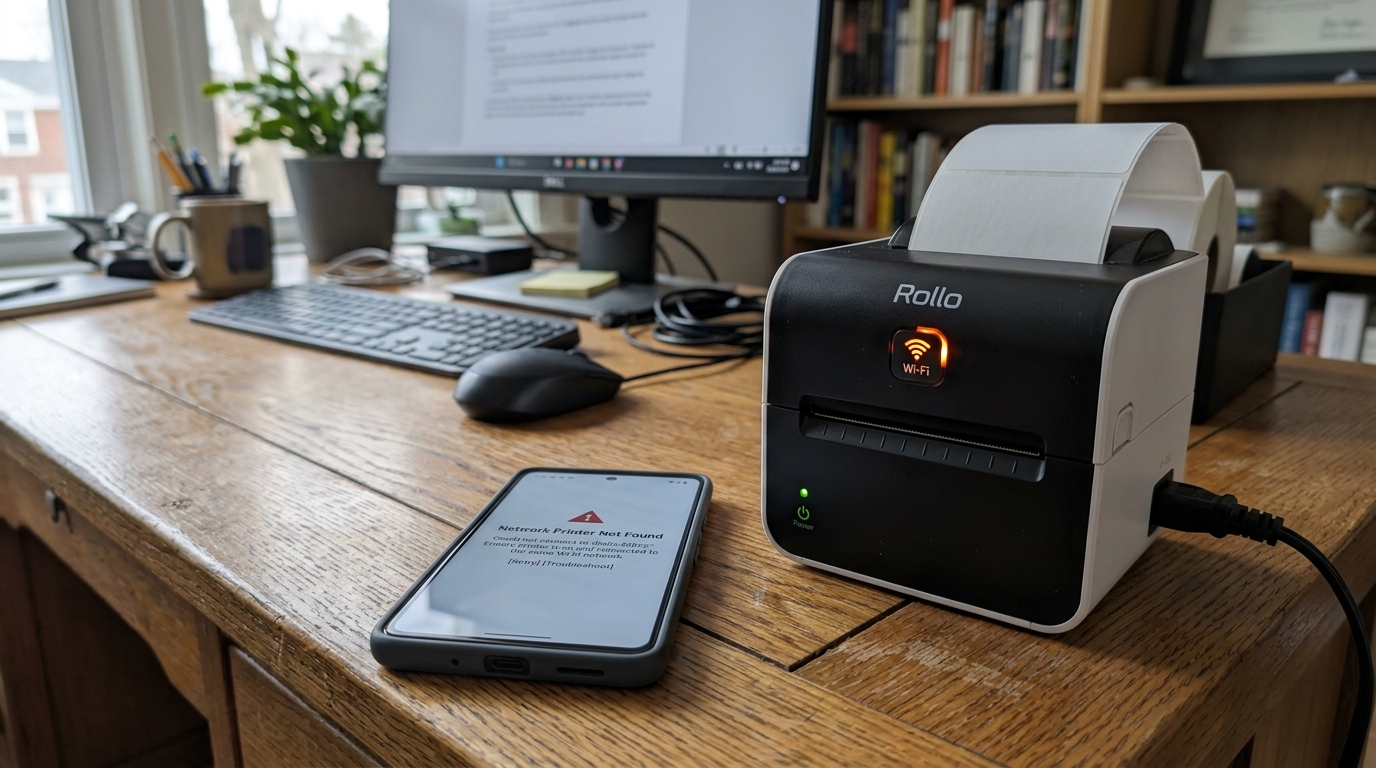
Displays a "Network Not Found" error within the Rollo App, the frustration is immediate. A disconnected shipping printer means stalled order fulfillment, backed-up queues, and a massive disruption to your business operations.
Troubleshooting wireless issues requires a different mindset than fixing mechanical jams;. It involves navigating router settings, IP address conflicts, and 2.4GHz network interference.
Understanding how the Rollo Wireless connects to your local network is the key to resolving these persistent disconnects. Unlike modern smartphones that seamlessly switch between 2.4GHz and 5GHz network bands, the Rollo printer—like many IoT and smart home devices—operates exclusively on the 2.4GHz band.
This design choice maximizes range and penetration through walls. Leaves the printer vulnerable to interference from other household electronics, neighboring networks,.
Modern "smart" routers that attempt to force devices onto the 5GHz band. Furthermore, routers use DHCP (Dynamic Host Configuration Protocol) to assign IP addresses.
If the router assigns a new IP address to the printer after a reboot, the Rollo App. Your computer's print spooler may lose track of the device.
Leading to a "Printer Offline" status even though the printer is technically connected to the Wi-Fi.
This extensive guide is dedicated to permanently fixing Wi-Fi disconnects and network discovery issues with the Rollo Wireless printer. We will start by examining the environmental and router-level causes of instability.
We will then provide a comprehensive, step-by-step resolution path that covers splitting network bands. Establishing static IP addresses, and resetting the printer's network module.
Finally, we will explore advanced network troubleshooting techniques for complex mesh Wi-Fi environments. Ensuring that your Rollo printer maintains a rock-solid connection for uninterrupted shipping label generation.
Why This Happens
The most prevalent cause of the Rollo printer disconnecting. Failing to be found on the network is band steering on dual-band routers.
Many modern ISPs provide routers (like Eero, Google Nest,. Xfinity Gateways) that broadcast a single Wi-Fi name (SSID) for both the 2.4GHz and 5GHz bands.
The router attempts to intelligently steer devices to the faster 5GHz band. Because the Rollo printer only supports 2.4GHz, this band steering logic often confuses the connection protocol.
The printer attempts to connect, the router tries to steer it to 5GHz, the printer fails,. The connection drops, resulting in a "Network Not Found" error during setup or intermittent disconnects during daily use.
Another major culprit is IP address reassignment and DHCP lease expiration. When you initially set up the Rollo printer, your router assigns it an IP address (e.g., 192.168.1.15).
Your computer and the Rollo App use this specific address to send print jobs. If your router reboots, or if the DHCP lease expires after a few days.
The router might assign that address to your smart TV and give the printer a new one (e.g., 192.168.1.20). Your computer is still looking for the printer at .15, causing the printer to appear offline.
Additionally, physical distance, dense walls (concrete or brick),. Interference from microwaves, Bluetooth devices, and neighboring Wi-Fi networks operating on the same 2.4GHz channel can severely degrade the signal quality, causing the printer to drop the connection to maintain data integrity.
Step-by-Step Fix
- Separate Your 2.4GHz and 5GHz Wi-Fi Networks: Log into your router's administration panel (usually accessed by typing 192.168.1.1 or 10.0.0.1 into a web browser). Locate the wireless settings and disable "Band Steering" or "Smart Connect". Rename your 2.4GHz network to something distinct (e.g., "HomeNetwork_2G") and leave the 5GHz network as "HomeNetwork_5G". Connect your smartphone to the new _2G network, open the Rollo app, and run the setup process again. This permanently prevents the router from forcing the printer off the network.
- Assign a Static IP Address (DHCP Reservation): To prevent the "Printer Offline" issue caused by changing IP addresses, you must assign a static IP. While logged into your router, find the "DHCP Reservation", "Static Lease", or "Address Reservation" section. Locate the Rollo printer in the list of connected devices (it may. Appear as an Espressif device or an unknown MAC address). Assign it a permanent IP address outside of the normal DHCP pool (e.g., 192.168.1.200). Save the settings and reboot the router.
- Perform a Network Reset on the Rollo Printer: If the printer is hopelessly confused by previous network settings, perform a hard network reset. Ensure the printer is turned on. Press and hold the Wi-Fi button on the back of the printer for. Approximately 10-15 seconds until the Wi-Fi LED light begins to blink rapidly. This clears all saved network credentials. You must now use the Rollo app to completely reconfigure the Wi-Fi connection from scratch.
- Change the 2.4GHz Wi-Fi Channel: If the printer connects but drops frequently, you may be experiencing wireless interference. Log back into your router and change the 2.4GHz channel from 'Auto' to a specific, non-overlapping channel: 1, 6, or 11. Use a free Wi-Fi analyzer app on your phone to see which of these three channels is the least congested by your neighbors' networks. And select that channel in your router settings.
- Reinstall the Rollo Printer on Your Computer: Once the network is stable and a static IP is assigned, delete the offline Rollo printer from your computer's settings. If you are on Windows, go to Printers & Scanners, click 'Add a printer', select 'The printer that I want isn't listed',. Choose 'Add a printer using a TCP/IP address'. Enter the static IP you reserved in step 2. This creates a direct, unshakeable connection between your computer and the printer.
Advanced Troubleshooting
In environments utilizing modern Mesh Wi-Fi systems (like Eero, Google Wi-Fi, or Orbi), separating the 2.4GHz and 5GHz bands is often not permitted by the manufacturer's simplified app interfaces. In these scenarios, you must utilize the mesh system's specific "IoT Troubleshooting" or "Legacy Device Mode".
For example, in the Eero app, you can navigate to Settings > Troubleshooting > 'My device won't connect' >. Temporarily pause the 5GHz band for 15 minutes.
During this window, connect the Rollo printer to the network. Once the 15 minutes expire and 5GHz reactivates, the Rollo printer will generally maintain its 2.4GHz connection.
If the printer connects to the Wi-Fi (indicated by a solid blue Wi-Fi light). The Rollo App still says "Network Not Found," the issue is.
Likely related to Local Network Privacy settings or VPN interference. On iPhones and iPads running iOS 14 or later, apps must be explicitly granted permission to scan the local network.
Go to Settings > Rollo and ensure "Local Network" is toggled on. Additionally, if you have a VPN active on your phone.
Computer (such as NordVPN or ExpressVPN), it encrypts your traffic. Routes it outside your local network, making it impossible to communicate with the local printer.
You must disable the VPN or enable split-tunneling for local IP. Addresses when attempting to print or set up the device.
Lastly, ensure that your router is not running "Client Isolation". "AP Isolation" (common on Guest networks), which prevents devices on the same Wi-Fi from talking to each other.
FAQ
Why does the Rollo printer only support 2.4GHz Wi-Fi?
4GHz band is standard for smart home and IoT devices. It offers significantly better range and can penetrate physical obstacles like walls, floors,.
The Wi-Fi light on my Rollo is blinking red. What does this mean?
A blinking red Wi-Fi light indicates that the printer is actively trying. To connect to a saved Wi-Fi network but is failing.
Can I connect the Rollo Wireless via USB if the Wi-Fi is down?
Yes. The Rollo Wireless printer retains full USB functionality.
Does the Rollo printer work on enterprise Wi-Fi networks (WPA2-Enterprise)?
No, the Rollo printer, like most consumer IoT devices. 1x authentication) commonly found in large corporate offices or university campuses.
