


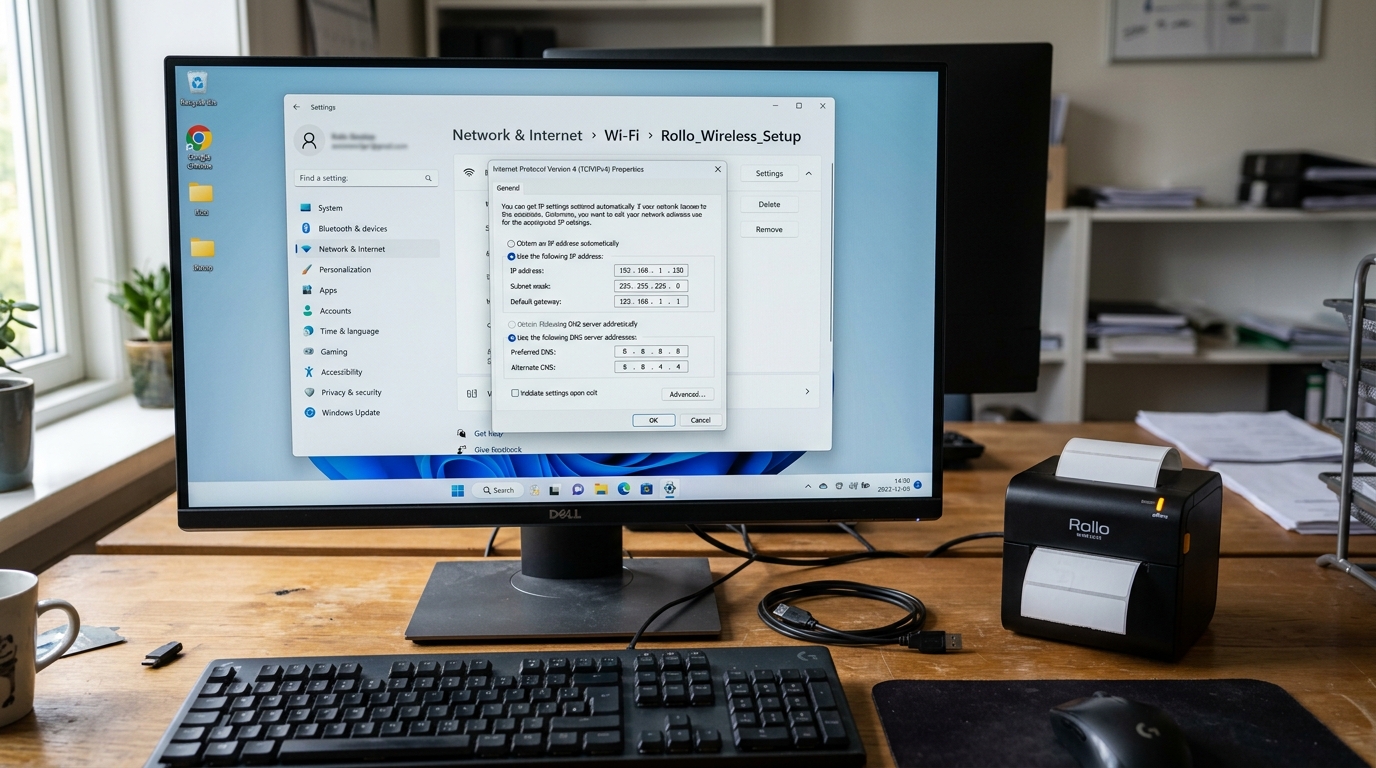
Rollo Printer Static IP Setup and Windows Offline Fix: Complete Network Guide
The Rollo Wireless Printer revolutionized small business shipping. It provides fast thermal printing without built-in label restrictions.
However, integrating a wireless printer into a network can introduce stability issues. The most common problem is the "Printer Offline" error in Windows.
This happens when the printer's IP address changes. The computer loses communication with the device.
A printer that randomly drops off the network is unacceptable. This guide provides a step-by-step walkthrough to eliminate these network drops.
You will configure a Static IP address for your Rollo printer. This will permanently resolve the Windows offline status.
We must look at how networks assign addresses. Routers use DHCP to hand out IP addresses to devices.
These addresses are leased for a specific time. The lease expires or the printer is turned off.
The router might assign that IP address to a different device. The Rollo printer reconnects and gets a new IP address.
Your Windows PC still tries to send print jobs to the old IP address. This results in the "Offline" status.
Lock the printer's IP address down so it never changes.
Why This Happens
The transition of a networked Rollo printer to an "Offline" state is a networking issue. Let's break down the technical mechanisms causing this failure:
1. DHCP Lease Expiration and IP Shifting: The primary cause is the dynamic nature of standard networks.
Your router acts as a DHCP server. The Rollo connects and requests an IP.
The printer is powered down over the weekend. The router reclaims that IP.
The Rollo might receive a new IP upon powering back up. The Windows print spooler sends data to the old port.
It fails and marks the queue as Offline.
2. WSD Instability: Windows 10 and 11 often try to automatically discover networked printers.
They use the WSD protocol and create a WSD port. WSD relies on multicast discovery packets.
Your network might drop these packets. The printer might enter sleep mode and stop broadcasting.
Windows assumes the printer is dead and marks it Offline. The printer is still reachable via its IP address.
3. SNMP Status Polling Failures: Windows enables SNMP Status Enable by default on standard ports.
Windows polls the printer to ask if it is ready. The Rollo printer might not support this SNMP string.
Network latency might delay the response. Windows interprets the silence as an error.
It throws the printer Offline.
4. Dual Network Confusion: The Rollo Wireless printer operates exclusively on the 2.4GHz Wi-Fi band. Your router might use a single network name for both bands. The printer can sometimes struggle to maintain a stable connection. It repeatedly drops off the network and causes offline errors.
5. Print Spooler Corruption: Sometimes the issue isn't the network at all. A corrupt print job might get stuck in the Windows Print Spooler queue. The spooler service crashes or hangs. The spooler reports all associated printers as Offline. You must manually clear the queue and restart the service.
Step-by-Step Fix
- Find the Current IP Address: Find out where the printer is located on the network. Make sure the Rollo is turned on and connected to Wi-Fi. Open the Rollo App on your smartphone. Go to settings and locate the printer's network info. You can also log into your router's administration page. Look at the attached devices to find the IP.
- Access the Rollo Web Interface: Open a web browser on a connected computer. Type the printer's IP address directly into the address bar. Press Enter. This opens the Rollo's internal settings server. Enter the default credentials.
- Configure the Static IP: Navigate to the Network Settings page in the web interface. Change the IP assignment method from DHCP to Static. Enter an IP address outside your router's normal DHCP range. This prevents conflicts. Enter the exact Subnet Mask and Default Gateway. Save and reboot the printer.
- Set a DHCP Reservation: The safest way to assign a static IP is via your router. Log into your router's admin page. Find the Address Reservation section. Add a new reservation using the printer's MAC address. Assign it a specific IP. The router will always give it the exact same IP.
- Create a Standard TCP/IP Port in Windows: Tell Windows where the printer is permanently located. Open Windows Settings and go to Printers & scanners. Click on your Rollo printer and select Manage. Click Printer properties and go to the Ports tab. Do not use the WSD port. Click Add Port and select Standard TCP/IP Port. Click New Port and then Next.
- Configure the New Port: Type the exact Static IP address you assigned to the printer. The Port Name will auto-fill. Click Next. Windows will attempt to detect the port. Click Finish when done, then Close. Check the box next to your newly created IP port.
- Disable SNMP Status: Select your new TCP/IP port and click Configure Port. Uncheck the box labeled SNMP Status Enable at the bottom. This stops Windows from aggressively polling the printer. Click OK, then Apply, then Close.
- Clear the Print Spooler and Restart: Clear out any stuck jobs causing ghost offline statuses. Press Windows Key + R and type services.msc. Hit Enter. Right-click Print Spooler and select Stop. Press Windows + R again. Type %systemroot%\System32\Spool\Printers\ and press Enter. Delete every file inside this folder. Start the Print Spooler service again.
Advanced Troubleshooting
The printer might still drop offline after setting a static IP. The problem lies deeper within network infrastructure or firewalls. Check your router's Wi-Fi settings first. Mesh nodes sometimes hand off devices poorly. Bind the Rollo's MAC address to a specific mesh node. This prevents it from constantly disconnecting.
Examine network isolation next. Many modern routers have a Guest Network feature. AP Isolation prevents communication between the main and guest networks. Make sure both devices are on the exact same subnet.
Check Windows Firewall and third-party security. Firewall profiles sometimes change dynamically. Windows Firewall blocks outgoing print port traffic when this happens. Go to Network and Sharing Center. Verify your network is set to Private. Ensure traffic to the printer's static IP address is whitelisted in your security software.
FAQ
Why does my Rollo printer work perfectly from my phone but is offline on my PC?
The Rollo App on your phone uses discovery protocols. These constantly scan the network for the printer's current IP address.
Can I just use a USB cable instead of fighting with Wi-Fi?
Yes. Plugging the printer directly into your PC via USB is reliable.
What is a MAC address and why do I need it for DHCP Reservation?
A MAC address is a unique physical identifier for the printer's network chip. Your router uses this permanent address to identify the printer.
I changed the IP to static and now I can't reach the printer at all. What did I do wrong?
You likely assigned an IP address outside of your router's subnet. You might have entered the wrong Gateway.
Why is the WSD port bad?
WSD relies on constant multicast chatter on the network. It is notoriously flaky in Windows and frequently drops connections.
