


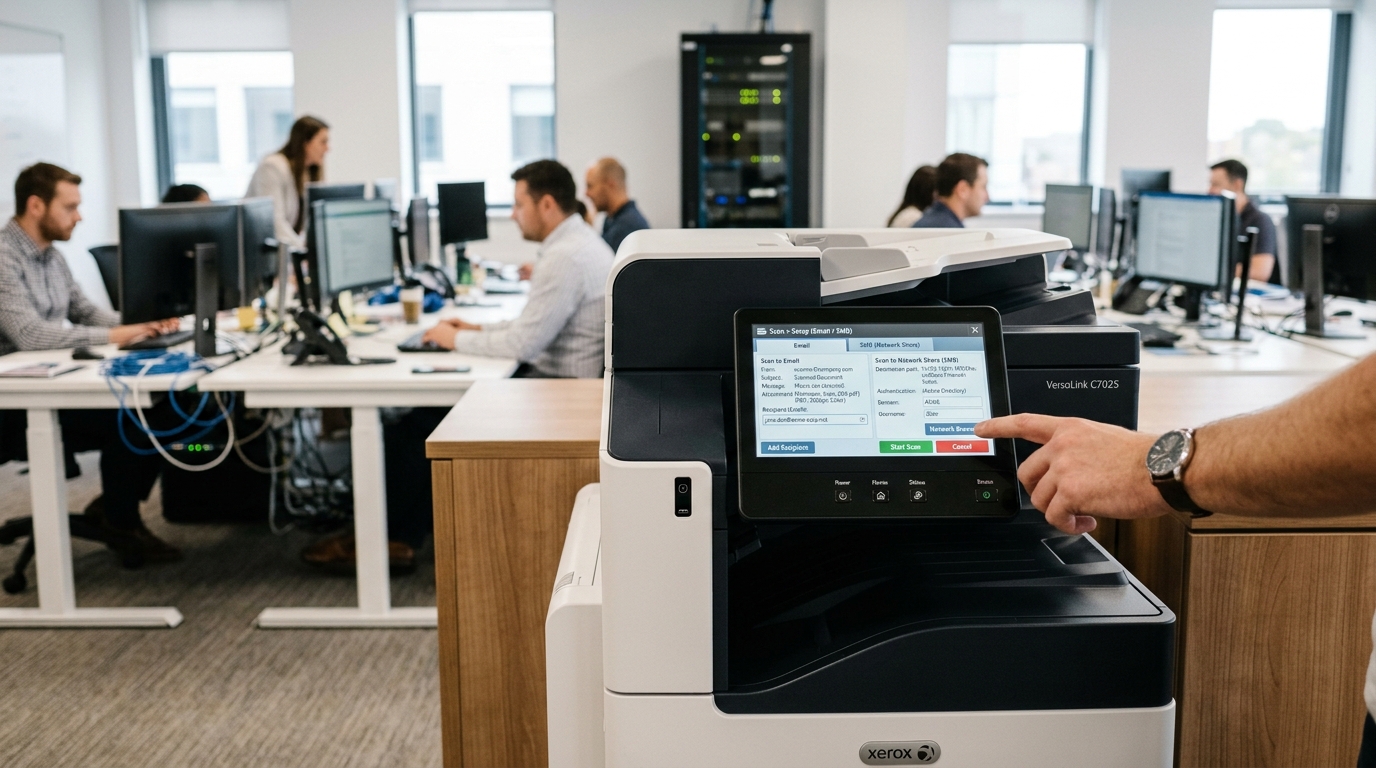
Fix Xerox Scan to Email and ConnectKey SMB Share Errors
Offices rely heavily on multifunction printers (MFPs) like the Xerox VersaLink and AltaLink series. These printers use the ConnectKey ecosystem.
Scan to Email and Scan to Network Folder (SMB Share) are critical features. When these features fail, office work stops.
Users see cryptic error codes on the screen. Common errors include "016-772," "027-504," "DNS Error," or "Login Failure." Troubleshooting these errors can be hard for IT admins.
The causes involve network infrastructure, DNS resolution, and SMTP mail server authentication. Complex SMB settings also play a role.
This guide breaks down Xerox ConnectKey network scanning. We identify common points of failure.
We provide a step-by-step fix to restore Scan to Email and SMB Share. This ensures secure document routing across your network.
Why This Happens
Scan to Email failures often trace back to SMTP (Simple Mail Transfer Protocol) authentication or network routing issues. The Xerox machine acts as an email client during a scan.
It contacts an SMTP server to send the message. This server might be Microsoft 365, Google Workspace, or a local Exchange server.
Incorrect DNS settings prevent the printer from finding the server's IP address. Modern email providers require strict security protocols.
They demand TLS 1.2 or TLS 1.3 encryption and specific port settings. Outdated firmware (internal software) might only support older protocols.
The server will reject the connection in this case. Also, Microsoft 365 and Google Workspace no longer use simple username and password logins.
They require OAuth 2.0 or App Passwords. Using standard credentials without an App Password causes a "016-772" error.
SMB Share errors often stem from the old SMBv1 protocol. Older Xerox machines used SMBv1 by default.
Modern Windows servers disable SMBv1 to prevent ransomware. The server drops the connection if the copier tries to use SMBv1.
Even with SMBv2/SMBv3, authentication can fail. The copier must use the correct domain format (like DOMAIN\Username).
The user account must also have write permissions on the target network folder. Finally, time synchronization is very important.
The copier's internal clock must match the domain controller's clock. A time drift of over five minutes causes Kerberos and NTLMv2 authentication to fail.
Step-by-Step Fix
- Access the Embedded Web Server (EWS): Do not use the printer's touch screen to fix these issues. Find the printer's IP address. Type it into a web browser on a connected computer. Log in as the administrator.
- Verify Network & DNS Settings: Go to Properties > Connectivity > Setup > Network. Check the IPv4 settings. Ensure the DNS settings are correct. Point the primary and secondary DNS servers to your internal domain controllers. Use public DNS (like 8.8.8.8) if you are in a workgroup. Bad DNS causes most SMTP hostname failures.
- Update the Firmware: Check the firmware version before changing advanced settings. Go to Properties > General Setup > Software Upgrade. Compare your version with the latest release on the Xerox support site. Update the firmware to add support for TLS 1.2 and modern SMBv3.
- Configure NTP (Network Time Protocol): Go to Properties > General Setup > Date and Time. Set the machine to sync with an NTP server. Use time.windows.com or your internal domain controller. Accurate time is critical for secure SMB and SMTP authentication.
- Fixing Scan to Email (SMTP Setup): Go to Properties > Connectivity > Setup > SMTP Server. Enter the correct hostname (like smtp.office365.com). Set the port to 587.
- Configure SMTP Encryption: Select "STARTTLS" or "TLS/SSL" in the encryption settings. Do not leave it on "Off" or "Auto" if the server needs encryption.
- Implement App Passwords: Generate an "App Password" for the copier in Microsoft 365 or Google. Use the licensed email address as the username. Enter the 16-character App Password in the copier's SMTP settings. Do not use the normal account password.
- Test SMTP Configuration: Click the "Test Configuration" button in the EWS. Check the detailed error log if it fails. A "resolution failed" error means bad DNS. An "authentication failed" error points to wrong credentials.
- Fixing SMB Shares (Network Folders): Go to Properties > Services > Network Scanning > File Repository Setup. Edit the existing folder or create a new one.
- Force Modern SMB Protocols: Set the protocol to SMBv2 or SMBv3 in the SMB setup. Disable SMBv1 in the copier's security settings. This forces the device to use higher protocols.
- Configure the Share Path Correctly: Use the server's IP address instead of the hostname. This bypasses DNS resolution issues. Enter the exact share name (like Scans).
- Set Domain Credentials: Enter the username as
DOMAIN\Usernamein the authentication section. Ensure this account has "Modify" permissions on the target folder. Test the connection.
Advanced Troubleshooting
Analyze network traffic and security policies if basic fixes fail. Your firewall or ISP might block traffic on port 587 or 25.
Create a firewall rule to allow the Xerox MFP to use these ports. For enterprise Microsoft 365, configure a direct SMTP Relay Connector.
Lock it down to your office's public IP address. This bypasses multifactor authentication (MFA) and is more reliable.
Check the Local Security Policy on the destination Windows Server for persistent SMB issues. Go to Security Settings > Local Policies > Security Options.
Set "Network security: LAN Manager authentication level" to "Send NTLMv2 response only." The server will reject older NTLMv1 responses from old Xerox firmware. Check the Windows Event Viewer on the file server during a failed scan.
Look for Event ID 4625 (Logon Failure). The code will explain the failure reason.
Also, ensure Windows Defender Firewall does not block "SMB Direct" and "SMB over TCP (Port 445)".
FAQ
What does Xerox error 016-772 mean?
Error code 016-772 is a general SMTP routing or DNS error. The Xerox device cannot find the IP address of the SMTP server.
Can I use a free Gmail account for Scan to Email?
" You cannot use a standard Gmail password. Go to Google Account security settings and enable 2-Step Verification.
Why does the SMB scan work with an IP address but not the server name?
This means the Xerox machine cannot resolve the hostname. The printer is likely using a public DNS instead of your internal DNS server.
Does Xerox ConnectKey support scanning to SharePoint or OneDrive?
Yes, but not natively through basic SMB or SMTP protocols. Install Xerox ConnectKey Apps from the Xerox App Gallery to scan to Microsoft 365 cloud services.
