


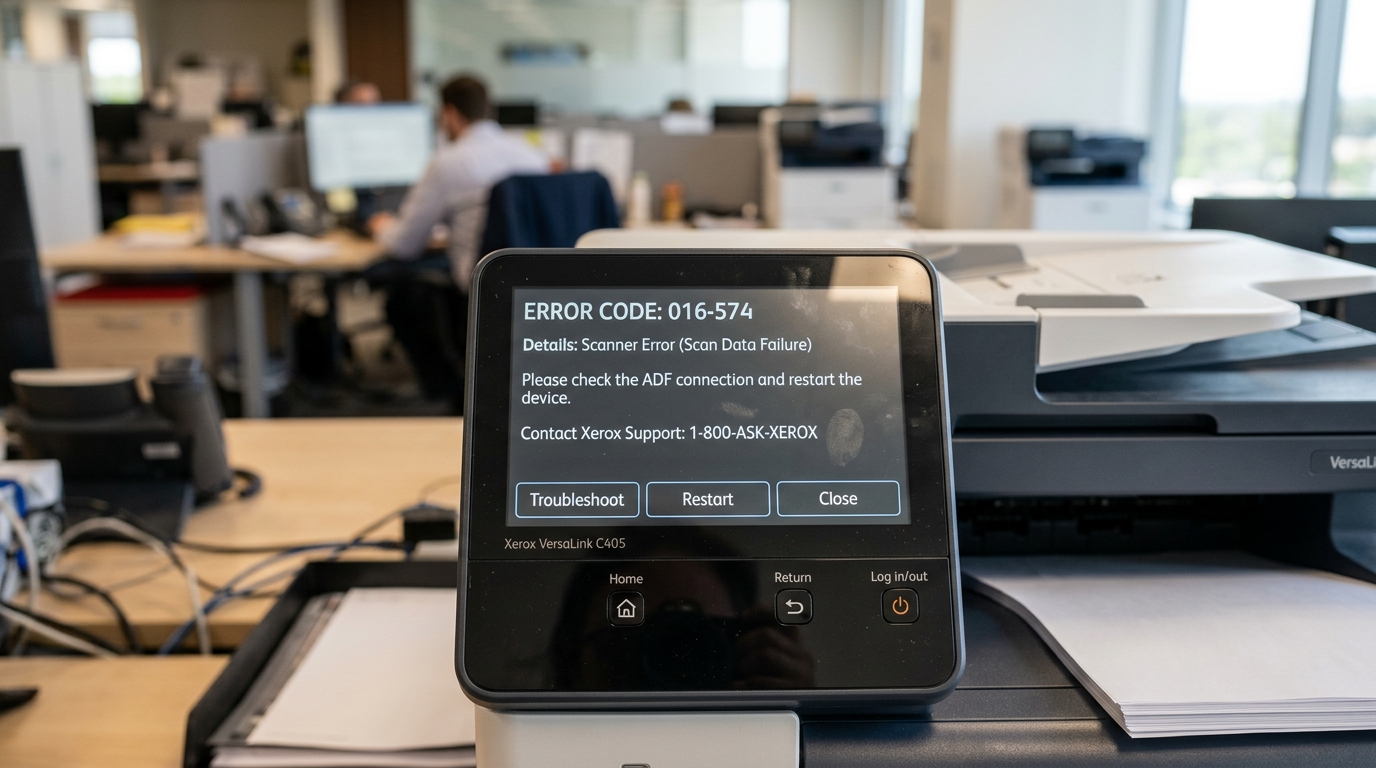
Introduction to Xerox Printer Ecosystems
Xerox is a name synonymous with office productivity, offering a vast array of sophisticated printing solutions tailored to various enterprise environments. Among their most popular modern lineups are the WorkCentre, VersaLink.
AltaLink series, featuring highly capable models like the VersaLink C405 and the WorkCentre 6515. These multifunctional devices are engineered for high-volume workloads, offering advanced features such as duplex scanning, cloud integration, secure job release, and extensive administrative controls.
They are the backbone of document management in countless offices worldwide, relied upon for their speed, print quality, and robust feature sets.
However, the complexity that makes these machines so powerful also makes them susceptible to a specific range of intricate error codes. Unlike basic home printers that might just flash a generic warning light, Xerox machines use a detailed diagnostic system that outputs specific alphanumeric error codes on their touchscreen interfaces.
These codes are designed to pinpoint exact failures within the machine's complex electromechanical systems or software architecture. For the uninitiated, however, deciphering a code like 016-749 or 092-311 can feel like trying to read a foreign language.
In this comprehensive guide, we will explain the common error codes found on Xerox WorkCentre, VersaLink (including the popular C405), and AltaLink devices. We will explore the underlying causes of these operational interruptions, provide a detailed, step-by-step methodology for clearing the errors.
Restoring functionality. Explore advanced maintenance procedures to ensure long-term reliability.
By mastering these troubleshooting techniques, office administrators. IT staff can much reduce equipment downtime.
Minimize the need for expensive external service calls.
Why This Happens: The Architecture of Xerox Errors
To successfully troubleshoot a Xerox machine, one must understand how its error reporting system is structured. Xerox error codes are typically formatted as a primary category number followed by a specific sub-code (e.g., XXX-YYY).
The first three digits (the chain code) designate the general subsystem where the fault occurred, such as the paper feed mechanism, the fuser unit, the network interface, or the image processing board. The final three digits (the link code) provide highly specific details about the nature of the failure, such as a blocked sensor, a temperature anomaly, or a software timeout.
Errors in the VersaLink C405 and WorkCentre 6515 frequently fall into several broad categories. Paper jam errors (typically in the 070 to 077 range) are the most common.
Usually occur when media is loaded incorrectly, the wrong paper type is selected in the tray settings, or internal feed rollers become worn or coated in paper dust, losing their grip. Another frequent category involves imaging and fusing errors (often in the 090 to 099 range).
These occur when the machine detects an issue with the toner cartridges, drum cartridges, or the fuser unit—the high-temperature component that physically melts the toner into the paper fibers. If the fuser fails to reach its target temperature within a specific timeframe, the machine will halt operation.
This prevents A potential fire hazard or poor print quality.
Also, because modern Xerox machines are essentially specialized computers connected to corporate networks, they frequently experience software. Communication errors (typically in the 016 or 017 range).
These can be triggered by misconfigured IP addresses, outdated firmware (internal software), security certificate expirations, or conflicts with enterprise print management software. Understanding this categorization is the first critical step in transitioning from simply staring at an error code to actively resolving the underlying mechanical or software issue.
Step-by-Step Fix: Diagnosing and Clearing Common Errors
When your Xerox device halts operation. Displays an error code on the control panel, follow this structured, step-by-step approach to safely diagnose. Resolve the issue without causing further damage to the machine.
- Record the Error Code: Before doing anything else, accurately write down the exact error code displayed on the touchscreen, along with any accompanying text message. This code is your primary diagnostic key. Do not clear the error from the screen before documenting it.
- Consult the Control Panel Instructions: Modern VersaLink and AltaLink machines are highly intuitive. Often, the touchscreen will display an animated diagram showing the exact location of the jam or the faulty component. Follow these on-screen visual prompts carefully.
- Perform a Soft Reset: Many transient software glitches or temporary sensor misreads can be cleared with a simple reboot. Press the power button on the control panel, select "Restart," and. This allows The machine to fully cycle down and power back up. Wait to see if the error clears upon setup.
- Address Paper Jams (07X Errors): If the code indicates a jam, open the specific door or panel indicated by the interface. Carefully and slowly pull the jammed paper in the direction of the normal paper path. Never pull backward, as this can tear the paper or strip internal gears. Ensure no tiny scraps of paper are left behind, as they will immediately trigger the sensor again.
- Check Consumable Status (09X Errors): If the error relates to imaging, navigate to the "Device" or "Machine Status" menu and check the supply levels. Ensure that all toner cartridges, drum units. The waste toner container are properly seated. Have not reached their end-of-life status. Reseating a cartridge can sometimes clear a false empty reading.
- Clean Internal Sensors: If paper jams are frequent but you cannot find any physical paper, an optical sensor may be obscured by paper dust. Power down the machine, unplug it. Use a can of compressed air or a lint-free cloth to gently clean the sensors located along the paper path, particularly near the registration rollers.
- Verify Network Settings (016/017 Errors): For communication errors, print a settings report (if possible) or access the machine's internal web interface (Embedded Web Server) by typing its IP address into a web browser. Verify that the IP address is correct, the subnet mask is accurate. There are no IP conflicts on your network.
- Update Device firmware (internal software): Outdated firmware (internal software) can cause a myriad of unexplainable errors. Access the Embedded Web Server, navigate to the "Properties" or "System" tab. Locate the firmware (internal software) update section. Compare your current version to the latest release on the Xerox support website and apply the update if necessary.
- Perform a Hard Reset: If a soft reset fails, perform a hard reset. Power down the machine completely. Unplug the power cord from the wall outlet. Wait a full 60 seconds to allow the internal capacitors to discharge. Plug the machine directly into a wall outlet (bypassing any power strips or surge protectors. This Can sometimes limit current draw) and power it back on.
- Consult the Service Manual: If the error code persists after following all basic troubleshooting steps, look up the specific code in the Xerox service manual for your model. Some critical codes (like severe fuser errors) will lock the machine. Need a certified technician to enter diagnostic mode to clear the fault.
Advanced Troubleshooting: Persistent Fuser and Network Issues
Some Xerox errors need a deeper level of intervention. Fuser errors, for example, are notoriously persistent.
If a machine detects an overheating condition (an over-temp fault), it will trigger a hard lockout to protect the hardware and the office environment. Even if the fuser cools down, the error code will remain until it is manually reset through the machine's hidden diagnostic menu (often accessed by holding specific button combinations like 0, 1.
3 during startup, though this varies by model). Accessing diagnostic mode should be done with extreme caution.
This is as Altering the wrong Non-Volatile Memory (NVM) values can permanently disable the printer. If you are uncomfortable navigating NVM read/write menus, it is strongly advised to contact a Xerox authorized service provider for fuser-related lockouts.
On the network side, persistent scanning errors (such as failure to Scan-to-SMB or Scan-to-Email) are rarely hardware faults. These are almost always caused by changes in corporate IT infrastructure.
For instance, if an IT department updates a server to need SMBv3 protocol for security reasons. An older WorkCentre 6515 is only configured for SMBv1, all scanning to network folders will immediately fail with a generic communication error.
Resolving this needs logging into the printer's Embedded Web Server as an administrator, navigating to the scanning protocol settings. Updating the SMB settings or SMTP server authentication credentials to match the new network requirements.
FAQ
What is the difference between a WorkCentre and a VersaLink?
The WorkCentre series represents Xerox's older, traditional line of multifunction printers. The VersaLink series is the modern successor, featuring a tablet-like touchscreen interface, advanced cloud connectivity.
Why does my printer keep saying "Load Paper" when the tray is full?
This is usually caused by a mismatch between the paper type/size physically loaded in the tray. The settings configured on the printer's control panel or within the print driver on your computer.
How do I find the IP address of my Xerox machine?
On most VersaLink and AltaLink models, tap the "Device" icon on the home screen, then tap "About" or "Information." The IPv4 address will be prominently displayed. On older WorkCentre models, press the "Machine Status" physical button on the control panel to view network information.
Can I use third-party toner in my Xerox printer?
While third-party toner is often cheaper, it is a frequent cause of imaging errors and poor print quality. Xerox machines are calibrated for the specific melting point and flow characteristics of genuine Xerox toner.
What should I do if a paper jam error won't clear?
If you have checked every door. Panel.
Also, maintaining a consistent environment can much reduce these issues. Avoid placing your printer in direct sunlight, near strong heat sources, or in areas with excessive dust and debris.
Ensuring proper ventilation around the printer helps keep internal components cool during long print runs, preventing overheating and potential damage. Regularly inspecting the power cables and USB connections for any signs of wear.
Tear can also prevent unexpected connectivity drops or power failures during critical operations.
In addition to hardware maintenance, always keep your software drivers and firmware (internal software) up to date. Manufacturers frequently release updates that address known bugs, improve compatibility with the latest operating systems, and enhance overall performance.
Subscribe to newsletters or check the manufacturer's support website periodically for any crucial updates related to your specific model. Implementing these best practices will not only resolve immediate errors.
But Also provide a stable, long-term printing solution for your business needs.
When dealing with technical support, always have your exact model number, serial number. A detailed description of the error code or issue ready.
This information allows support technicians to quickly identify potential causes and provide accurate solutions. Keeping a log of when errors occur, any changes made to the system prior to the issue.
The exact steps taken during troubleshooting can also be immensely helpful in diagnosing complex, intermittent problems that may need advanced intervention.
