


Introduction
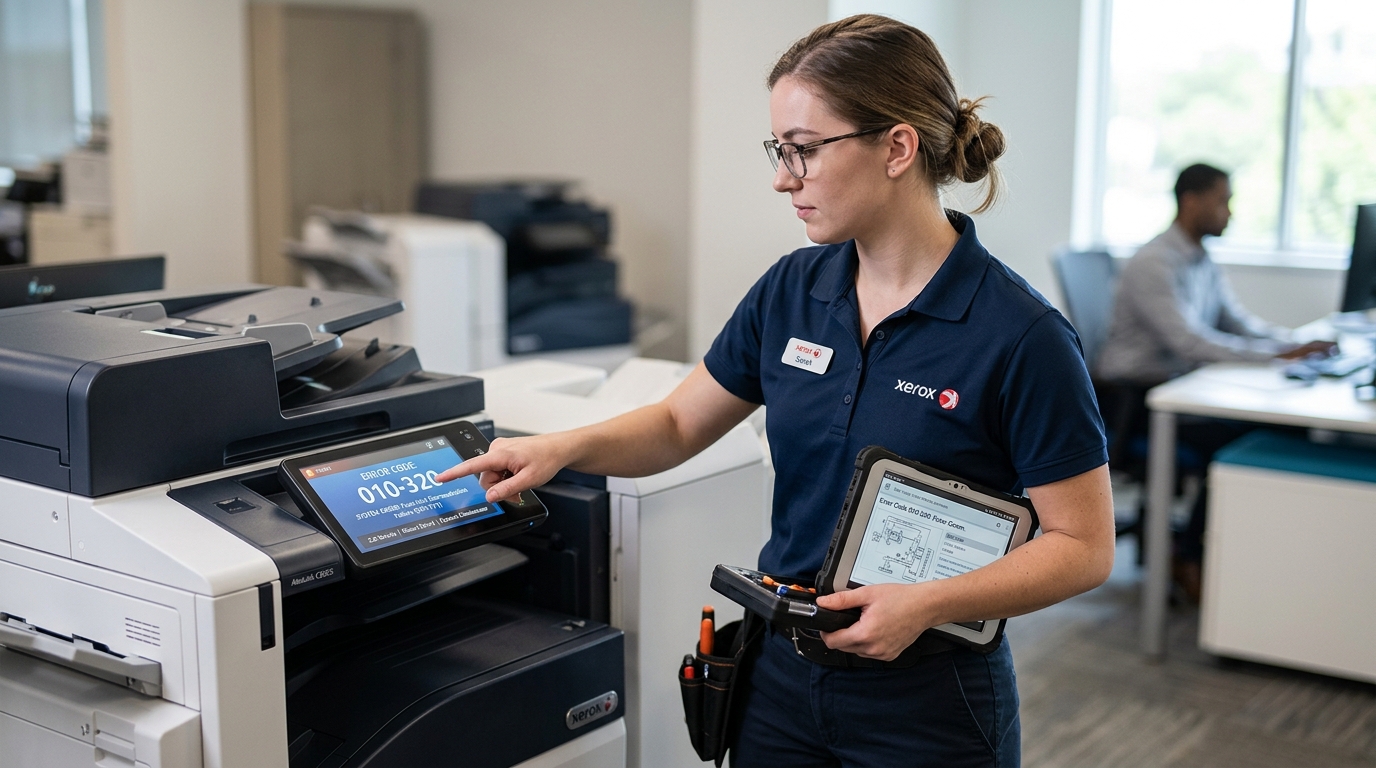
When a Xerox printer or multifunction device encounters a problem, it communicates the issue through a highly structured, alphanumeric fault code, typically displayed in the format XXX-YYY (e.g., 010-320, 116-321, 093-314). To the uninitiated user, these numbers appear as cryptic hieroglyphics.
Often leading to frustration and unnecessary service calls for minor issues. However, these codes are meticulously designed diagnostic tools.
They are not random numbers; they adhere to a strict. Logical architecture that precisely pinpoints the location and nature of the malfunction within the machine's complex subsystems.
Understanding how to decipher this XXX-YYY format transforms you from a helpless end-user into a capable troubleshooter. It allows IT helpdesk technicians, print administrators, and even everyday users to rapidly identify whether a problem is a simple paper jam.
An empty toner cartridge, a network communication failure, or a critical hardware breakdown requiring a trained technician. This comprehensive guide will decode the architecture of Xerox fault codes, explain the significance of the chain (XXX) and link (YYY) numbers.
Provide a step-by-step methodology for isolating issues based on these codes, and offer advanced troubleshooting tips for navigating complex machine states.
Why This Happens (The Architecture of the Code)
Xerox machines are not monolithic devices; they are intricate assemblies of distinct modules—paper trays. Imaging units, fusers, network controllers, and finishers—all orchestrated by a central operating system. The fault code system is designed to mirror this modular architecture.
The code is divided into two primary segments: the Chain and the Link.
- The Chain (XXX): The first three digits identify the specific physical subsystem, module, or logical operation where the fault occurred. Think of this as the "ZIP code" or the specific department within a large factory. For example:
- 010-xxx to 012-xxx: Fuser module (the part that melts toner onto the paper).
- 077-xxx: Finisher module (stapler, hole punch, output trays).
- 093-xxx: Xerographics/Toner dispensing (toner cartridges, developer units).
- 016-xxx to 116-xxx: Network controller, image processing, and software/communication errors.
- 061-xxx: ROS (Raster Output Scanner - the laser imaging system).
- The Link (YYY): The last three digits specify the exact component failure, sensor state, or software condition within that subsystem. Think of this as the specific "street address" or the precise machine part failing. A link might indicate a specific motor is stalled, a specific sensor is blocked, or a specific timeout occurred.
The severity of the error is also broadly indicated. Codes often end in particular ranges depending on whether they are a warning.
A soft fault (can be cleared by power cycling or user intervention), or a hard fault (fatal machine error requiring component replacement). By reading both the chain and the link.
A technician knows exactly which panel to remove and which part to test.
Step-by-Step Fix (Applying the Knowledge)
When you encounter a Xerox XXX-YYY error code. Follow this systematic process to diagnose and potentially resolve the issue without needing to call for immediate service.
- Record the Exact Error Code: Do not rely on memory. Write down the complete XXX-YYY code displayed on the screen. Also, note any accompanying text messages on the UI, the exact time the error occurred, and what the machine was trying to do (e.g., printing a PDF, scanning to email).
- Identify the Chain (The Subsystem): Look at the first three digits. Use a reference guide (or internal IT documentation) to determine which part of the machine is complaining. If it's a 010-xxx error, you know you need to focus on. The fuser area (usually the hot rollers near the exit). If it's a 093-xxx error, focus on the toner and drum area.
- Assess the Severity (Hard vs. Soft Fault): Try a soft reset. Turn the printer off using the power button on the control panel, wait 30 seconds, and turn it back on. Many 116-xxx (software/memory) and communication errors are soft faults caused by a corrupted print job or a network blip. A reboot clears the RAM and often resolves the issue. If the error returns immediately upon startup, it is a hard fault.
- Perform Visual Inspection Based on the Chain: If it's a hard fault, investigate the relevant subsystem.
- Chain 077 (Finisher): Open finisher doors, look for jams, clear any stuck staples.
- Chain 010 (Fuser): CAREFULLY open the side door. Look for accordion-folded paper stuck in the fuser rollers. Warning: The fuser is extremely hot.
- Chain 093 (Toner/Developer): Open the front door. Ensure toner cartridges are fully seated and not empty. Check for massive toner spills inside the cavity.
- Clear the Path and Re-test: Once you have identified and cleared any physical obstruction or reseated the relevant component, close all doors securely. The machine will attempt to initialize. If the error clears, the problem is solved. If it persists, the link (YYY) code indicates a failed sensor or motor requiring part replacement.
Advanced Troubleshooting
If the error code persists after a physical inspection and power cycle. More advanced diagnostic techniques are required, often utilizing the machine's internal service mode.
NVM (Non-Volatile Memory) Resets: Some faults, particularly fuser errors (like 010-327), cause the machine to write a "fatal error" flag to its permanent memory. Even if you replace the broken fuser, the machine will still display the error because the flag is set.
You must enter diagnostic mode and manually reset the specific NVM chain-link value (e.g., resetting NVM 744-220 to 0) to clear the software lock.
Component Control Testing: Using diagnostic mode, technicians can use the XXX-YYY format to test individual parts. For example, knowing the chain for the finisher (077), a tech can input a specific diagnostic code.
To command a single finisher motor to spin or read the state of a single sensor. This isolates the failure to a specific wire or motor.
Firmware (internal software) Upgrades: Sometimes, specific software error codes (e.g., repeating 116-324 errors when processing complex PDFs) are caused by bugs in the PostScript interpreter or image processing software. In these cases, hardware replacement will not fix the issue; the machine requires a firmware (internal software).
Upgrade (a SPAR release) from Xerox to resolve the software bug causing the fault code.
FAQ
I got a 116-324 error while printing. What does it mean?
The 116 chain indicates an image processing or controller error. A 116-324 specifically usually means the printer's memory was overwhelmed.
Why does my machine say 010-320 Fuser Over Temperature?
This is a critical safety fault. The thermistors (temperature sensors) in the fuser have detected that the heating element is getting dangerously hot, risking a fire.
Can I lookup every XXX-YYY code online?
While many common codes are available on forums and support sites. Xerox keeps the comprehensive list of thousands of codes in their built-in service manuals, accessible only to certified technicians.
What is a 093-314 error, and how do I fix it?
The 093 chain relates to toner dispensing. 093-314 typically means "Yellow Toner Cartridge Empty" or "Yellow Toner CRUM ID error".
