


The Quick Answer
A complete chart of every Bixolon printer LED — power, error, network, Bluetooth, and battery lights — explaining exactly what each color and blink pattern means.
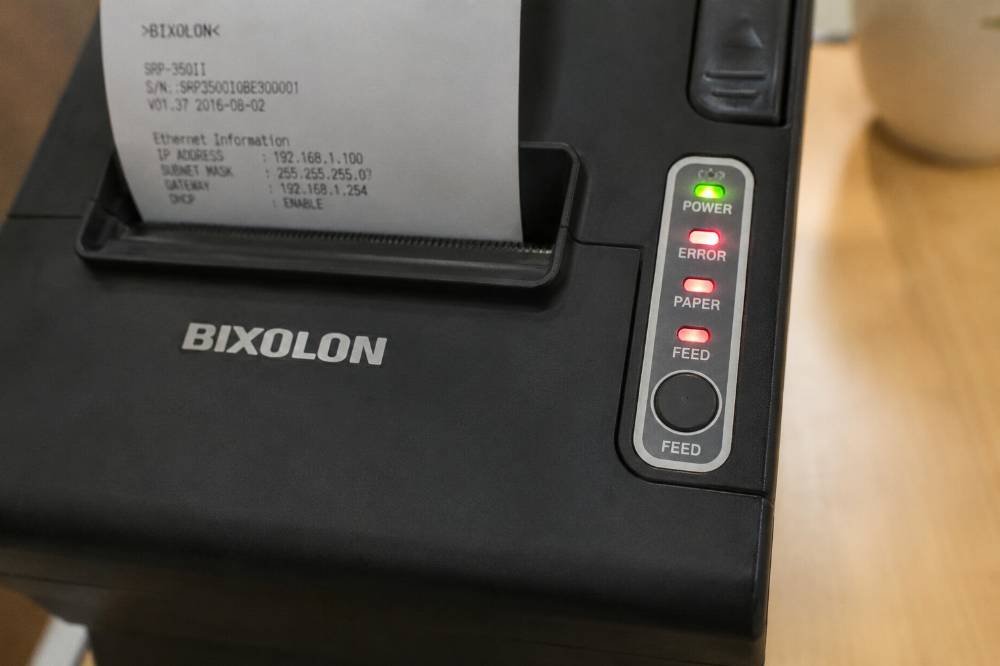
Bixolon printers don't use a numbered error display — instead, they communicate entirely through indicator lights. Depending on your model, that might be a single combined LED, or several separate lights for power, errors, network status, Bluetooth, and battery.
This chart covers every light you're likely to see across Bixolon's printer lineup, organized by which LED you're looking at.
If you only need the fast answer, start with the master chart below. For more detail on any specific pattern, jump to the matching section underneath.
Master LED Chart: Every Light and What It Means

| LED | Color / Pattern | Meaning |
|---|---|---|
| Power | Solid green | Printer on and idle, ready to print |
| Power | Off | Printer has no power, or is fully shut down |
| Power | Blinking green | Printer is in a low-power or sleep state (model-dependent) |
| Error | Off | No error condition active |
| Error | Solid red | Paper out, or cover not fully latched |
| Error | Slow blink (~1x/second) | Cover open or not seated correctly |
| Error | Fast blink (~5x/second) | Print head overheated, cooling down automatically |
| Error | Blinks once during a cut, then solid | Auto-cutter jam |
| Error + Power | Both blinking together | Mechanical fault — try a power cycle first |
| Error | Blinks continuously, won't clear after power cycle | Non-recoverable error — likely needs service |
| Network/LAN | Solid green | Connected to network successfully |
| Network/LAN | Blinking green/amber | Attempting to connect, or weak/unstable connection |
| Network/LAN | Off | No network connection detected |
| Bluetooth | Solid blue | Paired and connected |
| Bluetooth | Blinking blue | In pairing/discoverable mode |
| Bluetooth | Off | Bluetooth not active, or not paired |
| Battery (mobile models) | Solid green | Fully charged |
| Battery (mobile models) | Blinking red | Battery critically low |
| Battery (mobile models) | Blinking orange/amber | Currently charging |
This chart reflects the most common behavior across Bixolon's SRP, Q-series, and SPP mobile printer lines. A small number of models combine power and error states into a single multi-color LED rather than using two separate lights — if your printer only has one indicator, check the "Combined LED Models" section below.
Power LED in Detail
The power LED is the simplest of the group, but it's worth understanding fully since other lights are often read relative to it:
- Solid green, no blinking — normal, ready state. If the printer isn't printing despite this, the issue is connection or software-related, not the light itself.
- Off entirely — check the power cable, outlet, and power brick before assuming a deeper fault. Power bricks on always-on POS printers are a common wear point.
- Blinking green — on models that support a power-saving mode, this usually just means the printer has gone idle after a period of inactivity and will wake automatically when a job is sent.
Error LED in Detail
This is the light most people are searching for when they land on this page. The short version: speed and pattern matter more than just "it's red."
- Solid red → almost always paper-out or an unlatched cover. The fastest fix is reloading paper and closing the cover with firm, even pressure until it clicks.
- Slow, steady blink → specifically a cover issue, distinct from paper-out, since the printer is actively sensing the open state.
- Fast blink → print head overheating after heavy print volume. This clears on its own after a few minutes of idle time.
- Blinks during a cut attempt, then goes solid → the auto-cutter has jammed, usually on a torn or angled paper edge.
- Won't clear after a power cycle → classified internally as a non-recoverable error, which typically means a hardware fault rather than something fixable through reloading or resetting.
For the full step-by-step fix for each red-light pattern, see our dedicated guide on Bixolon printers with a flashing red light.
Combined Power + Error Patterns
Some fault conditions show up as both LEDs reacting together rather than just the error light alone:
- Both lights blinking in sync → typically a general mechanical fault. Power cycle first; if it returns immediately without a print job being sent, treat it as non-recoverable.
- Power light off, error light on → this usually isn't a true error state — it can indicate the printer lost power mid-error, and simply needs to be powered back on properly to read its actual status.
Network and Bluetooth LEDs
Not every Bixolon model has these, but on network and Bluetooth-capable printers, they tell you about connection state independently of print errors:
- Network LED solid green → connected; if printing still fails with this light on, the issue is almost certainly an IP address mismatch or a firewall/network configuration problem rather than the physical connection.
- Network LED blinking or off → the printer hasn't established a network connection at all — check that it's on the correct Wi-Fi network/SSID or that the Ethernet cable is fully seated.
- Bluetooth LED blinking blue → the printer is in pairing mode, actively waiting for a device to connect — this is expected, not an error.
- Bluetooth LED off when you expected a connection → the printer likely isn't paired to anything currently, or lost its pairing after a restart.
Battery LED (Mobile and Portable Models)
Bixolon's mobile/portable printer line (the SPP series and similar) adds a battery indicator that isn't present on countertop models:
- Blinking red → battery critically low; the printer may shut down mid-job if not charged soon.
- Blinking orange/amber → actively charging.
- Solid green → fully charged and ready to disconnect from the charger.
If the battery LED shows charging but the printer never reaches a full-charge state after several hours, this usually points to a worn battery or a faulty charging cable rather than a printer fault.
Combined LED Models: When You Only Have One Light
A handful of Bixolon models use a single multi-purpose LED instead of separate power and error lights. On these models:
- Solid green = ready
- Solid red = error condition active (refer to the Error LED section above for what the specific blink speed means)
- Alternating green/red = a transitional or warning state, usually clearing on its own once the underlying cause (paper, cover, etc.) is resolved
If you're not sure whether your model uses one LED or two, check your printer's quick-start guide — it's usually illustrated directly on the first page.
Why Bixolon Doesn't Use Numbered Error Codes
Many printer brands use a small screen to display a specific numbered fault code. Most Bixolon thermal and POS printers don't include a screen at all, which is why the company relies on LED patterns and internal status signals instead.
The categories above are consistent in structure across the lineup, even though the exact blink timing can vary slightly by model — which is also why this chart is organized by light and pattern rather than by a fixed code number.
Quick Reference Summary
- Green = generally good. Power ready, network connected, battery charged.
- Red = needs attention, but usually something simple — paper, cover, or temporary overheating.
- Blue = Bluetooth-specific, almost always related to pairing state rather than an error.
- Blinking faster = more urgent or active state; blinking slower = a steady, ongoing condition like an open cover.
- A light that won't clear after a power cycle is the clearest sign you're dealing with something that needs service rather than a quick fix.
Once you know which LED you're looking at and how fast it's blinking, the meaning behind it is almost always predictable. Use the master chart above as your fast reference, and the detailed sections below it whenever you need the full fix for a specific pattern.
