


The Quick Answer
Troubleshoot common errors on the Bixolon SPP-R200 mobile printer. Read the Error LED patterns, resolve battery and charging issues, and fix Bluetooth pairing failures.
The Bixolon SPP-R200 is a battery-powered mobile printer, which changes the troubleshooting priority order compared to a countertop POS unit. On a fixed printer, you start with paper and cables.
On the SPP-R200, you start with the battery — because a low. Improperly seated battery is behind more "errors" on this model than anything else.
That's where this guide starts too, before moving into the LED patterns, Bluetooth issues, and paper problems that follow.
This guide covers the original SPP-R200 as well as the R200II and R200III variants, noting differences where they exist.
The Battery: Check This Before Anything Else
The SPP-R200 ships with the battery uncharged. If you're setting up a new unit that won't power on or behaves erratically immediately out of the box, this is almost always why. charge it first using only the Bixolon-provided battery charger before doing anything else.
Two things the manual is explicit about:
First, battery installation: insert the battery from the rear side of the printer. Align the battery hook correctly, and push firmly until you hear a snapping sound.
A battery that's seated but not fully clicked can cause intermittent power loss that looks like a printing error rather than a connection issue.
Second, the charger itself: the printer may incur serious damage if the battery charger provided by Bixolon is not used — the voltage. Current specifications of the printer and battery charger must match. Bixolon's documentation goes further on this for the R200III, noting that an incorrect charger can result in overheating or combustion.
This is worth taking seriously — the charger isn't interchangeable.
Reading the Error LED
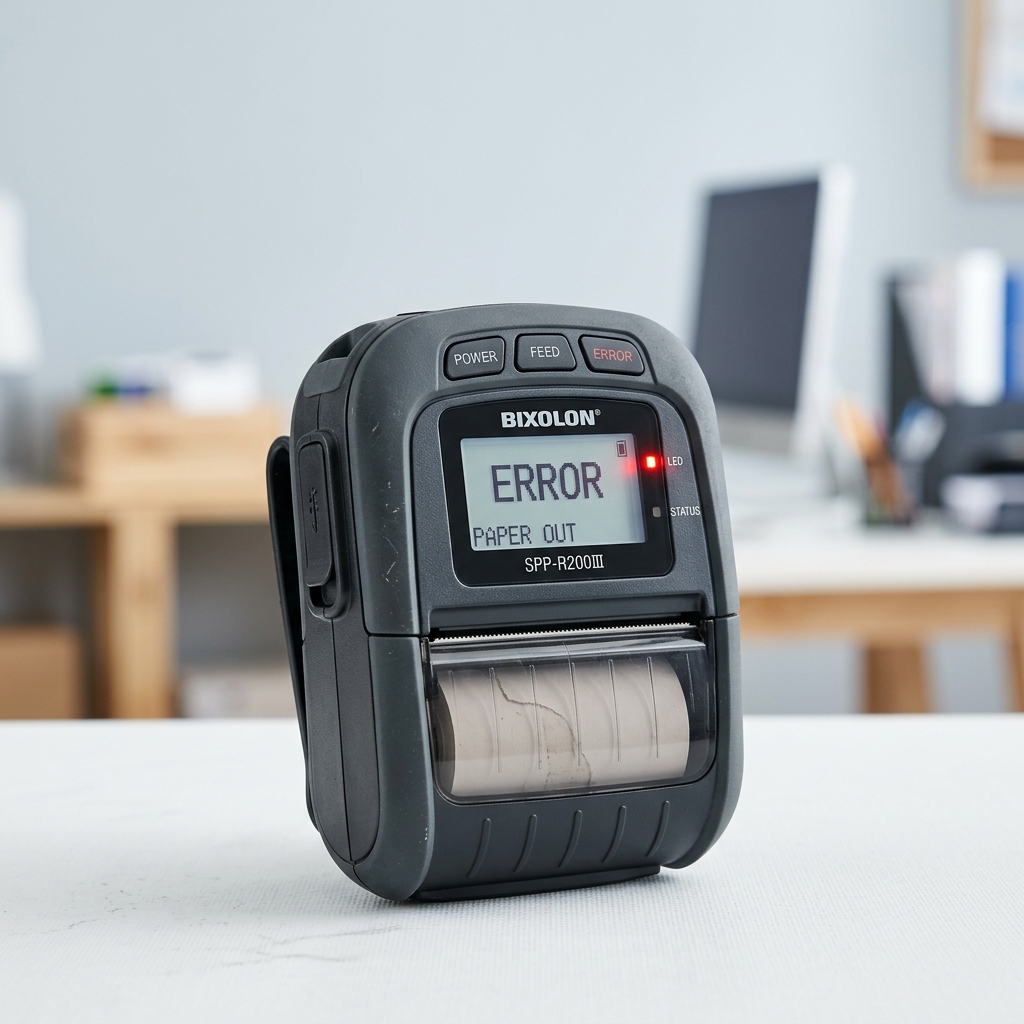
The SPP-R200 uses a single Error LED. and — like several other Bixolon mobile models — what it's doing tells you more than just whether it's lit:
| Error LED State | What It Means |
|---|---|
| Off | No fault condition, printer ready |
| Solid red (not blinking) | Rear/paper cover is open |
| Blinking red | Out of paper, OR print head is overheating |
| Continues blinking after paper reload and power cycle | More serious hardware fault — contact service |
The distinction between solid and blinking matters here: a solid red light is always a cover issue. A blinking red light is one of two things — paper out or overheating — and telling them apart is straightforward:
- If the paper roll is empty or missing, replace it and the blinking should stop.
- If paper is loaded and the light is still blinking, the print head has likely overheated from heavy use. Turn the printer off, wait a few minutes, and turn it back on. If the light is still blinking after that, contact service.
Battery LED Indicators (R200II and R200III)
On the R200II and R200III variants, a separate battery/status LED tells you charging state:
- Red (single LED lit) — battery is low
- Charging indicator active — battery is charging
- Power save mode — only the status LED stays lit while the printer conserves battery
If the charging indicator doesn't progress to a full charge after several hours, suspect either a worn battery (normal after extended use) or a faulty charging cable, rather than a fault with the printer itself.
Paper Loading Issues
The SPP-R200 uses an easy-loading paper mechanism, but a few things specific to mobile printers are worth checking:
- The printer only works with thermal paper, thermal-sensitive side facing inward toward the print head. A roll loaded the wrong way feeds paper normally while printing nothing visible.
- After loading, tear off any excess paper cleanly at the paper outlet before closing the cover. a ragged edge left at the outlet is a common cause of a false paper-jam reading on the first print attempt.
- Close the rear cover firmly until it latches completely. On a handheld printer that gets dropped or knocked around, the cover latch can be weaker than on countertop units. confirm it's fully seated if the Error LED goes solid red immediately after you think it's closed.
Running a Self-Test
The FEED button is used to feed paper manually, take the self-test, and dump hexadecimals. To run the self-test:
- Confirm paper is loaded and the rear cover is closed.
- Power on the printer while holding the FEED button.
- The printer will print a test page showing its current ROM version, Memory Switch settings, and a print-quality sample.
A clean self-test confirms the print hardware is working. If you were troubleshooting a print failure, this tells you immediately whether the issue is the printer itself or the Bluetooth/USB connection delivering the job.
Bluetooth Pairing Issues
Bluetooth problems on the SPP-R200 are among the most commonly reported errors — mainly. This is a mobile printer that gets paired and unpaired frequently across different devices and environments.
The default PIN code is 0000 (four zeros). If you're asked for a PIN during pairing and it's rejecting your entry, try 0000 before assuming the printer needs to be reset.
Bluetooth connection methods vary by device — the following is the general sequence for Bluetooth connections, provided for reference purposes.
Beyond the PIN, the most common pairing issues:
- Stale pairing: the printer is still registered as connected to a previous device. Forget the printer entirely on the connecting device and re-pair from scratch rather than attempting to reconnect an existing pairing.
- Interference: keep Bluetooth-enabled devices away from interrupting devices by a distance of at least 5 meters. In busy warehouse or retail environments with multiple wireless devices, interference is a genuine issue, not just a theoretical one.
- Connection drop after successful pairing: check that the SPP-R200 isn't going into power-save mode mid-session — the Memory Switch settings control idle. Auto-power-off timing (MSW5 and MSW6), and if these are set aggressively. The printer can shut down the connection faster than expected.
Wi-Fi Issues (R200II and Later)
The R200II added wireless LAN capability. If you're troubleshooting a Wi-Fi connection issue specifically:
- Bixolon's printer supports 802.11b/g — 802.11a is not supported. If your access point is running on a 5GHz-only 802.11a network, the printer will never connect regardless of how it's configured.
- The network mode must be set to "Infrastructure" to connect to an access point. If the printer is set to a different mode, it won't associate with your router.
- Confirm the SSID and encryption/authentication settings on the printer exactly match the access point. even a single character difference in the SSID (including capitalization) will prevent a successful connection.
- Run a ping test to confirm the printer is reachable on the network after confirming its IP address through the self-test or settings page.
Memory Switch Settings (How You Configure This Printer)
Unlike older Bixolon printers that use physical DIP switches, the SPP-R200 series uses a Memory Switch (MSW) system — software-configurable switches that control key behaviors. The relevant ones for troubleshooting:
- MSW 5 — Power OFF time selection: controls how long the printer waits before auto-shutting down. If your printer keeps turning off unexpectedly, this is the setting to adjust.
- MSW 6 — Power idle mode time selection: controls when the printer enters power-save mode. Adjust this if the printer is going into sleep mode too aggressively during use.
- MSW 7 — MSR read mode selection: relevant if your unit has a magnetic stripe reader and it's not responding correctly.
- MSW 8 — Various function controls: includes paper sensor behavior settings that affect how the printer responds to near-empty or end-of-paper conditions.
Memory Switches are changed through the VMSM (Virtual Memory Switch Manager) utility or through the self-test menu — not through any physical switch.
Label Mode vs. Receipt Mode (R200III)
The R200III supports both receipt paper and label/black-mark paper. If the printer is in label mode when you're trying to print receipts. or vice versa — output can look completely wrong without triggering an obvious error. Switching modes:
- Turn the printer on.
- Open the paper cover and hold down the FEED button for more than 2 seconds.
- After the buzzer tone sounds, insert the correct paper type and close the cover.
- Repeat this sequence to ggle back to the other mode.
If labels aren't printing in the right positions, use the auto-calibration function to let the printer recognize the gap. Black-mark position on your specific label stock before sending further print jobs.
Cleaning the Print Head
If the self-test print looks faded or streaky:
- Open the paper cover and remove the paper.
- Clean the print head gently rror-codes-alerts/dascom-printer-skipping-characters-grinding" title="Fix Dascom Skipping Characters & Grinding Noises (Print Head Error)">print head gently using a cloth or cotton swab soaked in isopropyl alcohol (IPA).
- Allow it to dry fully, reload paper, and run another self-test to confirm the improvement.
Paper dust buildup inside a mobile printer happens faster than on a countertop unit because these printers get carried through dusty environments. regular cleaning, roughly once a month in active use, prevents gradual print quality decline.
When to Contact Service
Contact Bixolon support or return the unit if:
- The Error LED keeps blinking after paper is confirmed loaded and a power cycle has been completed
- The printer won't power on even after confirming the battery is charged and correctly seated
- The battery shows charging but never reaches a full charge state after replacement
- The self-test fails to print or produces visibly damaged output
Frequently Asked Questions
My SPP-R200 won't turn on at all — where do I start? Battery first: confirm it's seated with the hook fully snapped, and that it's been charged using the official Bixolon charger before first use — the printer ships with the battery uncharged.
What's the default Bluetooth PIN for the SPP-R200? The default PIN is 0000 (four zeros). If pairing is asking for a PIN and rejecting entries, try this first before resetting anything.
My SPP-R200 keeps turning off by itself mid-shift — how do I stop it? Adjust Memory Switch 5 (MSW5) through the VMSM utility to extend the auto-power-off timer. Or MSW6 to reduce how aggressively the printer enters power-save mode.
Can I use any Bluetooth charger with the SPP-R200? No — only the Bixolon-provided charger. The manual is direct: using an incorrect charger risks overheating or worse, and Bixolon explicitly states no liability for damage from third-party chargers.
Quick Checklist
- [ ] Battery installed with hook fully snapped, not just placed in slot
- [ ] Charged using Bixolon-provided charger only
- [ ] Error LED state identified — solid (cover open) vs. blinking (paper or heat)
- [ ] Paper loaded thermal-side inward, excess torn off cleanly
- [ ] Rear cover fully latched
- [ ] Self-test run to confirm hardware status
- [ ] Bluetooth stale pairing cleared and re-paired from scratch
- [ ] Bluetooth PIN confirmed as 0000 if prompted
- [ ] Wi-Fi mode confirmed as Infrastructure (not ad-hoc) on R200II/III
- [ ] Memory switches checked if printer keeps shutting off unexpectedly
The SPP-R200's errors break down into two categories more cleanly than most printers: battery and physical issues on one side. and Bluetooth/wireless settings on the other. The LED pattern tells you which side you're dealing with — everything follows from there.
