


The Quick Answer
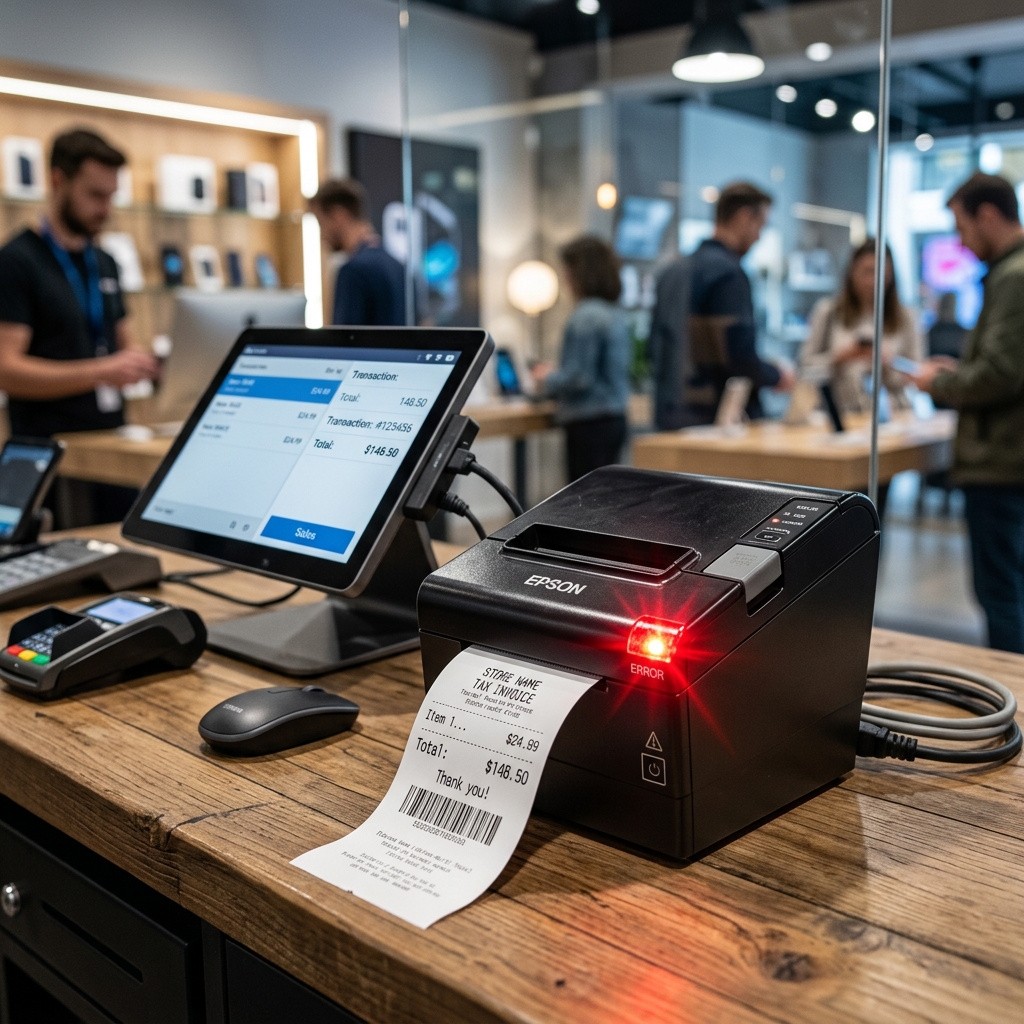
A flashing red light on your Bixolon printer points to one of a handful of causes. Here's how to read the pattern and fix it based on exactly how it's blinking.
A flashing red light on a Bixolon printer looks alarming, but it's actually the printer trying to communicate with you — most red-light conditions are simple, user-fixable issues rather than hardware failures. The key is paying attention to how it's flashing, since the speed and pattern point to a different cause each time.
This guide breaks down every common red-light pattern on Bixolon printers, what each one means, and exactly how to fix it.
Quick Answer: What Your Red Light Pattern Means
| What You're Seeing | Likely Cause |
|---|---|
| Solid red light, printer fully stopped | Paper out or cover not latched |
| Slow, steady blink (about once per second) | Cover open or not fully closed |
| Fast blink (roughly every 200 milliseconds) | Print head overheated |
| Red light blinks once, then goes solid | Auto-cutter jam |
| Red and green lights blinking together | Mechanical fault requiring a power cycle |
| Red light blinks no matter what you try | Non-recoverable error — likely needs service |
Read on for the full diagnostic steps and fixes for each.
Solid Red Light, Printer Completely Stopped
This is the most common red-light condition, and almost always the easiest to fix. A solid (non-blinking) red light paired with the printer refusing to print typically means one of two things:
- The paper roll is empty. Open the cover and check — an empty cardboard core is easy to mistake for a loaded roll at a glance.
- The cover isn't fully latched, even if it looks closed. Most Bixolon models use a sensor that won't register the cover as closed unless it's pressed firmly until it clicks.
Fix: Load a fresh roll of genuine thermal paper, thermal-side facing the print head, then close the cover firmly until you hear it click. The red light should turn off immediately. If it doesn't, power cycle the printer (off for 10 seconds, then back on).
Slow, Steady Blinking Red Light
A slow, evenly-paced blink — roughly once per second — almost always means the cover is open or not seated correctly, even when paper is loaded correctly. This is distinct from the solid light above because the printer is actively detecting the open-cover condition rather than just being out of paper.
Fix: Open the cover fully, confirm the paper is seated correctly underneath it (not pinched or caught on an edge), and close it again with firm, even pressure across the whole cover — not just one corner. Uneven pressure is a common reason the latch doesn't fully seat on the first try.
Fast Blinking Red Light (Print Head Overheating)
If the red light is blinking noticeably faster than once per second — closer to five times per second — this usually indicates the print head has overheated. This typically happens after a burst of heavy printing: a busy rush of receipts, a long batch of shipping labels, or back-to-back kitchen tickets.
This is a built-in protective behavior, not a malfunction. The printer is pausing on purpose to prevent damage to the print head.
Fix: Leave the printer powered on and idle — don't send more print jobs — for 5 to 10 minutes. The light should stop blinking and return to normal once the head has cooled.
If it's still blinking well beyond 10 minutes with no printing activity at all, this may point to a print head fault rather than simple overheating, and is worth flagging for service.
Red Light Blinks Once, Then Goes Solid (Cutter Jam)
If you notice the red light blink briefly right as the printer attempts to cut the receipt, then settle into a solid red state, the auto-cutter mechanism has likely jammed — often caused by a torn paper edge feeding in at an angle, or a small piece of debris caught in the blade.
Fix: Power off the printer completely before doing anything with the cutter — never try to clear a cutter jam with the printer powered on. Open the cover, gently remove the jammed paper by hand (pulling in the direction of normal feed, not against it), and check for any visible debris near the blade.
Reload paper and power back on.
Red and Green Lights Blinking Together
This combination usually signals a more general mechanical fault rather than one specific, easily identified cause — it's the printer's way of flagging "something in the print mechanism isn't right" without pointing to a single sensor.
Fix: Power cycle the printer first — off for a full 10 seconds, then back on. If the combined blinking returns immediately on its own (not triggered by sending a print job), open the cover, fully remove and reload the paper roll from scratch, and check that nothing is obstructing the platen or paper path.
If the pattern continues after this, treat it as a non-recoverable error (see below).
Red Light Keeps Blinking No Matter What You Try
If you've reloaded paper, closed the cover firmly, power cycled the printer, and checked for jams — and the red light is still blinking — you're likely dealing with what Bixolon's internal printer logic classifies as a non-recoverable error: a fault that the firmware can't clear on its own through a simple power cycle, even once the original cause is addressed.
At this point:
- Try a full power cycle one more time, leaving the printer off for a full 30 seconds rather than just 10, since some internal faults need a longer reset window to fully clear.
- Run a self-test (hold the feed button while powering on) to see whether the printer can produce any output at all.
- If the self-test also fails, or the red light returns the moment the printer powers up — before you've even loaded paper or sent a job — this points to a hardware fault rather than anything user-fixable, and it's time to contact Bixolon support or an authorized repair center.
A Faster Way to Diagnose: Watch It for 30 Seconds
If you're not sure which pattern matches what you're seeing, don't just glance at the light once — watch it for a full 30 seconds and count:
- No blinking, just solid → treat it as the paper/cover case above.
- Blinks slower than once per second, evenly spaced → cover issue.
- Blinks faster than twice per second → overheating.
- Blinks, pauses, blinks again in bursts → mechanical/jam issue rather than a simple steady pattern.
This quick observation step alone resolves most of the confusion about which fix to try first.
Why the Exact Blink Speed Can Vary Slightly by Model
Bixolon doesn't use one identical blink-timing standard across every printer it makes — SRP-series receipt printers, Q-series POS printers, and XD/XL label printers each have slightly different LED behavior defined in their individual manuals. The patterns above hold true for the overwhelming majority of models, but if your specific model's manual lists a different timing for a given condition, defer to the manual for your exact model.
Frequently Asked Questions
Is a flashing red light always a sign of a serious problem?
No — in most cases, it's the printer correctly flagging a simple, user-fixable condition like an empty paper roll or an unlatched cover, not a hardware failure.
Why does my Bixolon printer's red light come back on right after I fix the paper issue?
This usually means the cover isn't fully latched, even though it looks closed — try closing it again with firm, even pressure across the entire cover rather than just one side.
How long should I wait if the light is blinking fast from overheating?
Give it 5 to 10 minutes of idle time with no print jobs sent. If it's still blinking well past that window, it's worth treating as a potential hardware issue rather than continuing to wait.
Can I just ignore a blinking red light and keep trying to print anyway?
No — most Bixolon models will refuse to process print jobs entirely while the error condition is active, so repeatedly trying to print won't help and may just queue up jobs that fail once the light is addressed.
Quick Checklist
- [ ] Confirmed which exact blink pattern you have (watched for 30 seconds)
- [ ] Checked paper roll isn't empty
- [ ] Closed cover with firm, even pressure
- [ ] Power cycled the printer (10+ seconds off)
- [ ] Given the printer time to cool if blinking fast
- [ ] Checked auto-cutter area for jams or debris
- [ ] Run a self-test to confirm hardware status
