


The Quick Answer
A complete breakdown of every Bixolon printer error — LED light meanings, paper jams, connectivity issues, driver errors, and step-by-step fixes for every model.
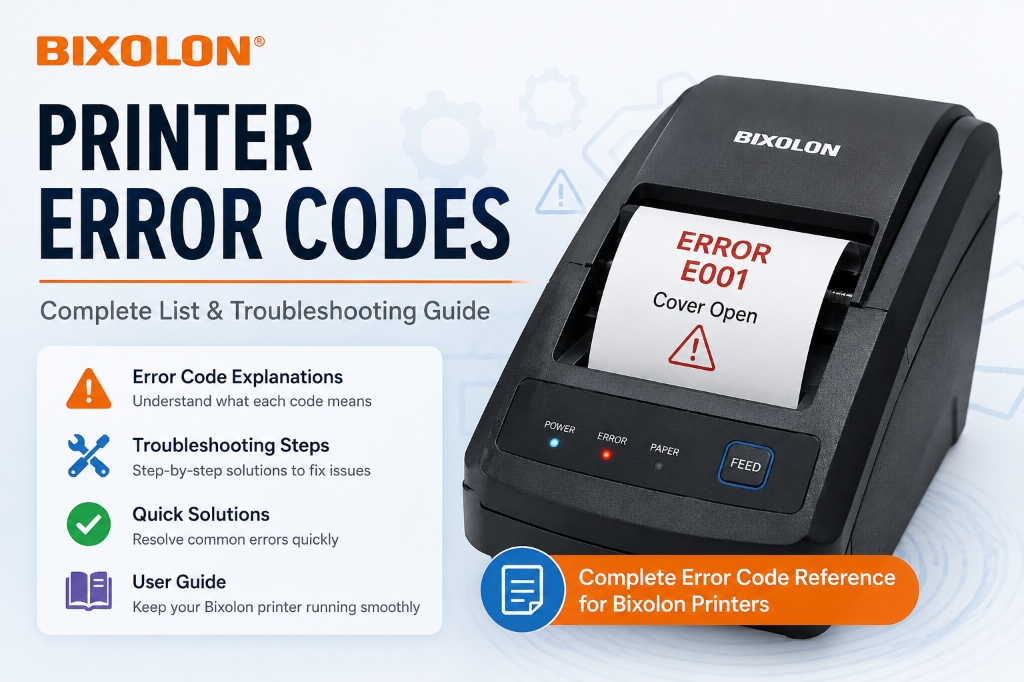
If your Bixolon printer is blinking, beeping, or refusing to print, you've probably already searched for "Bixolon printer error codes" hoping to find a neat list like 'E04' or 'Error 12.' Here's the honest answer: Bixolon doesn't use a single numbered error code system across its printers. Instead, errors are communicated through LED light patterns and internal status signals that vary slightly depending on the model line you own — whether that's an SRP receipt printer, a Q-series POS printer, or an XD/XL label printer.
That doesn't mean troubleshooting is a guessing game. Once you understand how Bixolon printers actually report problems, almost every issue falls into one of a handful of categories — and each one has a predictable fix.
This guide walks through exactly how to read your printer's signals, what each type of error means, and how to resolve it without calling support.
How Bixolon Printers Report Errors
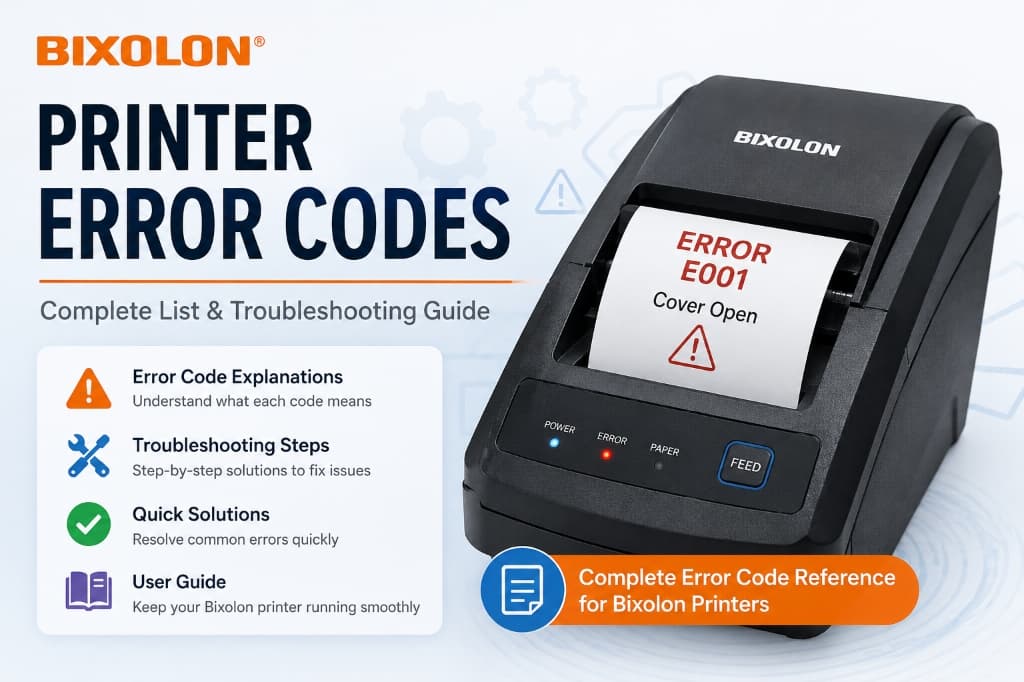
Most consumer and office printers show errors as a code on a small screen. Bixolon's thermal and POS printers are built differently — most models don't have a display at all. Instead, they communicate status through two systems working together:
- LED indicator lights. Most Bixolon printers have one or two LEDs (often labeled POWER and ERROR, or combined into a single status light). The color, and whether it's solid or blinking, tells you what's happening. A solid light usually means "ready" or a simple, fixable condition like low paper. A blinking light usually points to something the printer can't resolve on its own — a jam, an open cover, or a hardware fault.
- Status bytes (for connected systems). When a Bixolon printer is connected to a POS system, the software polls the printer for a status report behind the scenes. This report flags things like "cover open," "paper out," "mechanical error," or "auto-cutter error" as individual signals. Your POS software translates these into the on-screen message you actually see, like "Printer Offline" or "Paper Jam Detected."
Because the LED patterns and status flags are standardized in structure but not identical across every model, the fastest way to diagnose a specific blink pattern is to check the categories below, then cross-reference your exact model's user manual for the precise blink timing.
Universal Bixolon LED Light Meanings
While exact timing differs slightly by model, these patterns hold true across the vast majority of Bixolon SRP and POS printers:
| Light Behavior | What It Usually Means |
|---|---|
| Solid green/power light, no error light | Printer is on and ready |
| Solid red error light + paper-out light | Paper roll is empty or not loaded correctly |
| Slow, steady blinking error light | Cover is open or not latched properly |
| Fast blinking error light (roughly every 200ms) | Print head has overheated and needs to cool down |
| Error light blinking continuously, won't stop after power cycle | Hardware fault — likely needs service |
| Yellow/amber light staying on, no printing | Communication error between printer and computer (driver, cable, or port issue) |
| Light flashes once when cutter activates, then stays red | Auto-cutter jam |
If your model's blinking pattern doesn't match anything here, it's worth running a self-test (hold the feed button while powering on, for most models) — if the self-test page prints fine, the issue is almost always software or driver-related, not the printer itself.
Common Bixolon Printer Error Categories
Paper-Related Errors
This is the single most common reason a Bixolon printer stops mid-job. It includes:
- Paper end — the roll has run out. The printer halts immediately and won't resume until new paper is loaded.
- Paper near-end warning — a low-paper sensor alert, mostly seen on receipt printers using a secondary paper sensor.
- Incorrect paper type — Bixolon thermal printers require actual thermal paper. Using plain paper will cause blank or faint prints that look like an error but isn't one.
Fix: Open the cover, remove any torn paper remnants, load a fresh roll with the thermal-sensitive side facing the print head, and close the cover firmly until it clicks. Run a self-test to confirm before reconnecting to your POS software.
Cover and Mechanical Errors
If the printer's cover isn't fully latched, most Bixolon models will refuse to print and blink the error LED until it's closed properly. This is intentional — it's a safety interlock to prevent printing with the print head exposed.
Mechanical errors also cover platen jams (something physically blocking the paper path) and auto-cutter jams, where the built-in paper cutter gets stuck mid-cut, often due to a torn paper edge or a foreign object caught in the blade.
Fix: Power off before opening the cover fully. Clear any jammed paper or debris by hand — never force the cutter blade manually. Reload paper correctly, close the cover, and power back on.
Print Head (TPH) Errors
The thermal print head (TPH) is the most sensitive component in the printer. Two issues show up here:
- Overheating — happens during long, high-volume print runs. The printer pauses automatically to protect the head; this is normal and not a defect.
- Worn or damaged print head — causes faded, streaky, or partially missing print, even with fresh paper installed.
Garbled or garbage printing (random characters instead of readable text) is also commonly traced back to either a failing print head or, more often, a driver mismatch or a damaged USB/serial cable rather than the head itself.
Fix for overheating: Let the printer sit powered-on but idle for 5–10 minutes before resuming. For persistent garbled output, reinstall the latest driver from Bixolon's support site and swap the connection cable before assuming the print head is at fault.
Connectivity Errors (USB, Bluetooth, Network)
This is the category that generates the most support tickets, and it's rarely the printer's fault:
- USB not detected — often a driver installation issue or a faulty/incompatible cable, not a hardware failure.
- Bluetooth pairing failures — frequently caused by the printer being already paired to another device, or a system update that reset Bluetooth permissions.
Fix: For USB, reinstall the driver and try a different port/cable before troubleshooting further. For Bluetooth, unpair completely on both devices and re-pair from scratch. For network printers, assign the printer a static IP through its configuration utility so it doesn't change after router restarts.
Driver and Software Errors
A surprising number of "broken printer" calls are actually operating system or driver issues:
- Driver not installing correctly, especially after a Windows feature update
- Printer disappearing from the Devices list after an OS update
- SDK-level errors (for developers integrating Bixolon printers into custom POS software), often triggered when older printer firmware doesn't support a newer SDK function call
There have also been cases where a specific Windows update interfered with shared network printers across a system, requiring that update to be rolled back until a fixed driver was released.
Fix: Always download the driver version matched to your exact printer model and Windows version from Bixolon's official support site — generic or outdated drivers are the single biggest cause of "ghost" errors that look like hardware problems but aren't.
Power Errors
Less common, but worth covering:
- Printer won't power on at all — check the power brick/cable first; these are a frequent failure point on POS hardware that's powered on 12+ hours a day.
- Settings reset after a power outage — some configuration (like IP address or paper sensor calibration) can revert to factory defaults if power is cut abruptly instead of shut down properly.
Fix: Use a surge protector or UPS for always-on POS setups, and power down printers properly via software or the power button rather than just unplugging them.
Recoverable vs. Non-Recoverable Errors
This distinction matters more than most people realize. Bixolon printers internally classify errors into two types:
- Recoverable errors — the printer can resume automatically once the cause is fixed (for example, once you close the cover or reload paper), without needing a full power cycle.
- Non-recoverable errors — require the printer to be powered off and back on, or in some cases, professional repair, because the fault is at a hardware level the firmware can't clear on its own.
If you've closed the cover, reloaded paper, and the error light is still blinking, that's usually your signal that you're dealing with a non-recoverable error — power cycle the printer before doing anything else.
Model-Specific Error Notes
The categories above apply across Bixolon's lineup, but the exact blink timing and a few error types differ between product families:
- SRP series (SRP-350III, SRP-330II, SRP-275III, etc.) — receipt printers with the most standardized LED behavior described above.
- Q-series (SRP-Q300, SRP-Q200) — adds additional status indicators for cash drawer connections, which can sometimes be mistaken for printer errors.
- XD/XL label printers (XD3-40, XD5-40, XL5-40) — use ribbon and label-stock sensors in addition to paper sensors, so "media error" can mean a ribbon issue rather than a paper issue.
- Mobile printers (SPP series) — battery-related warnings (low battery, charging fault) appear alongside the standard error categories.
[Internal link: see our dedicated troubleshooting guide for your exact model — SRP-350III, SRP-330II, SRP-Q300, and more.]
When to Contact Bixolon Support or Request a Repair
Most errors above can be resolved in under five minutes. Reach out to Bixolon support or an authorized repair center if:
- The error light keeps blinking after a full power cycle and reload
- The self-test page prints with visible streaks, gaps, or fading even after cleaning the print head
- The printer fails to power on after checking the power supply and cable
- You're getting consistent SDK or integration errors that persist after a driver update
Most Bixolon printers ship with a limited warranty, so it's worth checking your purchase date before paying for a third-party repair.
Frequently Asked Questions
Why is my Bixolon printer's light yellow and it won't print?
A solid yellow/amber light with no printing almost always points to a communication problem between the printer and your computer or POS system — usually a driver issue or a bad USB cable, not a hardware fault.
How do I reset an error on a Bixolon printer?
For most models, power off the printer, wait 10 seconds, and power it back on. If the error persists, check for an open cover or paper jam first, since these block the printer from clearing the error on its own.
Why does my Bixolon printer print garbled text?
This is typically caused by a mismatched or outdated driver, or a damaged connection cable — reinstall the correct driver for your exact model before suspecting the print head itself.
Does Bixolon have an official list of error codes?
No single universal list exists. Errors are communicated through LED patterns and status signals that are consistent in structure but vary slightly by model, which is why this guide groups them by category instead of by code number.
Can I fix a Bixolon printer error myself, or do I need a technician?
The vast majority of errors — paper jams, open covers, driver issues, connectivity problems — are user-fixable in a few minutes. Only persistent hardware faults (a damaged print head or a printer that won't power on) typically require a technician.
Quick Reference: Bixolon Printer Errors at a Glance
| Error Type | Common Cause | Quick Fix |
|---|---|---|
| Paper end | Roll empty | Load new thermal paper roll |
| Cover open | Cover not latched | Close cover firmly until it clicks |
| Print head overheating | Heavy print volume | Let printer idle 5–10 minutes |
| Garbled printing | Driver mismatch or bad cable | Reinstall correct driver, swap cable |
| USB not detected | Driver or cable issue | Reinstall driver, try different port |
| Bluetooth won't pair | Stale pairing | Unpair fully, re-pair from scratch |
| Network printer offline | IP address changed | Assign printer a static IP |
| Won't power on | Power supply fault | Check power brick and outlet |
Every Bixolon printer eventually throws one of these signals — it's part of normal operation, not a sign your hardware is failing.
Match the light pattern or symptom to the categories above, work through the fix, and you'll have it back online in most cases without ever needing to contact support.
