


The Quick Answer
Your Bixolon printer says "Offline" even though it's powered on? Here's why that happens and the exact steps to fix it on Windows, Mac, and POS software.
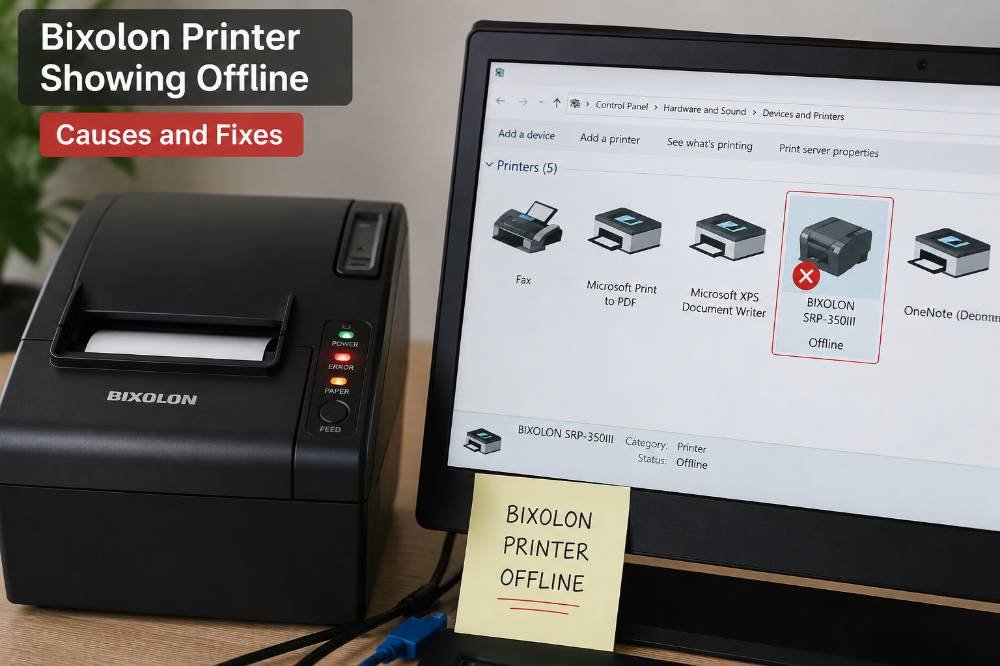
Here's the thing that confuses most people: a Bixolon printer showing "Offline" in Windows, macOS, or your POS software is very often fully powered on, fully connected. Completely fine — it's the software's status reading that's wrong, not the printer itself.
This is a software-state issue more often than an actual disconnection, which is why power-cycling the printer alone often doesn't fix it.

This guide walks through how to tell the difference, and the exact fix for each cause.
Step 1: Confirm It's Not a Real Disconnection First
Before touching any settings, rule out an actual hardware disconnect:
- Check the printer's power LED — if it's solid and normal, the printer has power and believes it's ready.
- Run a self-test (hold the feed button while powering on). If it prints, the printer itself is working fine, which confirms this is a software-side "offline" status rather than a true connection failure.
- Physically check the cable (USB/Ethernet) or confirm Bluetooth/Wi-Fi is still active, just to rule out something simple like a half-unplugged cable.
If the self-test passes, move on to the fixes below — the printer is fine. The fix lives in your computer or POS software.
Fixing "Offline" on Windows
Windows has a quirk where it can mark a printer as offline even when it's fully reachable, often after the printer briefly didn't respond to a status check (which can happen during a busy print job, a sleep cycle, or a momentary network hiccup).
Fix 1: Uncheck "Use Printer Offline"
- Open Settings → Bluetooth & devices → Printers & scanners.
- Click your Bixolon printer, then Open print queue.
- In the queue window, click the Printer menu and make sure Use Printer Offline is unchecked. Windows sometimes toggles this on by itself after a connection hiccup, and it won't revert automatically.
Fix 2: Restart the Print Spooler Service
The print spooler is the Windows background service that manages all print jobs. Printer status — when it gets stuck, every printer connected to that computer can show incorrect status, not just Bixolon devices.
- Press Winrong>Win + R, type
services.msc, and press Enter. - Find Print Spooler in the list.
- Right-click it and select Restart.
- Check your printer's status again — this alone resolves a large share of "offline" cases that have nothing to do with the printer.
Fix 3: Remove and Re-Add the Printer
If the above doesn't work, the printer's connection profile in Windows may be corrupted:
- Go to Printers & scanners, click the Bixolon printer, and select Remove device.
- Restart your computer.
- Reconnect the printer (via USB, network, or Bluetooth). Let Windows detect it fresh, or reinstall it manually using the correct driver from Bixolon's support site.
Fix 4: Set It as the Default Printer
Occasionally, Windows reports a non-default printer as offline simply because it's not the one actively being polled for status. Setting your Bixolon printer as the default (even temporarily, to test) can clarify whether this is a factor.
Fixing "Offline" on macOS
macOS handles this a little differently, but the underlying causes are similar:
- Open System Settings → Printers & Scanners.
- Click your Bixolon printer — if it shows Paused, click Resume.
- If it still shows as unreachable, right-click (or Control-click) the printer in the list. Remove it, then re-add it using the + button, selecting the correct Bixolon driver during setup rather than letting macOS pick a generic one.
- As a deeper fix, reset the entire printing system: hold Control and click anywhere in the printer list, select Reset printing system, then re-add your Bixolon printer from scratch. This clears out any corrupted printer profiles system-wide, not just for one device.
Fixing "Offline" Inside POS Software
This is the fix people miss most often: your POS platform (Square, Toast, Shopify POS, Clover, etc.) frequently keeps its own separate printer status, independent of what Windows or macOS reports. A printer can show "ready" at the OS level while the POS app still thinks it's offline, or vice versa.
- Open the printer/hardware settings specifically inside the POS app — not the OS settings.
- If the printer is listed as disconnected, re-select it manually rather than assuming it'll reconnect automatically.
- Fully close and restart the POS application itself. This single step resolves a large share of POS-specific "offline" reports, since many of these apps cache a printer's last known status. Don't always refresh it in real time.
- If your POS software has a "test print" or "check printer status" option built in, use it after restarting — it's a more reliable check than the on-screen status indicator alone.
Network-Specific Causes of "Offline"
If your Bixolon printer connects over Wi-Fi or Ethernet, "offline" is frequently caused by the printer's IP address changing — usually after a router restart reassigns it a new address via DHCP. Your computer or POS software is still trying to reach the old address, finds nothing there.
Reports the printer as offline even though it's sitting on the network just fine under a new address.
The permanent fix: assign the printer a static IP address through its network settings utility. This can't happen again after future router restarts. For the full step-by-step network troubleshooting process, see our dedicated guide on Bixolon printers that won't connect.
USB-Specific Causes of "Offline"
Over USB, an "offline" status (despite the printer being powered on) is most often tied to:
- A loose or failing cable — try a different one before anything else
- A USB port being placed into a low-power sleep state by Windows — disable USB selective suspend in your power plan settings for ports used by printers
- A stuck job in the print queue blocking the printer from reporting a fresh status — clear the queue completely
Why This Keeps Happening (And How to Stop It)
If your Bixolon printer goes "offline" repeatedly rather than as a one-time glitch, it's worth addressing the root cause rather than re-fixing it every time:
- Network printers → assign a static IP so address changes stop being the trigger.
- USB printers → disable selective suspend so Windows stops putting the port to sleep.
- Any connection type → check whether your computer or POS terminal is going to sleep mid-shift; many "offline" reports are actually the computer waking from sleep without properly re-establishing its printer connections.
Quick Checklist
- [ ] Self-test run to confirm the printer itself is working
- [ ] "Use Printer Offline" unchecked (Windows)
- [ ] Print spooler restarted (Windows) or printing system reset (Mac)
- [ ] Printer removed and re-added with the correct driver
- [ ] Checked POS software's own printer settings, not just the OS
- [ ] POS app fully restarted
- [ ] Static IP assigned (network-connected printers)
- [ ] USB selective suspend disabled (USB-connected printers)
An "offline" status is almost always a software reporting issue rather than a sign your Bixolon printer has actually disconnected. Confirm the hardware is fine with a quick self-test, then fix the status where it's actually being reported — Windows, Mac, or your POS app — rather than assuming the printer needs to be replaced or repaired.
