


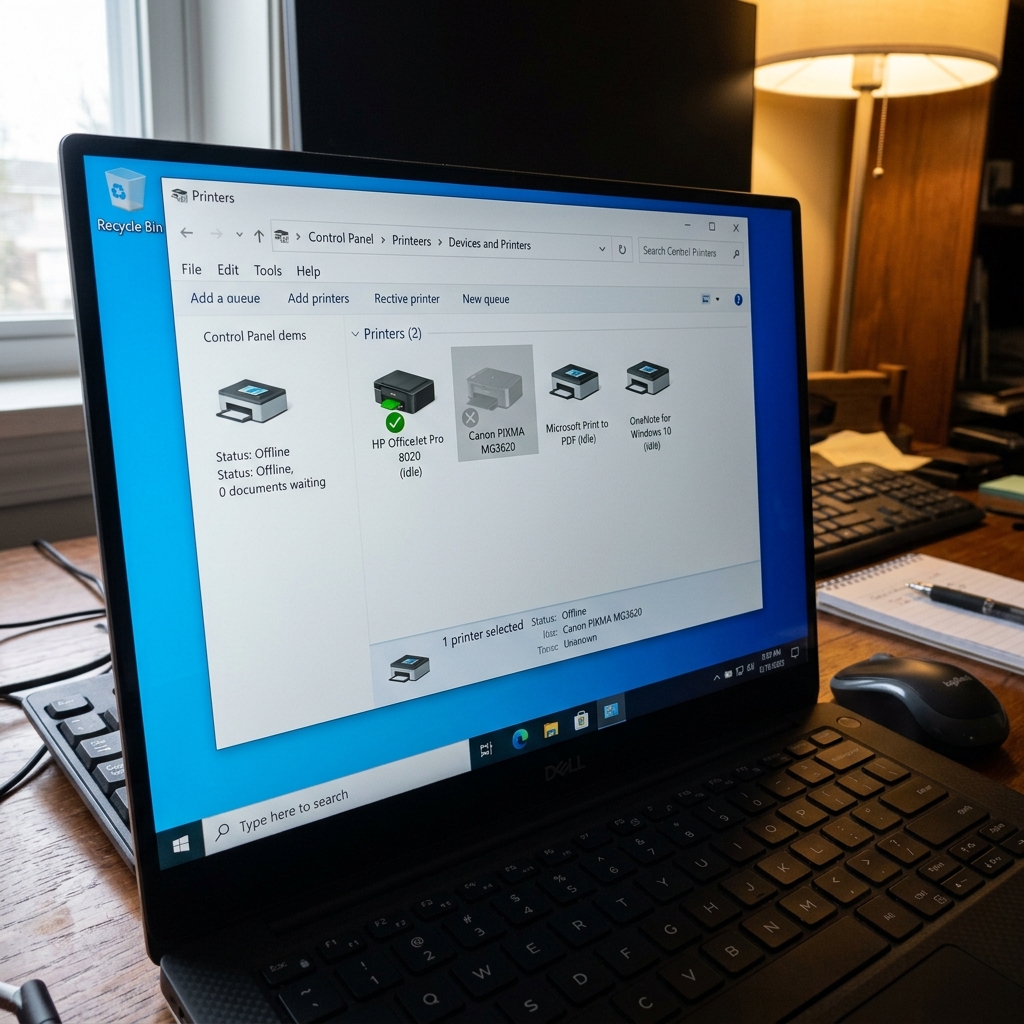
Why the MG3620 Goes Offline
The Canon PIXMA MG3620 is a great budget printer, but it lacks an LCD screen. This makes network troubleshooting incredibly frustrating. When your router reboots, or your ISP changes your IP address. The MG3620 often gets confused, drops off the network, and shows as "Offline" on your computer.
Because there is no screen to select a Wi-Fi network, you have to use a specific sequence. Of button presses to clear the old network data and connect it to the new one.
Step 1: The Network Reset
Before trying to reconnect, you must wipe the corrupted network settings from the printer's memory.
- Turn the printer on.
- Press and hold the Wi-Fi button until the green Power (ON) lamp flashes.
- Press the Color Start button g> Start button at the bottom.
- Press the Wi-Fi button againong> button again.
The power lamp will flash and then turn solid. All previous Wi-Fi passwords have been wiped from the printer.
Step 2: Reconnecting via WPS
If your router has a physical WPS button, this is the easiest way to reconnect.
- Press and hold the Wi-Fi button on the printer until the green Power lamp flashes.
- Press the Black Start button g> Start button.
- Press the Wi-Fi button againong> button again. The blue Wi-Fi light will start flashing rapidly.
- Walk over to your router and press the WPS button for 5 seconds.
Wait up to 2 minutes. When the blue Wi-Fi light on the printer stops flashing and stays solid blue, you are back online.
Step 3: The Windows Spooler Trap
If the blue Wi-Fi light on the printer is solid, but your computer still says the printer is offline, the problem is in your computer, not the printer.
- On Windows, open Printers & Scanners.
- Click the Canon MG3620 and select Open Queue.
- Click the Printer tab at the top of the window.
- If there is a checkmark next to Use Printer Offline, click it to remove the checkmark. Your print jobs will immediately begin processing.
Why the Canon PIXMA MG3620 Goes Offline in Windows & How to Reconnect
The Canon PIXMA MG3620 is one of the most popular budget wireless all-in-ones. Because it lacks an LCD display and uses a basic 2.4GHz network card, router DHCP lease renewals. Windows WSD port timeouts frequently cause the printer status to change to "Offline".
Exhaustive 4-Step Reconnection Workflow
- Hardware Power Cycle & Network Wakeup:
Turn off the MG3620. Unplug your Wi-Fi router for 30 seconds, then plug it back in. Once the router is fully online, power on the MG3620. The blue Wi-Fi LED should illuminate solid blue.
- Re-Pairing Wi-Fi Using the Cableless Setup Method:
- Press and hold the physical Wi-Fi button the top left of the MG3620 until the Power lamp flashes once.
- Release the button. Verify the blue Wi-Fi lamp flashes rapidly.
- Press the Color Start button, then press the Wi-Fi button once. The Power lamp will flash and the Wi-Fi lamp will stay lit.
- Launch the Canon setup utility on your PC or open the Canon PRINT app on your phone to complete pairing.
- Create a Standard TCP/IP Port in Windows:
- Open Control Panel > Devices and Printers > right-click Canon MG3620 > Printer Properties > Ports.
- Add a Standard TCP/IP Port with the printer's IP address.
- Uncheck "SNMP Status Enabled" in port settings. Click Apply.
- Uncheck "Use Printer Offline":
Open the print queue, click the Printer menu at the top-left, and ensure "Use Printer Offline" is unchecked.
Frequently Asked Questions
How do I find the IP address of a Canon MG3620 without a screen?
Press and hold the physical Network Information (or Wi-Fi) button until the power light flashes 15 times, then release. The printer will print a network settings sheet displaying its IP address.
Can I connect the MG3620 via USB if Wi-Fi continues to fail?
Yes. A standard USB-A to USB-B cable provides an instant, rock-solid connection that is immune to Wi-Fi disconnects.
