


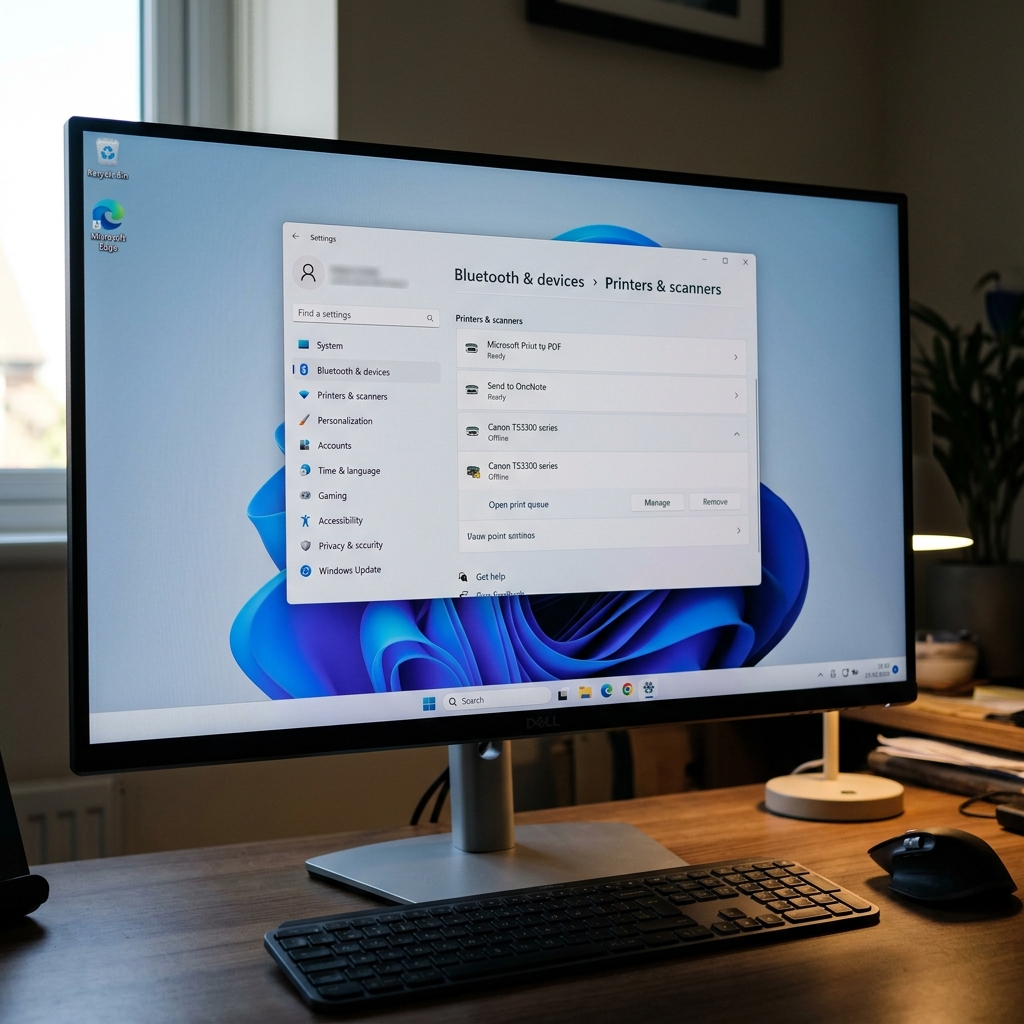
The Windows 11 Offline Glitch
You turn on your Canon printer. The blue Wi-Fi light is solid. You can even print to it from your iPhone. But when you try to print a Microsoft Word document from your Windows 11 PC, it says the printer is Offline.
This is a notoriously common issue in Windows 11. The operating system uses specific network protocols to constantly "ping" the printer to check its status. If the printer goes to sleep to save power, it stops responding to those pings, and Windows permanently marks it as Offline.
Fix 1: Disable SNMP Status
SNMP (Simple Network Management Protocol) is a tool Windows uses to check ink levels and printer status over a network. Unfortunately, it is highly prone to false negatives on Canon printers.
- Click the Windows Start button and type Printers & Scanners.
- Click on your Canon printer in the list.
- Click Printer Properties (not just Properties).
- Click the Ports tab at the rong> tab at the top.
- Look at the list of ports. The one currently in use will have a checkmark next to it (usually a WSD or Standard TCP/IP port). Click Configure Port.
- Look at the bottom of the window. If there is a checkbox for SNMP Status Enable, uncheck it.
- Click OK, and close the properties window. In many cases, the printer will immediately jump back Online.
Fix 2: Clearing the Print Spooler
If a corrupted print job is stuck in the background, Windows will freeze the connection and mark the printer offline.
- Press the Windows Key + R to open the Run dialog box.
- Type
services.mscand press Enter. - Scroll down the alphabetical list until you find Print Spooler.
- Right-click on it and select Restart. The screen will flash for a second as the service restarts. Check if the printer is online.
Fix 3: The WSD Port Problem
When you install a printer wirelessly in Windows 11, Microsoft automatically uses a WSD (Web Services for Devices) port. WSD is notoriously unstable.
The permanent fix is to assign your Canon printer a static IP address via your Wi-Fi router, and then manually add a Standard TCP/IP port in Windows using that exact IP address. This bypasses WSD entirely and creates a rock-solid, permanent pathway between your PC and your printer.
Fixing Canon Printers Showing "Offline" in Windows 11
When Windows 11 displays your Canon printer as "Offline", print jobs accumulate in the queue and fail to execute. In 90% of cases, this is caused by Windows defaulting to a Web Services for Devices (WSD) port, combined with dynamic DHCP IP changes from your Wi-Fi router.
Complete 4-Step Port & Network Restoration Protocol
- Find Your Canon Printer's Current Local IP Address:
On the printer LCD screen: Go to Setup > Device settings > LAN settings > Confirm LAN settings. Note the IP address (e.g.,
192.168.1.135). - Switch from WSD to a Standard TCP/IP Port in Windows:
- Press Windows Key + R, type
control printers, and press Enter. - Right-click your Canon printer and select Printer Properties.
- Go to the Ports tab. Click Add Port....
- Select Standard TCP/IP Port > New Port....
- Type the printer's exact IP address into the field. Finish the wizard.
- Verify the new TCP/IP port has a checkmark, then click Apply.
- Press Windows Key + R, type
- Disable SNMP Status Checking:
In the Ports tab, highlight your new TCP/IP port and click Configure Port.... UNCHECK "SNMP Status Enabled". This prevents Windows from falsely marking the printer offline when network polling fails.
- Uncheck "Use Printer Offline":
Double-click the Canon printer icon to open the queue. Click the Printer menu at the top-left and ensure there is no checkmark next to "Use Printer Offline".
Frequently Asked Questions
Why does the printer go offline whenever it enters Sleep Mode?
Access the printer's Embedded Web Server (type its IP into a browser), go to Energy Saving Settings, and ensure "Auto Power On" is enabled.
Can I set a Static IP directly on the Canon printer?
Yes. In LAN settings > TCP/IP settings > IPv4, change from "Auto / DHCP" to "Manual" and enter a permanent static IP.
