


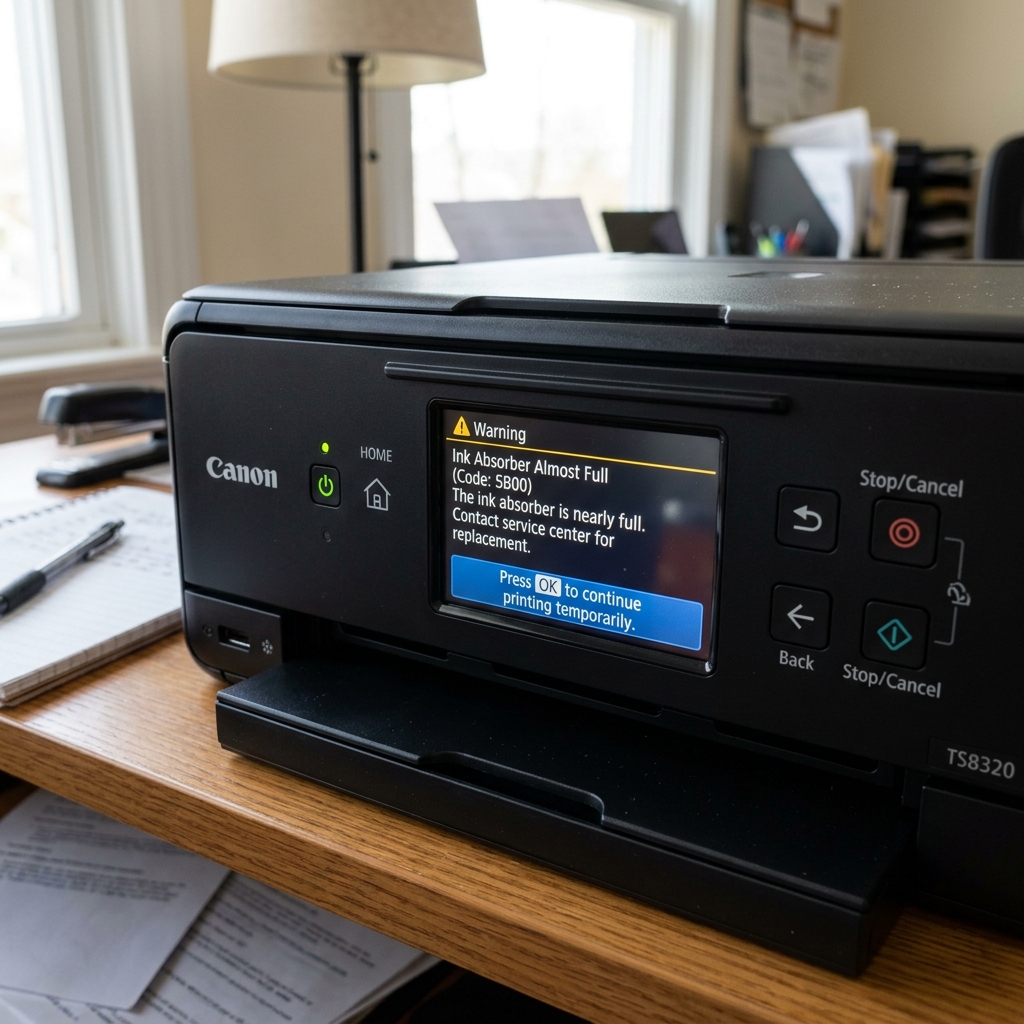
The 95% Warning Mark
If you are in the middle of a large print job and your Canon printer suddenly stops, flashes an amber light 8 times, and displays "The ink absorber is almost full" on your computer screen (Support Code 1700), don't panic. Your printer is not broken.
Canon programmed the motherboard to pause printing when the digital waste ink counter reaches roughly 95% capacity. They do this so you aren't surprised when the printer eventually locks down completely. It gives you time to finish your current project and order a replacement printer or schedule a repair.
How to Resume Your Print Job
Bypassing this error is incredibly simple, but it is purely temporary.
- Walk over to the printer.
- Locate the Resume/Cancel button (a red triangle inside a circle), the OK button, or the Black/Color Start buttons.
- Press the button once.
The error message on your computer screen will vanish, the printer will pull the paper back in (or grab the next sheet), and the print job will continue seamlessly from the exact spot it paused.
How Much Time Do You Have Left?
Users frequently ask: "How many more pages can I print after pressing OK?"
The waste ink counter does not tick up based on the number of pages you print. It ticks up based on head cleaning cycles.
If you print 500 pages in one sitting, the counter barely moves. But if you turn the printer on and off 10 times over a week (which triggers an automatic mini-cleaning each time), the counter jumps up.
Generally, you have anywhere from 2 weeks to 2 months of normal household printing left before the counter hits 100% and throws the fatal 5B00 error.
Understanding the Canon "Ink Absorber Almost Full" (Error 1700 / E08) Warning
When your Canon PIXMA printer displays "Ink Absorber Almost Full", Support Code 1700, or flashes an orange alarm light 8 times (Error E08), the internal software counter calculating waste ink volume has reached approximately 95% capacity. At this stage, the printer has not locked permanently — it is providing an advisory warning before reaching the fatal 100% hard lockout (Error 5B00 / P07).
How to Bypass the 1700 / E08 Warning and Resume Printing
- The Physical Stop/Reset Button Bypass:
When the "Ink Absorber Almost Full" warning dialog appears on your computer screen or the printer LCD, simply press the physical Stop / Reset (Red inverted triangle) or OK button on the printer control panel. The printer will dismiss the alert, acknowledge your confirmation, and execute your incoming print job normally.
- Disabling the Canon Status Monitor Popup in Windows:
- Open Control Panel > Devices and Printers.
- Right-click your Canon printer > Printing Preferences.
- Go to the Maintenance tab and click View Printer Status.
- In the status window, click Option > Enable Status Monitor > Uncheck. This prevents annoying full-screen interruption dialogs while you finish printing.
- Planning for the 100% Lockout (Error 5B00):
Pressing OK allows you to continue printing for roughly 500 to 1,000 additional pages. Once the counter hits 100%, pressing OK will no longer work, and a full Service Mode reset using the Canon Service Tool software will be required.
Frequently Asked Questions
Will ink leak out of the printer if I bypass the warning?
The porous felt pads in the base of the printer are engineered with an intentional 20% safety margin. Bypassing the 95% warning will not cause ink to overflow immediately, but you should avoid placing the printer on valuable furniture.
Can I reset the counter back to 0% before it reaches 100%?
Yes. You can place the printer into Service Mode at any time and use Canon Service Tool (v3400/v4905) to clear the main ink absorber counter back to 0%.
