


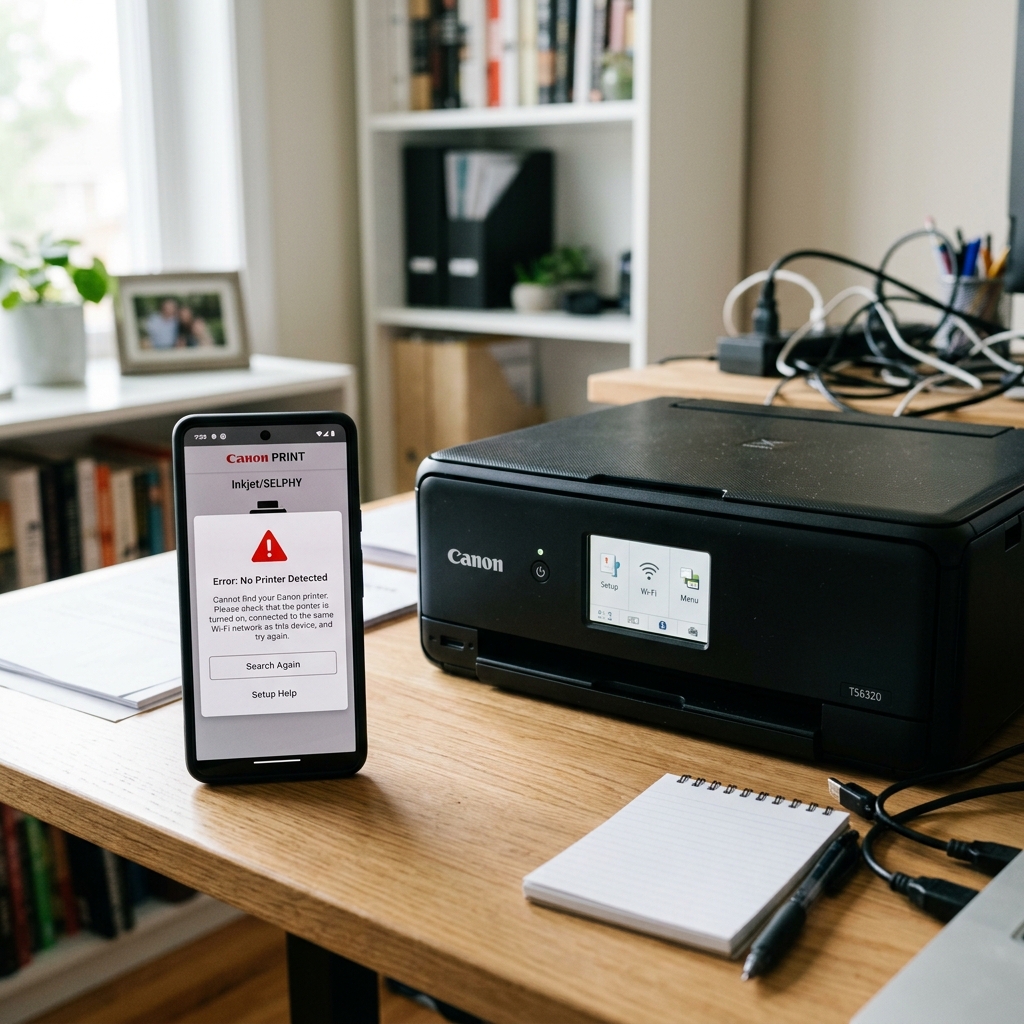
Why the App Fails to Find the Printer
You downloaded the Canon PRINT Inkjet/SELPHY app, you turned your printer on, and you tapped "Add Printer."Printer could not be found.
This happens due to strict smartphone privacy settings blocking local network scans. Or because your phone and printer are on different Wi-Fi bands.
Fix 1: The iOS "Local Network" Privacy Block
If you are using an iPhone or iPad, Apple introduced a privacy feature that prevents. Apps from scanning your home network for devices without your explicit permission.
- Open the main Settings app on your iPhone (not the Canon app).
- Scroll all the way down to the bottom of your installed apps list.
- Tap on Canon PRINT .
- Look for the toggle switch labeled Local Network.
- If it is gray (off), toggle it to green (on).
- Force-close the Canon app and reopen it. It should instantly find your printer.
Fix 2: The 5GHz Band Conflict
Most modern Wi-Fi routers are dual-band (they broadcast both 2. 4GHz and 5GHz signals). Almost all consumer Canon printers only have a 2. 4GHz antenna.
While some advanced routers can bridge these two networks seamlessly, many do not. If your iPhone is connected to your 5GHz network, and your printer is on the 2. 4GHz network, the Canon app cannot bridge the gap.
Open your phone's Wi-Fi settings and connect to the 2. 4GHz version of your home Wi-Fi (often labeled with a -2. 4 or -2G suffix). Try adding the printer again.
Fix 3: Forcing Broadcast Mode
If you are trying to set up a brand new printer, it doesn't know your Wi-Fi password yet. It must broadcast its own temporary Bluetooth or Wi-Fi Direct signal for your phone to find.
- Press and hold the Wireless Connect button (the button with a smartphone and a chain-link icon) on your printer for 3 seconds.
- The Wi-Fi icon on the printer's screen will begin to flash rapidly.
- Now, open the Canon PRINT app and tap Add Printer. The app will detect the flashing printer. Connect to it, and ask you for your home Wi-Fi password to complete the setup.
Why the Canon PRINT Inkjet/SELPHY App Fails to Detect Your Printer
The Canon PRINT App (for iOS and Android) utilizes Bluetooth Low Energy (BLE) and local mDNS Bonjour broadcast packets to discover Canon printers. When the app searches endlessly without finding your printer. Mobile permission blocks, Wi-Fi band mismatch, or AP Client Isolation on the router are responsible.
Exhaustive 4-Step App Discovery Resolution Guide
- Grant Location & Nearby Device Permissions (Android & iOS):
- On Android (Android 10 - 14): Go to Settings > Apps > Canon PRINT > Permissions.Location (with "Precise Location") and Nearby Devices are set to "Allow". Without Location, Android blocks Bluetooth BLE beacon discovery.
- On iOS (iPhone / iPad): Go to Settings > Canon PRINT.Local Network and Bluetooth toggles are ON.
- Verify Both Phone and Printer are on the Same 2.
If your smartphone is connected to your router's 5GHz network while the Canon printer is connected to 2. 4GHz, and your router enforces AP Band Isolation, the app cannot discover the printer. Connect your phone to the 2. 4GHz network.
- Disable AP Isolation / Client Isolation in Router Settings:
Log into your router admin panel."AP Isolation" or "Guest Mode Isolation" is disabled. When enabled, AP isolation prevents Wi-Fi clients from discovering each other.
- Manual IP Address Addition in Canon PRINT App:
If automated discovery continues to fail: Open Canon PRINT app > Add Printer > Manual Setup / Add by IP Address Enter the printer's local IP address (e. g.
192. 168. 1.) to establish a direct TCP connection.
Frequently Asked Questions
Can I print from the Canon app without a Wi-Fi router?
Yes.Wi-Fi Direct / Direct Connection the Canon printer. Connect your phone directly to the printer's own broadcasting Wi-Fi network.
Does the Canon PRINT app support scanning to smartphone?
Yes.Scan button in the app to initiate flatbed or ADF scanning directly to your phone's photo library or PDF files.
