


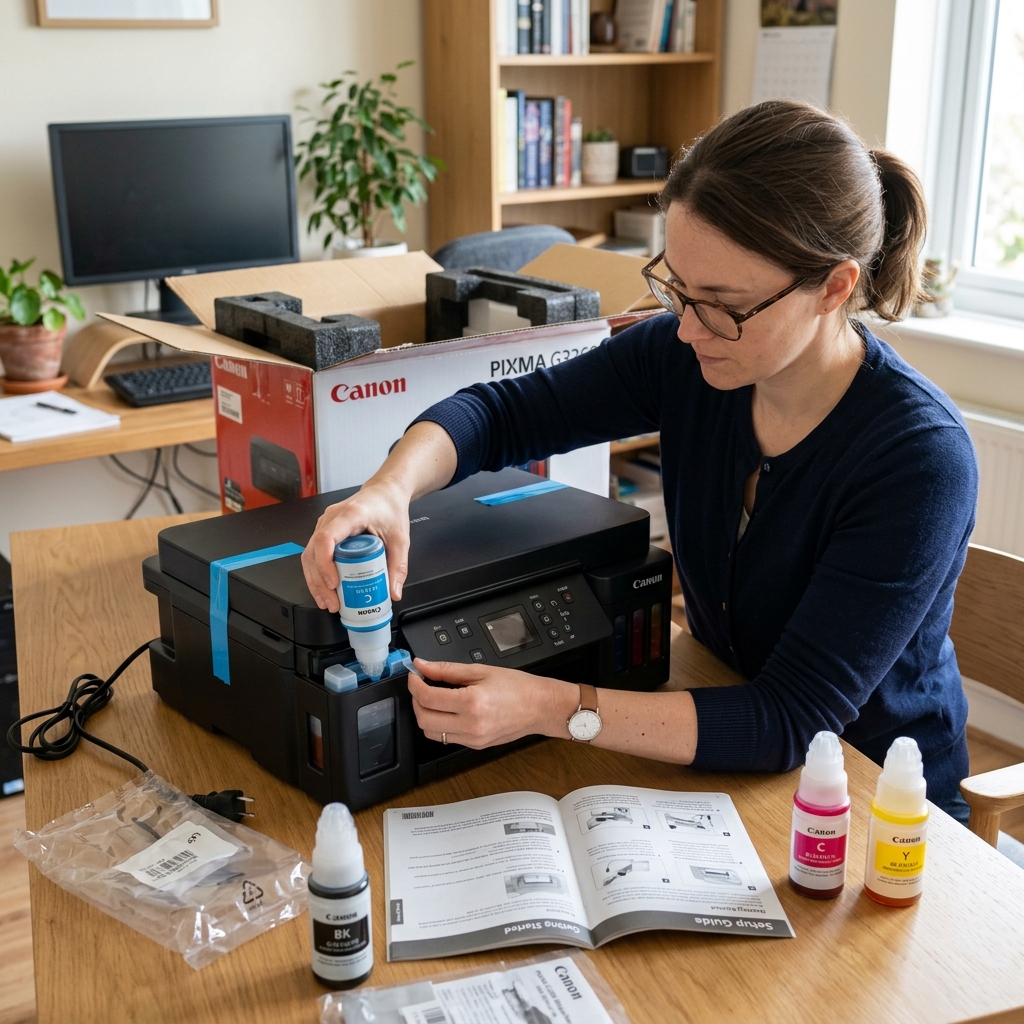
The Missing Printhead Mistake
The most common mistake when setting up the Canon PIXMA G3260 (and similar MegaTanks like the G2260 and G3200) happens right out of the box. Users pour the ink bottles into the tanks, turn the printer on, and wonder why nothing happens.
You must install the Printheads. Inside the box are two small plastic packages labeled B (Black) and C (Color). They look like traditional ink cartridges, but they are actually the nozzles that spray the ink.
- Open the top cover of the printer.
- Lift the blue locking cover in the center of the carriage.
- Remove the orange protective tape from the B and C printheads.
- Drop them into their respective slots (C on the left, B on the right).
- Close the blue locking cover. Push down on the two blue buttons until they click.
The Ink Priming Failure
After installing the printheads and pouring the ink, the printer is supposed to spend 6 minutes sucking the ink from the tanks through the silicone tubes to the printheads.
If the printer didn't do this, or if you see the tubes are completely empty (clear) instead of filled with black and colored ink, the printer is unprimed.
- Ensure the blue ink tank caps are closed securely.
- Press and hold the Stop button (red triangle).
- Watch the yellow Alarm light. Count the flashes.
- When it flashes exactly 5 times, release the Stop button.
The printer will now execute a System Cleaning (Ink Flush). It will make loud pumping noises for about 10 minutes. When it finishes, the tubes will be full of ink and you can print your alignment page.
Wi-Fi Setup Failures
If your smartphone or computer cannot find the G3260 during setup:
The G3260 only supports 2.4GHz Wi-Fi. If your phone is connected to your router's 5GHz network, the Canon PRINT app may fail to pass the credentials. Go to your phone's Wi-Fi settings, connect to your router's 2.4GHz network, and restart the Canon app.
To put the printer back into pairing mode, press and hold the Wireless Connect button (the button with a chain-link icon) for 3 seconds until the Wi-Fi symbol on the LCD flashes.
Troubleshooting Canon PIXMA G3260 MegaTank Setup & Initial Ink Charging
The Canon PIXMA G3260 is an all-in-one wireless MegaTank printer. During initial setup, the printer must execute a mandatory 10-minute Initial Ink Charging routine to siphon liquid ink from the four large built-in tanks through the delivery tubes and into the removable printhead modules.
If this initial charge is interrupted or if the transportation valve is locked, the printer will display errors or fail to print.
Step-by-Step Initial Setup Troubleshooting
- Check the Mechanical Ink Valve Switch:
Ensure the physical ink valve lever on the right side of the tank assembly is turned to the PRINT (Upward / Unlocked) position. If left in the transport/locked position, ink flow is physically pinched off, starving the nozzles.
- Verify Printhead Cartridge Seating (Black & Color):
Open the top cover. Ensure the "B" (Black) printhead is installed in the left carriage slot and the "C" (Color) printhead is in the right slot. Push down the two blue lock buttons on the carriage cover until they click into their detents.
- Executing the Initial Ink Charge / Ink Flush:
- Press the Setup (Gear) button on the G3260.
- Navigate to Maintenance > Ink Flush (or System Cleaning).
- Confirm OK. The printer will run an intensive 10-minute automated prime, filling the clear tubes with solid liquid ink.
- Pairing Wi-Fi via Cableless Setup:
Press and hold the physical Wireless Direct / Connect button for 3 seconds until the display confirms pairing mode. Open the Canon PRINT app on your phone to complete setup.
Frequently Asked Questions
Why does the G3260 print blank pages right after setup?
If the 10-minute Initial Ink Charge was skipped during unboxing, the tubes are filled with air. Run an Ink Flush from the Maintenance menu to draw ink into the heads.
What ink bottles does the G3260 use?
The G3260 uses Canon GI-21 ink bottles (GI-21 PGBK pigment black, and GI-21 Cyan, Magenta, Yellow dye inks).
