

The Quick Answer
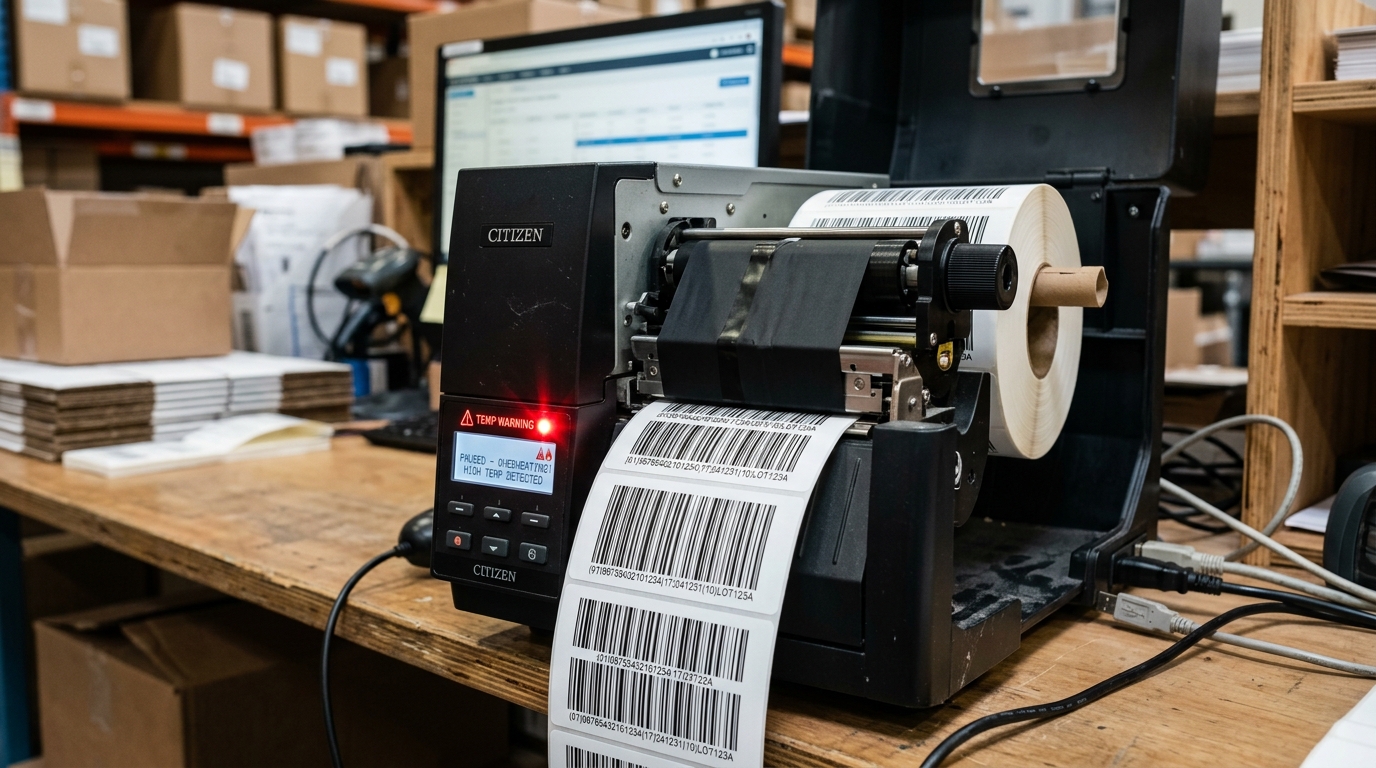
When a Citizen receipt or label printer repeatedly pauses during print jobs or slows down feed speed, the internal thermal head protection circuit has activated due to high printhead temperature. You can resolve thermal pauses by reducing print density (darkness) in driver settings, enabling low-energy graphics modes, and batching large print runs.
How Citizen Thermal Head Protection Operates
Citizen Systems thermal printers (including the CT-S POS series and CL-S industrial barcode series) monitor real-time printhead temperatures using built-in thermistors. During continuous high-density printing—such as receipts with solid black banners or barcode labels with heavy graphic blocks—the microscopic heating elements accumulate heat faster than it can dissipate into the aluminum heatsink.
When temperature reaches the safety limit (approximately 65°C to 70°C), the printer's firmware activates a cooling pause routine: line feed speed is temporarily throttled or printing halts for several seconds until the elements cool down to safe levels.
Citizen Printer Models Covered
- POS Thermal Receipt Printers: CT-S310II, CT-S601II, CT-S651II, CT-S801II, CT-S851II
- Desktop & Industrial Label Printers: CL-S521, CL-S621, CL-S631, CL-S700 series
Fix 1: Adjusting Print Darkness & Density Settings
Operating at maximum darkness (100% or Level 8/9) dramatically accelerates thermal buildup. Reducing darkness to the manufacturer default resolves cooling pauses without sacrificing barcode readability:
- Open Control Panel > Devices and Printers.
- Right-click your Citizen printer and select Printing preferences.
- Navigate to the Print Quality or Options tab.
- Lower the Darkness or Print Density setting from maximum to level 4 or 5 (or standard 100%).
- If printing barcodes on label models, test scan readability to ensure the lower heat setting yields sharp edge definition without ribbon bleeding.
Fix 2: Optimizing Graphic Logos in POS Receipt Printers
High-resolution bitmap logos placed at the top of receipts draw sustained current across hundreds of adjacent thermal elements simultaneously:
- Open the Citizen POS Printer Utility.
- Navigate to the Logo Registration section.
- Ensure logos are converted to 1-bit monochrome dithered bitmaps rather than solid black blocks.
- Enable the Energy Saving Printing Mode in the utility to interleave heating cycles across the head.
Fix 3: Batch Splitting for Long Production Runs
If your warehouse or kitchen environment requires printing batches of several hundred continuous labels or order tickets:
- Split print queues into batches of 50 to 100 documents with an automated 20-second pause between batches.
- Ensure the printer has at least 4 inches (10 cm) of unobstructed ventilation space around its side and rear ventilation louvers. Avoid placing POS units inside closed wooden counter cabinets or adjacent to heat-emitting POS power bricks.
Fix 4: Cleaning the Thermal Element to Prevent Heat Trapping
Adhesive bleed from label rolls or paper dust from thermal receipt paper forms an insulating layer over the ceramic glaze. This trapped residue forces elements to overheat prematurely:
- Turn off the printer and disconnect the power supply.
- Open the top clamshell cover to expose the thermal line printhead.
- Clean the printhead elements gently using an isopropyl alcohol cleaning pen or a lint-free swab moistened with 99% electronic-grade alcohol.
- Allow 60 seconds to dry before closing the cover and resuming printing. For manufacturer-specific diagnostic procedures, see the Citizen Systems hardware & maintenance troubleshooting.
For cutter maintenance, consult our guide on resolving Citizen printer cutter lock errors, or review procedures for Citizen printer thermal head cleaning to prevent burnout.