


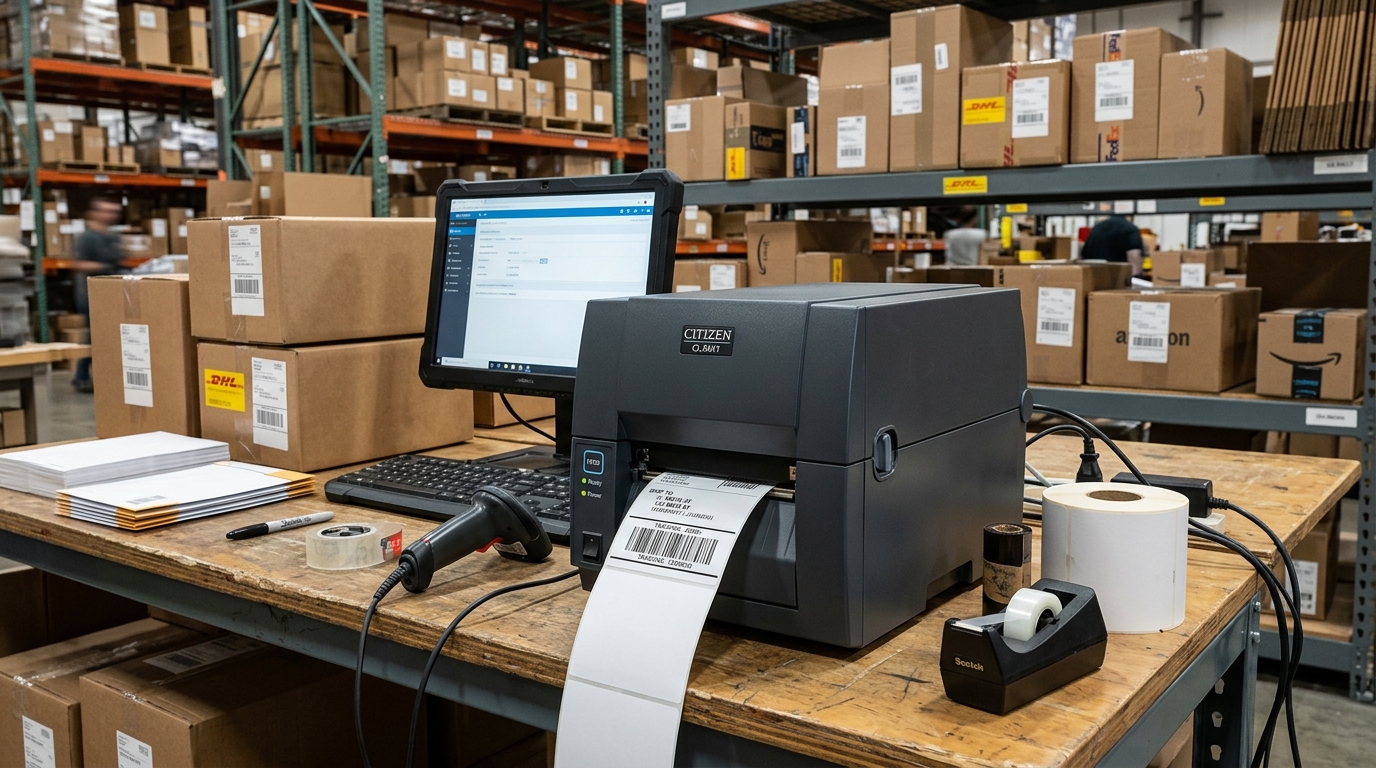
Introduction to Citizen CL-S Series Printers
The Citizen CL-S series, including popular models like the CL-S521. CL-S621, CL-S631, and CL-S700, are robust, industrial-grade barcode and label printers designed for high-volume, reliable performance.
These thermal transfer and direct thermal printers are staples in manufacturing, logistics, retail, and healthcare environments. Despite their rugged build and advanced engineering, users can occasionally face operational hiccups such as media feed errors.
Poor print quality, ribbon wrinkles, and sensor calibration failures. This extensive troubleshooting guide is designed to help operators.
IT administrators, and maintenance personnel navigate the complexities of the Citizen CL-S series. By mastering the diagnostic features .
Maintenance procedures outlined here, you can minimize downtime and ensure your labeling operations run smoothly. The CL-S series features Citizen's unique Hi-Open case .
Hi-Lift printer mechanism, which makes media loading straightforward but requires specific handling to prevent issues. Whether you are dealing with a CL-S521 producing faint barcodes, a CL-S621 experiencing ribbon sensor errors, a CL-S631 struggling with high-resolution graphics.
Or a CL-S700 reporting continuous paper out errors, this guide covers the structural differences and shared mechanics of these machines to provide targeted, effective solutions for your printing infrastructure.
Why This Happens
Operational issues in the Citizen CL-S series generally stem from improper media loading. Incorrect driver settings, lack of maintenance, or sensor misalignment.
Thermal printers rely on precise synchronization between the print head, platen roller, and media sensors. If labels are loaded askew, the printer will struggle to maintain tracking.
Leading to skipped labels or "paper out" errors even when media is present. Poor print quality, such as faded text or unreadable barcodes.
Often occurs due to an accumulation of adhesive residue, dust, or paper lint on the thermal print head. Additionally, using incompatible ribbon and label combinations can cause poor adhesion or ribbon wrinkling.
In thermal transfer models (like the CL-S621 . CL-S700), ribbon wrinkling is typically caused by uneven print head pressure or incorrect ribbon tension.
Sensor calibration is another critical factor; if the printer is not calibrated to the specific media type (gap. Notch, or continuous), the media sensor cannot accurately detect the start and end of each label.
Furthermore, software mismatches between the label design software (like BarTender or ZebraDesigner) and the Citizen Windows drivers regarding print speed. Darkness (heat setting), and media dimensions can result in distorted, misaligned, or completely failed print jobs.
Step-by-Step Fix
Here is a systematic approach to resolving common issues across the Citizen CL-S521, CL-S621, CL-S631, and CL-S700 models:
- Clean the Print Head and Platen Roller: Turn off the printer and open the Hi-Lift mechanism. Use a thermal printer cleaning pen or a lint-free cloth soaked in 99% isopropyl alcohol to wipe the thin gray line of the print head. Clean the rubber platen roller, removing any stuck adhesive or debris.
- Verify Media and Ribbon Path: Ensure the labels and ribbon (if applicable) are routed exactly as shown on the diagram inside the printer cover. Make sure the media guides are snug against the edges of the label roll without pinching it, ensuring a straight feed.
- Adjust Print Head Pressure (CL-S621/631/700): If you experience ribbon wrinkling or uneven print quality (dark on one side. Light on the other), adjust the print head pressure dials. Ensure both the left and right toggles are set evenly and appropriately for the width of your media.
- Perform Media Sensor Calibration: This is crucial for fixing feed errors. Press and hold the PAUSE, FEED, and STOP buttons simultaneously while turning the printer on. Or use the Citizen VuePrint menu (on the CL-S700 LCD) to initiate Auto Calibration. The printer will feed several labels and measure the gaps.
- Adjust Sensor Position: Physically move the adjustable media sensor (the yellow or green sliding mechanism) so it aligns with the label gap or black mark. For standard labels, position it in the center. For tags with a notch, align it exactly over the notch path.
- Configure Driver Settings: Open the printer properties in Windows. Navigate to the Stock or Page Setup tab. Ensure the media type is correctly set to 'Labels with Gaps' or 'Labels with Marks'. Adjust the print speed (slower speed often yields better quality) and darkness/heat settings according to your ribbon/label specifications.
- Reset to Factory Defaults: If the printer acts erratically, perform a factory reset. This clears customized memory settings that might be causing conflicts. Refer to your specific model's manual for the exact button combination (often holding all three front panel buttons during power-up until the LEDs flash).
Advanced Troubleshooting
For persistent problems that bypass basic fixes, advanced troubleshooting involves hardware diagnostics and deep settings. If a CL-S700 is showing a persistent "Head Open" error despite the mechanism being locked.
The microswitch that detects the print head position may be faulty or obstructed by debris. Carefully inspect the latch mechanism and clean the switch area.
For network-connected models, communication drops can occur. Print a settings page to verify the IP address and ensure there are no IP conflicts on your network.
Update the network card firmware (internal software) using the Citizen Printer Management Tool. In cases where the CL-S631 (which prints at 300dpi) produces jagged barcodes.
Make surer design software is not scaling the barcode image; barcodes should be rendered as native printer fonts/objects, not graphic images. If you encounter ribbon snap or constant breaking, check the ribbon supply and rewind spindle tension.
While tension is mostly auto-regulated, worn slip clutches on older units can cause erratic tension, requiring part replacement. Finally, for direct ZPL or Datamax emulation issues, use the Citizen utility to verify the printer's current emulation mode (Cross-Emulation feature) is set correctly to match the command language being sent by your host system.
FAQ
How do I fix a red flashing error light on my CL-S521?
A flashing red light usually indicates a media out or ribbon out error. First, verify that media is loaded correctly.
Why is the print quality faded on one side of the label?
This is almost always caused by uneven print head pressure. Adjust the mechanical pressure toggles located on top of the print head mechanism.
Can the CL-S621 print without a ribbon?
Yes, the CL-S621 supports both thermal transfer (with ribbon) and direct thermal (without ribbon) printing. You must use direct thermal labels and change the print method setting in your Windows driver to 'Direct Thermal' to prevent a ribbon out error.
How do I clear the memory buffer on a Citizen CL-S700?
To clear stuck print jobs, turn the printer off. Clear the print queue in your computer's operating system, and then turn the printer back on.
What does "Ribbon Wrinkle" look like and how do I stop it?
Ribbon wrinkle appears as diagonal unprinted streaks or void lines across your label. Fix it by ensuring the ribbon is loaded smoothly.
