


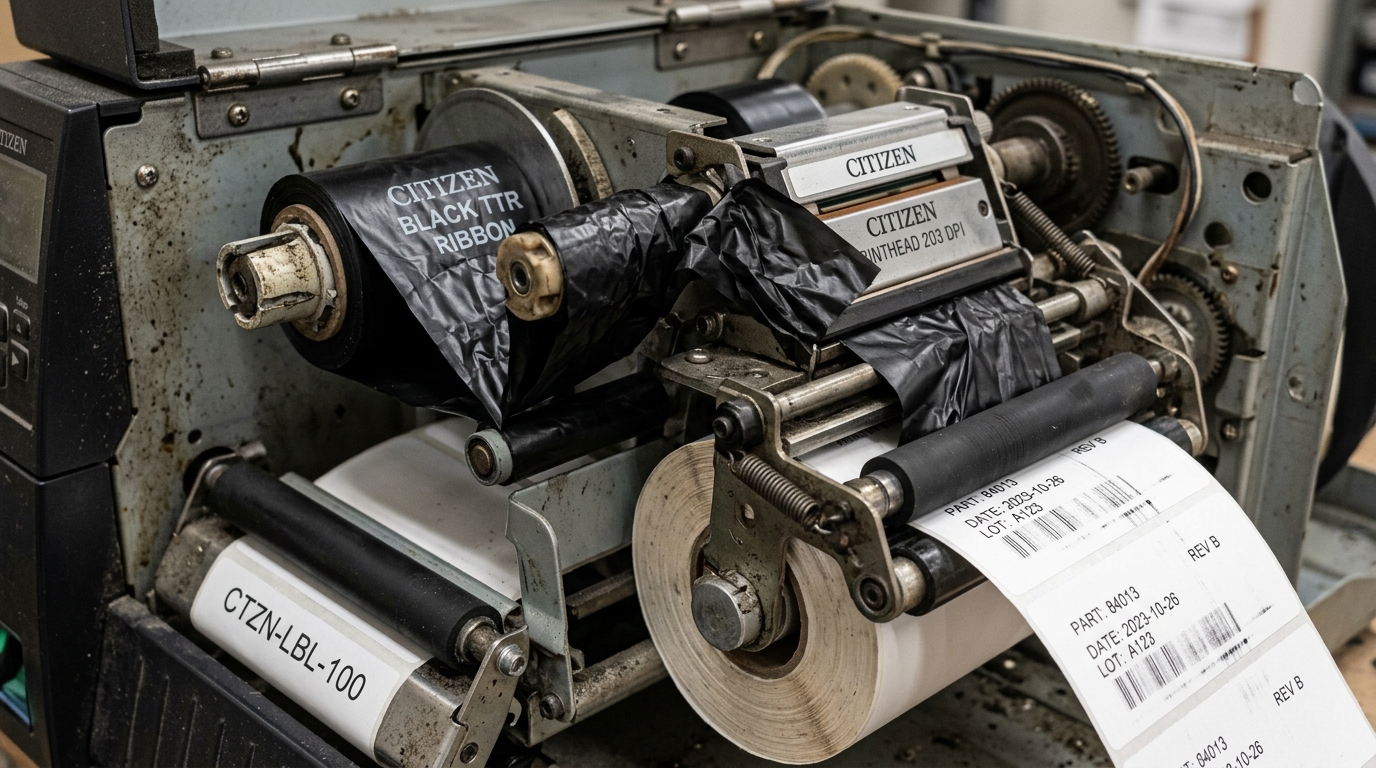
Fix Citizen Faded Print, Streaky Lines, and Ribbon Tension Issues
Citizen thermal transfer and direct thermal printers are renowned in industrial, retail. Logistics sectors for their robust construction, reliability, and high-volume output capabilities.
Whether you are printing shipping labels, asset tags, or intricate barcodes, print clarity is paramount. A barcode that cannot be scanned or text that is illegible defeats the purpose of the label entirely.
Unfortunately, even the most durable printers can encounter print quality issues over time. Among the most common complaints from operators are faded prints (where the image lacks density or appears washed out), streaky lines (horizontal or vertical voids running through the printed area).
Problems stemming from incorrect ribbon tension (such as ribbon wrinkling or snapping). These issues degrade the professional appearance of your labels and can lead to operational bottlenecks if labels fail scanning protocols.
Addressing these problems requires a systematic approach, examining the interplay between the printhead, the media (labels and ribbon). The printer's mechanical adjustments.
This comprehensive guide will analyze the root causes of faded prints and streaky lines in Citizen printers, focusing heavily on the critical role of ribbon tension. Provide a detailed, step-by-step resolution strategy to restore your printer to optimal performance.
Why This Happens: The Mechanics of Thermal Transfer and Tension
To effectively troubleshoot print quality on a Citizen printer, you must understand the mechanics of thermal transfer printing. In a thermal transfer setup, a specialized ribbon—coated with wax, resin, or a combination of both—passes between the printhead.
The label. The printhead contains hundreds of microscopic heating elements (dots).
As the label. Ribbon move, specific elements heat up, melting the ink on the ribbon and transferring it onto the label substrate.
Faded prints and streaky lines occur when this transfer process is compromised. The primary culprits typically fall into three categories: dirt/debris, incorrect heat/darkness settings, and mechanical misalignment, specifically regarding ribbon tension.
Faded Prints: A generally faded or light print usually indicates that not enough heat is being applied to transfer the ink effectively, or that the printhead is not making sufficient, uniform contact with the ribbon. Label.
This can be caused by simply having the software darkness setting too low for the specific ribbon/label combination being used. For instance, resin ribbons require significantly more heat to melt than wax ribbons.
Faded prints can also result from a worn platen roller (the rubber roller beneath the printhead). Loses its elasticity and fails to press the label firmly against the printhead.
Streaky Lines (Voids): White lines running parallel to the print direction (vertical voids) are almost always caused by a dirty or damaged printhead. Dust, adhesive residue from labels, or accumulated ribbon ink can stick to the printhead elements, insulating them.
Preventing them from heating the ribbon. If cleaning does not resolve a vertical void, it signifies a blown (dead) pixel on the printhead, requiring a printhead replacement.
Horizontal streaks or inconsistent print density across the width of the label are often symptomatic of uneven printhead pressure or ribbon wrinkling.
Ribbon Tension and Wrinkling: Ribbon tension is perhaps the most critical mechanical adjustment. The ribbon must be pulled taut enough to remain perfectly flat as it passes under the printhead.
Not so tight that it snaps or strains the motors. If the tension on the supply spindle (where the new ribbon sits) is too loose, or the tension on the take-up spindle (where the used ribbon rolls up) is too low, the ribbon will sag.
As this sagging ribbon is pulled under the printhead, it folds over on itself, creating a crease. Where the crease occurs, the ink does not transfer properly, resulting in a diagonal or horizontal void (a streak) across the label.
Conversely, excessive tension can cause the ribbon to track diagonally, stretch, or break.
Step-by-Step Fix: Restoring Print Quality and Tension
This step-by-step process moves from the easiest and most common fixes to more advanced mechanical adjustments. Always perform these steps in order.
- Clean the Printhead and Platen Roller: This is the most crucial maintenance task. Turn off the printer and open the printhead assembly. Use a Citizen-approved cleaning pen or a lint-free cloth lightly dampened with 99% isopropyl alcohol. Gently wipe back and forth across the brown strip (the heating elements) on the printhead. You will likely see black residue transfer to the cloth. Rotate the rubber platen roller and clean it thoroughly as well, removing any stuck adhesive or debris. Allow the alcohol to evaporate completely before closing the printer.
- Verify Ribbon and Label Compatibility: Ensure you are using the correct ribbon for your label material. Wax ribbons are for standard paper labels; resin ribbons are for synthetic materials (polyester, polypropylene). Using a wax ribbon on a synthetic label will result in very poor, easily smudged print that often looks faded.
- Adjust Software Darkness Settings: Access the printer preferences in your computer's operating system (e.g., Windows Devices and Printers) or within your label design software (like BarTender or ZebraDesigner). Locate the "Darkness" or "Heat" setting. Increase this value by 2-3 increments and print a test label. Continue increasing until the print is dark and crisp. Do not set it to the maximum unnecessarily, as excessive heat significantly reduces printhead lifespan.
- Inspect for Ribbon Wrinkling: Open the printer while a ribbon is installed. Look at the ribbon path leading under the printhead. Does it look flat and smooth, or are there visible ripples or diagonal folds? If you see wrinkles, the ribbon tension is incorrect.
- Adjust Ribbon Supply Tension: Locate the ribbon supply spindle (the one holding the unused ribbon). Depending on your specific Citizen model (e.g., CL-S621, CL-S700), there will be an adjustment mechanism. It is often a knurled knob or a set screw on the end of the spindle. If the ribbon is wrinkling, slightly increase the tension on the supply spindle to pull it taut. Make small, incremental adjustments (a quarter turn at a time) and print test labels.
- Adjust Ribbon Take-Up Tension: Similarly, check the take-up spindle. It must pull strongly enough to wind the used ribbon tightly without slipping. If the used ribbon is loose or the printer is throwing ribbon errors, slightly increase the take-up tension. Refer to your specific model's manual for the exact location of the tension adjustment screws.
- Adjust Printhead Pressure (Advanced): If the print is dark on one side of the label. Faded on the other, the printhead pressure is unbalanced. Citizen printers typically have two pressure adjustment toggles or screws on top of the printhead assembly. Increase the pressure slightly on the side that is printing faintly. Ensure the pressure blocks are positioned correctly over the width of the media you are using.
Advanced Troubleshooting: Beyond Basic Adjustments
If you have cleaned the printhead, verified media. Adjusted tension, but still experience print quality issues, deeper hardware inspection is necessary.
Examine the platen roller closely. Over time, the rubber can become hard, glazed, or physically pitted from repeated use or improper cleaning (e.g., using sharp objects to scrape off labels).
A worn platen roller cannot provide the even back-pressure required for solid print transfer, resulting in faded patches. If the roller feels hard like plastic rather than slightly yielding rubber, or if it has visible gouges, it must be replaced.
If you are experiencing persistent vertical white lines in the exact same position on every label, regardless of cleaning, you have a damaged printhead with blown elements. Thermal printheads are consumable items and eventually degrade. The only solution for blown elements is a complete printhead replacement.
Finally, consider the operating environment. Extreme cold or high humidity can affect how the ribbon ink melts and adheres to the label. Ensure the printer and media are stored and operated within the environmental specifications listed in the Citizen user manual.
FAQ
Can I use rubbing alcohol to clean the printhead?
You should only use 99% isopropyl alcohol. Standard rubbing alcohol (which is often 70% isopropyl.
How often should I clean the printhead?
A good rule of thumb is to clean the printhead every time you change a roll of ribbon (or every roll of labels if using direct thermal mode). Frequent cleaning prevents residue buildup and significantly extends the life of the printhead.
Why does the ribbon keep snapping?
A snapping ribbon is usually caused by the darkness (heat) setting being far too high. Literally melts the ribbon backing, or by the ribbon supply tension being set much too tight, causing the ribbon to break under the strain of being pulled by the take-up motor.
How do I know if my platen roller needs replacing?
Inspect the roller for visible cuts, gouges, or areas where the rubber has hardened or glazed over. If you have cleaned the printhead.
Is there a difference between wax and resin ribbons for tension?
Yes. Resin ribbons often have a thinner backing material and require higher heat.
