


Introduction to Citizen Printer Network Configuration
In modern industrial and commercial environments, network connectivity is the backbone of efficient operations. Citizen printers, widely used for shipping labels, barcodes, and receipts, are frequently deployed as networked devices to allow multiple workstations to print seamlessly to a single unit.
However, network configuration can sometimes become corrupted, or a printer may need to be moved to a different subnet, necessitating a complete reset of its network settings. Understanding how to manage these network parameters—specifically, transitioning between DHCP and Static IP configurations—is essential for any IT professional or system administrator managing a fleet of Citizen printers.
A network reset clears all existing IP addresses, subnet masks, and gateway information, returning the printer's network interface card (NIC) to its factory default state. This is often the first step in troubleshooting connectivity issues, such as when a printer drops off the network, refuses to acquire a new IP address, or exhibits IP conflict errors.
Once the network interface is reset, configuring a static IP address ensures that the printer always remains at a known, predictable location on the network. This prevents the disruption caused by dynamic IP changes, ensuring reliable and continuous communication between your print servers, software applications, and the physical printer.
Why This Happens
Network connectivity issues with Citizen printers can arise for several reasons. One of the most common causes is IP address conflicts.
If a printer is configured to use a static IP address that is later assigned to another device by a DHCP server, a conflict occurs, and the printer will lose its network connection. Similarly, if the printer relies on DHCP but the DHCP server becomes unavailable or runs out of leases, the printer may assign itself an APIPA (Automatic Private IP Addressing) address (starting with 169.254.x.x), making it unreachable from the main network.
A network reset is often necessary to clear these conflicting configurations and start fresh.
Another frequent issue is related to network infrastructure changes. If your organization changes its router, updates its firewall rules, or migrates to a different IP subnet, printers with old network settings will suddenly become orphaned.
The printer is still functioning perfectly, but it is trying to communicate on a network that no longer exists in its configuration. In these scenarios, resetting the network settings and applying a new static IP that matches the updated network topology is the only way to restore connectivity.
Firmware bugs within the printer's network card can also occasionally cause the network stack to crash, requiring a hard reset to clear the memory buffers and restart the network services.
Furthermore, human error plays a significant role. Incorrectly configuring the subnet mask or default gateway during the initial setup can result in a printer that can communicate with devices on its local switch but cannot be reached from other parts of the corporate network (e.g., over a VPN or from a different VLAN).
By performing a thorough network reset and carefully applying a static IP configuration, you eliminate the variables introduced by dynamic allocation and ensure that all routing parameters are explicitly defined.
Understanding the distinction between the printer's main logic and its network interface is also important. In many older or modular Citizen printers, the network card is a separate physical component.
Therefore, resetting the printer's mechanical settings (like sensor calibration) does not necessarily reset the network settings, and vice versa. Specialized procedures are often required to specifically target the network configuration memory without erasing the printer's core operational parameters.
Step-by-Step Fix
- Prepare for Network Reset: Ensure the printer is powered on and in a ready state. Disconnect the Ethernet cable from the back of the printer. This prevents the printer from attempting to acquire a DHCP address while you are in the middle of the reset process.
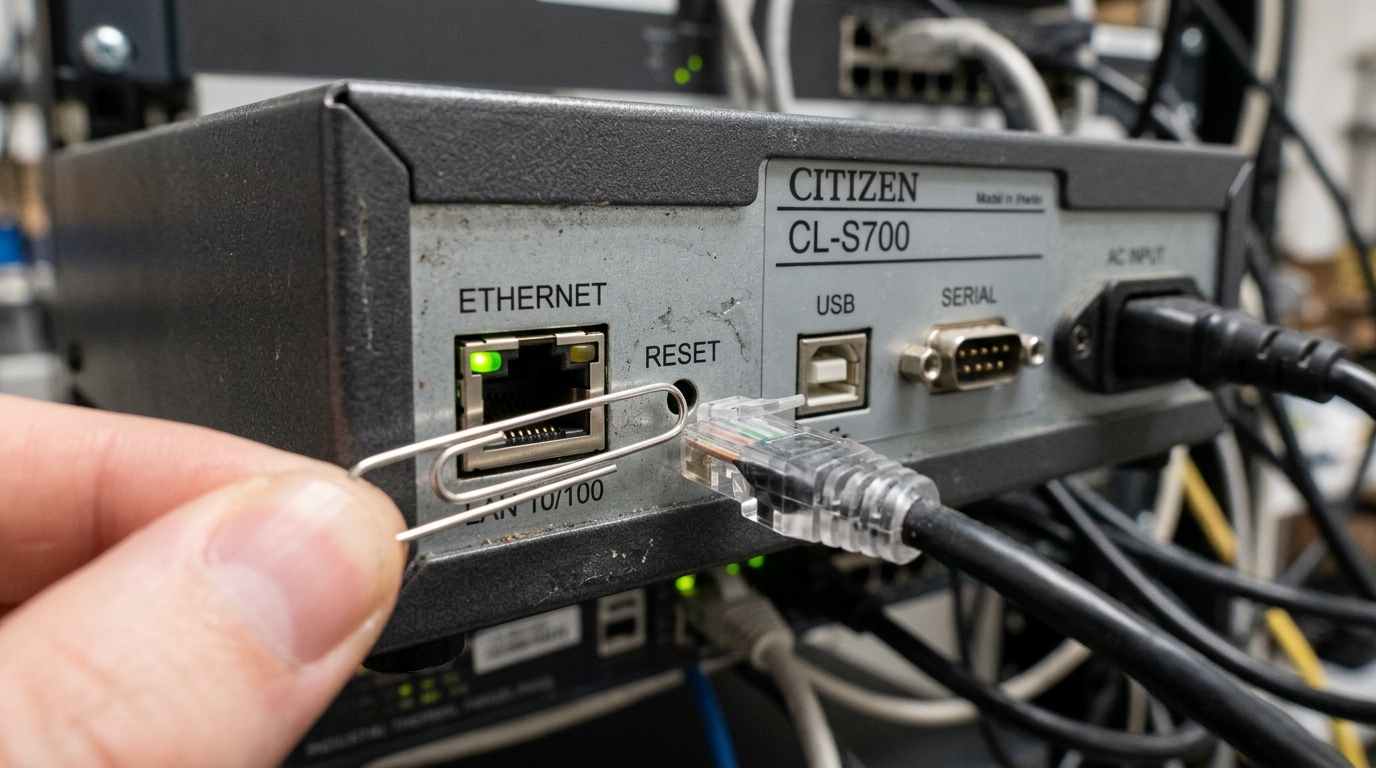
- Locate the Reset Button: On the back of the printer, near the Ethernet port (the LAN interface), look for a small, recessed button. This is the network reset button. You will need a paperclip or a small pin to press it.
- Perform the Reset: While the printer is turned ON, use the paperclip to press and hold the network reset button for approximately 5 to 10 seconds. You should observe the LED lights on the network port flash rapidly or turn off and on. This confirms that the NIC has been reset to factory defaults.
- Print a Configuration Page: Reconnect the Ethernet cable. To verify the reset, print a self-test or configuration page (usually done by turning the printer off, holding the Feed button, and turning it back on). Look for the network section on the printout; the IP address should now indicate it is acquiring via DHCP or display a default fallback address (like 192.168.0.10).
- Access the Web Interface: Determine the new IP address from the configuration page. Open a web browser on a computer connected to the same network and enter the printer's IP address into the address bar. This will load the Citizen printer's embedded web server.
- Login to the Admin Panel: You will likely be prompted for login credentials. The default username is usually 'admin' and the password is often 'admin', 'password', or the last six characters of the printer's MAC address (consult your specific model's manual for exact defaults).
- Navigate to Network Settings: Once logged in, look for a tab or menu labeled "Network," "TCP/IP," or "LAN Settings." Find the section that dictates how the IP address is obtained (usually a toggle between DHCP/Dynamic and Static/Manual).
- Configure Static IP: Change the setting to Static/Manual. Enter the desired IP Address, Subnet Mask, and Default Gateway provided by your network administrator. Ensure the IP address is outside of your DHCP server's assignable pool to prevent future conflicts. Click "Apply," "Save," or "Submit" to lock in the changes. The printer will likely reboot to apply the new static IP configuration.
Advanced Troubleshooting
If you cannot access the web interface even after a network reset, the issue might be deeper. First, ensure that your computer's IP address is on the same subnet as the printer's default IP address.
If the printer defaults to 192.168.1.100, your computer must temporarily be assigned an IP in the 192.168.1.x range to communicate with it. You can change your computer's IP address via the network adapter settings in your operating system.
Once communication is established and the printer is configured for your primary network, you can revert your computer's IP settings back to normal.
Another advanced technique involves using Citizen's dedicated management utility software (such as Citizen PrintApp or similar proprietary configuration tools) via a USB connection. If the network interface is completely unresponsive, connecting the printer via USB allows you to push network configurations directly to the printer's memory without relying on the web interface.
This utility can often force a firmware update to the network card, which may resolve persistent glitches that a simple reset cannot fix.
In rare cases, the physical network interface card (NIC) itself may have failed. Signs of hardware failure include no LED activity on the Ethernet port when a known-working cable is plugged in, or the printer failing to show up on network scans despite multiple resets.
If the printer is modular, you may be able to replace just the network card interface board. If it is integrated into the mainboard, the entire board may need replacement by a qualified service technician.
FAQ
Why is a static IP better than DHCP for printers?
Printers act as servers for incoming print jobs. If a printer's IP address changes (which happens with DHCP), the computers trying to send print jobs will not be able to find it, resulting in failed prints.
What is a MAC address and do I need it?
A MAC address is a unique hardware identifier for the printer's network card. You may need it if your network administrator uses DHCP reservations (assigning a specific IP address based on the MAC address) or MAC filtering for security purposes.
Can I reset the network settings from the front panel?
Some newer Citizen models with LCD screens allow you to navigate through the menus to reset the network settings directly from the front panel. However, many models require using the physical reset button on the back near the LAN port.
What should I do if the web interface asks for a password I don't know?
If the default passwords (like 'admin') do not work, someone may have changed it previously. Performing a hard network reset (using the physical button) should revert the password back to the factory default.
Does resetting the network erase my label formats?
No, resetting only the network interface via the specific LAN reset button does not affect the printer's main memory. Your label formats, sensor calibrations, and other operational settings will remain intact.
