


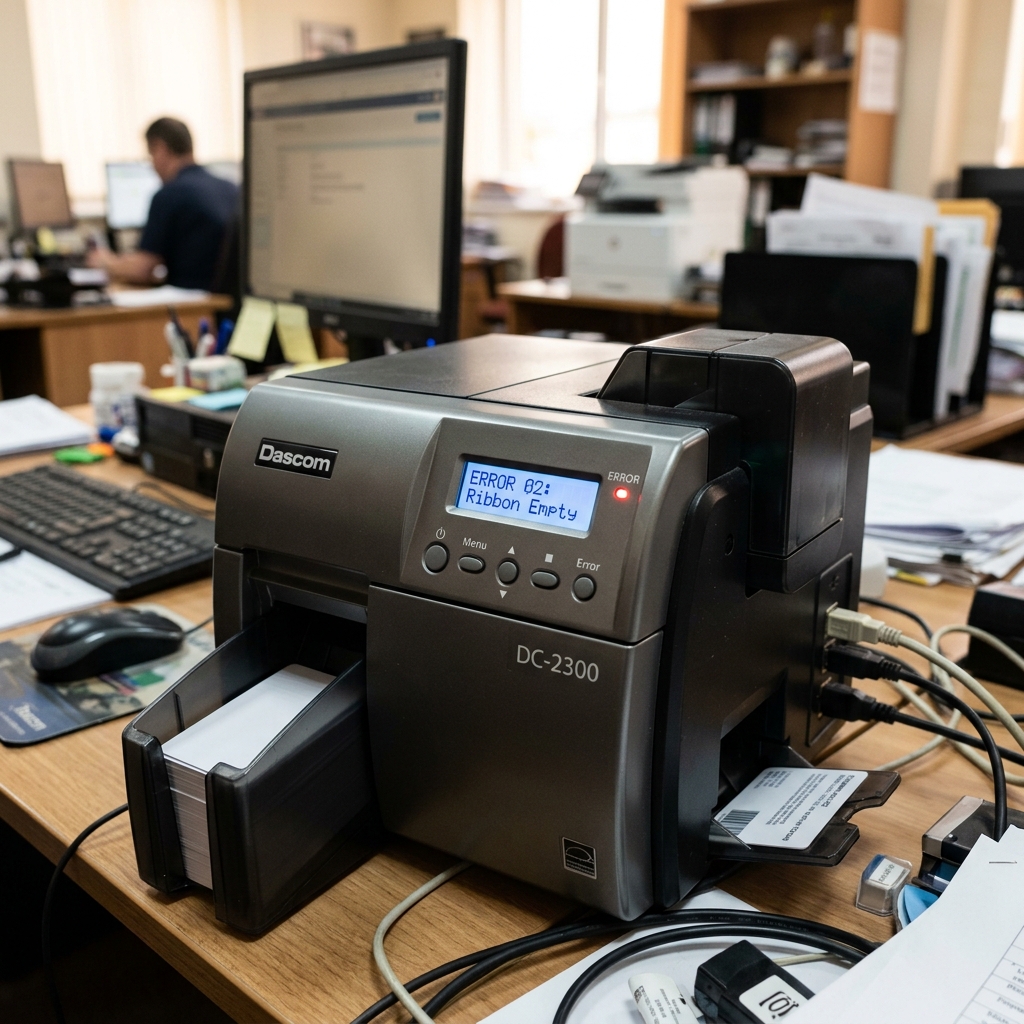
The Dascom DC-2300 is a robust, high-performance direct-to-card printer frequently deployed in demanding kiosk environments, access control systems, and high-volume ID card issuance bureaus. When operating in an unattended kiosk setting, reliability is paramount, and any error state can immediately halt service, causing significant operational bottlenecks.
A common and frustrating issue operators encounter is a generic "Card Printer Error" or a specific mechanical feed failure code that prevents the DC-2300 from successfully picking, printing, or ejecting PVC cards. Because these printers deal with rigid plastic media, heat-sensitive dye-sublimation ribbons, and tight mechanical tolerances, the margin for error is incredibly slim.
Dust, static electricity, slight variations in card thickness, or a misaligned cleaning roller can all trigger a cascade of sensor failures resulting in a hard error state. In this exhaustive diagnostic guide, we will dissect the mechanical and electronic architecture of the Dascom DC-2300, explore the most common causes of kiosk card printer errors, and provide a rigorous, step-by-step methodology to clear jams, recalibrate sensors, and perform the necessary preventative maintenance to keep your kiosk printer running flawlessly without requiring an expensive technician visit.
Why This Happens
Errors in the Dascom DC-2300 typically fall into three major categories: media transport failures, thermal printhead faults, and sensor misalignments. Media transport failures are the most frequent culprit.
PVC cards are prone to static cling, especially in dry environments. If two cards stick together in the input hopper, the thickness sensor will immediately trigger a jam error to prevent the double-thick material from crushing the delicate printhead.
Furthermore, the rubber transport rollers degrade over time, losing their tacky grip. When the rollers slip on the smooth plastic surface of the card, the internal optical encoders detect that the motor is turning but the card is not advancing at the correct speed, throwing an error.
Secondly, thermal printhead faults occur when the printer detects an anomaly in the dye-sublimation process. If the printer ribbon snaps due to excessive tension, or if the ribbon RFID chip is unreadable, the printer halts immediately.
Ribbon snaps are often caused by printing edge-to-edge on cards that are slightly out of specification or heavily burred, which catches the thin film of the ribbon. Lastly, sensor misalignments or contamination are a silent killer in kiosk environments.
The DC-2300 relies on an array of optical photo-interrupter sensors to track the card's position along the paper path. If paper dust, PVC shavings, or lint coats the lenses of these tiny sensors, they may constantly read as "blocked," convincing the printer's logic board that there is a jam even when the mechanical path is completely clear.
Step-by-Step Fix
- Power Cycle and Clear Immediate Jams: The first step is to turn off the printer's power switch and unplug it from the wall. Open the main cover and carefully remove the ribbon cartridge. Inspect the entire card path using a flashlight. If a card is stuck halfway under the printhead, DO NOT pull it out forcefully. Use the manual advance gear (usually a thumbwheel located on the side of the transport assembly) to slowly rotate the rollers and walk the stuck card out of the machine safely.
- Examine and Repair the Ribbon: Check the dye-sublimation ribbon. If it is snapped, you do not necessarily need a new one. Use a piece of clear scotch tape to neatly tape the two broken ends back together. Wind the take-up spool manually until the taped section is securely wrapped around the spool and clear, fresh ribbon is exposed over the printhead area.
- Clean the Transport Rollers: This is critical. Purchase a specialized thermal printer cleaning kit containing long, alcohol-soaked cleaning cards. If you don't have one, use 99% isopropyl alcohol on a lint-free swab. Vigorously clean every rubber transport roller you can reach. The rollers should turn from a dusty gray back to a deep, tacky black. Slipping rollers are the number one cause of feed errors.
- Fan and Load the Cards Correctly: Remove the stack of blank PVC cards from the input hopper. Hold the stack firmly and fan the edges with your thumb—similar to fanning a deck of playing cards. This introduces a tiny layer of air between each card, breaking the static charge that causes them to stick together. Reload the cards, ensuring the hopper guides are snug but not pinching the stack.
- Perform a Sensor Calibration Test: Reinstall the ribbon, close the lid, and power the printer back on. Most Dascom printers have a built-in diagnostic menu accessible via the LCD screen or the Windows driver utility. Run a "Sensor Calibration" or "Self-Test" sequence. This forces the printer to reset its baseline readings for the optical sensors and print a diagnostic card, verifying that the mechanical path and sensors are back in sync.
Advanced Troubleshooting
If routine cleaning and jam clearing do not resolve the error, you are likely dealing with a failed hardware component or a deeper firmware issue. For persistent ribbon breakage errors, inspect the printhead itself.
Using a jeweler's loupe, examine the ceramic edge of the printhead for any microscopic chips or burnt-out pixels. A damaged printhead can snag the ribbon, tearing it instantly under heat.
If the printhead is physically damaged, it must be replaced by a qualified technician, as it is an expensive and delicate component. If the printer constantly reports a "Card Empty" error despite the hopper being full, the mechanical weight sensor or optical trigger switch in the hopper assembly has likely failed or become disconnected.
You will need to remove the outer casing (ensure power is disconnected) and trace the wiring harness from the hopper sensor back to the mainboard, checking for continuity with a multimeter. In kiosk environments subject to vibration, these internal molex connectors can sometimes rattle loose.
Furthermore, check the firmware version via the printer's web interface or driver. Manufacturers frequently release firmware updates that tweak motor torque curves, sensor debounce timings, and error-handling logic specifically designed to improve reliability in unattended kiosk setups.
Flashing the latest firmware can sometimes resolve phantom errors that have no obvious mechanical cause.
FAQ
What is the best way to prevent card jams in a kiosk?
Preventative maintenance is the only way. You must implement a strict schedule to run a cleaning card through the printer every 500 to 1000 prints, depending on the environment's dust levels.
Why does the ribbon keep breaking?
Ribbon breakage is usually caused by excessive heat, incorrect ribbon tension, or printing on dirty cards. Ensure the printhead heat settings in your driver are not set too high for the specific brand of cards you are using.
Can I clean the printhead with regular rubbing alcohol?
No, standard rubbing alcohol (70% isopropyl) contains too much water, which takes a long time to dry and can leave a mineral residue or cause corrosion on the microscopic heating elements. Always use 99% or higher electronics-grade isopropyl alcohol or specialized printhead cleaning pens.
What does a 'Mechanical Error' code mean?
A generic mechanical error usually indicates that one of the stepper motors failed to reach its intended position within a specific timeout period. This means something physically blocked the movement—like a jammed card, a seized gear, or a broken drive belt—or the sensor tracking the movement is dirty and didn't register the motion.
