


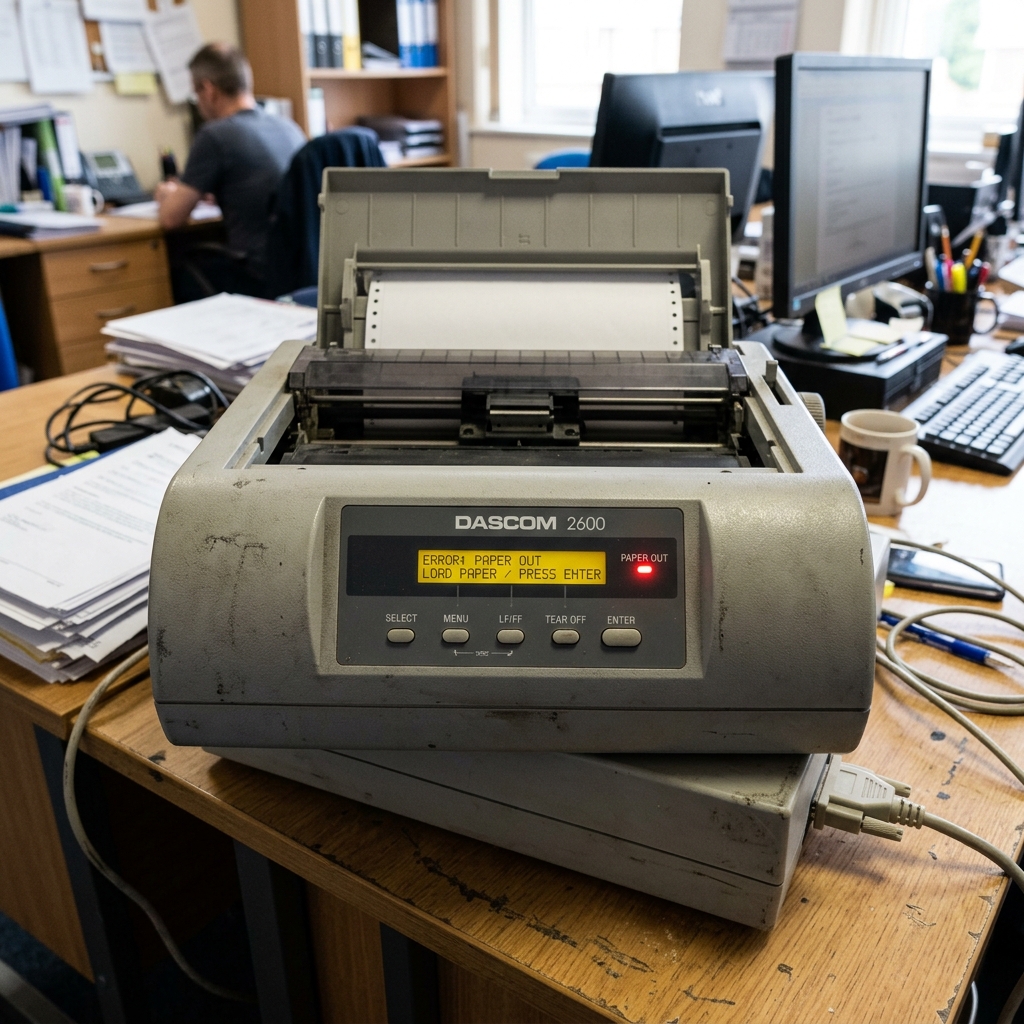
Introduction to Dascom 2600 Series Printing Failures
The Dascom 2600 and 2610 are robust, heavy-duty serial dot matrix printers designed for demanding industrial, logistics,. Back-office environments where multi-part forms and continuous tractor-feed paper are essential.
Despite their rugged build, these workhorses can occasionally grind to a halt. Displaying cryptic error lights or refusing to print altogether.
When a mission-critical dot matrix printer goes down, it can halt invoicing, shipping manifests, and payroll runs. This comprehensive guide is tailored to help technicians.
End-users systematically diagnose and resolve the most common errors preventing the Dascom 2600/2610 series from printing.
Dot matrix technology relies on precise timing between the printhead pins firing. The carriage moving laterally, and the tractor feed advancing the paper.
An interruption in any of these mechanical systems,. A communication breakdown between the host system and the printer's logic board, will result in an error state.
By decoding the control panel indicators and understanding the mechanical pathways. You can often bring these durable machines back online swiftly.
Why This Happens: The Root Causes
Failures on the Dascom 2600/2610 generally fall into three categories: mechanical jams, interface/communication issues, or sensor malfunctions.
- Paper Jams and Tractor Misalignment: Continuous forms are prone to tearing and jamming, especially if the tractor holes tear. If the paper path is obstructed by debris from perforated edges (chad). If the paper fails to advance smoothly, the paper out/jam sensors will immediately halt printing to prevent printhead damage.
- Ribbon Mask or Printhead Snags: The ribbon mask is a thin piece of metal. Plastic that guides the ribbon between the printhead and the paper. If this mask becomes bent, or if the ribbon is worn. Frayed, the printhead can snag on it, causing a carriage stall error and a loud grinding noise.
- Communication/Driver Mismatch: Dot matrix printers often rely on legacy emulation modes (like Epson ESC/P or IBM ProPrinter). If the printer's emulation setting does not match the driver installed on the host computer,. If the interface cable (Parallel, USB, or Serial) is faulty, the printer may receive garbage data, causing it to freeze. Print endless lines of strange characters instead of the intended document.
- Printhead Gap Adjustment Errors: These printers have a lever to adjust the gap between the printhead. The platen to accommodate varying paper thicknesses (single sheet vs. 6-part forms). If the gap is set too tight for thick forms, the printhead will drag, causing carriage errors. If set too loose, the print will be illegibly faint.
- Control Panel Error States: The LED lights on the front panel flash in specific sequences to indicate hardware failures. Such as RAM errors, EPROM corruption, or mainboard faults. Ignoring these specific light codes makes troubleshooting impossible.
By carefully observing the physical state of the printer. The settings settings, the vast majority of these errors can be resolved on-site.
Step-by-Step Fix
Follow these steps to systematically eliminate the most common causes of non-printing errors on your Dascom printer.
- Clear the Paper Path Meticulously: Turn off the printer. Open the top cover and the tractor feed doors. Inspect the entire paper path with a flashlight. Look for tiny pieces of torn paper (chad) stuck in the optical sensors or wrapped around the platen roller. Remove any debris with tweezers. Never pull jammed paper backwards against the tractor feed direction.
- Inspect and Reseat the Ribbon Cartridge: Remove the ribbon cartridge. Ensure the ribbon is not twisted, frayed, or dried out. Turn the manual advance knob on the cartridge to ensure it feeds smoothly. Reinstall the cartridge, making absolutely sure the ribbon slides cleanly between the printhead nose. The ribbon mask, without catching on the edges.
- Adjust the Printhead Gap Lever: Locate the paper thickness lever (usually on the right side). For standard single-sheet paper, it should be at position 1 or 2. For multi-part carbonless forms, move it to a higher number corresponding to the number of parts. A gap set too tight is a primary cause of carriage stalling errors.
- Verify Emulation and Interface Settings: Access the printer's setup menu via the front panel (refer to the manual for the specific key combination. Usually involving holding the Setup key while powering on). Print the settings page. Verify that the "Emulation" setting matches what your software expects (usually Epson LQ or IBM). Ensure the active interface (USB, Parallel, Network) is selected correctly in the menu.
- Perform a Self-Test Print: Disconnect the data cable (USB/Parallel) from the computer. Run the printer's internal self-test (often initiated by holding the LF/FF button while powering on). If the self-test prints successfully, the printer hardware is fine; the issue. Is entirely related to the computer, driver, or data cable.
- Check the Data Cable and Port: If the self-test works but PC printing fails, swap the USB or Parallel cable with a known working one. If using a Parallel-to-USB adapter, these are notorious for causing communication drops;. Try to use a native port or a high-quality active adapter.
- Reinstall the Printer Driver: On the host PC, completely remove the Dascom printer driver. Download the latest driver for your specific OS from the official Dascom website. Reinstall the driver, ensuring you select the correct port (e.g., LPT1, USB001).
- Reset to Factory Defaults: If the printer's logic seems hopelessly scrambled, perform a factory reset via the front panel menu to clear all custom settings. Macros, then reconfigure the basic emulation and interface settings from scratch.
Advanced Troubleshooting
If the printer still refuses to operate after basic maintenance, more complex hardware issues may be present.
Decode the LED Error Flashes: Observe the specific pattern of flashing lights on the control panel when the error occurs. Consult the Dascom service manual's troubleshooting section.
Specific combinations (e.g., Paper Out + Online flashing simultaneously) denote specific hardware failures like. A blown carriage motor driver or a faulty logic board.
Printhead Pin Failure: If the printer operates but leaves horizontal white lines through characters, one. More of the 24 pins in the printhead are broken or stuck.
The printhead is a consumable part and can be replaced, but it is expensive. Cleaning the printhead face with alcohol can sometimes unstick a jammed pin.
Carriage Belt and Rail Lubrication: If the printer makes a loud grinding noise. Halts, the carriage belt might be missing teeth, or the carriage guide rail may be bone dry.
The guide rail requires occasional lubrication with specialized lightweight printer oil (do NOT use WD-40). A worn belt must be replaced.
Power Supply Voltage Check: In rare cases, a failing internal power supply may not provide enough voltage to drive the heavy carriage motor. The printhead solenoids, leading to intermittent resetting or stalling under load. This requires a multimeter and a qualified technician to diagnose.
FAQ
Why does the printer print garbage characters like hearts and smiley faces?
This is a classic symptom of a driver or emulation mismatch. The computer is sending graphical Windows commands, but the printer is expecting raw text data in Epson/IBM mode,.
Can I use any ribbon that fits?
No. Using cheap, non-genuine ribbons is a primary cause of printhead failure.
How do I clear a 'Paper Out' error when paper is loaded?
The optical paper sensor beneath the platen is likely blocked by dust or a scrap of paper. Blow compressed air into the sensor area to clear it.
What is 'Tear Off' mode?
Tear Off mode automatically advances the continuous paper. The perforation aligns with the tear bar after printing, then retracts it for the next print job, saving paper.
How many copies can the 2600 print at once?
The Dascom 2600/2610 is designed to handle up to 1 original + 5 copies (6-part forms) depending on paper thickness. Always adjust the gap lever accordingly.
