


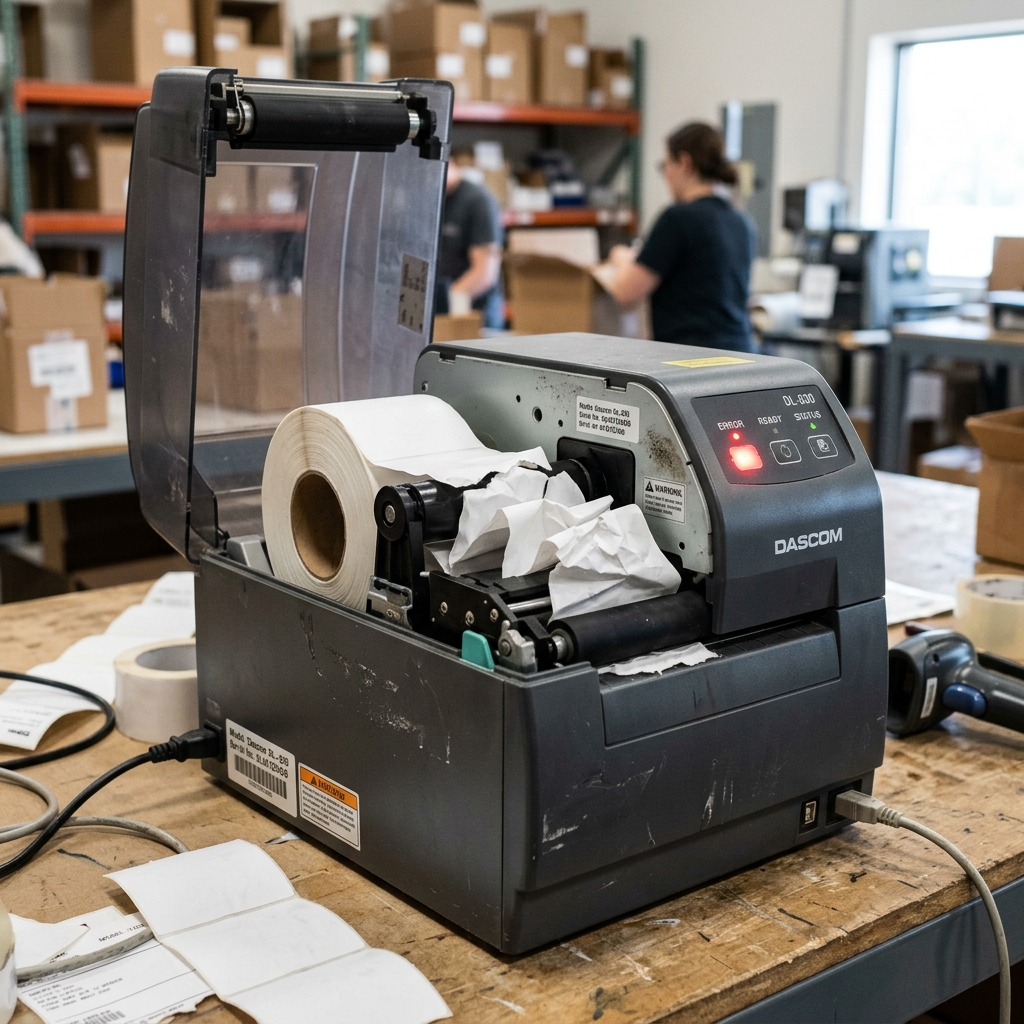
A paper feed error on a Dascom thermal printer is a critical mechanical. Sensory failure that immediately halts point-of-sale operations, logistics labeling, or ticket printing.
Unlike simple offline errors which are usually software-related, paper feed errors indicate that the printer's internal mechanisms—the platen roller, the stepper motor, or the optical sensors—are failing to move the media through the print path correctly, or are failing to detect that the media is moving at all. This manifests as the printer making grinding noises, the paper bunching up inside the chassis, or the error LED flashing continuously while the printer refuses to accept print jobs.
Resolving this requires a deep dive into the electromechanical architecture of the printer. This guide details the technical causes of feed errors, provides a rigorous step-by-step resolution protocol.
Explores advanced diagnostic techniques to restore your Dascom printer to reliable operation.
Why This Happens
The paper feed mechanism in a Dascom thermal printer relies on a precise synchronization between the stepper motor. The platen roller (the rubberized roller that grips the paper).
When you send a print command, the logic board pulses the stepper motor, which turns a series of plastic gears connected to the platen roller. The friction between the rubber roller and the thermal paper pulls the media past the stationary thermal printhead.
A feed error occurs when this delicate physical process is interrupted. The most common cause is the degradation or contamination of the platen roller.
Over time, the rubber absorbs oils, dust, and microscopic paper particles, losing its tackiness. Instead of gripping the paper, the roller slips, causing the paper to stall while the motor continues to turn.
Another major factor involves the paper sensors. Dascom printers utilize optical sensors to detect the presence of paper (paper-out sensor) and, in some models, the movement or position of the paper (gap or black mark sensors).
If paper dust, adhesive residue from labels, or a torn scrap of paper obscures these sensors, the logic board receives incorrect telemetry. For example, if the platen roller is turning but the gap sensor doesn't detect the expected transition between labels, the logic board assumes a jam or feed failure.
Triggers a hard error state to prevent damage to the printhead. Furthermore, mechanical obstructions, such as a damaged gear with a broken tooth in the drive train or improper tension on the printhead latch mechanism, will physically impede the roller, causing the motor to stall.
Instantly generating a paper feed error.
Step-by-Step Fix
- Clear Immediate Jams and Debris: Power down the printer entirely. Open the main cover and the printhead latch. Carefully remove the current roll of paper. Inspect the entire paper path visually. Look for small, torn pieces of paper wrapped around the platen roller or wedged near the printhead. Use tweezers to remove any visible obstructions. Never use a sharp knife or blade near the platen roller, as scoring the rubber will permanently ruin it.
- Deep Clean the Platen Roller: This is the most crucial step. The platen roller must be perfectly clean and slightly tacky to grip the thermal paper. Obtain 99% isopropyl alcohol (do not use rubbing alcohol with a high water content or added lubricants). A lint-free cloth. Moisten the cloth and aggressively scrub the rubber roller. Use the manual feed gear on the side to rotate the roller, ensuring you clean the entire circumference. You should see a significant amount of black or gray grime transfer to the cloth. Continue cleaning until the cloth comes away clean.
- Clean the Optical Sensors: Locate the paper-out and gap sensors in the paper well (refer to your specific Dascom model's manual. They are usually small plastic windows near where the paper feeds into the printhead). Use canned air to blow away loose dust, then gently wipe the sensor windows with a swab lightly dampened with isopropyl alcohol. Obscured sensors are a primary cause of false feed errors.
- Verify the Media Quality and Loading: Substandard thermal paper with excess dust or an incorrect core size can cause drag on the feed mechanism. Ensure you are using high-quality media that matches the printer's specifications. When reloading, ensure the paper roll is seated correctly on its spindle. That the paper feeds from the bottom of the roll (in most models) straight into the feed slot without twisting or buckling.
- Check the Printhead Pressure Latch: The printhead must apply the correct amount of downward pressure onto the platen roller to create friction. If the latching mechanism is loose, broken, or not fully engaged on both sides, the roller will spin freely without moving the paper. Ensure the lid or printhead mechanism clicks firmly into place with even pressure on both the left and right sides.
- Perform a Hex Dump / Self-Test: Hold down the Feed button while powering the printer on. This bypasses the computer and forces the printer to generate an internal test page. If the test page feeds and prints perfectly, the mechanical feed system is functional. Your error is likely caused by incorrect page size settings or driver issues on the host computer. If the self-test fails to feed, the issue remains mechanical.
- Adjust Paper Tension (If Applicable): Some heavy-duty Dascom models have adjustable media guides or tensioners. Ensure these guides are pushed snugly against the sides of the paper roll to prevent it from wandering side-to-side, but not. Tight that they restrict the roll from turning freely.
Advanced Troubleshooting
If thorough cleaning and clearing of the paper path do not resolve the feed error, the problem requires disassembly. Mechanical diagnosis.
The most frequent advanced failure point is the gear train linking the stepper motor to the platen roller. Thermal printers use plastic gears to reduce noise and cost.
Over years of high-volume printing, or if a severe jam occurs, the teeth on these gears can strip or shear off entirely. You must open the printer casing (voiding the warranty) to inspect the gearbox.
If you hear a grinding or clicking noise when the printer attempts to feed, this is almost certainly a stripped gear. Replacement gear kits are often available from Dascom parts distributors, but installation requires mechanical aptitude.
Another profound issue is a failing stepper motor. The motor coils can degrade, or the internal bearings can seize.
If the logic board is sending the correct voltage pulses, but the motor vibrates instead of turning, or feels unusually hot to the touch, the motor is dead. Must be replaced.
To isolate the motor, a technician will use an oscilloscope or a multimeter to verify that the logic board's motor driver IC is outputting the correct stepped voltage sequence. If the voltage is correct but the motor fails, the motor is the culprit.
If the voltage is missing, the main logic board is damaged.
Finally, examine the platen roller bearings. The roller is suspended on two small plastic or metal bushings/bearings at either end.
If these bearings wear out or crack, the platen roller will sit at a slight angle rather than perfectly parallel to the printhead. This misalignment causes uneven pressure, resulting in the paper skewing to one side.
Eventually jamming or triggering a feed error. Wiggling the platen roller up and down can reveal excessive play, indicating worn bearings that require immediate replacement.
FAQ
Why does the printer feed paper perfectly sometimes, but then suddenly error out?
Intermittent feed errors are usually caused by a platen roller that is right on the edge of failing due to lost tackiness, or by a gear with only one or two damaged teeth. It catches most of the time, but occasionally slips.
Can I use WD-40 to lubricate the gears and fix the grinding noise?
No. Never use aerosol lubricants like WD-40 inside a thermal printer.
The printer feeds paper when I press the button, but errors when I send a print job. Why?
This points to a software or communication mismatch rather than a mechanical failure. The printer is physically capable of feeding paper, but the host computer is sending a command (like an incorrect page length or an unsupported ESC/POS command) that confuses the printer's logic, causing it to halt.
What is the difference between a feed error and a paper out error?
A "paper out" error is triggered strictly by the optical sensor in the media well detecting no paper present. A "feed error" means the printer detects paper is present, the motor is attempting to turn.
How often should I clean the platen roller to prevent these errors?
In a high-volume retail or kitchen environment, the platen roller and printhead should be cleaned with isopropyl alcohol every time you change the ribbon (for thermal transfer) or at least once a month for direct thermal applications to maintain optimal friction. Prevent premature failure.
