


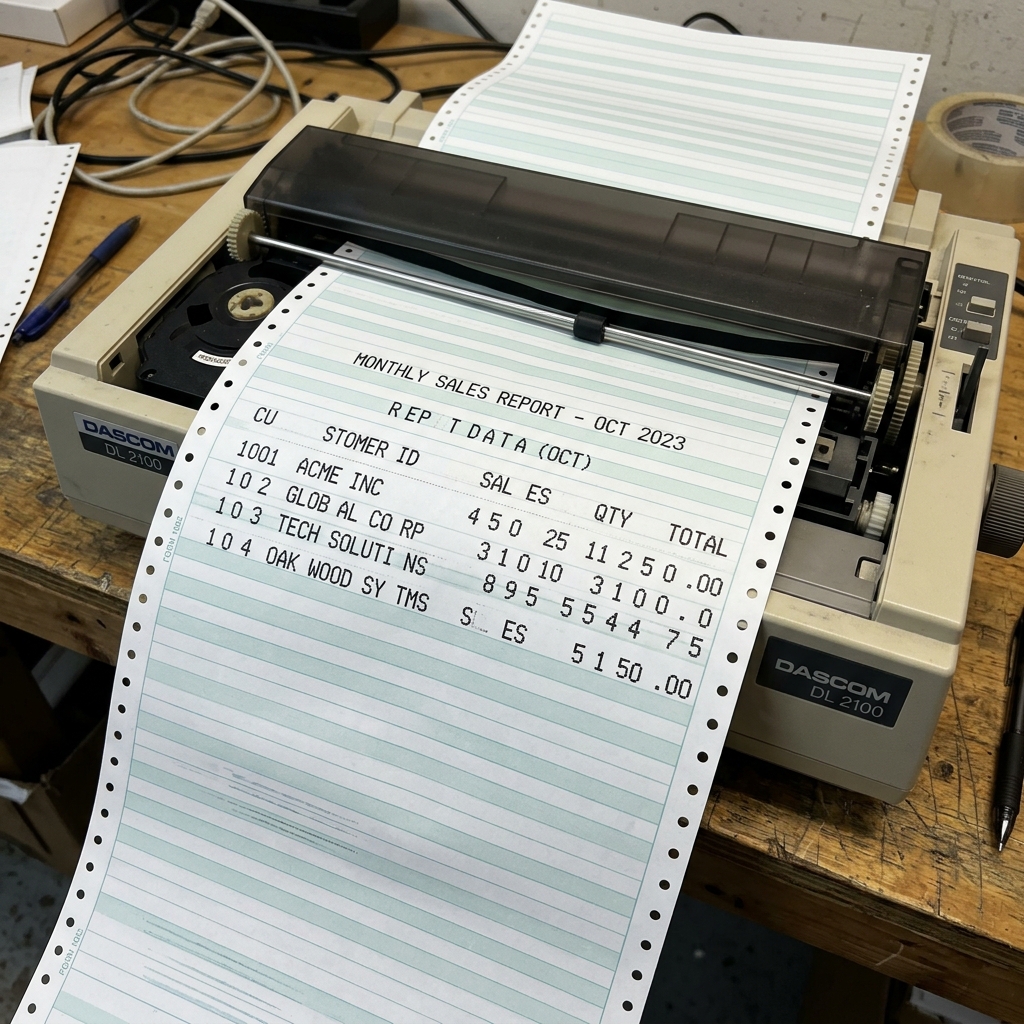
Dascom printers are built for hard work. But they can skip characters, print poorly, or make loud grinding noises.
This stops work. Taking care of professional printing gear needs good knowledge.
You need to know the hardware limits and the software setup. Small businesses and offices rely on these devices to work well.
A breakdown can cause big problems. It leads to missed shipping times, unhappy customers, and wasted items.
You must fix these issues step by step. Many people try to replace the printer right away.
Often, the problem is just bad settings or missing basic care. Take time to check things one by one.
Start with simple fixes. This can save you money and time.
Your workplace setup matters a lot. Dust, high heat, and bad power can cause small problems.
These are hard to find. Keep your printer in a clean place.
Plug it right into a good power source. Use high-quality paper and ribbons.
This lowers stress on the machine. Check the official manuals often.
Keep your drivers updated. This stops many software problems from turning into printing errors.
It is important to know how your computer, printing app, and the printer talk to each other.
Why This Happens
The main cause of grinding and skipping is a dry guide bar. In dusty places, dust mixes with old grease.
This makes a thick, sticky dirt. This makes the parts drag.
The motor fights this drag. The driving belt can then skip on the gears.
This causes a loud grinding sound. Fixing problems early saves a lot of money.
A quick weekly or monthly cleaning schedule helps a lot. It makes parts like print heads, rollers, and motors last longer.
Printer problems often build up over time. A tiny piece of glue or dust might not jam it right away.
Over time, it grabs more dirt. This turns into a solid lump.
It can block moving parts or cover sensors. You only need cheap tools for routine cleaning.
Get isopropyl alcohol, clean cloths, and compressed air. A soft brush is good too.
Write down all your settings. Track paper sizes, darkness levels, speed, and margins.
This saves hours of trouble if a system update deletes your setup. Train all workers to use the printer correctly.
Teach them how to load paper and clear jams. Show them the early signs of hardware wear.
A trained team stops user errors. They will not pull a jammed label too hard.
Finally, if you find a hard problem, use the diagnostic tools in the printer software. Look at online help groups.
Technicians often share secret fixes there. Always be careful with hot internal parts or moving gears.
It is important to know how mechanical parts, heat transfer, and digital rules work together. Find the exact failure point.
Is it physical drag, bad software, or worn out parts? Finding the real problem gives a lasting fix, not just a quick patch.
Step-by-Step Fix
- Immediate Shutdown: Turn the printer off right away if you hear loud grinding. Letting the printer grind will permanently damage the motor gears.
- Inspect and Clean the Guide Bar: Open the top cover. Find the shiny metal guide bar. Use a clean cloth with isopropyl alcohol. Wipe away all old grease, dust, and dirt.
- Apply Proper Lubrication: Put on a very thin layer of printer lubricant. Use a high-quality, lightweight synthetic oil. You can also use a special carriage grease approved by Dascom.
- Check the Carriage Belt Tension: Look at the timing belt that moves the print head. It should be tight, but not too tight. Check closely for missing teeth or bad wear.
- Verify the Ribbon Routing (Dot Matrix): Make sure the ribbon cartridge sits perfectly flat on an impact printer. Check that the ribbon is routed correctly.
- Adjust the Print Head Gap: The gap might be too tight for thick paper. Move the lever or dial to a wider setting. This stops the head from dragging.
- Test Movement Without Media: Turn the printer on without paper or ribbon. Watch the startup sequence to ensure smooth movement.
Advanced Troubleshooting
Cleaning the guide bar and adjusting the belt might not stop skipping. If so, the problem could be the optical encoder strip.
This is a thin, clear plastic strip behind the carriage. It has hundreds of tiny vertical lines.
A sensor on the carriage reads these lines. This tells the printer where the print head is.
The problem might be bad firmware (internal software) if all steps fail. A power drop can sometimes mess up the internal memory.
Try a 'hard' factory reset. This often means pressing certain buttons while turning the printer on.
This clears bad data and returns the printer to factory settings. You can then set it up clean.
FAQ
Can I use WD-40 to lubricate the printer carriage?
Absolutely not. Standard WD-40 is a cleaner, not a long-term oil.
The carriage slams into the side of the printer loudly. What is wrong?
This is usually caused by a dirty or loose encoder strip. The printer cannot read its location.
Why are only half of the letters printing clearly on my dot matrix printer?
The print head likely has broken or jammed pins if dots are missing. The print head gap might be wrong if the whole letter is light.
