


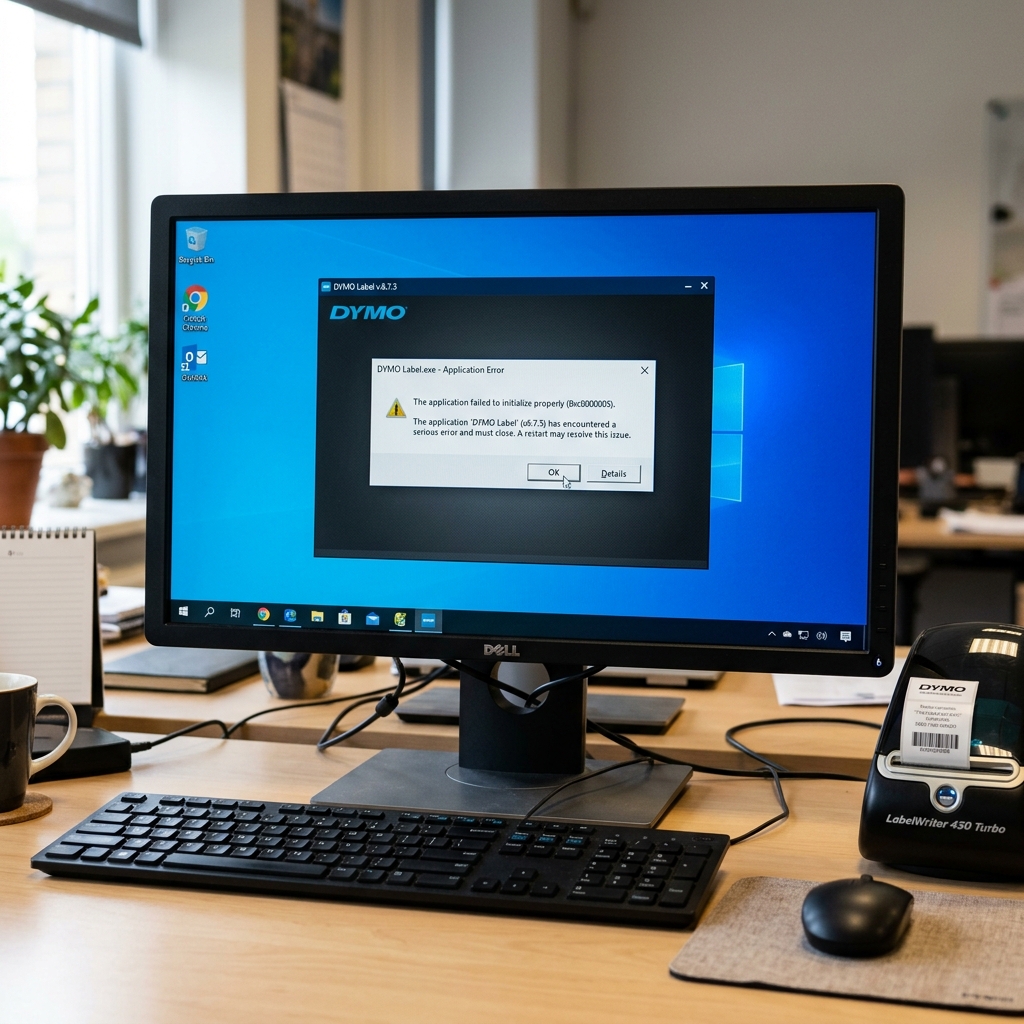
DYMO Label Software Won't Open or Install: The Ultimate Fix Guide
DYMO label printers, ranging from the LabelWriter 450 to the modern LabelWriter 550 series, are ubiquitous in offices, clinics. Shipping departments.
However, the hardware is only as good as the software that drives it. A critically common.
Frustrating issue is when the DYMO Label Software (DLS v8) or the newer DYMO Connect application completely refuses to open, crashes on startup, or fails to install on Windows or macOS. You click the icon, the loading circle spins for a second, and then absolutely nothing happens.
This disrupts workflow immediately, preventing the printing of postage, file folder labels, or barcodes. This comprehensive guide dissects the architectural flaws, service conflicts.
Registry issues that cause DYMO software to fail, providing a rigorous, step-by-step methodology to resurrect your labeling system.
The transition from DYMO Label Software v8 (a 32-bit legacy application) to DYMO Connect (a modern. Sometimes buggy, replacement) has introduced a host of new failure points.
Furthermore, DYMO's software relies heavily on background services—specifically the DYMO Web Service. Allows browsers to communicate with the printer for web-based shipping platforms.
When this service encounters port conflicts, certificate errors, or overzealous antivirus blocking, it can drag the entire desktop application down with it. Understanding the dependencies of the DYMO software ecosystem is the key to solving these startup failures.
Why This Happens
The failure of DYMO software to open or install is rarely a single, simple bug. It is usually the result of a conflict within the operating system environment. Here is a deep dive into the underlying causes:
1. Corrupted AppData settings Files: This is the most common cause of DYMO software failing to launch.
When DYMO runs, it creates settings files and caches in the user's hidden AppData folder. If the computer loses power, the application crashes unexpectedly, or a Windows update alters file permissions, these settings files become corrupted.
When you try to launch the app again, it attempts to read the corrupted XML or config files, fails to parse them. Silently terminates without throwing an error message.
2. DYMO Web Service Port Conflicts: The DYMO Web Service runs in the background.
Binds to specific local ports (typically 41951, 41952, etc.) to listen for print requests from web browsers. If another application (like a local development server, a specific antivirus module, or malware) is already using these ports, the DYMO Web Service crashes on startup.
Because the main DYMO application often waits for this service to initialize, the port conflict prevents the UI from ever appearing.
3. Outdated or Conflicting .NET Framework: Both DYMO Label v8 and DYMO Connect rely heavily on the Microsoft .NET Framework.
If the required version of .NET is missing, corrupted, or if a recent Windows Update introduced an incompatibility, the DYMO installer will fail, or the application will crash instantly upon execution. Event Viewer logs usually point to .NET runtime errors in these cases.
4. Insufficient Permissions and UAC Issues: Installing and running DYMO software requires specific read/write access to the Windows Registry and the Program Files directory.
If you are operating on a restricted user account, or if User Account Control (UAC) aggressively blocks the creation of the DYMO background services during installation, the setup will roll back or finish with silent errors, leaving a broken application behind.
5. Antivirus and Endpoint Security Interference: Modern endpoint detection.
Response (EDR) solutions (like CrowdStrike, SentinelOne) or aggressive consumer antivirus software often flag the DYMO Web Service as suspicious because it acts as a local web server handling external requests. The antivirus might quarantine the executable or block its network activity, completely breaking the software.
6. Leftover Registry Keys from Previous Installs: If you are trying to upgrade from DLS v8 to DYMO Connect, or if a previous installation failed, orphaned registry keys.
Driver files can confuse the new installer. The installer might think a newer version is already installed, or it might try to map to non-existent driver paths, causing the installation to fail with generic MSI error codes.
7. macOS Security and Privacy Settings: On Apple computers, macOS enforces strict security protocols (Gatekeeper, SIP). DYMO software requires accessibility permissions and the ability to install system extensions for the USB drivers.
If these permissions are not explicitly granted in System Settings > Privacy & Security, the software will not function, or the printer will remain completely unrecognized by the OS.
Step-by-Step Fix
- Force Kill All DYMO Processes: Before attempting any fixes, ensure no hidden DYMO processes are hung in the background. Press
Ctrl + Shift + Escto open Task Manager. Go to the 'Details' tab. Look forDLS.exe,DYMOConnect.exe, orDYMO.DLS.Printing.Host.exe. Right-click and select "End task" on any you find. - Clear the Corrupted AppData (The Magic Fix): This step solves 80% of launch issues. Press the
Windows Key + Rto open the Run dialog. Type%localappdata%and press Enter. This opensC:\Users\[YourName]\AppData\Local. Find the folder namedDYMOand completely delete it. Next, pressWindows Key + Ragain, type%appdata%, and press Enter (this opens the Roaming folder). Find theDYMOfolder here and delete it as well. Relaunch the DYMO software; it will recreate fresh, uncorrupted settings files. - Run as Administrator: Sometimes the application lacks the permissions to access necessary files or start services. Right-click the DYMO Label or DYMO Connect shortcut on your desktop or Start menu and select "Run as administrator". If it opens successfully, you can permanently set this by going to Properties > Compatibility > check "Run this program as an administrator".
- Perform a Clean Uninstallation: If clearing AppData fails, you need a clean slate. Go to Control Panel > Programs and Features. Uninstall DYMO Label, DYMO Connect, and any "DYMO Label Web Service" entries. Do not restart yet. Open Device Manager (
devmgmt.msc), go to "Printers", right-click the DYMO printer. Select "Uninstall device" (check "Attempt to remove the driver for this device" if prompted). Unplug the printer's USB cable. - Purge Leftover Files and Registry Keys (Advanced): After uninstalling, manually check
C:\Program Files (x86)\DYMO andC:\Program Files\DYMOand delete any remaining folders. PressWindows Key + R, typeregedit. (Warning: Be careful in the registry). Navigate toHKEY_CURRENT_USER\SOFTWARE\DYMOandHKEY_LOCAL_MACHINE\SOFTWARE\DYMO. Delete these DYMO keys. Restart your computer. - Install the Latest Version (With Antivirus Disabled): Temporarily pause your antivirus real-time protection. Go to the official DYMO support website and download the latest version of DYMO Connect. Right-click the installer and choose "Run as administrator". Follow the prompts. Do not plug the printer's USB cable back in until the software explicitly asks you to, or until the installation is completely finished.
- Verify and Fix the DYMO Web Service: Look at your system tray (bottom right corner near the clock). You should see a small DYMO icon. Right-click it and select "Diagnose". If it says the service is running on port 41951, you are good. If it fails, right-click the icon, select "Configure", and change the port (e.g., to 41952). If the icon is missing entirely, navigate to
C:\Program Files (x86)\DYMO\DYMO Label Web Serviceand runDYMO.DLS.Printing.Host.exemanually. - Repair .NET Framework: If the installer still fails or crashes, your Windows .NET framework is likely damaged. Download the "Microsoft .NET Framework Repair Tool" directly from Microsoft's official website. Run the tool, allow it to apply recommended fixes, and restart your computer before attempting to install DYMO again.
Advanced Troubleshooting
If you have executed a clean install. The software still refuses to open, you must consult the Windows Event Viewer to identify the exact point of failure.
Press Windows Key + X and select Event Viewer. Navigate to Windows Logs > Application.
Look for Red "Error" events that coincide with the exact time you tried to launch DYMO. Often, you will see a .NET Runtime exception or an Application Error pointing to a specific faulty module (e.g., ntdll.dll or a specific DYMO DLL).
If a specific DYMO DLL is failing, it indicates a conflict with visual C++ redistributables. Installing the latest Microsoft Visual C++ Redistributable packages (both x86 and x64) can resolve these dependency failures.
For network administrators deploying DYMO in an enterprise environment, silent installation failures are a major headache. The DYMO MSI installers can be run with logging enabled via command line: msiexec /i DymoConnect.msi /L*V "C:\dymo_install_log.txt".
Analyzing this log file will reveal exactly which custom action or registry write operation is failing. Commonly, group policies that restrict the installation of self-signed certificates will cause the DYMO Web Service installation step to fail, as the service requires a local host certificate to enable HTTPS communication with browsers.
On macOS, if DYMO software installs. Refuses to open, or if the printer shows as offline, the issue is almost always related to CUPS (Common UNIX Printing System) or Gatekeeper.
Open Terminal and run cupsctl WebInterface=yes to enable the CUPS web interface. Navigate to http://localhost:631 in your browser, go to Printers, and check the status of the DYMO printer.
If it says "Filter failed," you have an incompatible driver version for your macOS release (especially common with M1/M2/M3 Apple Silicon Macs running older DLS v8 software). You must upgrade to DYMO Connect and ensure Rosetta 2 is installed if prompted.
FAQ
Should I use DYMO Label v8 or DYMO Connect?
If you have an older printer (LabelWriter 450 or earlier), DYMO Label v8 is generally more stable. Uses fewer system resources, though it is no longer actively updated.
Why does DYMO Connect say "No Printer Found" even when it's plugged in?
This is usually a USB driver issue or a failure of the DYMO background service. Try a different USB port directly on the motherboard (avoid USB hubs).
Can I install DYMO software without administrative privileges?
No. The installation requires administrative rights to write to the Windows Registry, install USB device drivers.
How do I fix the "DYMO Web Service is not running" error in my web browser?
com or eBay) cannot communicate with the local DYMO application. Ensure the DYMO icon is visible in the system tray.
My labels are printing blank after reinstalling the software. What happened?
If the software opens and prints, but the output is blank, the software and drivers are functioning correctly. Blank labels are almost always a hardware issue: either the labels are loaded upside down (the thermal coating must face the printhead), or you are using incompatible third-party labels in a LabelWriter 550.
