


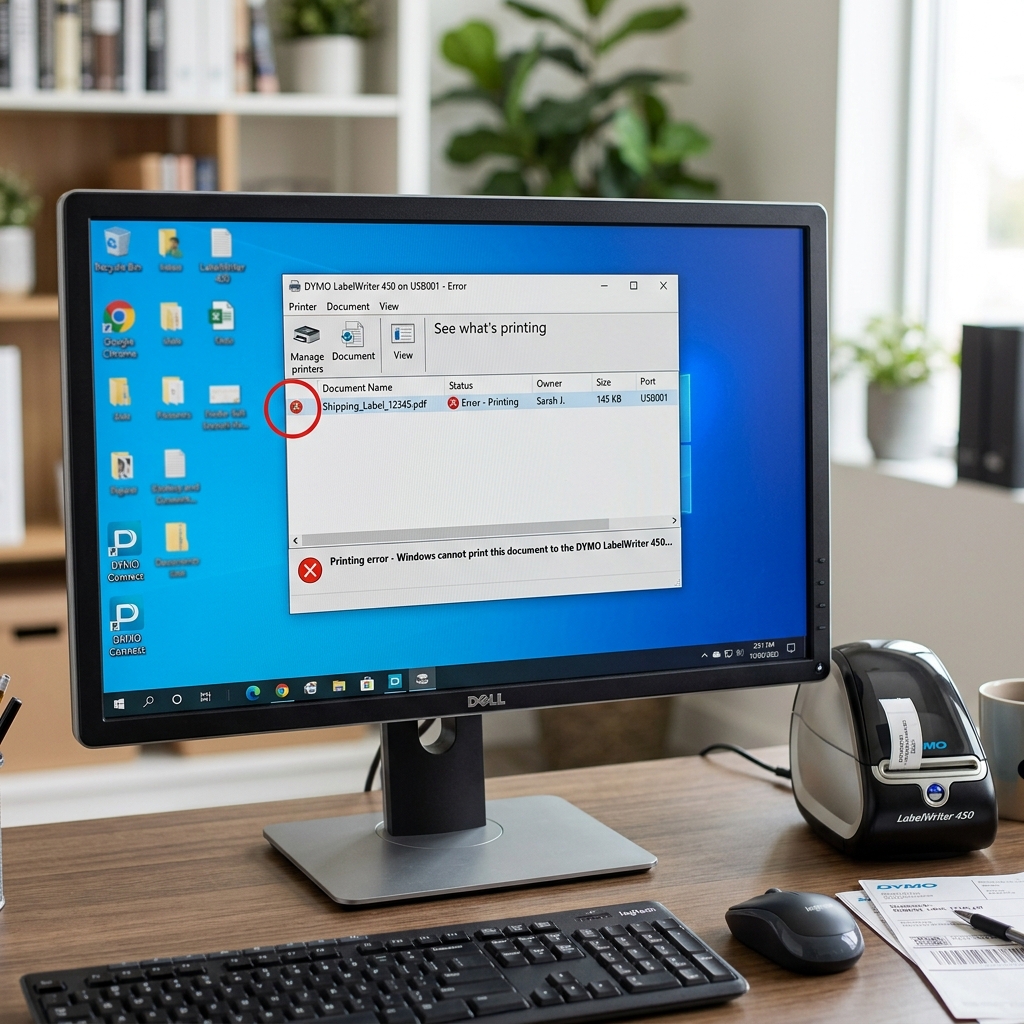
Welcome to this extensive guide on diagnosing and resolving the infamous 'Error Printing' message on DYMO LabelWriter and LetraTag printers.DYMO has long been a staple in offices, shipping departments. And home organization setups, renowned for their thermal printing technology that eliminates the need for expensive ink cartridges.However, one of the most persistent and productivity-halting issues users face is.
Sending a print job from their computer or mobile device. Only to be met with a generic, unhelpful 'Error Printing' notification while the printer itself sits completely silent and motionless.This problem can bring a busy shipping operation to a grinding halt.
Turn a simple filing task into a multi-hour troubleshooting nightmare.In this comprehensive article, we will break down the entire printing pipeline—from the moment. You click 'Print' in the DYMO Connect or DYMO Label v8 software.
Through the operating system's print spooler, down the USB cable or across the Wi-Fi network. And finally to the printer's internal motherboard and thermal print head.By understanding each critical juncture in this process, you will be.
Empowered to isolate exactly where the communication breakdown is occurring.We will cover a wide array of potential culprits. Including jammed or improperly loaded label rolls, dirty optical sensors that fail to detect the top of a form.
Corrupted print spooler files in Windows or macOS, outdated or conflicting USB drivers, and physical hardware malfunctions.Whether you are using a classic LabelWriter 450, a newer LabelWriter 550 series with RFID requirements. Or a portable LetraTag device, the systematic troubleshooting steps provided below will.
Guide you back to a state of flawless, continuous printing.
Understanding why the 'Error Printing' message appears is crucial for effective troubleshooting.Why This Happens: The root causes generally fall into three broad categories:. Mechanical sensor issues, software communication failures, and built-in media locks.Mechanically, DYMO printers rely on a small optical sensor positioned inside the feed path to detect.
The indexing mark (a small black rectangle or a physical notch) between each label.If this sensor is obscured by paper dust, adhesive residue from a jammed label. Or if the labels are loaded slightly askew, the printer cannot determine where one label ends and the next begins.The firmware (internal software) (internal software) (internal software) (internal software) interprets this as a critical error.
Refuses to print to prevent wasting labels or damaging the print head. Feeding this status back to your computer as 'Error Printing'.On the software side, the print spooler—a service in Windows.
MacOS that manages pending print jobs—can become clogged with corrupted data files.If a previous print job failed and is stuck in the queue. All subsequent jobs will fail with an error message.
Furthermore, USB driver conflicts are extremely common.A Windows update might replace the official DYMO driver with a generic Microsoft USB printing support driver. Breaking the specialized communication required by the DYMO software.Lastly, with the introduction of the DYMO LabelWriter 550 and 5XL series.
The company implemented an RFID-based DRM (Digital Rights Management) system. These printers use a sensor to read an RFID chip embedded in the cardboard core of official DYMO labels.If you attempt to use third-party, non-DYMO labels that lack this chip.
Or if the chip is damaged, the printer will intentionally trigger an 'Error Printing' or 'Out of Paper' message. Refusing to function until built-in media is installed.
- The most common software fix. On Windows, open 'Services.msc', locate the 'Print Spooler' service, right-click, and select 'Restart'.On macOS, go to System Settings > Printers & Scanners. Right-click (or Control-click) your DYMO printer, and select 'Reset printing system' (note: this removes all printers, requiring re-adding).
- Open the printer cover. Remove the label spool entirely. Inspect the feed path with a flashlight for any torn pieces of paper or sticky adhesive. Ensure the labels are loaded exactly as indicated by the diagrams, pushed firmly against the left-hand guide. The labels must pass cleanly under the black optical sensor arm.
- Use a DYMO cleaning card if you have one. If not, lightly dampen a lint-free swab with 90%+ isopropyl alcohol.Gently wipe the thermal print head (the ceramic line. Gets hot) and the small optical sensor located in the feed path. Wait 5 minutes for the alcohol to completely evaporate before reloading labels.
- If you are using a newer model, verify. You are using genuine DYMO labels with the RFID chip in the core. The printer will simply not work with generic labels.Check the LCD screen or DYMO Connect software for specific messages. Like 'Unrecognized Label' which confirm this is the root cause.
- Unplug the USB cable from your computer. Go to Device Manager (Windows) or Printers & Scanners (Mac) and completely remove the DYMO printer. Uninstall the DYMO Connect or Label v8 software. Reboot your computer.Download the absolute latest software version from the official DYMO website. Install it, and only plug the USB cable back in when explicitly prompted by the installer.
- Sometimes the simplest hardware is at fault.Try plugging the printer directly into a motherboard USB port on the back of your PC. Avoiding unpowered USB hubs or front-panel ports that might not provide stable voltage or data transfer rates. Swap the USB cable for a known good one.
- Disconnect the USB cable.On most LabelWriter models, you can perform a self-test by holding down. The front feed button while plugging the power cable in. Or pressing a specific button combination (refer to your specific manual).If the self-test prints successfully, the printer hardware is fine. And the issue is strictly related to the computer, software, or cable connection.
Advanced troubleshooting for persistent DYMO errors involves diving deeper into OS-level port configurations. Firmware (internal software) (internal software) (internal software) (internal software) resets.If the printer is connected via a network print server (like a dedicated D-Link device or shared from another PC).
The 'Error Printing' message often relates to port misconfiguration. In Windows Printer Properties, check the 'Ports' tab.Ensure it is utilizing a Standard TCP/IP port rather than a WSD (Web Services for Devices) port.
As WSD is notoriously unreliable for label printers and often causes jobs to drop into an error state.You may need to assign a static IP address to the print. Server to prevent DHCP lease renewals from breaking the connection.Furthermore, for direct USB connections that continually fail after sleep/wake cycles.
Navigate to Device Manager > Universal Serial Bus controllers > USB Root Hub > Power Management. And uncheck 'Allow the computer to turn off this device to save power'.
This prevents Windows from aggressively suspending the USB port connected to the DYMO printer.If you suspect a deeper software conflict, examine the Windows Event Viewer under 'Applications. Services Logs' > 'Microsoft' > 'Windows' > 'PrintService' > 'Admin'.
Look for Event IDs 372 or 808, which can provide specific hexadecimal error codes pointing to driver crashes (e.g., splwow64.exe faults) rather than just generic communication errors.In rare cases of firmware (internal software) (internal software) (internal software) (internal software) corruption on the printer itself.Reaching out to DYMO enterprise support might be necessary to obtain a built-in. Firmware (internal software) (internal software) (internal software) (internal software) flashing utility.
As these are not always publicly available on their consumer download pages.
FAQ
Can I bypass the RFID check on the LabelWriter 550 to use third-party labels?
Officially, no. While some users have attempted hardware modifications or transplanting chips from empty cores.
Why does the printer feed out several blank labels before showing an error?
The printer is feeding the paper, trying to find the black. When it fails to detect a gap after a certain length of paper has passed.
Is DYMO Label v8 still supported on modern operating systems?
While Label v8 may still run on older versions of Windows 10 or macOS. It is notoriously incompatible with the latest major OS updates (like Windows 11.
The light on the front of my LabelWriter is flashing. What does that mean?
A flashing light is a hardware-level status indicator. A rapid, continuous flash indicates a more severe issue.
