


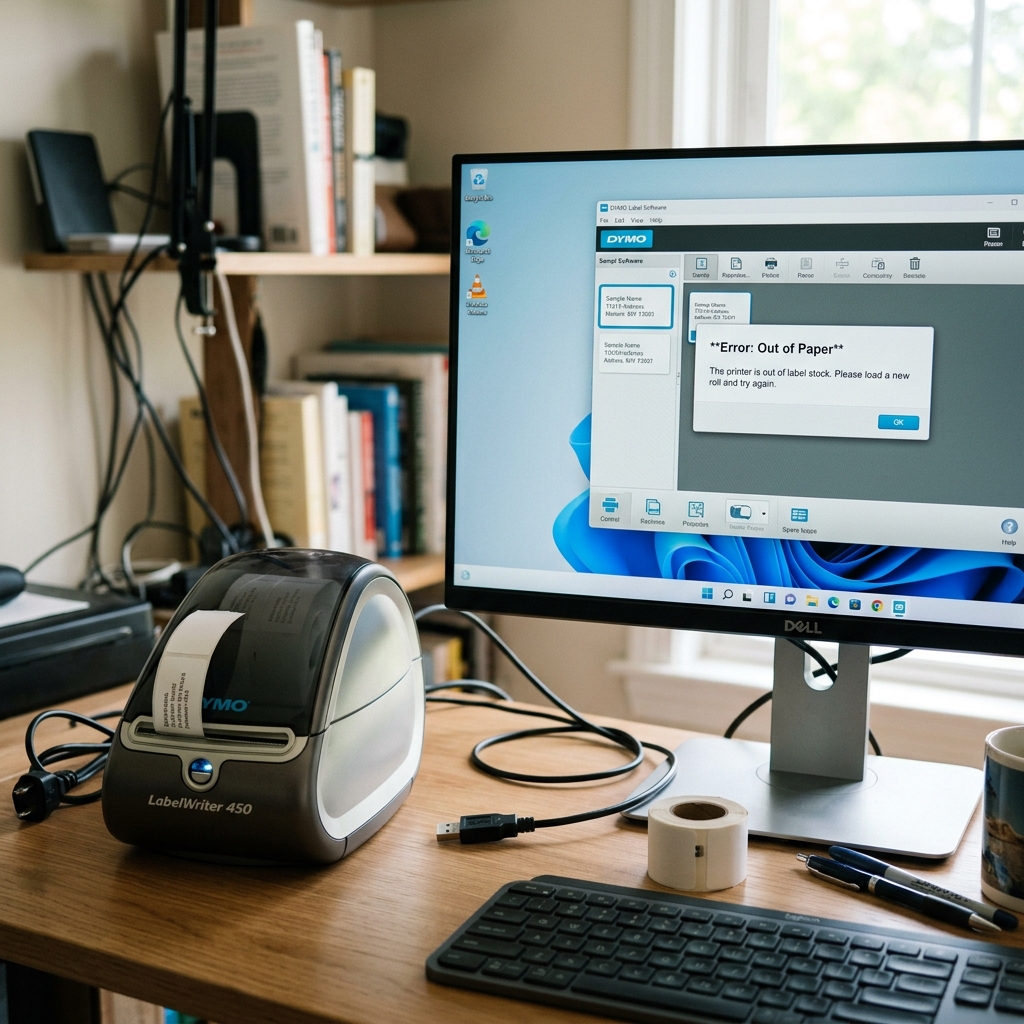
Why the Printer Thinks It's Empty
A DYMO LabelWriter relies on physical and optical sensors to know if paper is loaded. If you are receiving an "Out of Paper" error on your computer screen (or the blue light on the front of the printer is flashing), a sensor is being blocked or bypassed.
Fix 1: The LabelWriter 550 RFID Trap
If you recently upgraded from an older LabelWriter 450 to a new LabelWriter 550 or 5XL, you must understand DYMO's new DRM (Digital Rights Management) system.
The 500 series uses a small RFID reader inside the right side of the label spool mount. Genuine DYMO labels now have an RFID microchip embedded in the cardboard core. The printer reads this chip to know exactly how many labels are left on the roll.
If you insert third-party, aftermarket labels (which do not have the chip), the printer will flash and throw an "Out of Paper" or "Labels Not Detected" error. It is not broken; it is intentionally locking you out. You must buy genuine DYMO labels for the 550 series.
Fix 2: Left-Side Alignment (For Older Models)
If you are using an older 450, 4XL, or a Dymo Twin Turbo, the printer uses a simple optical sensor located on the far left side of the paper feed path.
If you loaded the roll onto the spool, but failed to push the black retaining disc tightly against the roll, the paper can slide to the right. As soon as the paper slides away from the left wall, it uncovers the optical sensor.
The sensor sees empty space and immediately triggers the "Out of Paper" error, halting your print job.
Remove the spool, push the roll tight against the left wall, secure it with the retaining disc, and feed the paper straight down.
Fix 3: The Black Index Mark
Some specialty DYMO labels (like clear plastic labels or jewelry tags) do not have physical gaps between them. Instead, they have a thick black line printed on the back of the liner.
If you insert these labels upside down, the optical sensor cannot see the black index mark. Ensure the labels are feeding from underneath the roll, with the label face pointing up, and the black marks pointing down toward the sensor.
Why DYMO LabelWriter Printers Report "Out of Paper" With Labels Loaded
DYMO LabelWriter printers (LabelWriter 450, 450 Turbo, 4XL, 550, 5XL) utilize an optical transmissive sensor positioned on the label feed path to detect label gaps and index holes.
When the printer flashes a blue or red status LED and insists it is out of paper despite a full roll loaded, sensor calibration failure, label dust, or RFID authentication issues (on 550-series) are responsible.
Exhaustive 4-Step Resolution Guide
- Clean the Optical Index Gap Sensor:
Unplug the power and USB cables. Open the top label cover.
Remove the label roll. Look down into the label feed throat.
You will see a small, rectangular optical sensor opening. Dust from thermal label backing accumulates here.
Use a can of clean compressed air to blow out the sensor opening, then wipe the sensor glass with a dry foam swab.
- Verify Label Spool Guide Flange Positioning:
The plastic label spool consists of a spindle and a sliding side flange. If the sliding flange is loose, the label roll will wobble sideways, causing the index holes to drift away from the optical sensor beam.
Push the sliding flange snugly against the side of the label roll so it rotates with zero lateral play.
- Understanding the DYMO 550 / 5XL RFID Requirement:
DYMO 550-series printers feature integrated RFID readers that authenticate an RFID microchip embedded in the cardboard core of genuine DYMO label rolls. If you load third-party (non-RFID) labels into a DYMO 550 or 5XL, the printer will permanently report "Out of Paper" or "Invalid Media".
Using genuine DYMO rolls is required on 550 models.
- Re-feed Labels Using the Form Feed Button:
Thread the leading edge of the label roll into the feed slot until the motorized roller automatically grabs and advances the label to the tear bar. Press the physical Form Feed button on the front once to synchronize the top-of-form index mark.
Frequently Asked Questions
Why does the printer feed 3 blank labels every time I press Form Feed?
If the printer feeds multiple labels without stopping at the tear line, the optical gap sensor is blinded by label dust or the label stock does not have standard die-cut gaps.
Can I clean the rubber platen roller inside a DYMO LabelWriter?
Yes. Feed an official DYMO Cleaning Card (or a business card lightly moistened with 99% isopropyl alcohol) through the feed path while pressing Form Feed to remove adhesive residue.
