


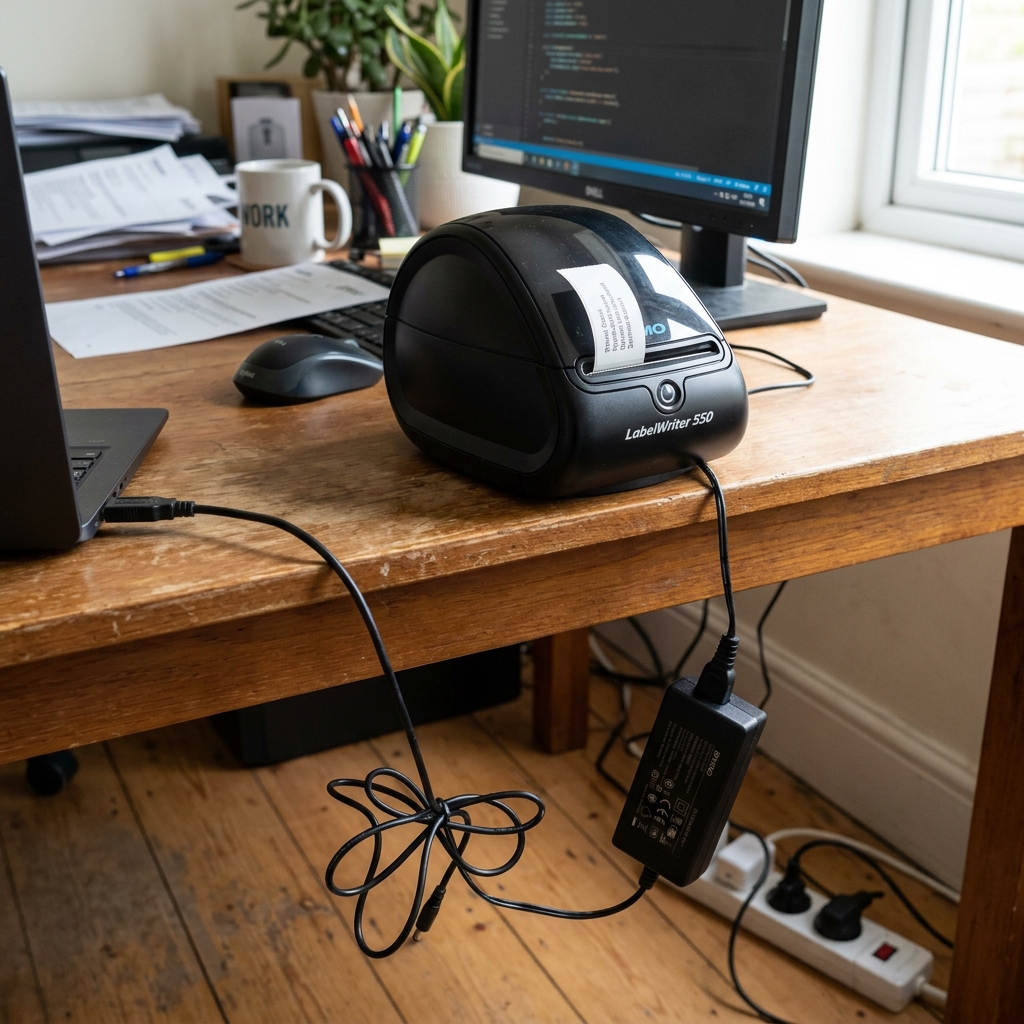
The DYMO LabelWriter 550 represents a significant evolution in DYMO's popular line of desktop label printers. Introducing new technologies aimed at streamlining the printing process.
However, a common and incredibly frustrating issue users encounter is the printer simply refusing to print. Often accompanied by a blinking light or an error message on the computer, despite everything appearing to be connected correctly.
This problem is frequently tied to the power adapter. It can also be rooted in driver conflicts, the specific type of labels being used, or spooler errors within the operating system.
The LabelWriter 550 is a precision instrument relying on direct thermal technology and a complex sensor array. When any part of this system—from the quality of the electrical power it receives to the software commands sent from the PC—is compromised.
The printer halts operation to prevent hardware damage or wasted labels. This comprehensive troubleshooting guide will break down the potential causes of a non-printing DYMO 550.
Focusing heavily on power adapter issues, and provide detailed, actionable steps to diagnose the problem, reset the system, and get your labeling workflow back on track. A systematic approach is crucial here to avoid replacing unnecessary parts or wasting time on software fixes when the issue is hardware-based.
Why This Happens
The most unique and frequently misunderstood cause for the DYMO 550 not printing is its Automatic Label Recognition technology. Unlike older models (like the 450), the 550 series contains an RFID reader that requires labels with a specific RFID chip embedded in the core of the roll.
If you attempt to use third-party labels, older DYMO labels without the chip. Or if the chip on a new roll is damaged, the printer will flat-out refuse to print, often flashing a blue light.
This DRM (Digital Rights Management) feature is a primary reason users mistakenly believe the printer is broken when it is simply rejecting non-compliant media. It is designed to ensure label counts are accurate.
Print settings are automatic, but it introduces a strict compatibility requirement that cannot be bypassed.
Beyond the labels, power delivery is a critical failure point. The LabelWriter requires a specific 24V DC power supply to operate its motors and heat the thermal printhead.
If you accidentally mix up power adapters and plug in an adapter from an older DYMO model. A router, or a laptop, the printer might turn on and show a light, but it will lack the required voltage or amperage to actually engage the print mechanism.
A failing or degraded power adapter can al. Cause intermittent printing, where the printer starts a job, fails mid-way, and throws a vague error.
Furthermore, on the software side, the DYMO Connect software can suffer from corrupted drivers. Conflicting background services, or a jammed Windows Print Spooler.
If the communication bridge between the software and the hardware breaks down. Print jobs will sit in the queue indefinitely, while the printer remains completely unresponsive, waiting for commands that never arrive in a readable format.
Step-by-Step Fix
- Verify Label Authenticity (Crucial First Step): Check the roll of labels currently loaded in the printer. The DYMO 550 will ONLY print on "Authentic DYMO Labels" that have an RFID chip in the cardboard core. If you are using generic labels purchased cheaply online, or old stock from a previous DYMO 450, remove them immediately. Insert a brand new, confirmed authentic DYMO 550 compatible roll. Ensure the roll is pushed all the way to the right side of the spool. The RFID reader can detect the chip. The software should immediately display the label size and remaining count if it reads the chip correctly.
- Inspect the Power Adapter: Locate the power brick connected to your DYMO 550. Read the label on the brick carefully. It MUST state an output of 24 Volts (24V) and at least 1.75 Amps (1.75A) or higher. If the adapter says 12V, 9V, or 5V. You are using the wrong adapter, and this is why it won't print. Ensure the cable connecting the brick to the wall. The thin cable connecting the brick to the printer, are free from cuts, severe bends, or exposed wires, which can cause voltage drops under load.
- Perform a Hard Power Cycle: Disconnect the USB cable from the back of the printer. Unplug the power adapter from the electrical outlet AND disconnect the power plug from the back of the printer. Wait a full 60 seconds. This allows internal capacitors to drain and resets the printer's logic board. Reconnect the power adapter to the wall and the printer. Turn the printer on. Do not reconnect the USB cable yet. This isolates hardware from software issues.
- Test the Hardware (Self-Test): With the printer powered on and loaded with authentic labels. Press and hold the form-feed button (the button with the arrow) on the front of the printer for about 5 to 10 seconds. The printer should print a diagnostic test pattern with vertical and horizontal lines. If this prints successfully, your hardware and power adapter are fully functional. The issue lies entirely with your computer, USB cable, or software. If it does not print, the printer is mechanically jammed. The power adapter is failing under load, or the logic board is dead.
- Check USB Connection and Ports: Reconnect the USB cable. Do not use a USB hub, monitor passthrough, or keyboard USB port. Plug the DYMO directly into a main USB port on the back of your computer (if using a desktop) or a primary port on your laptop. A faulty USB cable or an underpowered hub can prevent data transmission, leaving jobs stuck in the queue. Try a different USB cable if possible to rule out physical cable damage.
- Clear the Print Spooler (Windows): If the self-test works but computer printing fails, the Windows spooler is likely stuck. Press the Windows Key + R, type 'services.msc', and press Enter. Scroll down the list of services until you find "Print Spooler." Right-click it and select "Stop." Leave that window open. Open File Explorer and navigate to 'C:\Windows\System32\spool\PRINTERS'. Delete all files in this folder (do not delete the folder itself, just its contents). Go back to the Services window, right-click "Print Spooler," and select "Start."
- Reinstall DYMO Connect Software: If clearing the spooler doesn't work, completely uninstall the DYMO Connect software from your computer. Disconnect the printer. Restart your computer. Go to the official DYMO website, download the absolute latest version of DYMO Connect for your operating system, and install it. Only reconnect the printer via USB when the installation software explicitly prompts you to do. To ensure the correct drivers are loaded.
Advanced Troubleshooting
If you suspect the power adapter is the culprit, you can use a digital multimeter to test its output. Set the multimeter to measure DC voltage.
Carefully insert the positive probe into the center of the barrel connector. Touch the negative probe to the outer metal sleeve.
The reading should be a steady 24V (usually +/- 5%). If the voltage fluctuates wildly, or reads significantly lower (e.g., 18V), the power adapter's internal components have failed, and it must be replaced.
Do not attempt to open or repair the power brick yourself due to the risk of electric shock. Potential fire hazard from faulty components.
If the printer is recognized by the computer. Continuously spits out blank labels, the optical sensor that detects the gap between labels is likely dirty or obstructed.
Unplug the printer, remove the labels, and use a can of compressed air to blow out the entire paper path. You can also use a cleaning card designed for thermal printers.
Is a specialized card coated in isopropyl alcohol that you feed through the mechanism to clean the printhead and sensors simultaneously. Finally, check the Device Manager in Windows or System Information on Mac.
If the printer appears with a yellow exclamation mark or as an "Unknown Device. " it indicates a severe driver failure at the OS level, requiring a forced manual driver update pointing directly to the driver files extracted from the DYMO installation package rather than relying on automatic setups.
FAQ
Can I bypass the RFID requirement and use third-party labels on the DYMO 550?
No, there is currently no official or safe way to bypass the RFID reader on the LabelWriter 550 series. Attempting to tamper with the reader or the firmware (internal software) will void your warranty.
Why is the blue light on my DYMO 550 flashing constantly?
A flashing blue light indicates an error state, most commonly related to the labels. It usually means the printer cannot detect the RFID chip (non-authentic labels).
My power adapter is 24V, but the printer still won't print. What else could it be?
75A). If the adapter cannot provide enough current under load (when the motors engage.
Should I use the older DYMO Label Software (DLS v8) or the new DYMO Connect?
The DYMO LabelWriter 550 is designed to work specifically with the newer DYMO Connect software. While older software versions might recognize the printer.
