


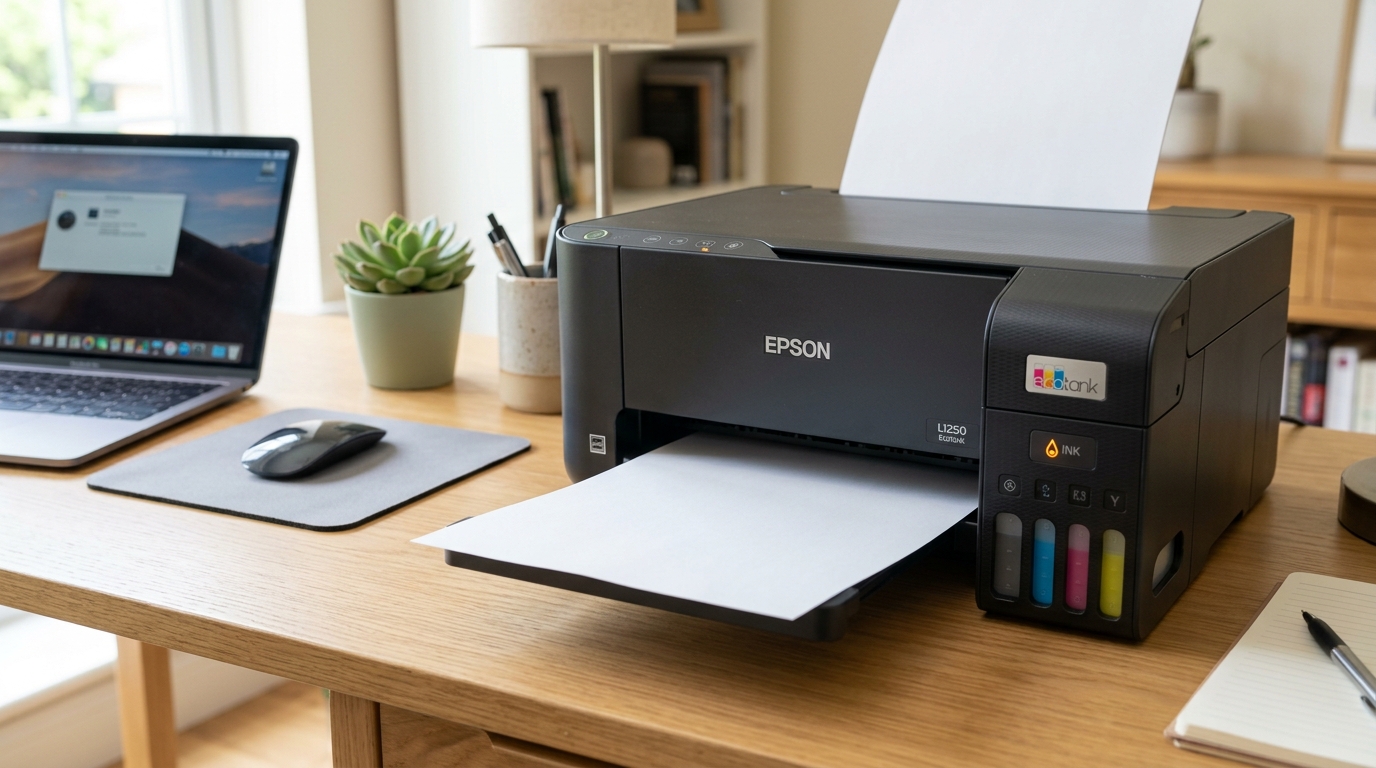
Troubleshooting Epson L1250 Output Failures
The Epson EcoTank L1250 is an ultra-compact single-function refillable ink tank printer equipped with Wi-Fi and Wi-Fi Direct. Because it lacks a display screen, diagnosing communication drops or blank output relies on LED indicator codes.
Common failures include dried ink in Micro Piezo nozzles, trapped air in the supply lines, or print jobs held in a paused Windows or macOS spooler queue.
Step 1: Check Front LED Warning Lights
The L1250 control panel communicates internal states through its power, Wi-Fi, paper, and ink LEDs:
- Power LED flashing rapidly: The printer is processing data or charging ink. Wait until the green light stays solid.
- Orange paper LED on: Paper has run out or fed improperly. Reload the rear tray and tap the Paper button.
- Orange ink LED on: Ink levels have dropped below the lower line. Refill the 003 ink tanks immediately.
- Paper and ink LEDs flashing alternately: The internal waste ink pad is nearing saturation. Service the pad counter using Epson maintenance utilities.
Step 2: Clear Dried Nozzles and Air Locks
When the carriage moves across the page but ejects completely blank paper, the printhead nozzles are starved of ink:
- Print a nozzle check pattern: Turn off the printer. Press and hold the Stop button, then press Power until the power light flashes to print a nozzle test sheet.
- Execute standard head cleaning: With the printer powered on, press and hold the Stop button for 3 seconds until the power light flashes to initiate a cleaning cycle.
- Allow ink to rest: Wait 15 minutes after cleaning to let micro-bubbles dissipate before retesting.
- Perform Power Cleaning (if needed): If standard cleanings fail, run a Power Ink Flushing cycle through the Epson Printer Utility on your PC.
Step 3: Clear Stalled Print Queues and Spoolers
Corrupted print spooler files hold the L1250 in a perpetual busy state:
- Open Windows Services: Press Win + R, type
services.msc, and hit Enter. - Stop Print Spooler: Scroll to Print Spooler, right-click, and select Stop.
- Purge spooler files: Open File Explorer, navigate to
C:\Windows\System32\spool\PRINTERS, and delete all files inside. - Restart Print Spooler: Return to Services, right-click Print Spooler, and click Start.
Step 4: Restore Wi-Fi and Wi-Fi Direct Connection
IP conflicts or router band handshakes prevent computers from reaching the printer:
- Verify Wi-Fi LED status: The top Wi-Fi light should glow solid green. If amber or unlit, connection to your router is lost.
- Print network status sheet: Press and hold the Network Status (i) button for 7 seconds to print the IP address and signal strength.
- Reconfigure via Epson Smart Panel: Open the Epson Smart Panel app on your smartphone, tap Find Printer, and reconnect to your 2.4 GHz network.
Frequently Asked Questions
Why is my Epson L1250 printing blank pages after refilling ink?
Air pockets entered the printhead tubes during refilling; perform one power cleaning cycle to draw liquid ink into the nozzles.
How do I reset the Wi-Fi settings on the Epson L1250?
Turn off the printer, then hold down the Wi-Fi button while powering on until the Wi-Fi and Wi-Fi Direct lights flash alternately.
Does the Epson L1250 support 5 GHz Wi-Fi networks?
No, the L1250 only operates on 2.4 GHz wireless frequency bands.
